Creative workflows
Claude Fable 5.2 Product Image Prompts: Three Briefs with Identity Checks
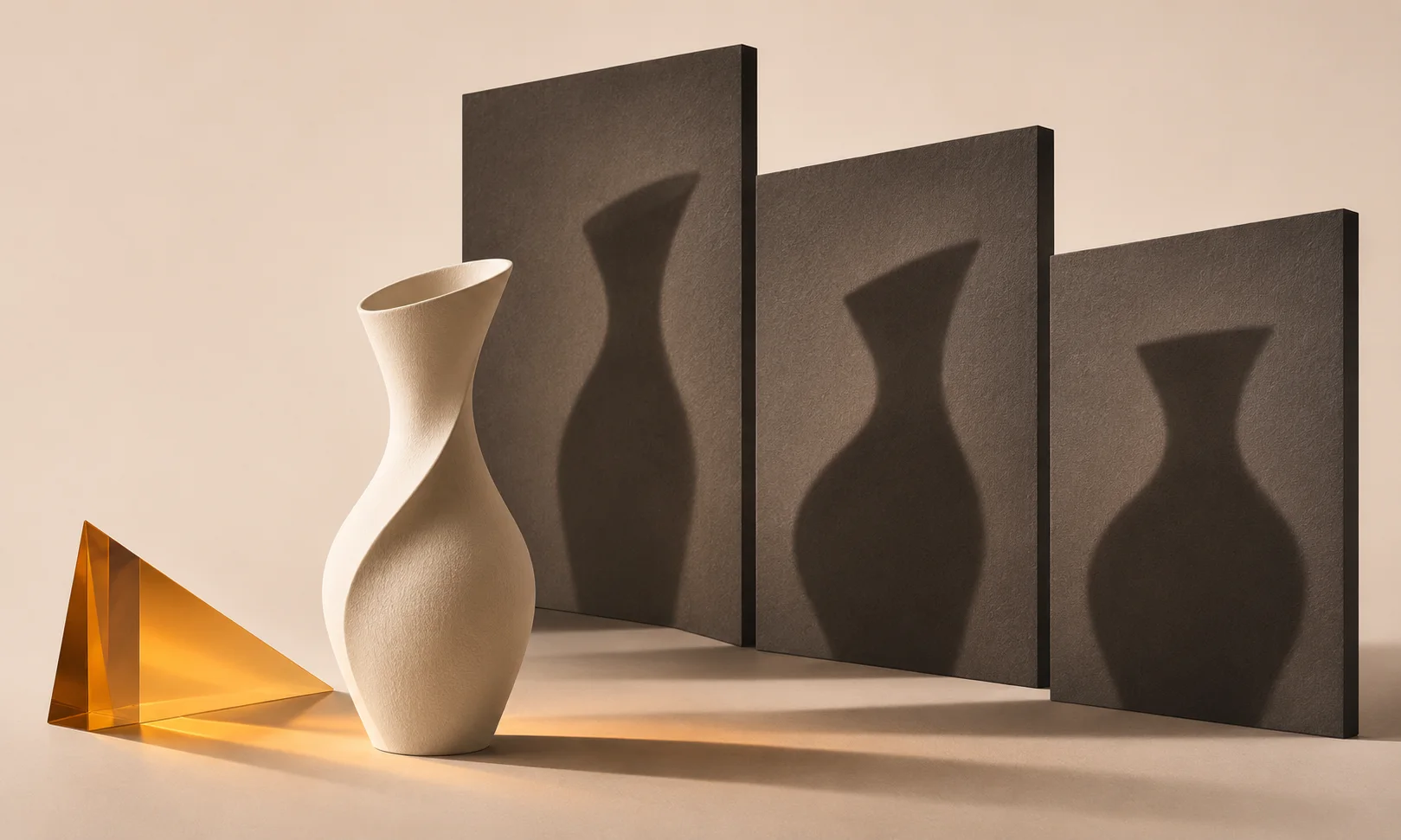
An image prompt that describes a beautiful scene can still change the product. A marketer needs separate instructions for the source item, the surrounding scene and the details that cannot move.
This guide uses documentation reviewed on November 12, 2026 and an illustrative exercise; it does not report a live Fable test. Use Fable on a Claude surface where it is available, then manually carry the approved material into Ciyo.
Quick answer
Use a source-lock block, a scene block and an acceptance block. Start with one hero image, then adapt the structure for a close-up or a lifestyle scene; inspect identity before making a batch.
Template 1: A product hero with copy space
Supply the approved product image and describe the intended headline area. For a fictional ceramic vase, lock its rim, handle count, glaze pattern and proportions. Ask for a simple backdrop before adding props.
Illustrative output brief: vase on the right, neutral background, clear left area for editable campaign text. This is a proposed layout, not an observed Fable or image-model result.
Write one hero-image brief from [SOURCE PHOTO]. Preserve [IDENTITY DETAILS]. Put the product on [SIDE] and reserve [AREA] for text added later. Describe background, light and crop. Do not add logos, offers or product features. Finish with five identity checks.Template 2: A detail crop grounded in the source
A close-up should explain something visible in the original. Name the exact feature and confirm that the source has enough detail. If the glaze edge is blurry, ask for another photo rather than asking the model to invent its texture.
Illustrative output brief: a crop of the original rim detail with a neutral annotation outside the photograph. The appropriate solution may be a crop rather than generation.
Plan a detail image of [VISIBLE FEATURE] from [SOURCE]. Say whether a crop is sufficient or a clearer source is needed. Keep original proportions and surface detail. Do not infer unseen structure. Reserve room outside the photo for an approved caption.Template 3: A lifestyle scene without false scale
A real-world setting needs a scale anchor. Supply approved dimensions or a reference photograph; do not rely on a familiar prop if its size is unknown. Ask the brief to mark any scene relationship that remains illustrative.
Manually transfer the approved request and source image into Ciyo using an image model currently available to your account. Compare the result with the source for shape, detail and scale. Add exact text separately and inspect the saved file.
Prepare a scene brief for [PRODUCT] in [SETTING] using [PHOTO] and [APPROVED DIMENSIONS]. Preserve the product identity and leave [COPY AREA] clear. Separate verified scale from illustrative relationships. List changes to reject, including altered handles, labels or materials.Choose the first template
These example checks describe acceptance criteria, not observed model results.
| Task | Start here | Reject if |
|---|---|---|
| Campaign hero | Template 1 | Product identity changes |
| Explain a feature | Template 2 | Detail is invented |
| Show use context | Template 3 | Scale implies an unsupported claim |
Common mistakes and how to recover
Negative instructions alone do not lock product identity. Supply the source and inspect the actual result.
If a detail cannot be verified from the photograph, simplify the composition or obtain another source rather than accepting a plausible invention.
Choose a working method and make the handoff
For a solo shop, start with one item and keep the source facts beside the draft. A team should name one approver and keep a dated version so an old comment cannot silently override the current decision. If the input is incomplete, return to the owner of that fact before polishing the artwork.
Use Ciyo for the visual work described here with the controls and models currently offered in your account. Keep the approved copy separately and add exact wording with editable canvas text where needed. A generated picture is a visual draft; inspect its exported file before using it.
Sources and further reading
Primary documentation and related guides used for this article. Availability and controls can vary by account; verify them before beginning your own run.
Frequently asked questions
Are these tested prompts?
They are original, copyable templates with illustrative briefs. No live comparative model test is claimed.
Can Fable generate the product photograph itself?
This guide uses Fable to write a brief and a separate image model to render it. See the linked image-output explainer for the distinction.
Which template should a beginner try?
Start with the hero brief and one clear source photo. It has fewer scene relationships to inspect than a lifestyle composition.
Prepare one visual draft in Ciyo
Bring the approved inputs and review one version against the checks in this guide before making more variants.