Email signature artwork
Email Signature Image Size: Keep Contact Details as Live Text

A signature that contains the name, role, email address and website inside one picture depends on that picture being displayed. It also makes a small text change an image-editing task. Use artwork as a supporting strip and keep essential contact information in the mail client's actual text fields.
We created an abstract source image in Ciyo's built-in Image Generator after an earlier agent request failed without saving an image. We then made a separate 400 × 80 crop and inspected a plain HTML companion with fictional live contact text. This is a browser and file review; we have not changed Gmail settings, sent a message or tested received mail across clients.
Quick answer: use a small supporting image and ordinary contact text
Our example uses a 400 × 80 PNG below the fictional name, role, email and website. Those details remain selectable text and links. The image contains no essential information. Gmail's current troubleshooting guide recommends signature images 300–400 pixels wide and 70–100 pixels high; that is Gmail-specific guidance, not a universal specification for every mail client.
Follow these five steps. The supplied HTML demonstrates content separation with one version containing the image and another deliberately omitting it. It does not simulate Gmail's interface or prove how a particular mail client blocks remote images.
| Step | Action | Check |
|---|---|---|
| 1 | Decide which information must remain text | Name, role and current contact links |
| 2 | Generate a text-free supporting image | Actual Ciyo output without flattened contact details |
| 3 | Make and inspect the final-size strip | 400 × 80 pixels, readable composition and known opacity |
| 4 | Build the live-text signature | Contacts remain ordinary HTML text and links |
| 5 | Check received messages in the actual clients | Real display, links and image behavior |
1. Keep the useful contact information outside the picture
For fictional designer Alex Example at Juniper Studio, the signature needs a name, role, email address and website. The example uses hello@example.com and example.com as fictional destinations. The supporting artwork adds a visual identity but carries none of those details.
Use the smallest set of information that helps the recipient act. A solo designer may need one email and one portfolio link. A team should agree which current contact details and role names are approved. Update those values in the signature text rather than regenerating an image whenever a person changes roles.
If a required disclaimer or business detail belongs in your real signature, keep it as readable text too. This example supplies no organization-specific wording. The principle is that removing the picture should leave the contact information understandable, while the actual mail-client behavior still needs its own check.
2. Generate a simple text-free source in Ciyo
Open an isolated Ciyo project and use the Image Generator for the supporting artwork. Choose a wide available ratio and keep the central horizontal band simple enough for a later crop. Put the visual detail near an edge and exclude letters, contact information, logos and QR codes.
Our earlier agent request for an exact 400 × 80 strip failed without saving an image. We preserved that failure, then used the built-in generator in the same project. The observed settings were GPT Image 2.5 Flare, a 3:1 ratio, 1K and one image. Its actual saved PNG was 1728 × 576; the settings preview was not a substitute for inspecting that file.
The generator produced a warm ivory field with charcoal folded-paper forms and an amber accent at the left. The saved project showed the source ready on the canvas. This successful image generation is separate from the failed agent turn still visible in its history. We did not retry the failed agent request to claim it had completed.
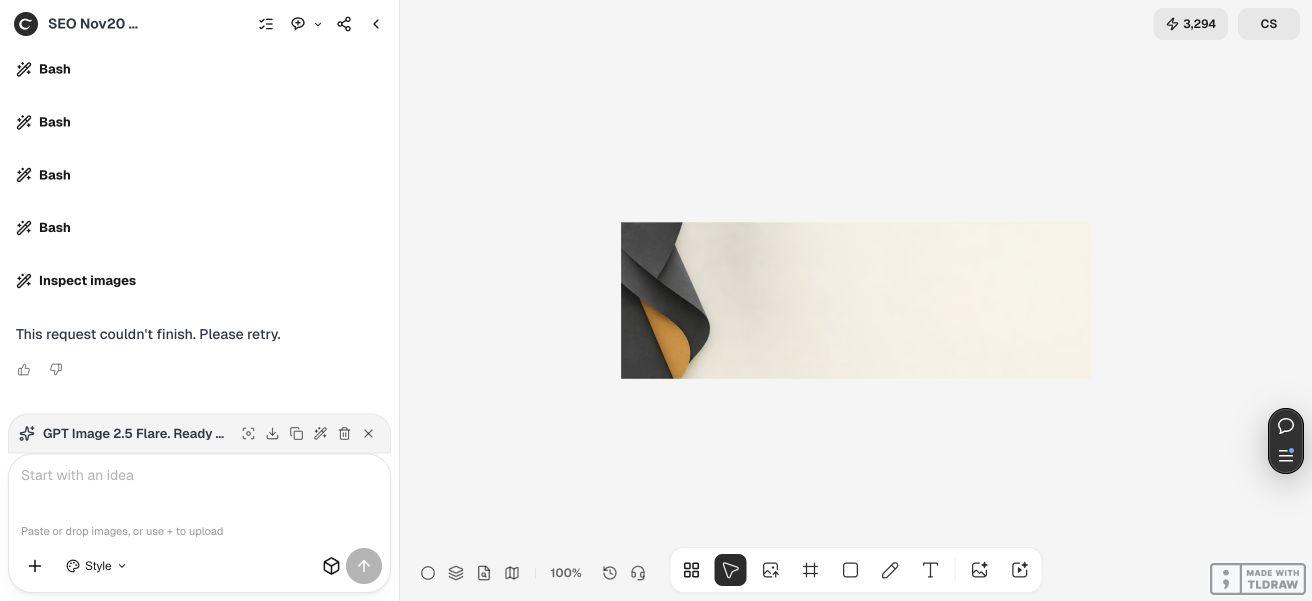
Create a text-free abstract horizontal supporting image for [fictional or approved brand]. Use [approved palette], simple matte forms near an outer edge and a quiet central band suitable for a later wide crop. No letters, logo, person, interface, contact information, QR code, room or physical mockup. Keep one coherent abstract composition. The name, role, email and website will remain live text outside the image.3. Crop and inspect the actual 400 × 80 export
We made the final strip separately after downloading the Ciyo source. The editorial crop uses a 1725 × 345 area beginning at x = 1, y = 115 in the 1728 × 576 original, then proportionally reduces that 5:1 area to 400 × 80. This is a crop and resize, rather than an exact-size Ciyo agent export.
The source contained partial transparency. We flattened the final strip onto white and checked that the resulting PNG has three color channels and no alpha channel. Its file size is 34,273 bytes, about 33.5 KiB. A transparent source can look different against different backgrounds, so inspect opacity as well as dimensions. An opaque white-backed strip can remain visibly white in a dark theme; this example does not establish dark-mode behavior.
Review the small file at its intended size. The left-edge charcoal and amber detail remains visible, while the rest of the strip is quiet. It contains no tiny lettering that needs to survive shrinking. If your version loses its useful visual identity at 400 × 80, simplify or recompose it instead of adding contact text back into the picture.


4. Assemble the signature as live text plus a supporting image
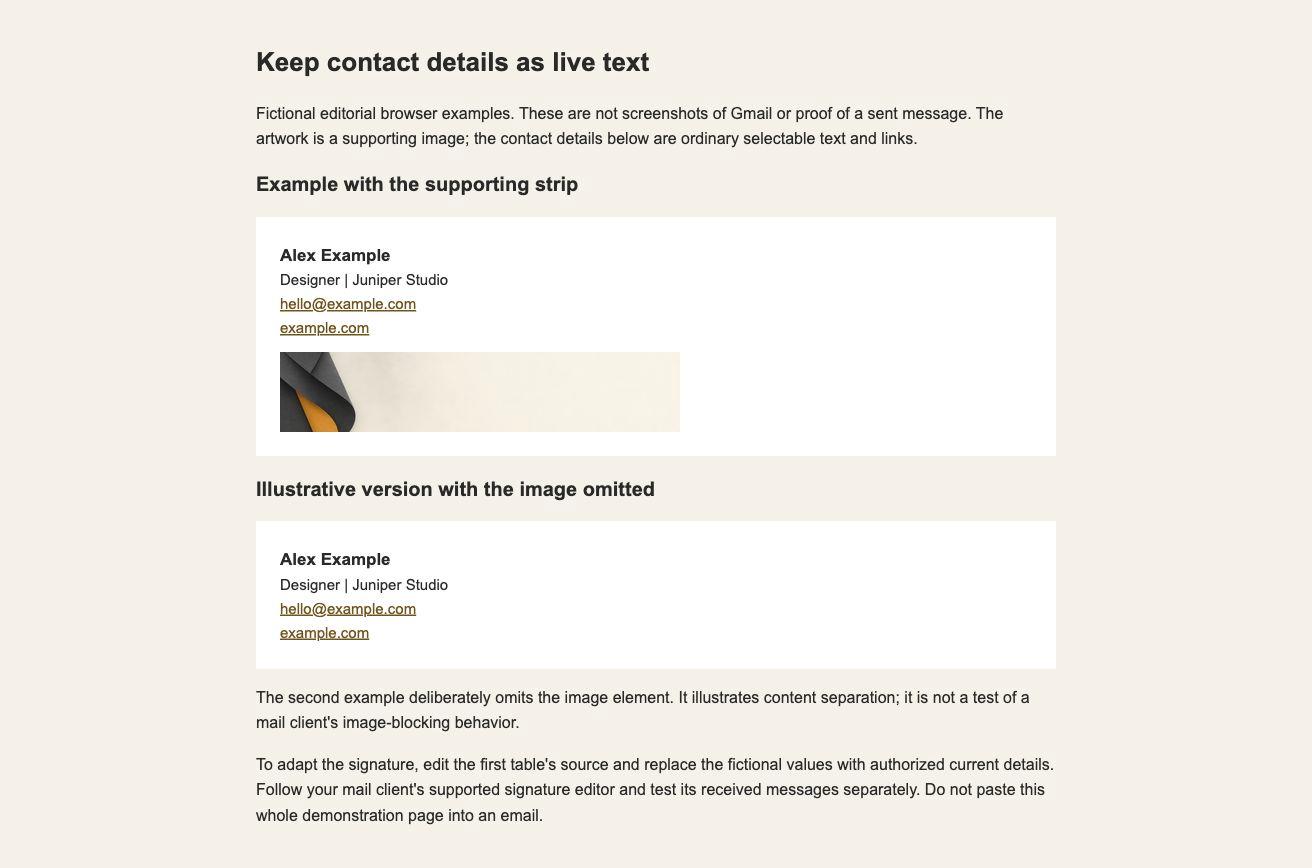
The HTML companion places the fictional name and role above an email link and website link, with the supporting strip below. The picture's alt attribute is empty because it is decorative in this signature; the actual contact information remains text. This differs from the descriptive alt text used for the article's instructional figures.
We opened the companion in Chrome and confirmed that the image loaded at its natural 400 × 80 dimensions. The name, role and contact links appear as ordinary document content. The second example deliberately omits the image element and retains the same contact text. That demonstrates the separation in this HTML, not a received-message or mail-client blocking test.
Edit the first table's source to adapt the example. Replace the fictional values with authorized current details, then use your mail client's supported signature editor. The full demonstration page includes explanatory text and a second comparison; do not paste that entire page into a message signature.
5. Check the real mail-client workflow before daily use
Follow the current signature setup instructions for your actual client. In Gmail, the signature belongs in the supported settings editor, with text and an optional image. This demonstration did not change the user's Gmail account or send any mail.
For your own setup, review a received test message in the clients and devices that matter to your work. Check the actual links, contact-text size, line wrapping, reply appearance and what remains when remote images are unavailable. A plain browser example cannot establish all of those behaviors.
If a particular client changes spacing or styling, simplify the signature and repeat that client's check. Keep a copy of the approved text and image file so a person can update a role or link without reconstructing the artwork. The useful result is a maintainable signature whose essential content does not live inside the decorative picture.
Signature image and contact-text questions
Is 400 × 80 the required size for every email client?
It is this example's selected size and falls within Gmail's current recommended image dimensions. Other clients and layouts need their own current guidance and received-message checks.
Can I put the whole signature inside one image?
That makes the contact details depend on the picture. This example keeps the name, role, email and website as actual text and links, with an optional supporting strip below.
Did Ciyo export the exact 400 × 80 file?
The built-in generator saved a 1728 × 576 source after a separate agent request had failed. The editorial team cropped, resized and flattened that source to produce the checked 400 × 80 PNG.
Does the HTML comparison prove image-blocking behavior in Gmail?
No. Its second example deliberately omits the image element. We reviewed the plain browser page, not a received Gmail message. Check the actual clients separately.
What skills and time do I need?
You need basic image cropping or the supplied PNG, text editing and access to your own client's signature settings. This example establishes no fixed setup time or universal cross-client compatibility.
Let the artwork support the contact information
Create a simple text-free image in Ciyo, inspect its final-size export and keep the actual name and links in live text. Review the result in your own mail workflow.