Practical design guides
LinkedIn Carousel PDF: Check Page Order Before Posting

A carousel can look correct on a canvas while the PDF starts with the wrong page or uses a different crop halfway through. For a LinkedIn document post, the file you upload is the thing readers swipe through. A row of attractive images is only the source material.
This workflow uses LinkedIn’s document-upload guidance and a fictional Alder Workshop example made in Ciyo on November 15. Ciyo returned four page images; we assembled the PDF separately. The example was not posted to LinkedIn, and it supplies no engagement result.
Quick answer
Approve the words, make every page the same shape, and export or assemble one PDF in the intended reading order. Reopen that PDF outside the design canvas and inspect every page before attaching it to a LinkedIn document post. Do not assume the order of selected files matches their order on a board.
1. Write a page map before choosing a layout
Give each page one job. Our fictional repair workshop uses a cover question, an inspection step, a parts check and a final decision. This is a short educational document, not proof that a repair is safe or economical. Electrical faults still belong with a qualified repairer.
Write the full page text in an approved source document. Include any qualification on the page where the reader needs it, rather than hiding it in the caption. If a revision changes the argument, fix the page map before decorating the new sentence.
| Page | Reader’s question | Required content |
|---|---|---|
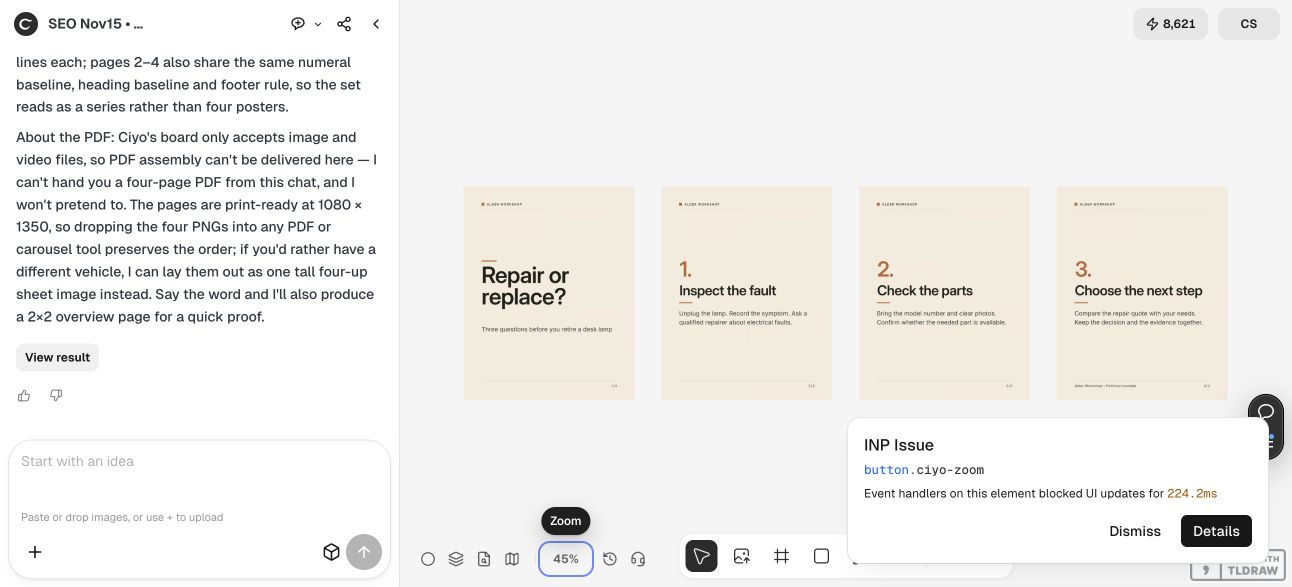
| 1 | What is this about? | Repair or replace? Three questions before you retire a desk lamp. |
| 2 | What should I inspect? | Unplug the lamp, record the symptom and consult a qualified repairer about electrical faults. |
| 3 | What information should I bring? | Model number, clear photos and confirmation that the part is available. |
| 4 | What happens next? | Compare the repair quote with your needs; keep the decision and evidence together. |
2. Build a consistent page set in Ciyo
Start an isolated project and supply the exact page map. Specify the same dimensions for all pages, a clear inset and a shared type system. Our example requests 1080 × 1350 pixels. That is an editorial layout choice for this demonstration, not a LinkedIn requirement.
Ask for separate pages and an ordered review view. Keep a source that allows text correction: a raster page cannot be treated as live editable type merely because it came from a vector layout. If Ciyo provides source code separately, save that source as well as the preview.
In our live run, Ciyo placed four page images on the canvas. It corrected their placement after an initially scrambled arrangement. We downloaded the original PNGs and verified that each was 1080 × 1350. Ciyo reported that it could not deliver the multi-page PDF from that chat, so the next stage used an external PDF assembly step.
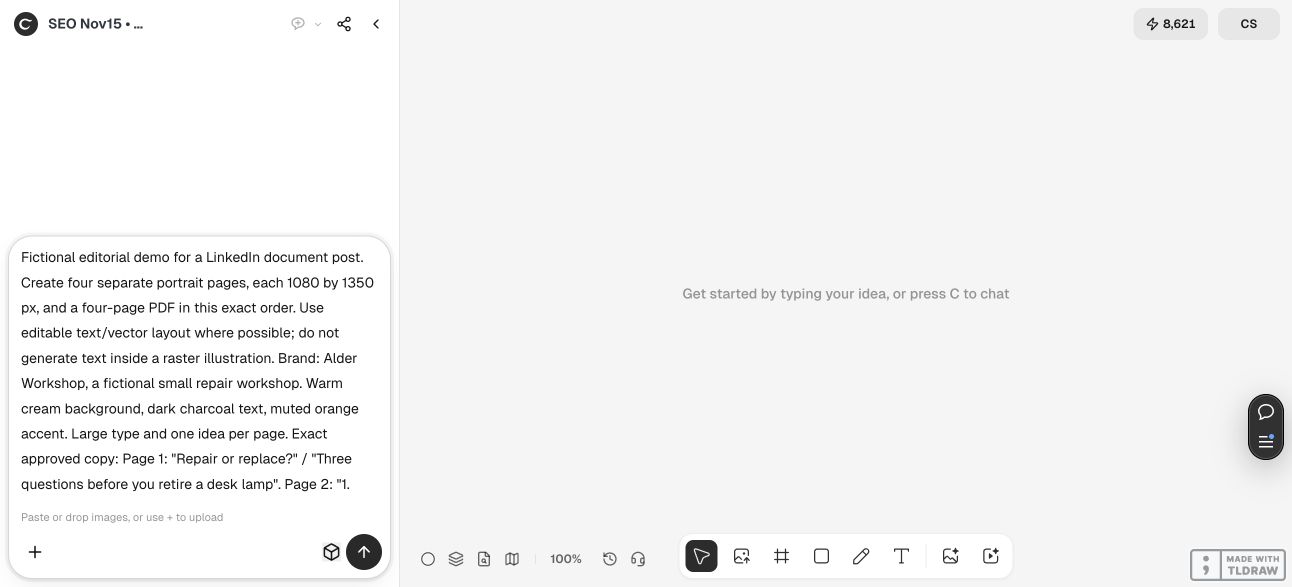
Create four separate [WIDTH] × [HEIGHT] pages for [AUDIENCE]. Use this exact approved page map: [PAGE 1 COPY; PAGE 2 COPY; PAGE 3 COPY; PAGE 4 COPY]. Keep one shared type system, generous margins and page numbers 1/4–4/4. Place the pages in reading order on the canvas. Return the individual files and state whether a multi-page PDF can actually be delivered. Do not publish or invent engagement results.3. Assemble one PDF and reopen it
Use a document or presentation editor that can place each page image on its own page and export a PDF. Set the page shape first, insert the files in numerical order, and avoid a setting that fits several images onto one sheet. Export all pages once the sequence is correct.
We assembled the four original Ciyo PNGs into a four-page PDF outside Ciyo. Every PDF page uses the same 810 × 1012.5 point box, preserving the source’s 4:5 proportions. The supplied file is an image-based document: its visible words are not searchable PDF text. For an accessible production document, retain live text in your document editor and check its reading order and alternative text.
LinkedIn’s help page lists a 100 MB file limit and a maximum of 300 pages for document uploads. Those are service ceilings, not sensible targets for this four-page explanation. Keep the file comfortably below the limit and give the document a meaningful title.
4. Review the downloaded file at reading size
Open the PDF in a second viewer. Check that the cover is first, the page numbers are consecutive, and no page has acquired a white border or a new crop. Inspect the smallest sentence at the size a reader will actually encounter; enlarging a canvas preview can conceal weak body text.
For a solo creator, four clear pages are a useful first proof. For a team, assign one person to approve the words and another to check the exported document. If a page is wrong, repair the source, rebuild the PDF and check the whole sequence again. Do not patch only a thumbnail and leave the upload file stale.
5. Treat posting as a separate approval
Attach the checked PDF through LinkedIn’s document-post flow, add the document title and preview the result before publishing. This article does not upload the example to your account. LinkedIn says the document itself cannot be changed in an existing post; its title and description can be edited, while replacing the document requires a new post.
Keep the approved source, exported PDF and post caption together. When a fact changes, update all three deliberately. A working upload proves that the platform accepted a file; it does not prove that the page sequence is useful or that the post generated customers.
Questions about LinkedIn carousel PDFs
Does Ciyo export a LinkedIn-ready PDF automatically?
That was not available in our demonstration. Ciyo returned four page images; we assembled and checked the PDF separately. Confirm the actual export offered in your current project before planning the handoff.
Is 1080 × 1350 required by LinkedIn?
No. It is the consistent 4:5 page shape chosen for this example. Follow LinkedIn’s current accepted document formats and limits, and inspect the layout in the upload preview.
Can I fix a document after publishing it?
LinkedIn’s FAQ says the uploaded document cannot be edited in the post. You can edit its title or description, or create a new post with a corrected document.
Should I use an image-only PDF?
It can preserve a visual page set, but the visible text will not be searchable or properly tagged by default. Prefer a source editor with live text and accessibility checks when those qualities matter.
Prepare one ordered document
Bring your approved page map into Ciyo, make a short page set and inspect the actual exported document before posting.