Personal-profile banner design
LinkedIn Profile Banner Size: Check the Profile-Photo Overlap
A wide banner can look balanced on a design canvas while its strongest detail disappears behind a profile photo. File size and placement are separate problems: the right dimensions do not tell you where the image will be obscured or cropped in a particular profile view.
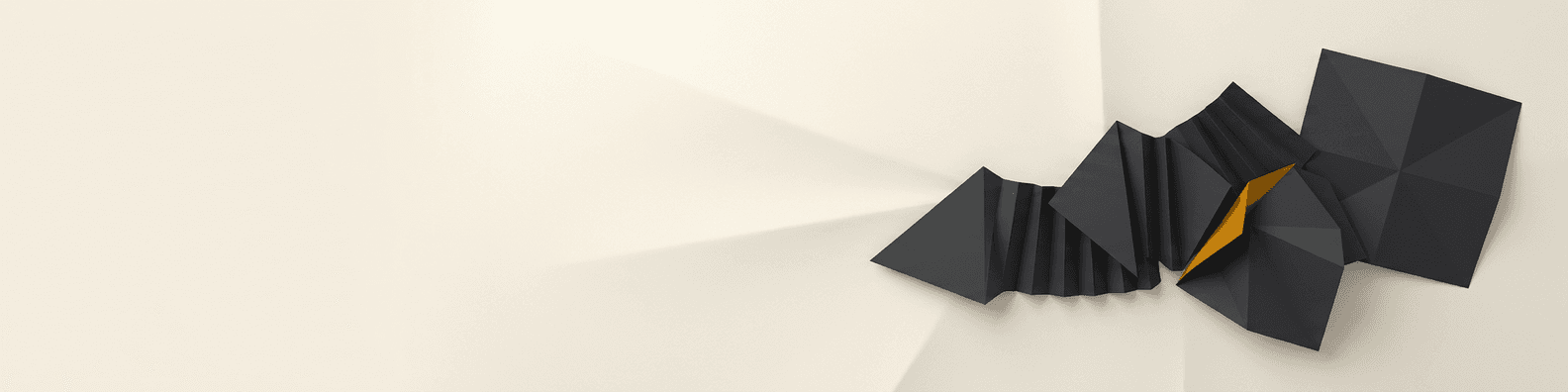
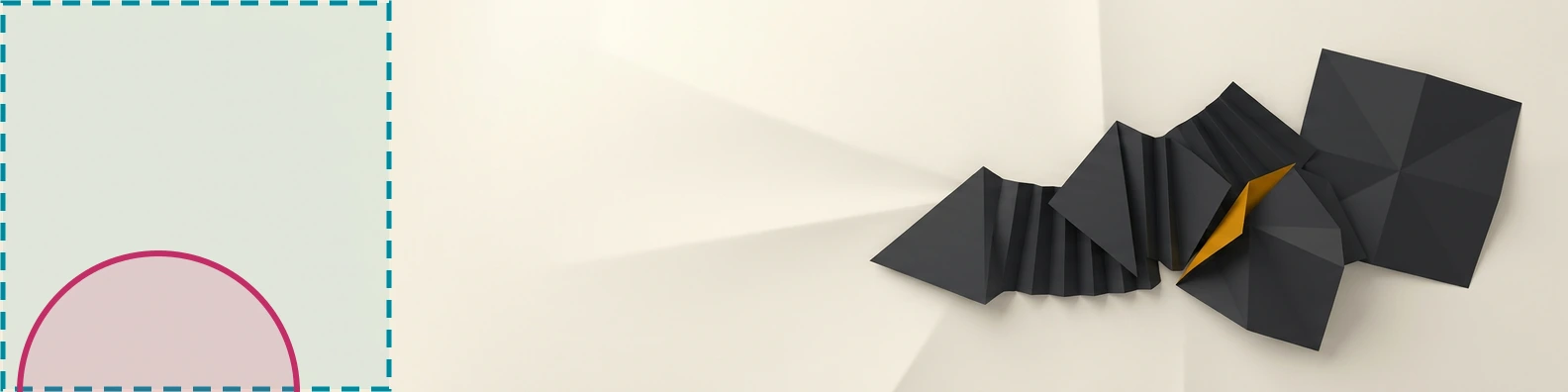
We created an abstract banner in a live Ciyo development project for fictional Juniper Studio designer Alex Example. The saved final PNG is 1584 × 396, and its distinctive forms sit toward the right. We checked the file and made a separate illustrative overlay. We have not uploaded it to LinkedIn or measured the geometry of a real profile; the overlay is a design aid, not an official safe-area template.
Quick answer: start at 1584 × 396 and leave flexible space
LinkedIn recommends 1584 × 396 pixels for a personal-profile cover image, accepts JPG or PNG, and specifies a file smaller than 8 MB. Its help also says the appearance can change with browser-window size and screen resolution. Use those specifications for the file, then inspect the actual profile presentation.
Follow these five steps. The Juniper example leaves the left quarter visually quiet and places the charcoal forms and amber accent toward the right. That is an editorial composition choice, not a guarantee that a fixed quarter will cover every profile-photo or crop situation.
| Step | Action | Check |
|---|---|---|
| 1 | Confirm the personal-profile destination | The current recommended size and supported file |
| 2 | Brief Ciyo around the likely overlap | A quiet area and a distinct visual emphasis |
| 3 | Inspect the actual saved PNG | 1584 × 396 rather than a thumbnail's dimensions |
| 4 | Use a separate illustrative overlay | Whether the composition tolerates an obstruction |
| 5 | Review your actual LinkedIn presentation | Current crop, profile-photo overlap and readability |
1. Confirm that you are designing a personal-profile cover
Identify the destination before choosing a canvas size. This article prepares a personal-profile banner. A company Page, an advertisement or an event image is a different task and should use its own current specifications.
For Alex Example, the banner's job is a restrained visual identity. The name, role and professional details remain in the profile's actual text fields. The artwork contains no LinkedIn logo, fabricated interface, profile portrait or tiny contact details. This keeps the design useful even when a viewer sees a different crop.
Decide which element must remain visible. Here it is a small group of charcoal folded forms with an amber accent near the right. If your banner needs words, review their real display size and placement separately. A quiet image is a reasonable starting point when there is no essential headline to preserve.
2. Request an abstract composition that tolerates an obstruction
Create an isolated Ciyo project and name the target dimensions. Describe where the artwork should be stronger and where it should recede. Avoid inventing an exact official safe zone when you have not measured the destination view.
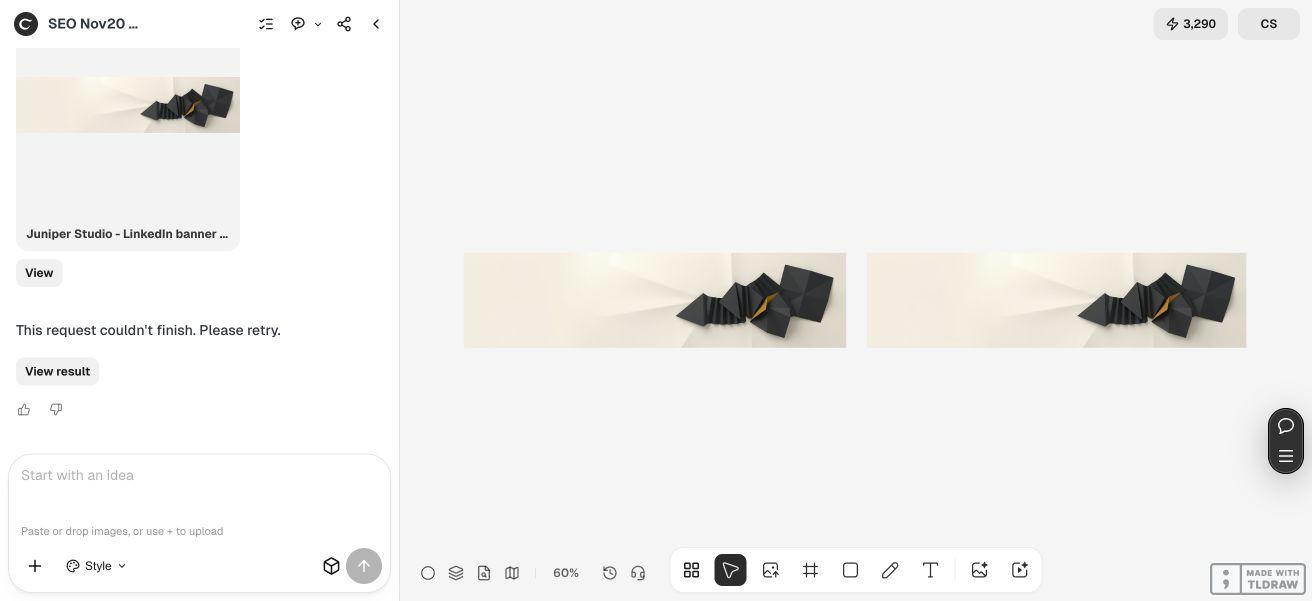
The live Juniper request asked for a 1584 × 396 PNG with a quiet left quarter, charcoal folded forms and a restrained amber accent toward the right. The agent used Nano Banana 2 to create a 4:1 source, then saved a resized final banner on the canvas. We downloaded and checked that final file separately from the generated source. The final response later failed after both files were saved. We preserved that outcome and verified the final PNG independently.
For an existing brand, replace the fictional visual direction with approved artwork and colors. Keep the target and placement constraints stable while reviewing a revision. Changing the palette, crop and focal position at once makes it harder to tell which change improved the result.
Create a clean original 1584 × 396 PNG background for [fictional or approved personal-profile project]. Use [approved visual direction and palette]. Keep [the likely overlap area you want to review] especially quiet and place the distinctive forms toward [chosen area]. No LinkedIn logo, interface, profile photo or tiny contact text. The actual profile-photo overlap and crops will be checked separately; do not claim a universal safe area. Save the clean image and report its actual dimensions. Do not log into or upload to LinkedIn.3. Inspect the final file before using its preview
Check the delivered file's properties rather than the canvas thumbnail. The downloaded final Juniper PNG is 1584 × 396 with three sRGB color channels and 659,682 bytes, about 644 KiB. Its 4:1 ratio matches the selected personal-profile target.
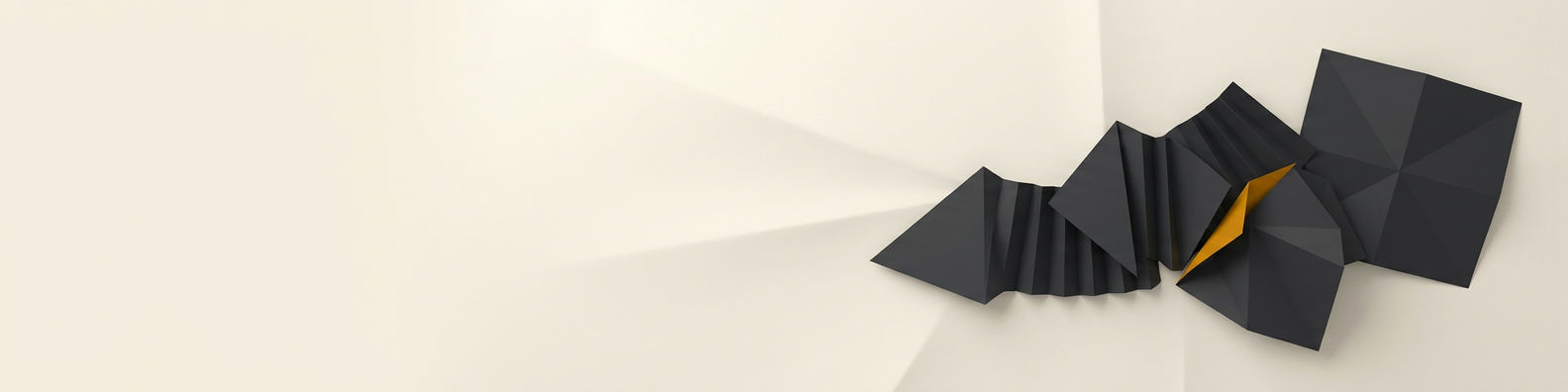
We inspected the actual artwork: the left side is quiet ivory, while the charcoal forms and amber detail are concentrated on the right. There are no letters, profile portraits or interface marks baked into the image. This is an output inspection, not evidence of how LinkedIn will display the file after upload.
Keep the final export separate from the larger generation source. Use a clear filename and confirm which file you are about to select in the profile editor. A correct intermediate image does not establish the dimensions or appearance of a later export.
4. Investigate overlap with a separate, movable guide
Put a rough obstruction over the banner and ask what remains understandable. Move and resize it to explore different possible presentations. The purpose is to reveal a fragile composition before upload, rather than certify one fixed rectangle as universally visible.
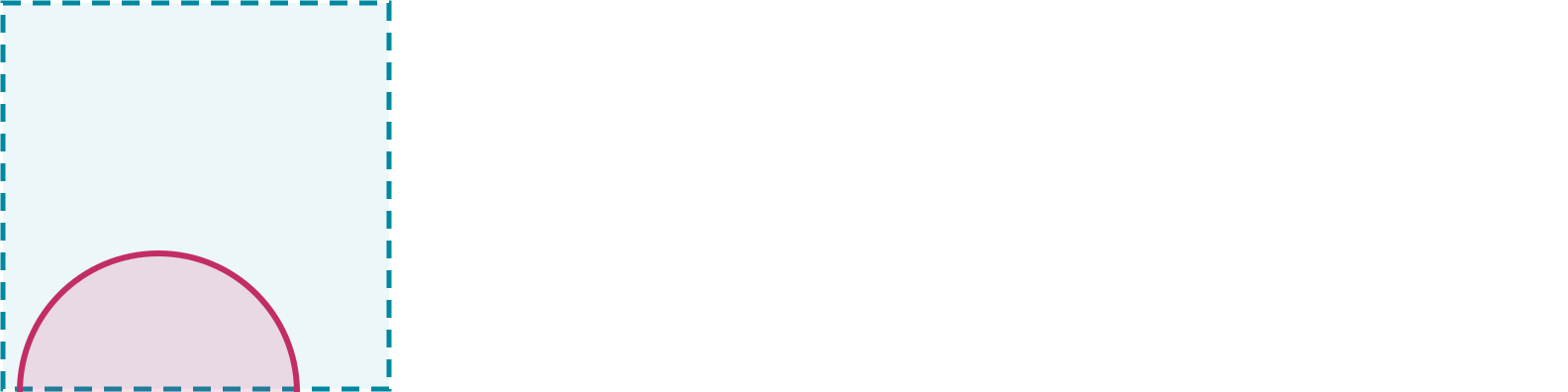
The supplied editable SVG is a separate editorial companion. It shades a left-quarter rectangle and places part of a circle at the lower left. Its geometry is deliberately illustrative: it is not traced from LinkedIn, and the circle is not an actual profile photograph. Place it over the clean banner in an editor, change it as needed and hide it before exporting.
In our illustrated review below, the right-hand artwork remains separate from that example obstruction. This supports the composition choice for this particular guide. It does not establish a real mobile crop, a platform measurement or a guaranteed text-safe region.
5. Inspect your actual profile view before approving the banner
Follow LinkedIn's current cover-image instructions for your own profile and inspect the crop before applying it. Check how the profile photo overlaps the banner and whether the important forms remain visible. The demonstrated Ciyo project did not open, edit or publish a LinkedIn profile.
Review the presentation in the browser and devices that matter to you. A banner can change appearance with window size and screen resolution, so retain the original and make a focused revision if a particular view hides the focal detail. Do not shrink a whole headline to solve a placement problem without checking whether it remains readable.
For a beginner, one quiet text-free image is easier to evaluate than a dense collage. A team can keep approved artwork and a short record of the profile views it actually checked. A designer should hand over both the clean file and the limits of the review; the illustrative SVG remains a working aid and should never be uploaded as the final banner.
Personal-profile banner questions
What size is this LinkedIn personal-profile banner?
The inspected final PNG is 1584 × 396, matching LinkedIn's current recommendation for a personal-profile cover image. Other LinkedIn image destinations need their own specifications.
Is the shaded left quarter an official safe area?
No. It is an editorial composition and review choice. The overlay is not traced from LinkedIn and does not measure every browser, profile-photo position or mobile crop.
Should I upload the overlap-guide SVG?
Use the clean PNG as the banner candidate. The SVG is a separate editable review aid, with a rough obstruction you can move or resize. Hide it before creating a final image.
Was the result tested on a real LinkedIn profile?
No profile was uploaded or changed. We inspected the actual Ciyo PNG and an illustrative overlay. Your own current profile preview remains the check for real overlap and cropping.
Do I need design skills or a fixed amount of time?
You need to inspect the focal placement and use an image editor if the file needs a revision. The optional guide needs SVG support. This example establishes no fixed turnaround time; allow for the actual profile review and any focused correction.
Make a banner that can tolerate a changing view
Give Ciyo a clear target size and a deliberate quiet area. Inspect the clean file, use a separate guide if helpful and approve the actual presentation in your own profile.