Practical design workflows
Overlay Maker: Build a Transparent Stream Frame for OBS
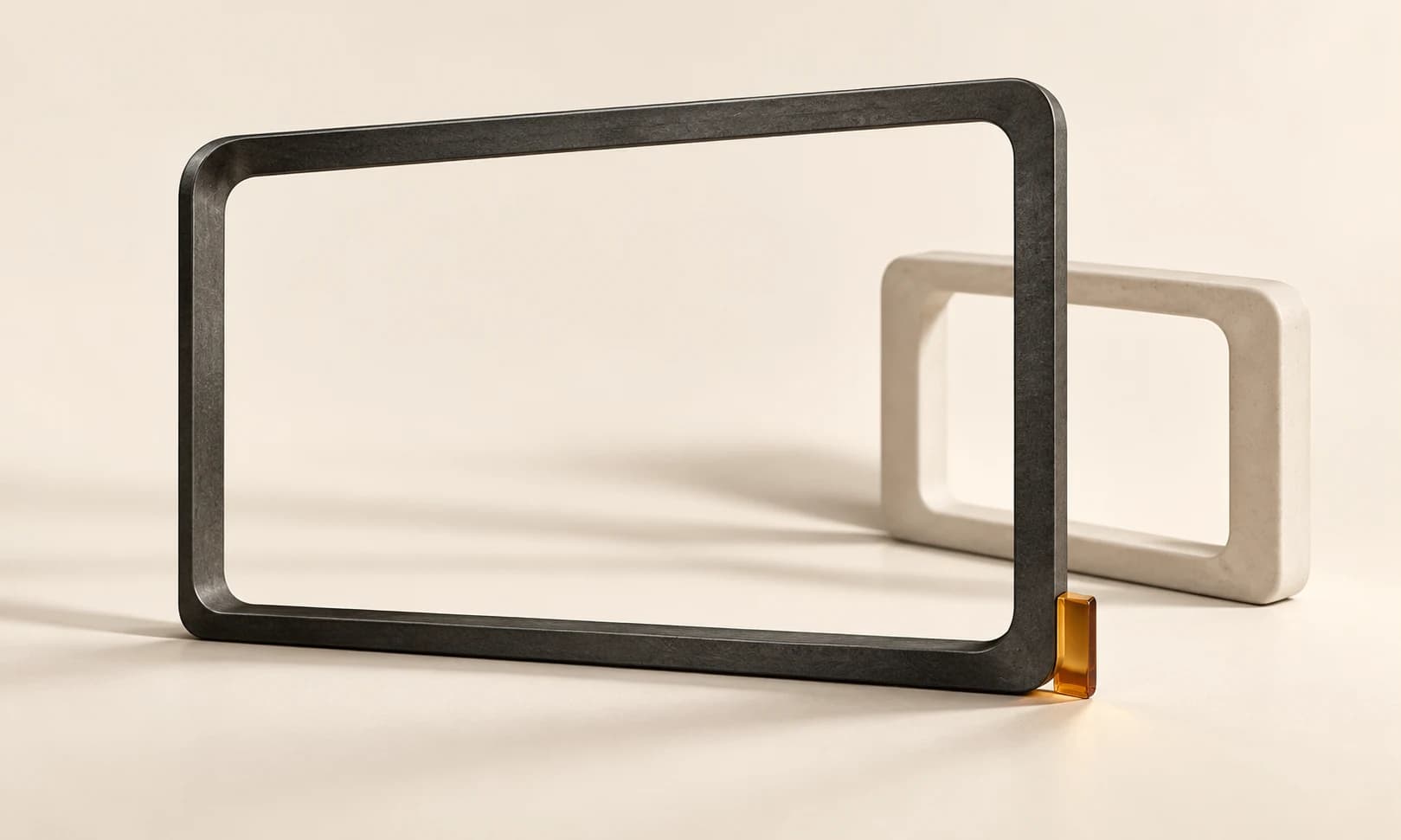
A stream frame should organize the scene while leaving gameplay and the webcam visible. A black rectangle or a baked checkerboard can look like a transparency problem only after it covers the content.
We explored a fictional Cedar Play static overlay in Ciyo and reviewed OBS’s official source documentation. The workflow separates the artwork, its alpha-channel check and the external scene setup; it does not assume live alerts or a native OBS integration.
Quick answer: verify the opening before adding the decoration
Design for the actual scene dimensions, keep the action and important game interface clear, and export a PNG with true transparency. Check the saved alpha over contrasting content, then add it as an Image Source above the relevant scene content in OBS.
A static frame is an image. Live chat, alerts and changing counters need separately configured sources and are outside this example.
1. Define the scene and the areas that must stay visible
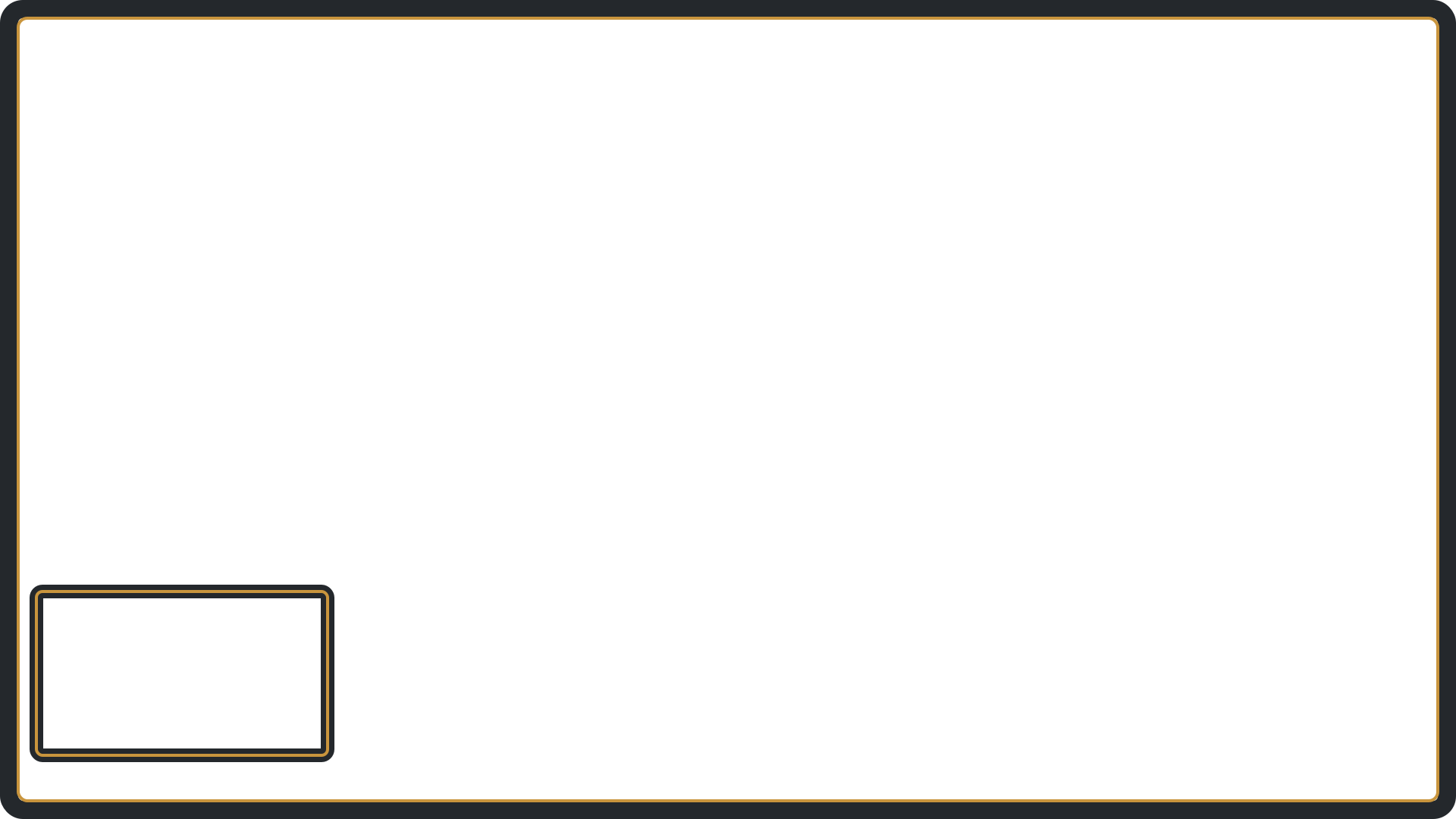
Our fictional Cedar Play target is a 1920 × 1080 scene with a restrained charcoal-and-amber border and a webcam area near the bottom left. Treat that as an illustrative layout, not a universal placement rule: some games put important interface elements in that corner.
Before designing, capture or sketch your actual scene and mark the gameplay HUD, webcam position and any text that viewers must read. Give the frame a job on the edges instead of filling the center with branding.
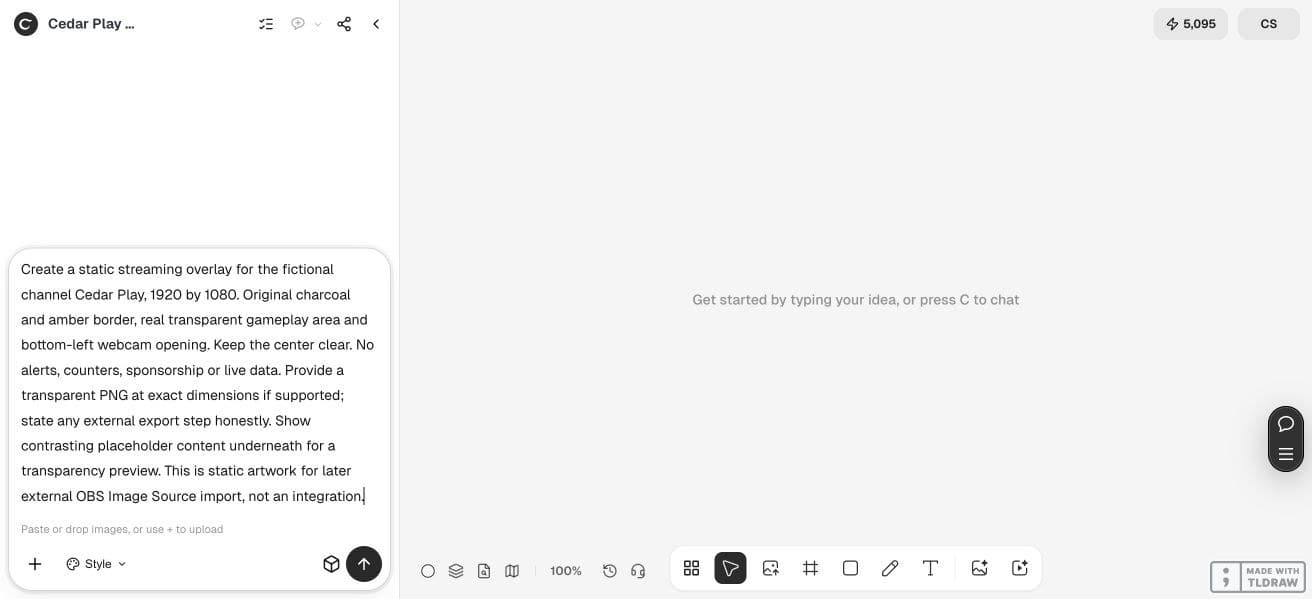
Design an original static overlay for [channel] at [scene width × height]. Use [palette]. Leave these areas unobstructed: [game HUD and webcam regions]. Create a real transparent PNG, including the intended open regions. No live alerts, counters or chat feed. State actual output dimensions and any external alpha/export step. Provide a separate preview over contrasting placeholder content.2. Explore the frame in Ciyo without assuming alpha
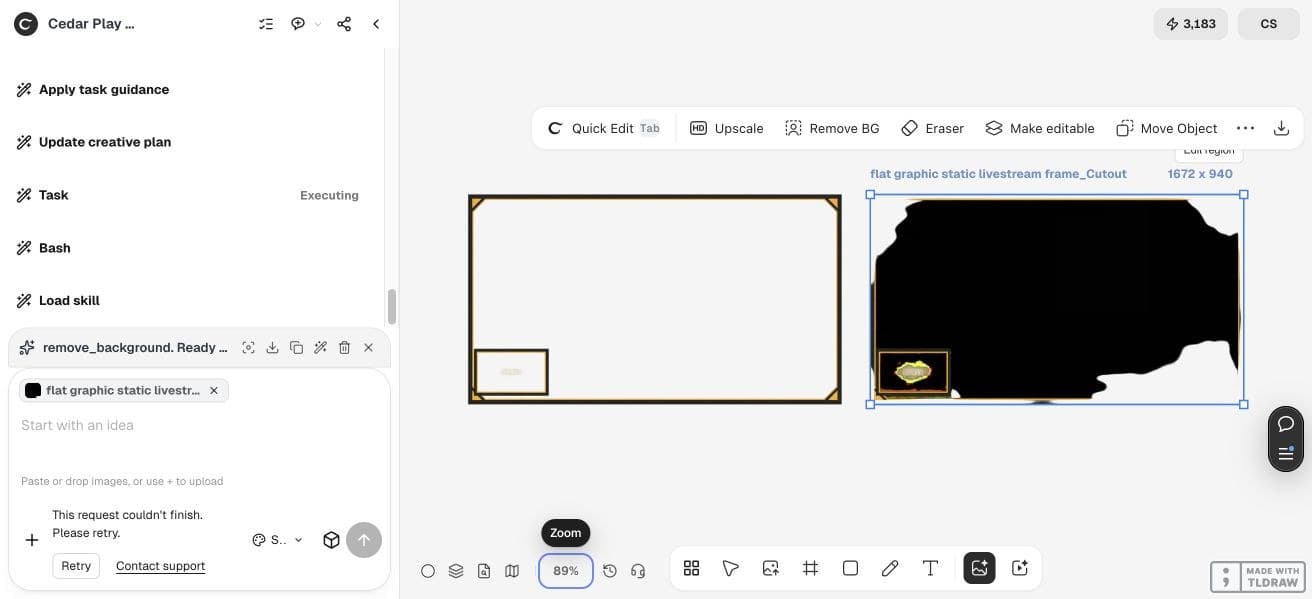
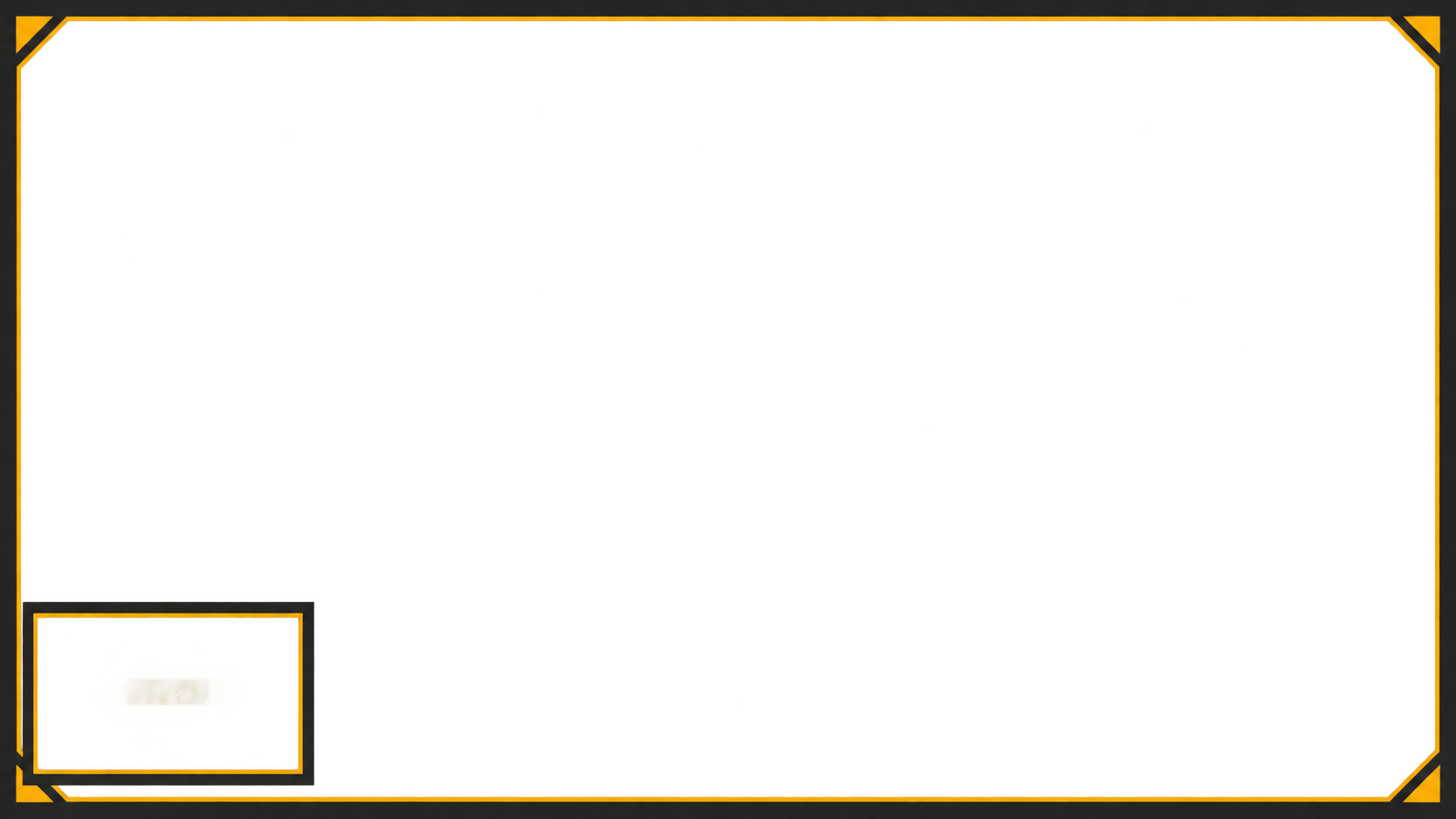
The Design agent proposed a code-based frame but its run stopped. A direct GPT Image 2.5 Flare request produced a 1672 × 940 frame instead of the requested 1920 × 1080. Independent decoding found its center pixel fully transparent. A faint unwanted webcam-area artifact remains, so we do not present it as an approved final frame.
Automatic Remove BG made this example worse: the downloaded cutout’s center alpha was 254, compared with 0 in the original. We rejected it. Transparency must be checked in the saved file; an operation called background removal does not guarantee a useful result.
3. Check real transparency on the saved PNG
Place the original PNG above a light background, a dark background and a contrasting placeholder scene in an image editor. The intended open areas must reveal the layer underneath. Check for an opaque center, edge halos and accidental corner blocks.
Confirm the file’s actual dimensions. For a full-scene 1920 × 1080 overlay, a different aspect ratio can cause stretching or misalignment. A separate webcam frame may be a smaller asset, but its position and scale still need to match your scene.
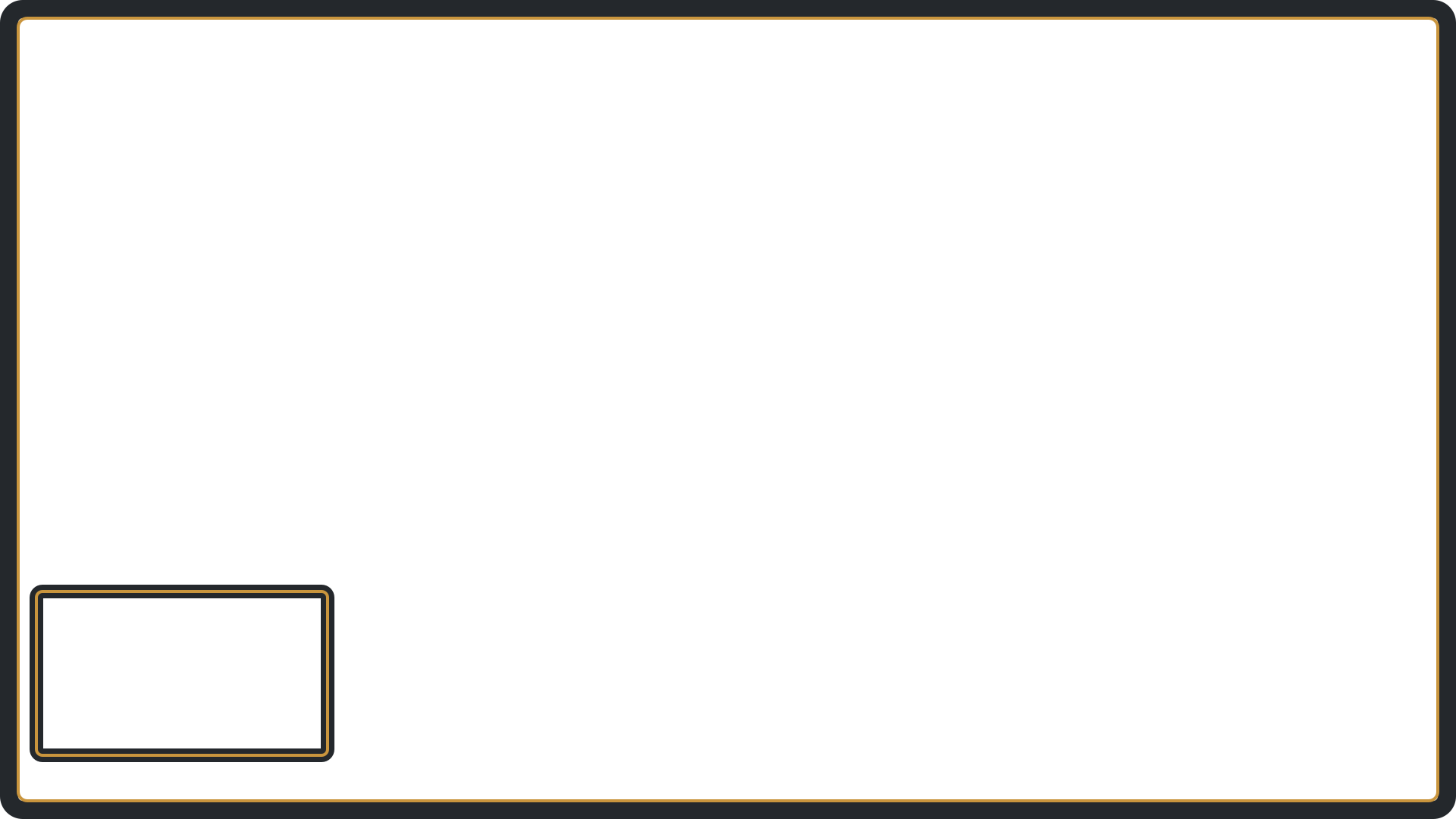
For a usable exact-size alternative, the linked editorial frame was built separately as simple SVG geometry and rendered to a 1920 × 1080 PNG. It is a clean static example with transparent openings, not a Ciyo-generated export. The SVG remains editable in a compatible vector editor.
| Check | Expected result | Common failure |
|---|---|---|
| Dimensions | Match the intended scene or component | Prompt requested 1920 × 1080 but file differs |
| Alpha | Open regions reveal underlying content | Opaque black or baked checkerboard |
| Placement | Gameplay HUD and webcam remain usable | Frame overlaps important controls or faces |
| Small preview | Branding remains readable and restrained | Tiny text and excessive edge decoration |
4. Add the file as an Image Source in OBS
In OBS, work in a separate test scene. Add your gameplay or a harmless placeholder source, then add an Image Source and select the saved transparent PNG. OBS’s Image Sources documentation lists supported image types and alpha transparency.
Arrange the source stack so the overlay sits above the content it frames. Keep a webcam source beneath its frame, and check transform and fit against the scene dimensions. These are external OBS setup instructions; Ciyo is preparing the artwork.
5. Preview locally before going live
Use a contrasting test background and webcam placeholder first. Move or resize the frame and verify that its openings line up. Make a short local test recording if appropriate, then inspect it at phone size for hidden interface elements and distracting decoration.
No live broadcast is needed to judge a static frame. OBS was not installed in the demonstration environment, so this article’s OBS import procedure is based on the official documentation and has not been hands-on verified here. The file dimensions and alpha were checked independently; complete the local scene preview on your own OBS setup before use.
A current creator question points to the clutter problem
On October 16, Reddit user ExplosiveEnd426 asked for layout references because follower and subscription elements were getting in the way of gameplay. That is a concrete reason to begin with unobstructed areas and a smaller-screen review.
The discussion is a creator’s question, not a controlled test or a Ciyo endorsement. Our static-frame process is an original adaptation; it does not reproduce the post’s channel or claim a result for it.
Published October 16, 2026; reviewed October 21. A creator’s concern about obstructed gameplay informs the clear-area review, not a performance claim.
Frequently asked questions
Why is my transparent area black in OBS?
Check the original PNG’s alpha first, then the source stack and content underneath. A black-backed image or an empty scene can both appear black for different reasons.
Does a checkerboard mean the file is transparent?
Only when the checkerboard is the editor’s preview. If it is baked into the image pixels, it will cover the content beneath it.
Can this static overlay show live followers or chat?
A static PNG does not update. Live widgets require separately configured sources; they are outside this artwork workflow.
Do I need to stream to test the frame?
No. A local scene preview and, where useful, a short local recording can show placement, transparency and small-screen readability.
Design around your actual scene
Bring the scene dimensions and mark the areas viewers need to see. Start with a restrained static frame and verify the saved alpha before adding it to OBS.