Practical design guides
YouTube End Screen Template: Leave Room for the Clickable Elements
An end-screen graphic can say “watch next” without giving the viewer anything clickable. YouTube’s interactive elements are added in Studio; they are not created by drawing a thumbnail rectangle into the video.
This tutorial separates a fictional Alder Workshop background design, run in Ciyo on November 15, from the later Studio setup. It uses YouTube’s current end-screen guidance. The example does not upload a video, configure your channel or supply a click-through result.
Quick answer
Plan the actual end-screen elements before making the background. Leave clear space for them in the final seconds of the edited video, export the video, then place and time the real elements in YouTube Studio. Preview their interaction with the background; a baked-in graphic alone does not create a recommendation or subscribe button.
1. Confirm the video can use an end screen
YouTube says end screens can appear in the last 5–20 seconds of an eligible video, which must be at least 25 seconds long. A standard 16:9 video can contain up to four elements; other aspect ratios may allow fewer. End screens are unavailable in some contexts, including videos set as made for kids.
Read the current requirements for your particular video before building a template. This article’s 1920 × 1080 background and twelve-second ending are example production choices, not a universal platform mandate.
Choose one useful next action for this video. Our fictional repair video points viewers toward another repair video and a subscribe element. More empty boxes do not automatically create a better ending.
2. Reserve the elements’ working space
Sketch the intended element positions on a planning copy. Keep the title and other fixed copy out of those areas. Use broad, calm regions behind the future video card and subscribe element so the recommendations remain readable over the background.
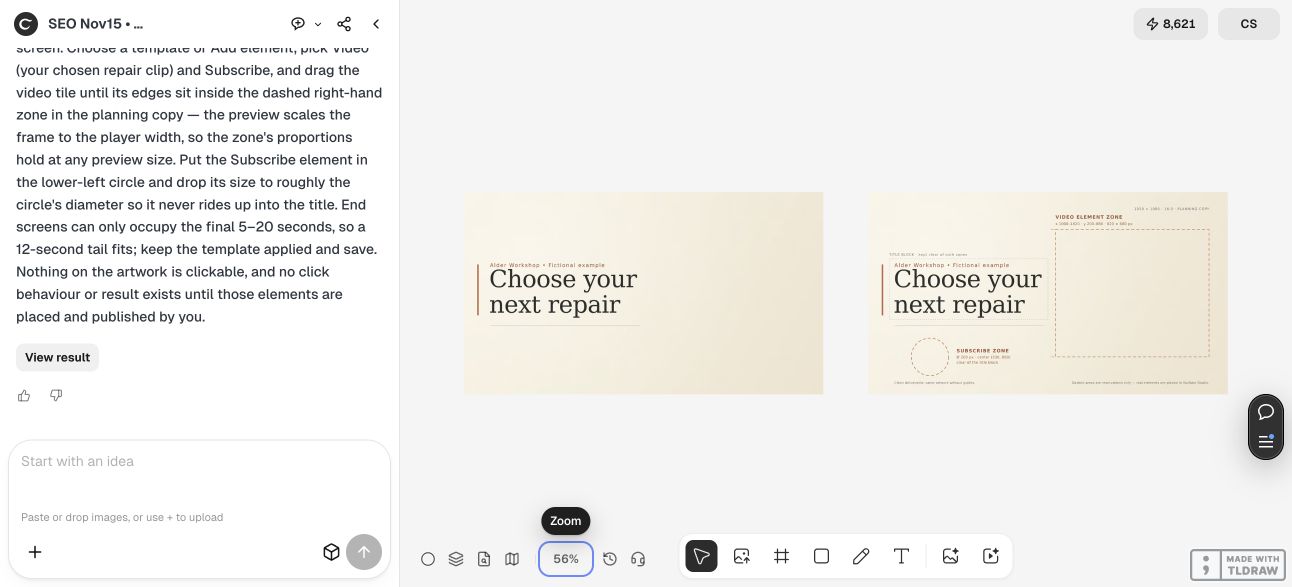
For Alder Workshop, the phrase is “Choose your next repair,” with one large open area on the right and a separate area toward the lower left. The exact placement still needs checking against the actual Studio element boxes. A layout sketch cannot promise that every device will display the end screen identically.
| Part | Background’s job | Later Studio action |
|---|---|---|
| Heading | Explain the next action without covering a recommendation | Confirm it stays visible while elements appear |
| Video area | Provide clear surrounding space | Add and place the actual video element |
| Subscribe area | Leave a separate quiet region | Add and place the real subscribe element |
| Duration | Hold a stable ending in the edit | Set the actual element start and end times |
3. Build a clean background and a separate planning copy
Give Ciyo the approved text, output size and intended element areas. Ask for a clean background without fake thumbnails or a counterfeit YouTube interface. Keep annotations on a separate planning version that the video editor can compare with the final composition.
Use a design source that supports the revisions you expect. A raster background can be placed in an edit, while text and shapes in an editable source are easier to change separately. Confirm the files actually delivered; a preview on the canvas does not establish an SVG or editing-project handoff.
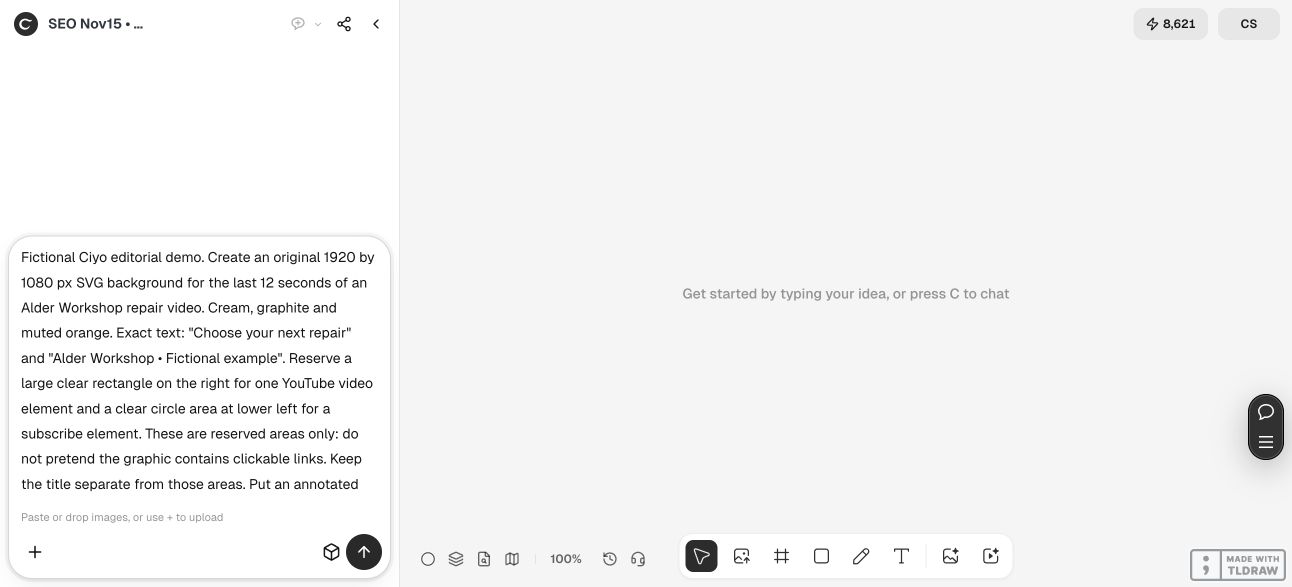
In the live Ciyo turn, the agent made a clean background and a separate annotated planning copy. Both downloaded PNGs are exactly 1920 × 1080. The title and host copy sit apart from the planned video and subscribe regions; we did not test those positions inside YouTube Studio. The source SVG was returned separately as code and is supplied below.
The canvas contains raster previews, not native SVG text editing. The original rendering used a font fallback because Georgia was unavailable in that environment. Reopening the source on a different machine may change the letter widths, so inspect the recipient’s actual rendering before using it in the edit.
Create a [WIDTH × HEIGHT] background for the final [SECONDS] of [VIDEO]. Exact heading: [COPY]. Reserve clear space for [ACTUAL YOUTUBE ELEMENTS]. Put location guides on a separate planning copy, not in the clean deliverable. Keep text away from the future element boxes. Return supported files and state editability limits. Do not create a fake YouTube screen, imply the image contains clickable elements, or upload a video.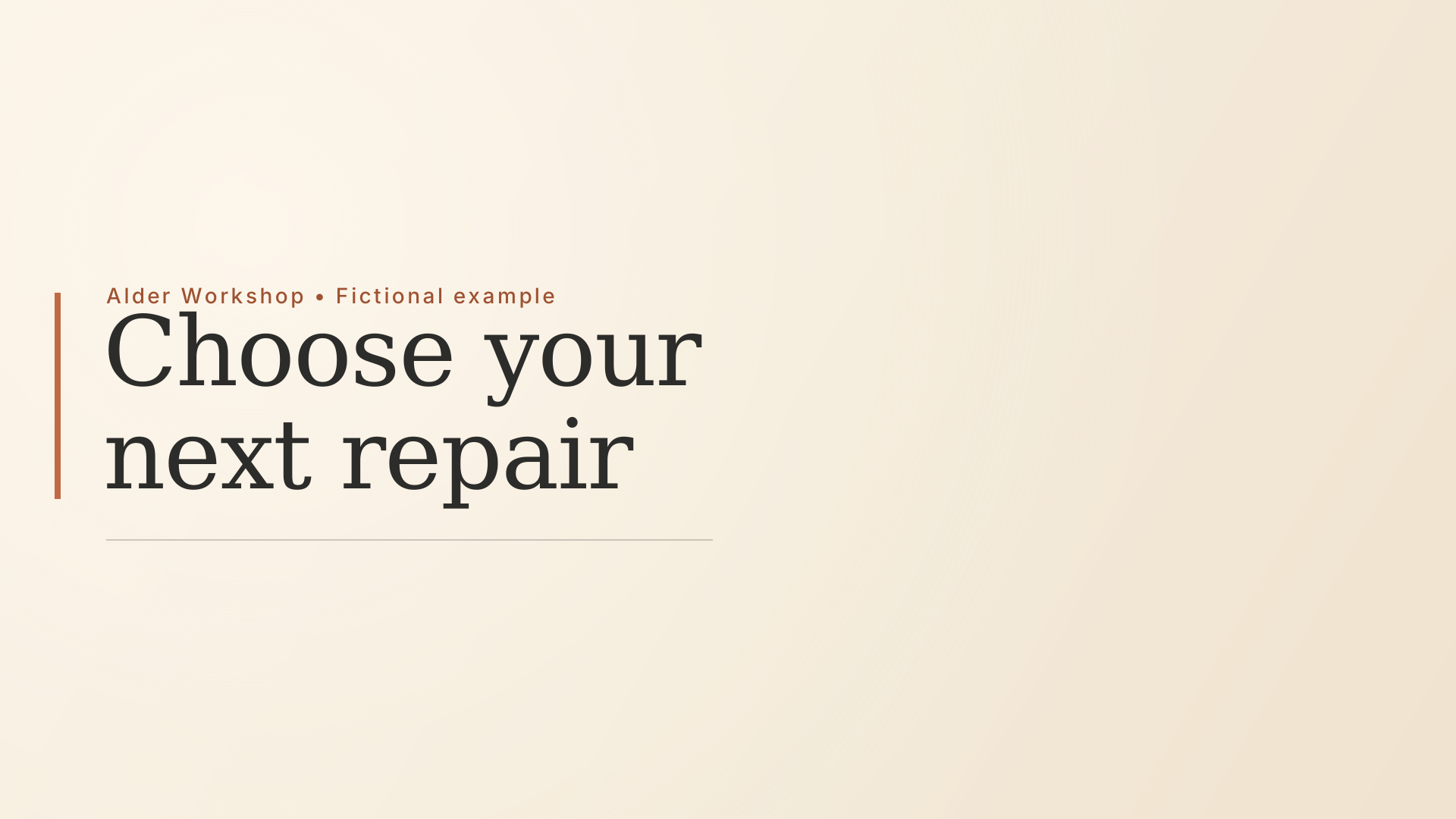
4. Check the ending in the actual video edit
Place the clean background at the end of the video. Give viewers enough stable time to understand the choice rather than ending immediately after a moving transition. If speech continues, check that the invitation to watch another video does not compete with a sentence that still needs attention.
Watch the cut into and out of the ending. A background that looks calm as a still can feel abrupt after a busy scene, while fine motion behind a recommendation can distract from it. Keep a still fallback if a decorative animation adds no useful information.
For a solo creator, start with one video and one subscribe element. For an editor maintaining a series, keep the source background, duration and placement notes together. Recheck the actual ending when the video’s aspect ratio or final shot changes.
5. Add and preview the real elements in Studio
After the edited video is available in your authorized channel workflow, use Studio’s Editor and End screen controls to add the supported element types. Set their actual timing and placement, then play the ending in the preview. This guide does not perform that account action for you.
Compare the real boxes with the annotated design. If a card covers the heading, revise the background or move the element within the available controls. Do not approve the artwork solely from a still screenshot that lacks the interactive overlays.
YouTube notes that end screens may appear differently or not appear in some viewing contexts, and viewers can hide them. Treat your template as a considered background for the supported experience, not a guarantee of visibility. Use your own later analytics to evaluate the next-action choice; this fictional example supplies no performance data.
Questions about YouTube end-screen templates
Does the background image make the buttons clickable?
No. Add the real supported elements through YouTube Studio. Painted boxes and labels remain part of the video image.
Is a twelve-second ending required?
No. It is the example’s edit choice. YouTube currently allows end screens in the final 5–20 seconds of eligible videos; check your video and current requirements.
Can I put important final information under the cards?
Keep essential words clear of the actual element placements. Inspect them together in Studio’s preview instead of relying on the background alone.
Will everyone see the same end screen?
No. Availability and appearance depend on the viewing context, and viewers may hide end screens. Follow YouTube’s current guidance.
Plan a usable ending
Bring your approved heading and intended element types into Ciyo. Build a clean background, then test it with the actual Studio elements.