Practical design guides
Address Label Template: Check the Whole Sheet Alignment

When the first address label looks right and the last row drifts off the edge, moving the whole design may fix one end while making the other worse. Address-label work needs the correct sheet template and a print check across the sheet, not just a pleasing single-label preview.
This workflow uses Avery’s current 5260 template information and a fictional Alder Workshop return-address design made in the live Ciyo workspace on November 15. We inspected the returned single-label SVG and corrected a misleading handoff note on the review board. No real addresses were mailed and no printer test was performed.
Quick answer
Match the exact stock identifier to its manufacturer’s current template. Build the label face within that template, keep the address as editable text, then print a plain-paper proof at actual size. Compare the top and bottom of the sheet with the stock before adjusting anything. A correct single-label size does not establish the sheet’s margins, spacing or printer alignment.
Input: identify the stock and the address source
Read the product number from the actual package, not from a similar-looking label in an online search. Check the label dimensions, labels per sheet and supported printer type against the supplier’s documentation. Similar face sizes can sit on different sheet layouts.
Avery’s 5260 template page identifies 1 × 2⅝ inch address labels, thirty per sheet. Those facts describe that product. They are not permission to guess row pitch, side margins or another manufacturer’s supposedly compatible geometry.
For a repeated return address, approve the exact name and lines once. For a recipient list, keep the source data in the tool used to populate the template and inspect long names or addresses. Our demonstration uses a deliberately fictional address, not a deliverable postal destination.
Design: keep the small label readable
Start with the address text and leave enough clear space around it. Add a small approved mark only if it does not force the address into cramped lines. Keep names, street lines and location lines visually distinct, and test the longest required entry before multiplying the design.
Ciyo can help prepare and review the label face. Supply the intended dimensions and exact copy, but keep the sheet-positioning task with the actual template. Asking for a 1 × 2⅝ inch face does not tell an agent where every label begins on a specific sheet.
Our fictional copy is “Alder Workshop / 100 Example Lane / Sampletown, CA 00000.” The placeholder town and postal code make it unsuitable for mailing. Replace all demonstration data with your approved information before production.
| Responsibility | Source of truth | Acceptance check |
|---|---|---|
| Label face | Approved copy and actual label dimensions | Text fits and remains readable |
| Sheet positions | Exact manufacturer template | Margins and spacing match the chosen stock |
| Recipient data | Approved address list | Each record maps to one intended label |
| Printed alignment | Your printer and plain-paper proof | First and last rows align with the stock |
Review: use Ciyo for the face and the checklist
Create a clean label face beside a separate review board. Ask the agent to flag missing specifications, inconsistent address lines or decoration that crowds the text. Keep a clear note that the face alone is not an imposed sheet.
Confirm which outputs you can actually download. A raster preview can show the layout but cannot guarantee editable address fields. If you need a mail merge or many recipient records, use a template workflow that explicitly supports those records and check the resulting pages before printing.
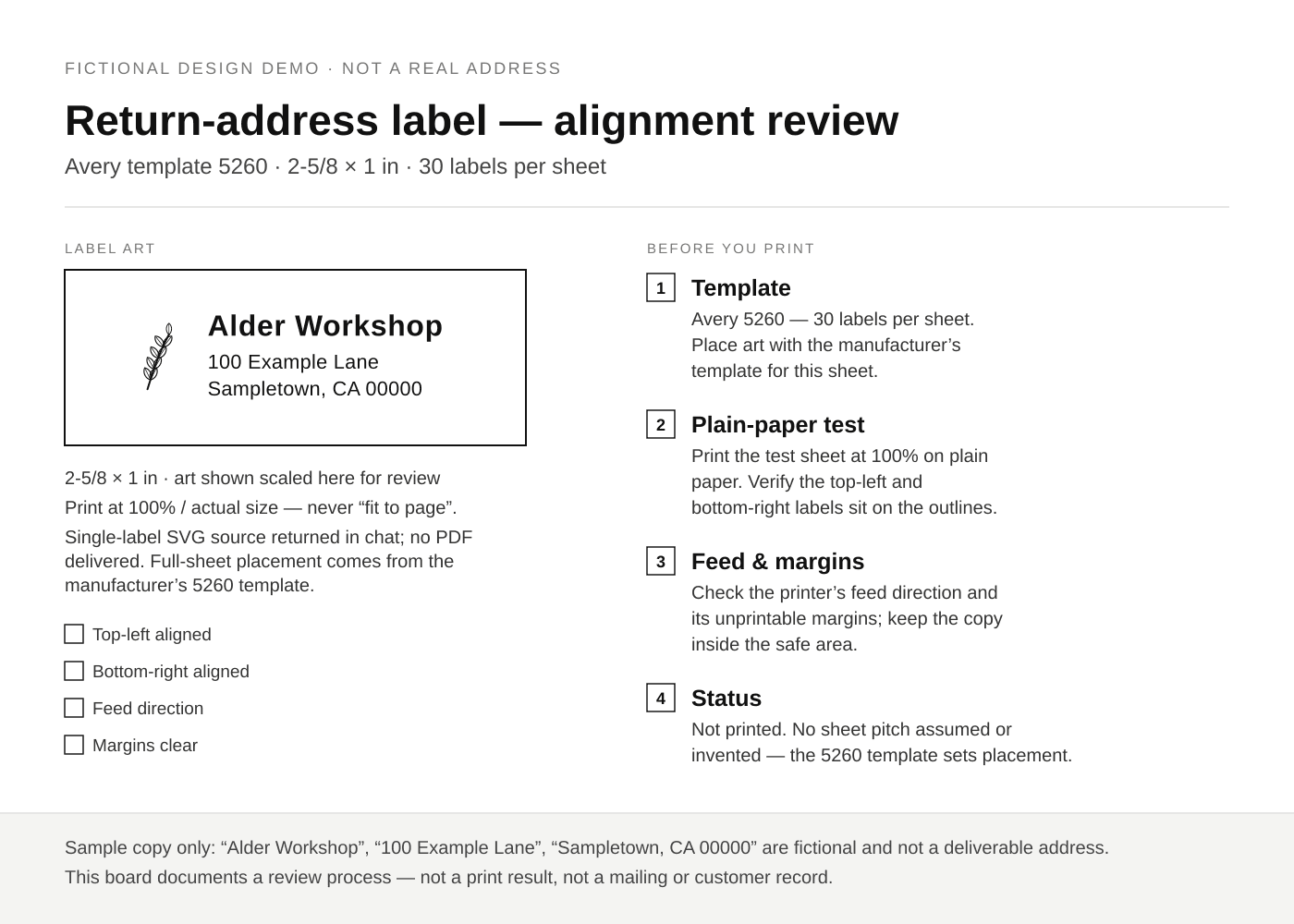
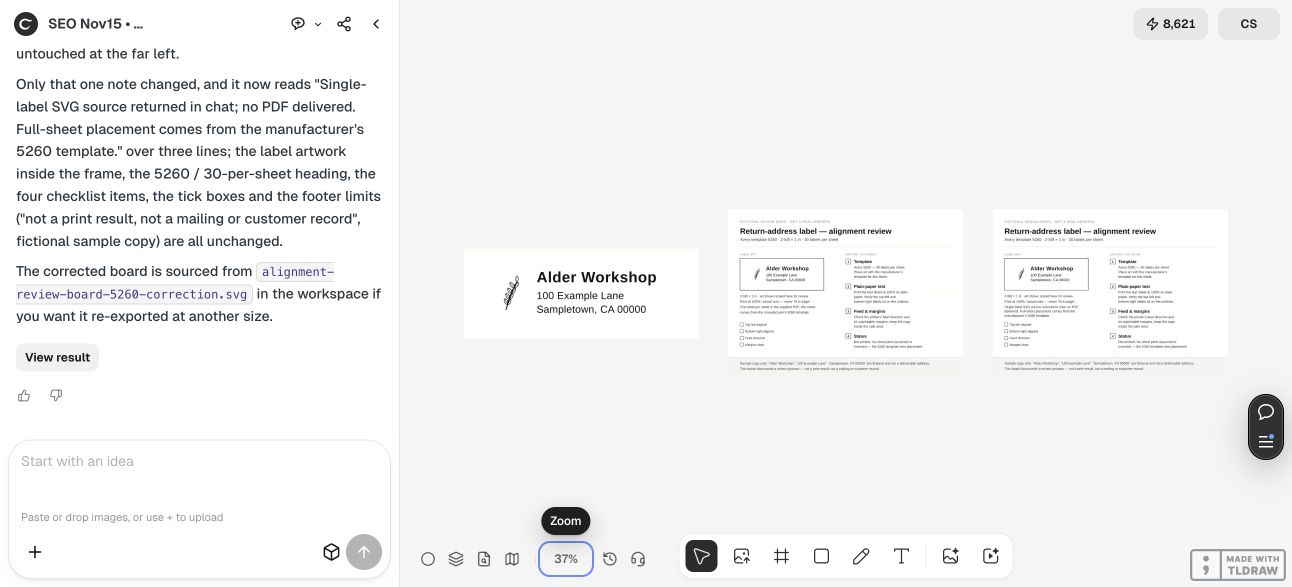
Ciyo returned a 1575 × 600 PNG label and a separate 1400 × 1000 alignment board. The label’s full SVG source was returned in chat; we saved and parsed it, confirming width 2.625in, height 1in and a 189 × 72 viewBox with live address text. These physical dimensions describe one face, not thirty label positions. Arial and fallback fonts remain a dependency when the recipient opens the source.
The first review board referred to a supplied PDF even though the chat could not deliver it. We asked Ciyo to correct that note, and inspected the new board: it now says the SVG source was returned in chat, no PDF was delivered, and the manufacturer’s 5260 template controls full-sheet placement. The download below is that actual single-label SVG; it supplies no imposed sheet or verified printer settings.
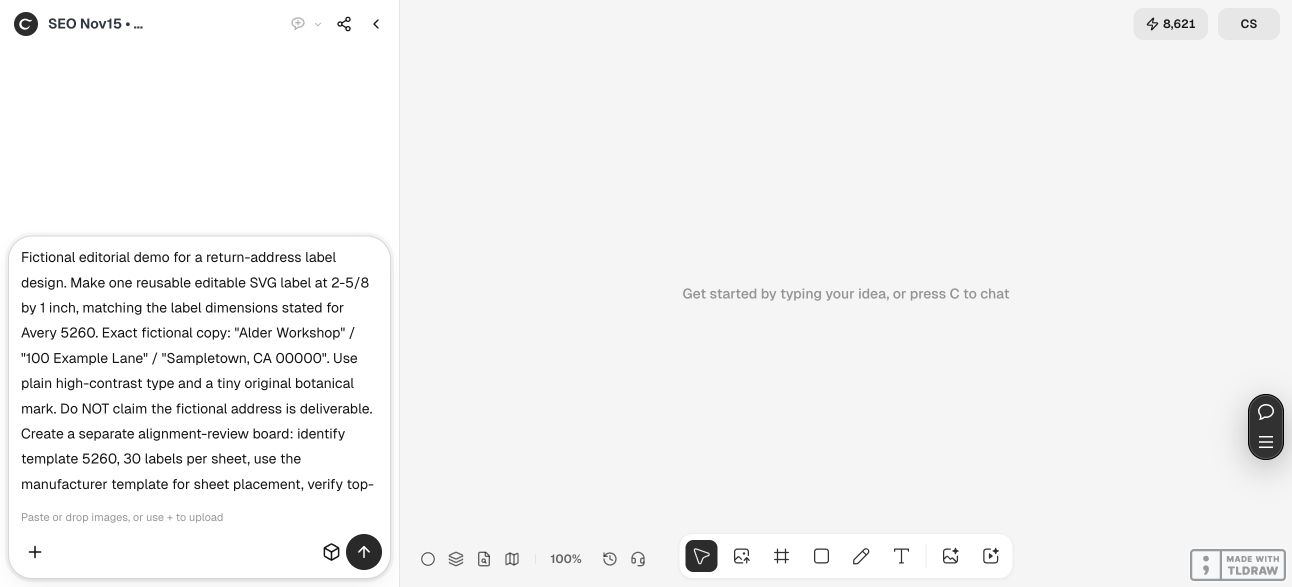
Prepare one label face for [EXACT STOCK ID] using its confirmed face size [DIMENSIONS]. Exact approved copy: [ADDRESS LINES]. Keep text editable if supported and decoration minimal. Put sheet setup on a separate checklist: use the exact manufacturer template, print actual-size plain-paper proof, compare first and last labels, and verify feed and margins. Do not invent sheet pitch, mail anything or call the single face an aligned full-sheet template.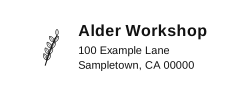
Proof: compare the whole sheet before using labels
Load the exact template and prepare a plain-paper test using the print settings recommended for your workflow. Check that scaling has not been introduced by the application, browser or print dialog. Use a ruler and an overlay with the unused label stock to compare positions.
Look at the first label, middle rows and last label. If the entire sheet is displaced by the same amount, investigate the positioning settings. If the error grows down the sheet, investigate scaling, paper size and feed rather than repeatedly shifting only the artwork. These are diagnostic distinctions, not a promise that one adjustment fixes every printer.
Make one controlled change and print another plain-paper proof. Record the application, paper size, orientation and settings that produced the accepted result. Do not claim a printer is aligned because the on-screen preview is correct.
Output: keep the approved setup with the file
Print a small initial run on the actual compatible stock and inspect it before continuing. Read the address, check the edge clearance and confirm that the ink and stock work together. Physical testing is still required even when the digital geometry is correct.
A solo shop repeating one return address may need only one approved design and a saved setup note. A fulfillment team also needs an approved data source and a way to prevent stale or duplicate batches. Keep that operational list separate from a public demonstration board.
If you change stock, printer, application or print preset, repeat the proof. The dependable deliverable is the correct design, data and verified sheet setup together.
Questions about address-label templates
Can I use any template with the same label size?
Do not assume that face dimensions establish sheet spacing or margins. Match the exact stock identifier and manufacturer guidance.
Why do later rows drift when the first row aligns?
A growing error can involve scaling, paper-size or feed differences. Compare the whole sheet and investigate those settings before simply moving the design.
Is the Ciyo label face a mail-merge system?
No such capability is demonstrated here. Use a workflow that explicitly supports your address records and the chosen sheet template.
Was the example printed?
No. The example is a fictional digital design and review method. A plain-paper and actual-stock test remain part of your production process.
Review the label before the sheet
Give Ciyo the exact face dimensions and approved copy. Keep sheet placement tied to your chosen manufacturer template and printer proof.