Practical design workflows
AI Coupon Generator: Design the Offer Without Changing Its Terms

A coupon can be visually convincing and still communicate the wrong offer. A missing eligibility rule or a decorative code can turn a design task into a customer-service problem.
Our Ciyo example is a clearly fictional Juniper Lane Coffee promotion. We use an approved field table to explore the graphic and explain the separate store-system handoff; drawing a code does not activate a discount.
Quick answer: design from an approved offer record
Start with the discount, eligible purchase, actual code, deadline and conditions. Make the benefit prominent, keep the qualification nearby and proof every literal field after generation. Configure and test redemption in the merchant’s own system before distributing a real offer.
The sample FALL20 coupon in this guide is labeled DEMO and is not redeemable. It demonstrates layout decisions only.
1. Lock the offer before requesting a graphic
Ask the merchant to approve the exact promotion. Resolve the currency or percentage, eligible products, minimum spend if any, expiry date and timezone, usage limits and combination rules before layout begins.
Our fictional promotion has no minimum-spend claim because none was specified. Do not add an urgency line, free gift or discount cap merely to make the coupon feel complete.
| Field | Approved sample value |
|---|---|
| Business | Juniper Lane Coffee |
| Benefit | 20% off one drink |
| Code | FALL20 — demonstration code only |
| Deadline | October 31, 2026 |
| Usage | One use per customer |
| Combination | Cannot combine with other offers |
| Status | DEMO — not redeemable |
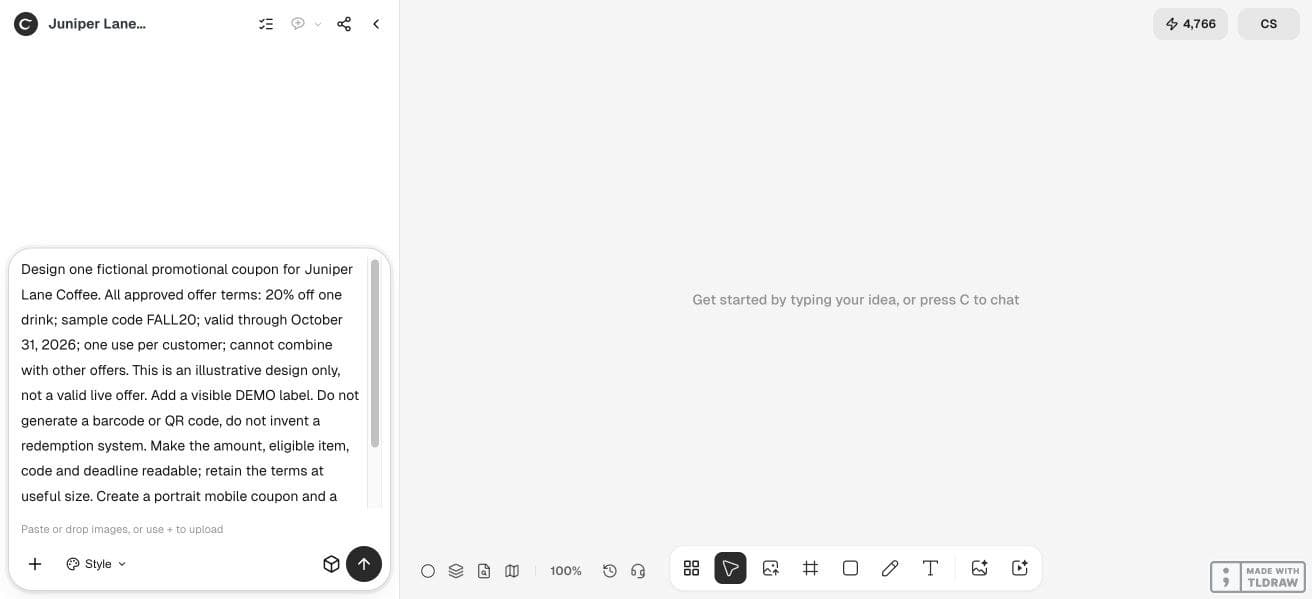
2. Build the hierarchy around benefit, eligibility and action
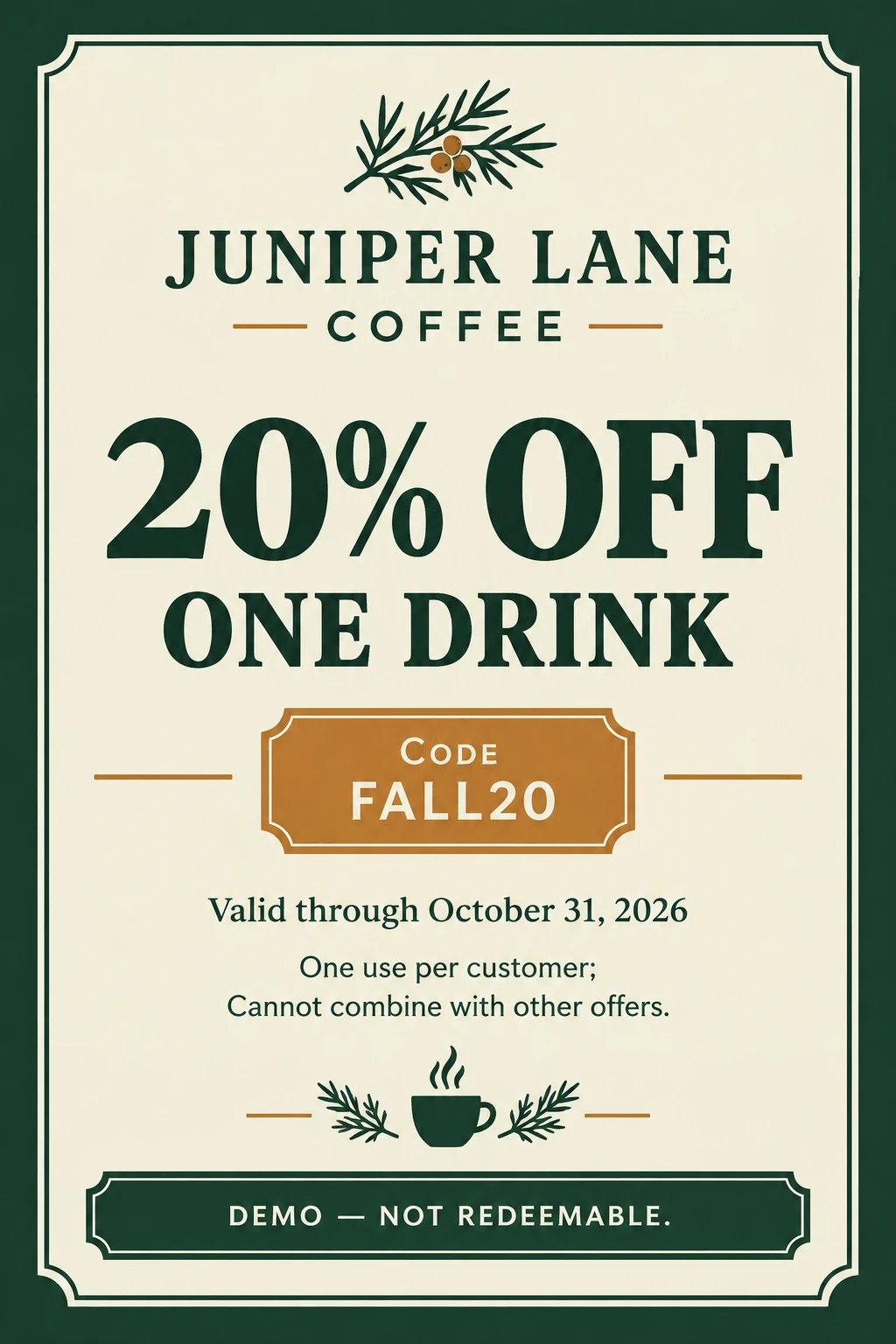
Make “20% off” the first readable element and “one drink” the immediate explanation. Put FALL20 and the date in clear supporting positions. The usage and combination terms need enough space to remain readable on a phone.
The sample uses forest green, cream and restrained amber. Use the palette to organize the offer, but keep its meaning available in words. A percentage alone leaves the customer guessing what the discount covers.
Design a coupon for [business] using only this approved offer record: [fields]. Make the benefit and eligible purchase readable together. Preserve the exact code, deadline and usage rules. Keep conditions legible in a phone preview. Do not invent a barcode, QR code, extra discount or redemption service. Label a fictional example DEMO. Identify any flattened text.3. Explore the graphic in Ciyo and inspect the literal fields
The Design agent’s multi-format workflow stopped. We recovered one mobile concept with a direct GPT Image 2.5 Flare request in Ciyo, producing a 1024 × 1536 image. The saved concept contains the sample benefit, code, date and restrictions, together with DEMO — NOT REDEEMABLE.
This output is flattened. The linked editable HTML coupon was assembled separately from the approved offer record. Use its live text for a controlled wording or type-size revision, then compare every field again. Neither file activates a discount.
4. Make one narrow correction, then review the entire coupon
A practical review exercise is increasing the deadline’s size while preserving its wording. Ask for that one adjustment, then re-read every other field. A request about typography can still change unrelated generated lettering.
For a real offer, have the merchant approve the final saved version rather than only the original prompt. Keep the approved offer record with the final file and record which channels and formats use it.
5. Configure and test redemption outside the artwork
In your actual store or point-of-sale system, create or verify the discount using the approved terms. Test an eligible purchase, an ineligible purchase and the relevant usage or expiry conditions through that system’s supported testing process.
This article does not perform those store-system steps. A QR code needs a real verified destination, and a barcode needs a compatible redemption workflow. If neither is configured, use a clear textual instruction instead of an invented machine-readable symbol.
| Approval | Evidence needed | What it establishes |
|---|---|---|
| Design | Readable saved file matching approved offer fields | The graphic communicates the offer. |
| Redemption | Merchant-system configuration and supported tests | The intended discount works under its configured conditions. |
6. Check the destination and retire expired versions
Before a real campaign goes live, compare the coupon’s promise with its landing page or in-store instructions. A customer should encounter the same eligible item, code and conditions at the destination.
A solo merchant can manage one approved version manually. A team should name an owner for expiry and replacement across channels. This guide supplies a design process, without claiming automated promotion management or a traffic result.
Frequently asked questions
Does an AI-generated coupon code work automatically?
No. The code needs a separately configured discount in the merchant’s system. A string printed on artwork does not create redemption behavior.
Should I add a QR code?
Only when you have a verified destination and have tested the saved code. A decorative or invented code can send customers nowhere.
Can I use FALL20 from the example?
It is a fictional demonstration string. Create or verify your actual code and offer terms in your own system before distribution.
What is the fastest safe starting point?
Use one approved offer and one destination format. Review all fields in the saved file before creating additional sizes.
Visualize one approved promotion
Bring the actual offer record and verified redemption instruction. Explore the design, then have the merchant approve both the graphic and the store configuration.