Buyer workflow
AI Product Background Generator: Test Two Items Before Scaling
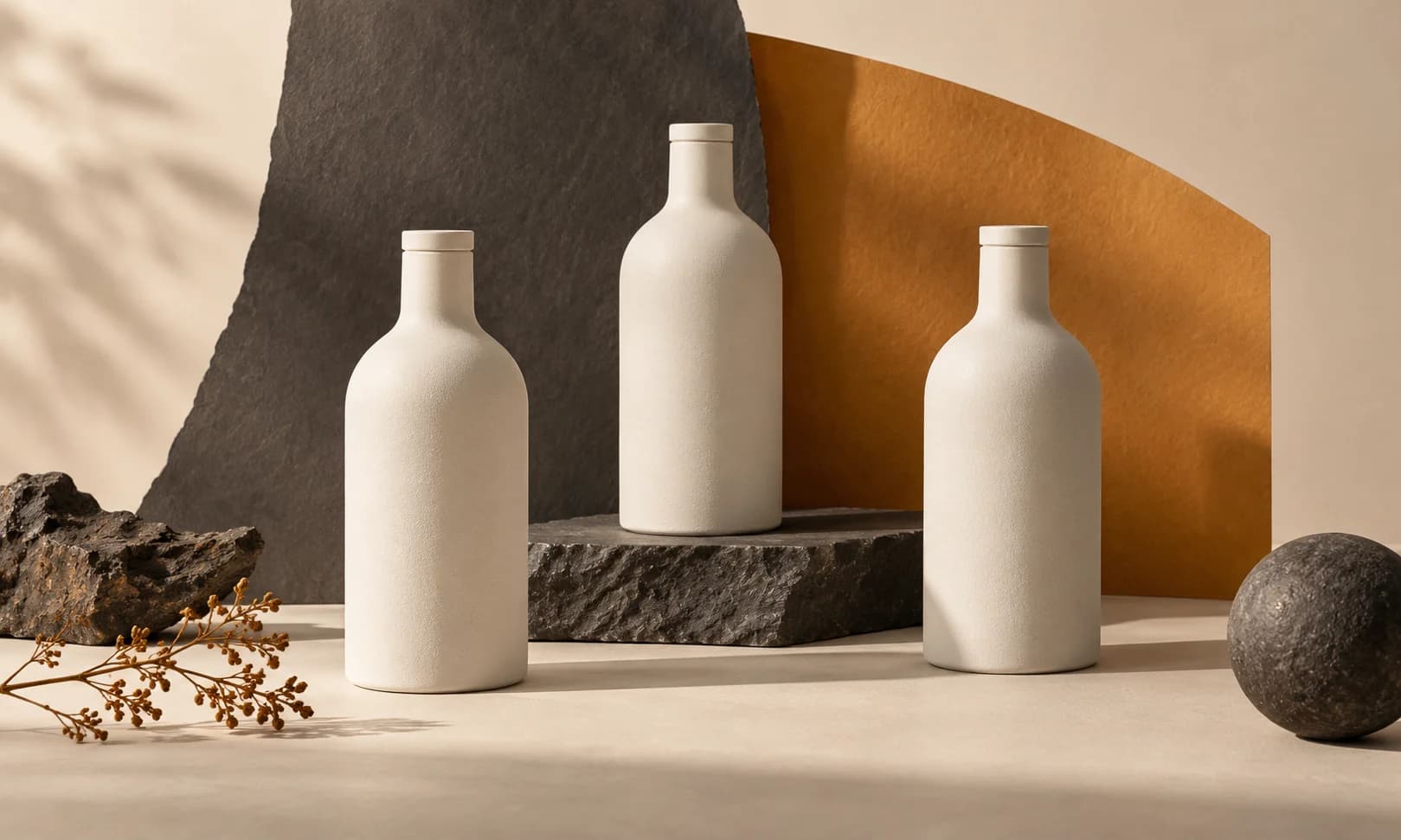
A shop owner wants a coherent catalog, not just one attractive product scene. Before paying for a larger background job, test two items with visibly different marks and define which product details must survive.
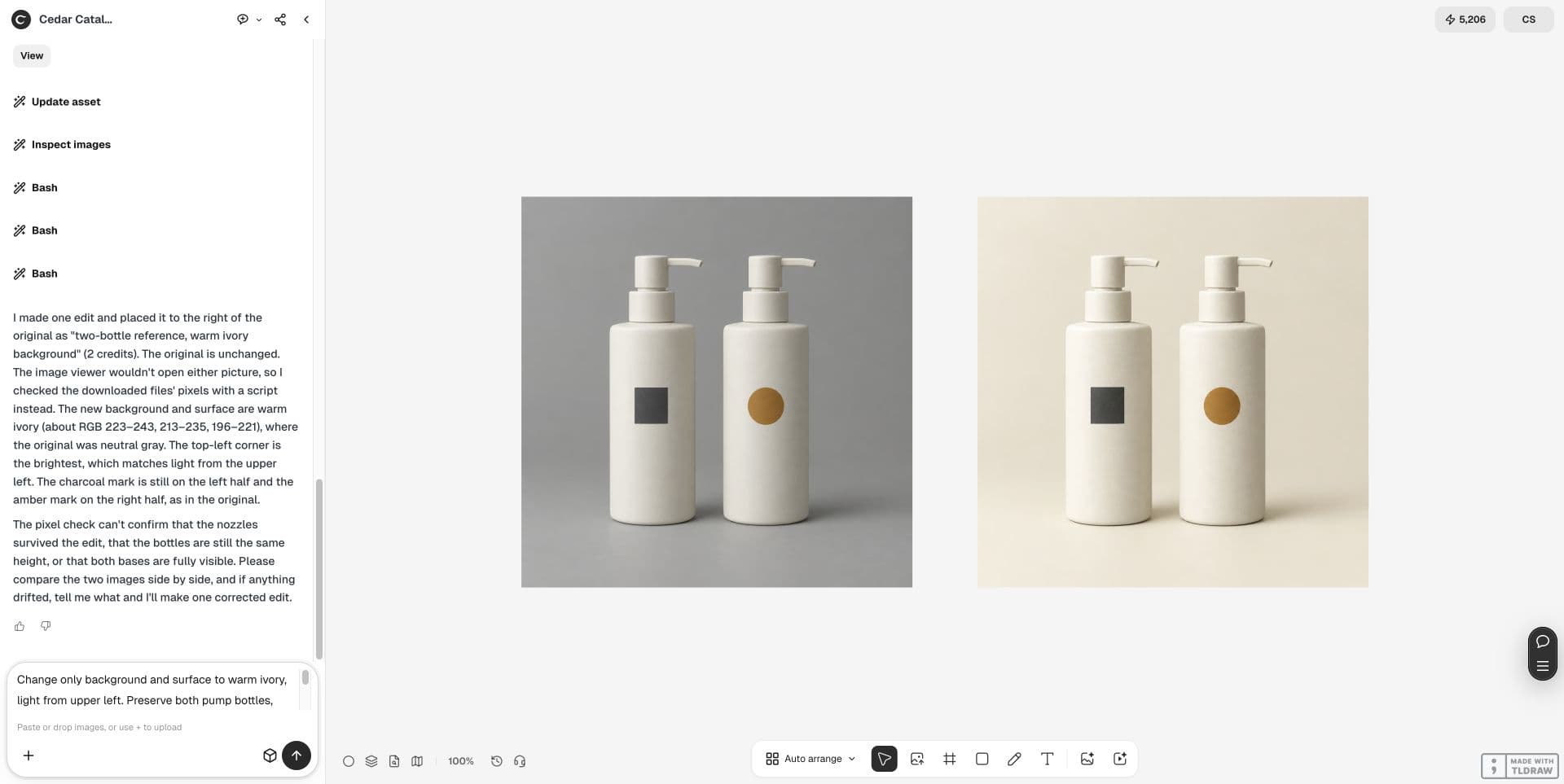
Our Ciyo pilot uses two fictional pump bottles in one image. It demonstrates a comparison method, not automated batch processing or fidelity to real merchandise.
1. Choose the kind of background job
A solid color, a fixed background image and a newly generated scene solve different problems. Photoroom's help documentation distinguishes these choices and notes that generated backgrounds can vary.
For a uniform catalog, decide how much variation is acceptable. Specify a reference color, camera framing and shadow direction before comparing subscriptions or quotes.
2. Use two items that reveal mix-ups
We generated two ivory pump bottles with equal heights: a charcoal square on the left and an amber circle on the right. Both bases and pump nozzles were visible in the source.
For your own catalog, use permitted photographs of actual products. Pick a pair with distinct labels or cap shapes. A synthetic pair cannot validate preservation of your real SKU details.
3. Change only the setting
The live request changed the background and surface from gray to warm ivory while preserving the two bottles and their left-right marks. We kept both versions on the canvas.
Use the prompt below as a starting brief. Add your own label text and prohibited changes, then inspect them in the output rather than assuming the instruction was obeyed.
Change only background and surface to warm ivory, light from upper left. Preserve both pump bottles, equal heights, charcoal square left and amber circle right. Keep bases visible and original on canvas; put one edit beside it. Synthetic two-item pilot.4. Review objects as well as the scene
The edited pair has a warmer background, visible bases and the square-circle order remains recognizable. Reflections and small surface details can still change. The side-by-side view does not prove pixel-level product preservation.
Ciyo's image inspection tool could not open the images during this run. We reviewed the visible pair manually; the agent's text alone was not an acceptance test.
| Check | Accept only when |
|---|---|
| Product identity | Marks, cap shapes and silhouettes match the permitted references |
| Consistency | Crop, background and shadow meet the same brief across files |
| Catalog readiness | Each required SKU has a reviewed, correctly named export |
5. Test separate files before a catalog order
This demo puts two objects in one image. If your job needs one file per SKU, run the next pilot on separate product photographs with the same brief and compare those exports together.
Agree who reviews label text, handles failed items and supplies the final crop. Count accepted SKU files rather than scenes generated, and retain the originals for correction.
6. Expand only after the sample passes
Use a fixed background when strict visual uniformity is the priority; try a generated setting when scene variation serves the campaign. Your actual acceptance criteria should determine the choice.
The linked photography-budget guide covers rejected outputs and correction costs. Approve a small set of downloaded files before commissioning the rest of the catalog.
Frequently asked questions
Does this example demonstrate batch automation?
No. It edits one image containing two fictional objects. Test separate real product files before evaluating a catalog workflow.
Can I trust the agent's description of unchanged labels?
Check the images yourself. A description or successful generation does not establish label accuracy.
Run one small pilot
Open a clean canvas, keep two references and compare one limited background edit before planning a larger catalog job.