Practical design guides
ChatGPT Product Feed Images: Match Each Variant to the Right Photo

A product feed can contain valid-looking image links and still show the wrong color to a shopper. Before preparing a ChatGPT product feed, map each purchasable variant to the photograph that actually represents it.
OpenAI’s November 10, 2026 Businesses in ChatGPT beta announcement makes this a timely handoff task. This guide uses the current stable file-upload schema and a fictional River mugs worksheet. Ciyo is used for planning review; it does not submit the feed, claim a business or guarantee discovery.
Quick answer
Make a row for each purchasable variant, preserve a unique stable item ID and pair it with the right source photograph. Check the final public image address against the variant and landing page. Have the authorized feed owner validate the complete current schema and eligibility before submitting outside Ciyo.
What changed, and what did not
OpenAI announced Businesses in ChatGPT in beta on November 10, including Business Hub and eligible business capabilities. That announcement is the news hook; it is not evidence that your store is eligible, that demand for this exact query is growing, or that a submitted product will appear to a shopper.
The supported file-upload reference distinguishes Stable from a Draft intended for planning and feedback. Use the current supported schema for the actual integration. This article isolates image matching; it is not a complete feed template, an Ads setup guide or a checkout integration.
1. Build a variant-to-photo worksheet
Start with your approved catalog and authorized originals. Give each row the item ID, selected variant, source-photo filename, intended public image URL and matching product-page destination. Keep the commercial facts under the catalog owner’s control.
The stable reference calls for a unique item ID per item or variant and a main image showing that variant, using a direct image URL. Its upload guidance requires public product and image URLs. Those checks are a starting point, not the entire schema.
| Variant | Illustrative unique item ID | Photo assignment | Status |
|---|---|---|---|
| Blue River mug | RIVER-MUG-BLUE | Blue mug source photo | Public URL not supplied |
| Ivory River mug | RIVER-MUG-IVORY | Ivory mug source photo | Public URL not supplied |
| Both | Separate approved rows | No shared wrong-color image | Catalog owner review pending |
2. Review identity before visual consistency
A matching background should not make two different products look like the same variant. Compare each proposed image with the authorized source, checking color, shape, label, included parts and other distinguishing details. If a creative edit changes those facts, return it for correction instead of treating visual polish as approval.
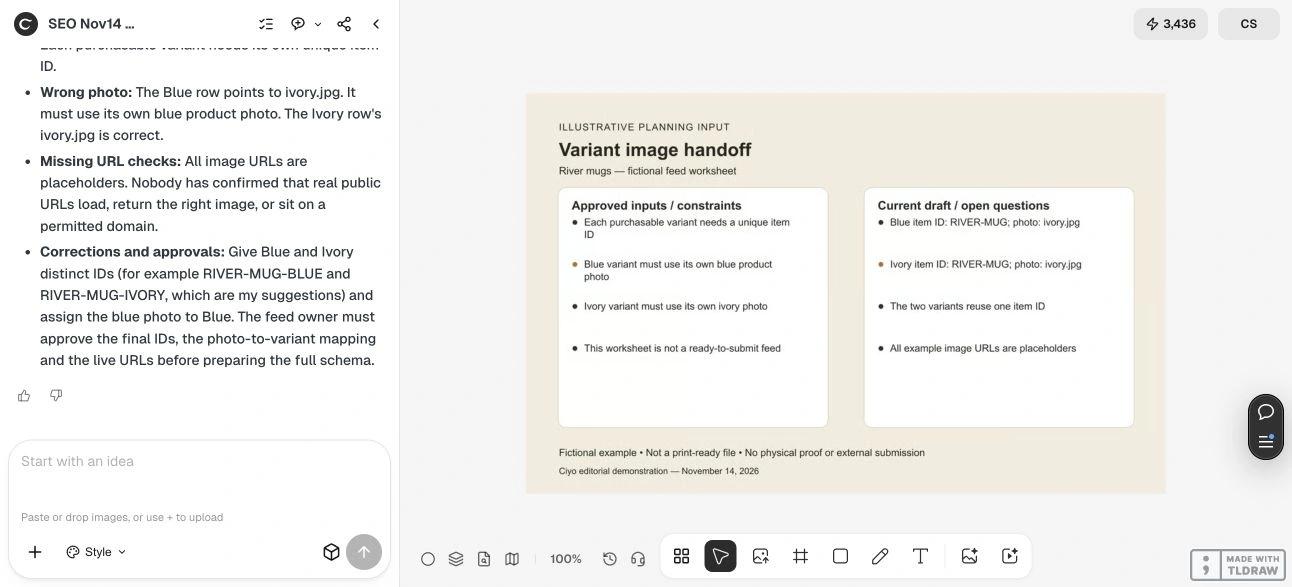
In our deliberately flawed River mugs draft, both variants use the item ID RIVER-MUG and both point to ivory.jpg. The blue mug therefore has a wrong-photo assignment as well as a duplicate identifier. These filenames are illustrative; no public product image or live merchant feed is supplied.
3. Use Ciyo for the review brief
Upload the worksheet or visual contact sheet and state which catalog facts are approved. Ask the Design agent to identify duplicate IDs, wrong variant/photo pairings and unresolved handoff checks. When using real product references, inspect the sources yourself as well; an agent response is not catalog authentication.
The deliverable at this stage is a correction list for the person preparing the feed. Keep it separate from the production data file. A canvas image of a table cannot establish correct schema serialization, public URL access, merchant approval or successful ingestion.
Live Ciyo review: duplicate IDs and a wrong-color assignment
On November 14 at dev.ciyo.ai, Ciyo identified that both fictional rows used RIVER-MUG and that the blue row pointed to ivory.jpg. It proposed distinct example identifiers, the blue photo for the blue variant, and feed-owner approval of the final mapping.
It also flagged that the public image URLs were placeholders. No real URL was tested and no feed was prepared or submitted. We used the identity and mapping corrections; the production feed owner must check the current schema and actual image access rather than treat the agent’s generic domain comment as a verified platform rule.
Copyable variant-image review
Replace the bracketed values with your own approved catalog information. Do not put access tokens or private customer data into the prompt.
Review the attached product-image worksheet for [CATALOG]. Approved variants and stable item IDs: [LIST]. Authorized source photos: [FILE-TO-VARIANT MAP]. Flag duplicate IDs, wrong colors/items, mismatched image destinations and unresolved approvals. Separate observed mismatches from checks requiring the real public URLs. Return a correction list for the feed owner. Do not submit a feed, claim a business, invent an integration or promise product visibility.4. Check the real URLs and complete the external handoff
Once the corrected assets are published by their authorized owner, open each direct image URL without relying on a signed-in editing session. Confirm that the image loads, shows the intended variant and remains available at a stable address. Open the product page too and check that its selected variant agrees with the row.
Have the feed owner validate the complete current required fields, countries, price, availability and submission rules against OpenAI’s documentation. Follow the actual onboarding route for the eligible business and preserve submission/validation outcomes. This demonstration made no external submission, so it supplies no acceptance or indexing result.
Choose an asset review before an integration project
Use this workflow when the catalog exists but images or variant assignments need checking. If the catalog facts themselves are unresolved, fix them first. If you need an automated feed integration, scope that separately with the authorized catalog and integration owners.
Sources
Announcement and stable schema checked November 14, 2026. The River mugs example and suggested review method are original illustrative material.
Frequently asked questions
Does Ciyo submit a ChatGPT product feed?
No such integration is demonstrated here. Ciyo reviews a fictional asset-matching worksheet; the authorized feed owner handles validation and submission separately.
Can two variants reuse the same item ID?
The stable file-upload reference requires an ID unique per item or variant within the feed. Preserve the appropriate stable identity and validate the full schema for your integration.
Is this table ready to upload?
No. It is an illustrative image-matching worksheet, with no real public URLs and only a small subset of the information a complete feed requires.
Does a submission guarantee product visibility?
No. Follow the current eligibility, onboarding and validation requirements; this guide reports no submission or distribution outcome.
Check the photo-to-variant mapping
Bring an approved catalog worksheet and authorized references into Ciyo. Resolve image assignments before handing the complete feed to its authorized owner.