Desktop background design
Desktop Wallpaper Maker: Reserve Space for Icons Before Generating
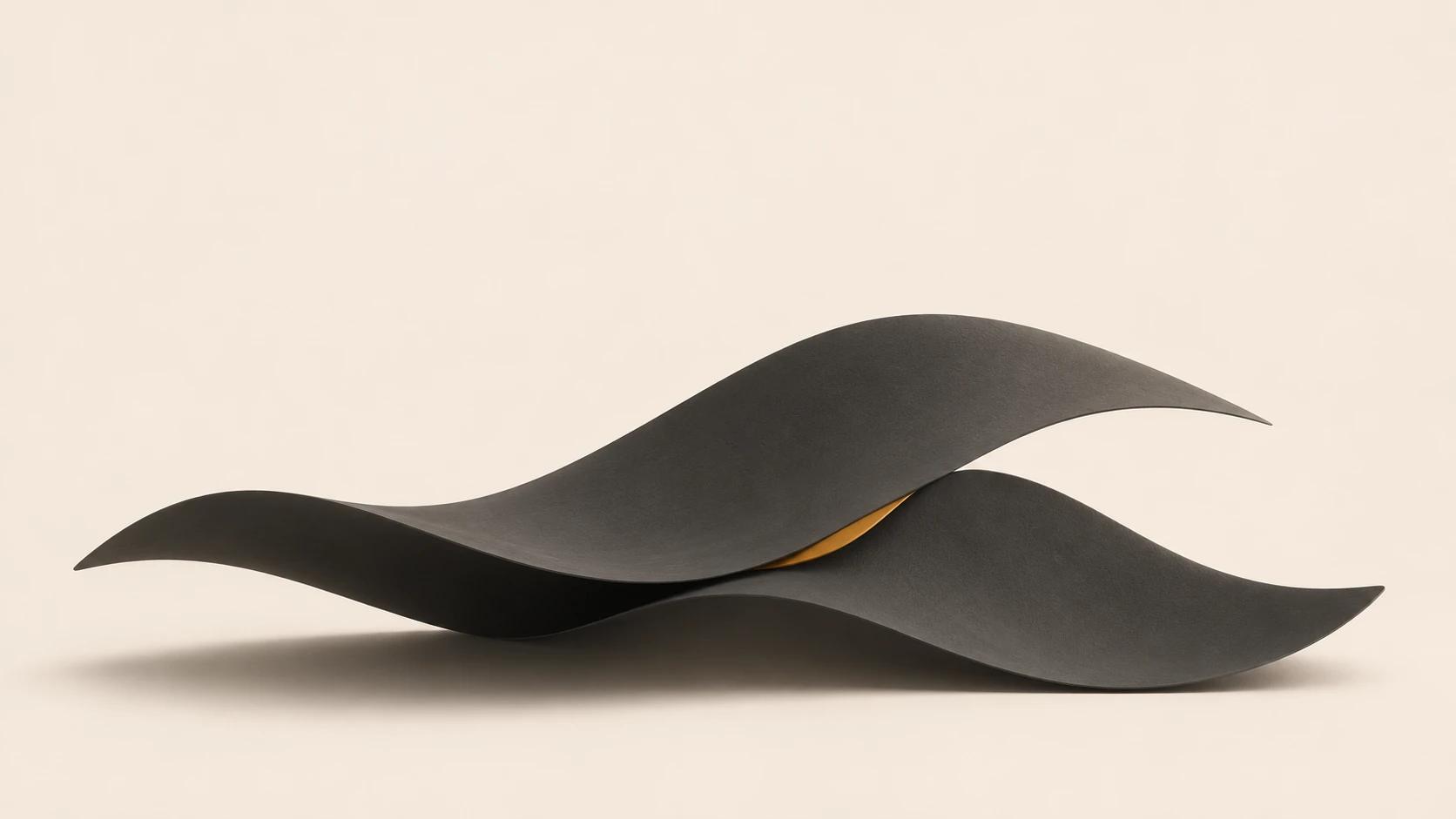
A desktop wallpaper maker can produce an attractive image that puts its busiest forms directly behind your shortcuts. Decide where icons and taskbar content sit before generating, then compare the image's actual ratio with the screen you will use.
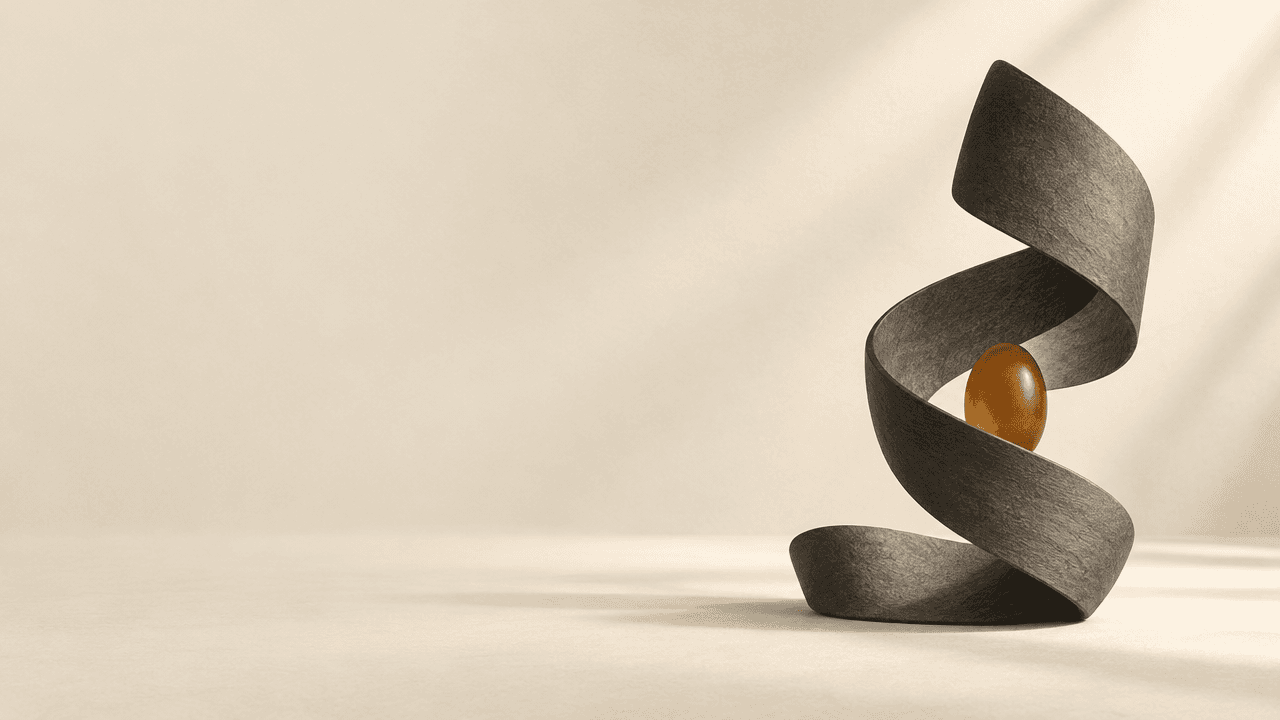
On November 23, 2026 we generated a text-free abstract wallpaper in Ciyo's development workspace. The downloaded PNG is 1280 × 720, with quiet ivory space on the left and charcoal and amber forms on the right. We inspected that image and a browser crop comparison; we did not change or test Windows desktop settings.
Quick answer: keep the source and inspect the proof
Reserve an icon area, generate at a useful ratio, check the downloaded pixel dimensions and compare Fit with Fill before applying it. Our 16:9 source has a quiet left region, but a different screen ratio can introduce bars or crop the composition.
Follow five steps: define the task, prepare a checkable source, generate a visual proof, inspect the actual output and use the separately authored working files.
1. Map the desktop's occupied areas
Write down whether icons occupy the left, right or several columns, and note the taskbar position. Our fictional brief reserves the left third without drawing icons or labels into the image. Keep this as a layout constraint rather than asking for a picture of a computer desktop.
Microsoft's desktop-background guidance explains the Windows choices: Fit preserves the picture's ratio and can leave surrounding space, while Fill crops to cover the screen. Stretch can distort the image. These are documentation-based instructions, separate from the image-generation run.
2. Specify the source ratio and a quiet region
Our prompt requests a landscape ivory background with a charcoal curled ribbon and an amber ellipsoid on the right. It forbids text, logos, UI and borders. The requested 16:9 layout matches the aspect ratio of the actual 1280 × 720 PNG.
The 1K setting is the observed product choice, not a guarantee of a 1920 × 1080 or 4K file. Inspect the downloaded dimensions. Enlarging a 1280 × 720 source to a larger screen does not add original image detail, even when the ratios match.
| Use case | Ratio check | Review |
|---|---|---|
| 1920 × 1080 target | 16:9 matches source | Inspect upscaling softness |
| 1600 × 1000 target | 16:10 differs | Compare bars with crop |
| Icons on left | Quiet area requested | Check actual icon visibility |
3. Generate one flat visual proof in Ciyo
Create an isolated Ciyo project and open Image Generator. Our authenticated development run on November 23, 2026 used GPT Image 2.5 Flare, Medium quality, landscape 16:9, 1K and one image. Select the controls before entering the complete prompt, then review the displayed credit quote. Our run showed 2 credits; check your own current quote.
The copyable prompt is the actual English request. Replace the fictional details consistently and retain the stated constraints. The result is a raster image proof; the editable downloads below were assembled independently and are not Ciyo exports.
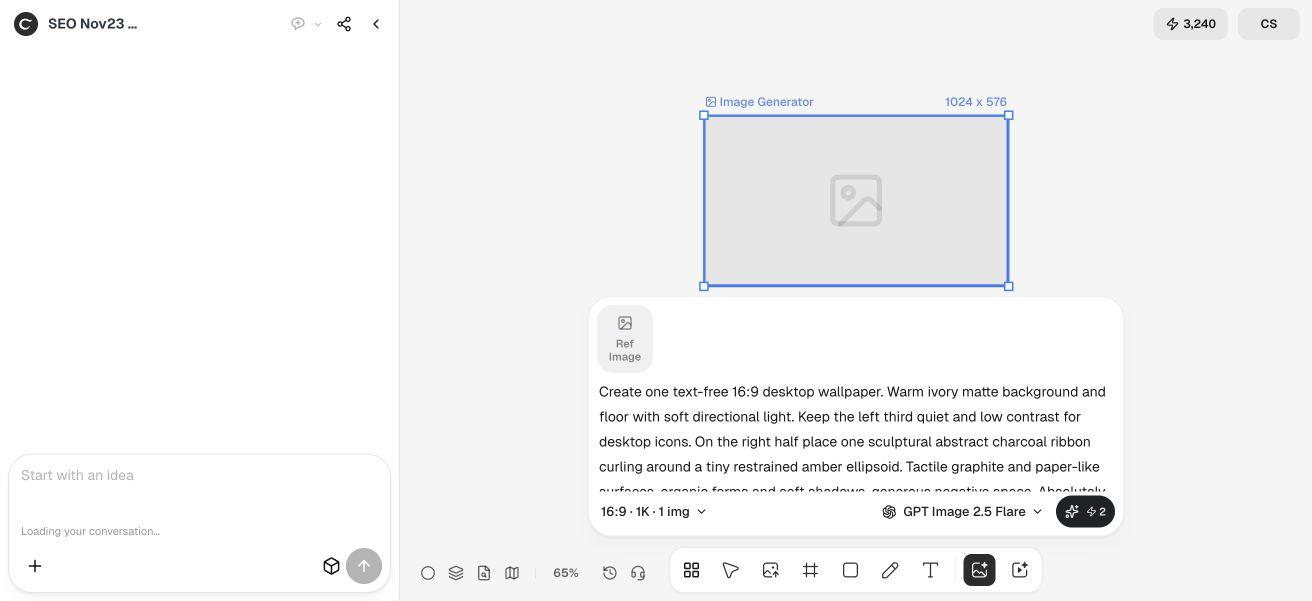
Create one text-free 16:9 desktop wallpaper. Warm ivory matte background and floor with soft directional light. Keep the left third quiet and low contrast for desktop icons. On the right half place one sculptural abstract charcoal ribbon curling around a tiny restrained amber ellipsoid. Tactile graphite and paper-like surfaces, organic forms and soft shadows, generous negative space. Absolutely no recognizable objects, documents, UI, app icons, literal landscapes, people, symbols, text, logos or watermark. The result is abstract art, not a screenshot.4. Compare the actual output with the source
The downloaded output keeps roughly the left half of the composition quiet and places the main forms on the right. It contains no visible lettering, logos or simulated interface. The result supports the requested negative-space direction, but it does not show icons or establish readability on your desktop.
The source is 1280 × 720. Review a full-size copy before using it on a larger display. The companion's dashed icon region is an editorial overlay in a browser preview, not part of the original image or an actual Windows screenshot.
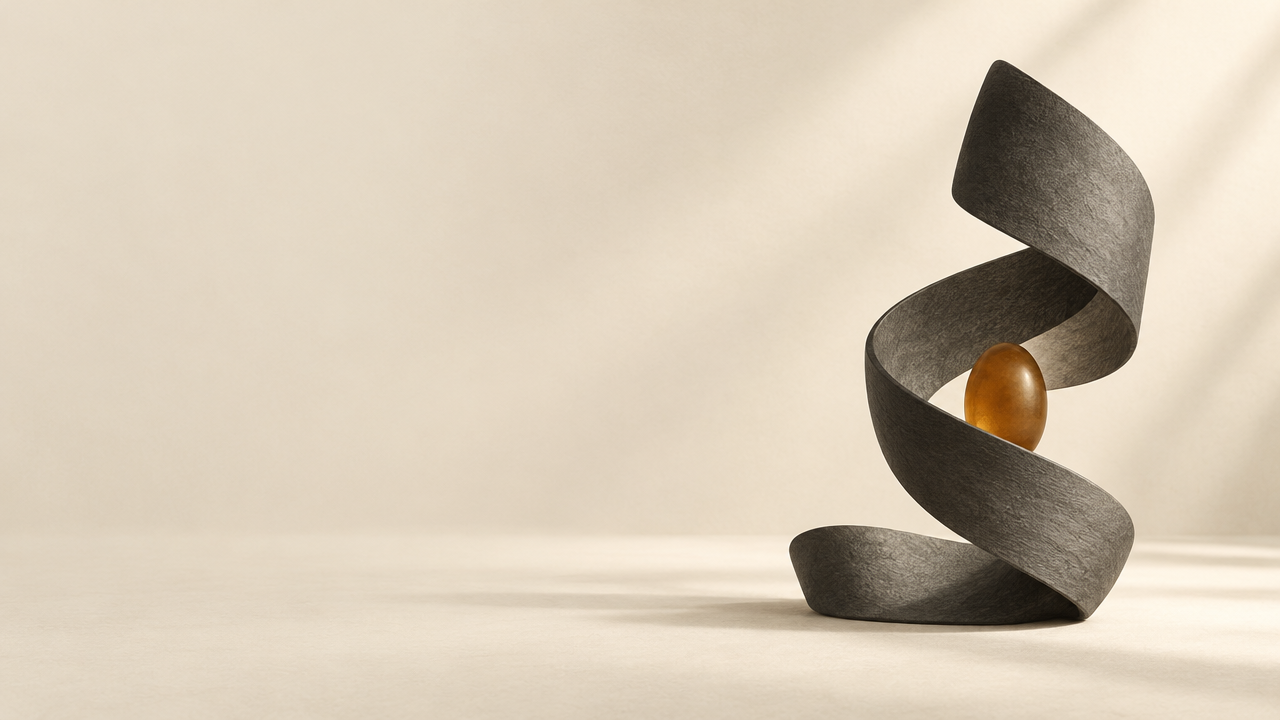
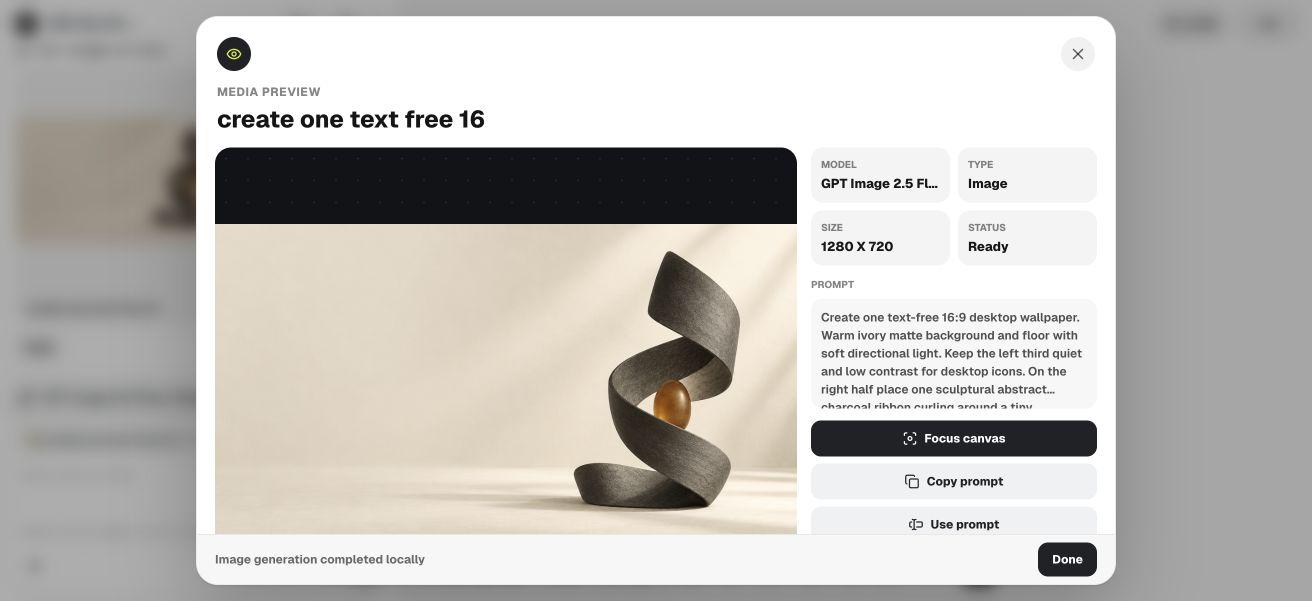
Ciyo media preview: inspect the model and original request
Open the generated asset in Ciyo’s media preview to compare the result with the model details and original English prompt. This whole-product capture shows that review step; the readable prompt and output inspection above remain the reference for small text.
5. Compare the actual source with your target screen
Open the English crop-check HTML to compare a 16:9 contain view and 16:10 contain/cover views using the actual R2-hosted PNG. CSS contain and cover illustrate the shape tradeoff; use Windows' real controls to assess your own final result. The size-check CSV records two illustrative target dimensions.
Download the actual PNG from the article's output link if you want to inspect it locally. Choose Fit when preserving the full composition matters more than filling every pixel; choose Fill only after checking which edges disappear. Reposition or revise the art if the useful quiet area is lost.
Choose the source you will maintain
Use Ciyo when you want an original abstract composition with a specified quiet region. Use the operating system's background controls for final placement. A browser comparison can reveal likely cropping, but it does not replace the actual display and icon check.
Frequently asked questions
Is this a 4K wallpaper?
No. The actual downloaded source is 1280 × 720. Matching a display's aspect ratio does not increase the source resolution.
Were Windows settings tested?
No. The article uses Microsoft documentation and an editorial browser preview. No desktop background setting was changed during the demonstration.
Does Fill preserve every edge?
No. Fill covers the target area by cropping when ratios differ. Inspect the actual result, especially the region reserved for icons.
Create an abstract wallpaper proof
Start with your approved source, generate one visual proof and inspect the actual result before preparing the final working file.