Practical design workflows
AI Phone Case Design: Fit Artwork Around the Camera Cutout
A phone-case design can look balanced as a rectangle and lose its main detail when the camera opening is cut out. A face, monogram or small motif may land exactly where the printer cannot put it. Start the design with that missing area in mind.
This guide follows a template-first AI phone case workflow for a fictional Fern Shop botanical design. Printful’s file-preparation guidance supplies the production principle: use the template for the actual product. The artwork and digital proof are separate from a physically printed sample.
Our live Ciyo attempts did not save the artwork or placement proof. The supplied template and brief are real, but the steps below are preparation and review guidance rather than a verified finished phone-case design.
Quick answer: choose the case before generating the artwork
Select the supplier, case type and exact phone model. Download its current print template, identify the printable and safe regions, then create artwork that works around those constraints. Keep the template as a review layer and remove guide marks from the file you deliver.
A decorative background can extend toward the edges; an important symbol or word needs a safer location. Check the manufacturer’s instructions for that specific case rather than copying a universal bleed or pixel size.
| File | Purpose | Do not confuse it with |
|---|---|---|
| Artwork master | Editable or high-resolution original composition | A printer-approved production file |
| Template proof | Artwork viewed against safe regions and cutouts | The clean file sent for printing |
| Supplier upload | Artwork exported to the chosen specification | Evidence of the finished physical result |
1. Confirm the exact model and template
A case for one phone model is not a reusable template for every phone with a similar screen size. Camera arrangements, edge wrap and printable dimensions can differ. Record the supplier’s product name and selected variant beside the downloaded file.
Open the template and read the legend. Identify which marks describe the final edge, the safe area and any unprintable opening. Some files include a background or example artwork; do not accidentally include those elements in your own design.
If the supplier offers a preview tool, use it as another inspection view. It can reveal placement mistakes, but a screen preview cannot establish material feel, color matching or the accuracy of a physical sample.
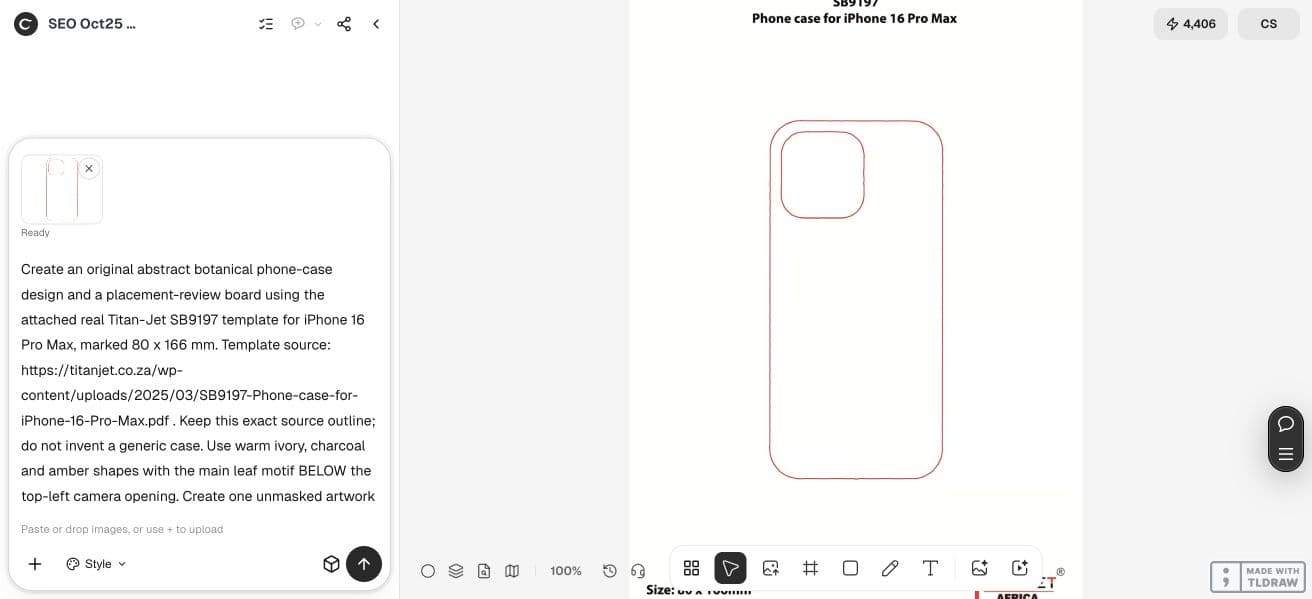
For the live demonstration, we downloaded Titan-Jet’s SB9197 iPhone 16 Pro Max PDF, marked 80 × 166 mm, and rendered the supplied outline for upload. That particular file does not supply a complete bleed or safe-area specification. Our placement check therefore cannot certify a production file or transfer its dimensions to another case.
2. Give the artwork a clear focal area
Our fictional design uses a sparse botanical arrangement with one larger leaf group away from the camera opening. Smaller supporting shapes can approach the edges, where losing part of a leaf is less damaging than losing the main motif.
Write down which part must survive. For a monogram, it is every letter; for a character, it may be the whole face; for an abstract design, it may be a particular relationship between shapes. That decision tells you where the safe area matters most.
Avoid asking an image model to draw the final camera hole as part of the artwork. The real cutout belongs to the product template. A painted imitation of the hole can remain visible in the wrong place on the finished case.
3. Create the artwork in Ciyo
Open a project with the template and any permitted visual references. Ask for the artwork as a separate composition, with open space where the camera region will sit. Keep logos and text as supplied assets or editable elements when their exact form matters.
Use a broad first pass to establish the composition, then revise the placement of the focal motif. If the result is too tightly framed, requesting extra surrounding artwork may be more useful than stretching the entire image.
Create an original abstract botanical phone-case design and a placement-review board using the attached real Titan-Jet SB9197 template for iPhone 16 Pro Max, marked 80 x 166 mm. Template source: https://titanjet.co.za/wp-content/uploads/2025/03/SB9197-Phone-case-for-iPhone-16-Pro-Max.pdf . Keep this exact source outline; do not invent a generic case. Use warm ivory, charcoal and amber shapes with the main leaf motif BELOW the top-left camera opening. Create one unmasked artwork file and a separate proof over the supplier outline; keep the template as its own original. Show a rejected placement with the motif crossing the camera opening beside the corrected placement. Use deterministic composition for the proof so the template geometry stays intact. This is an illustrative digital placement check, not certified print-ready artwork: do not invent bleed/safe-area measurements absent from the supplier file. Export the artwork and proof as separate downloadable PNGs, report actual pixel dimensions, and save them to the canvas. Execute this concrete brief now.4. Check the cutout, corners and edge wrap
Place the artwork behind the actual template without changing its proportions. Inspect the camera region first, then the corners and any area that wraps away from the flat face. View the full case at a plausible handheld size as well as zooming in on the details.
If a leaf tip is clipped, decide whether that crop looks intentional. If a letter or face is clipped, move or redesign the focal area. Simply shrinking everything may solve one cutout problem while leaving an awkward empty border.
Turn the guide layer on and off. The composition should work both as clean artwork and as a placement proof. Guide lines, measurement labels and supplier sample artwork must not leak into the delivered design.
5. Export to the supplier’s actual requirements
Read the required file format, dimensions, resolution and transparency rules for the chosen product. A PNG can preserve transparency, but that does not mean every supplier or case accepts every level of transparency. Follow the current product-specific instructions.
Check the saved file’s pixel dimensions. A large-looking preview does not create additional image detail, and changing a resolution label alone does not add pixels. If resizing is necessary, inspect the result for blurred lines, jagged diagonals and altered small details.
Keep the clean export and the proof visibly named. The supplier upload should contain only the intended printable artwork. If a layout or preflight step happens in another program, keep that step explicit rather than presenting it as a native Ciyo export feature.
6. Use a sample to judge the physical result
A digital proof can catch placement mistakes. A sample is how you judge the material, edge treatment and printed color. Inspect the area around the camera and the corners on the actual case before offering a design broadly.
For a one-off personal case, one carefully checked variant may be enough. For a shop selling several models, repeat the placement check for each model rather than assuming the first layout transfers unchanged. Keep a separate export and template record per variant.
If the artwork needs heavy cropping for a second phone, make a new composition from the master. Protecting the focal idea is usually more useful than forcing the same rectangle onto every product.
Frequently asked questions
Can I use one file for every phone model?
Only if your supplier explicitly supports that workflow and its previews confirm the placement. Otherwise make and inspect a model-specific export.
Should I include the camera hole in the image?
Use the supplier template to reserve that region. Do not paint an imitation of the hardware or print guide into the final artwork.
Is a high-resolution PNG automatically print-ready?
No. Format, actual pixel dimensions, placement, transparency and the selected product’s requirements all matter.
Does a digital mockup replace a sample?
No. It helps you review placement, but it does not establish physical color, material or print quality.
Design around the actual case
Bring the chosen supplier template into Ciyo and create artwork with a deliberate safe focal area before exporting a production file.