Practical design guides
Full Wrap Book Cover Design: Start with the Printer’s Spine Template

A full wrap book cover can have a beautiful front and still fail at the spine. The wrap must fit a physical book, so a guessed center strip can move the title and barcode into the wrong place.
This tutorial uses Lulu’s cover-file guidance and a fictional paperback planning review completed in Ciyo. It shows how to organize the back, spine and front before production. Our example did not generate or validate a print PDF.
Quick answer
Finalize the interior, paper, binding and trim size before downloading the printer’s cover template. Plan the integrated back–spine–front spread on that template, keep important content inside its safe areas, and ask the printer to approve the final file. An ebook front cover is a different deliverable.
1. Freeze the inputs that determine the spine
The River Notebook is our fictional paperback. Its first draft guessed a 12 mm spine while the interior and paper were still undecided. That number is an illustrative error to catch, not a usable production measurement.
Collect the final interior page count, selected paper, binding, trim size and the exact product specification from the supplier. Lulu’s upload guidance uses a template based on the book configuration. If the interior changes, regenerate the template and revisit the wrap rather than stretching the old cover to look plausible.
| Input | Who confirms it | What changes if it moves |
|---|---|---|
| Final interior page count | Author or production owner | Spine and overall spread |
| Paper and binding | Chosen printer | Template and construction |
| Trim size | Book specification | Front/back panels |
| Current template | Chosen printer | Bleed, folds and safe areas |
2. Lay out a spread in the supplier’s orientation
For Lulu’s integrated print cover, the outside spread contains the back cover, spine and front cover in one file. Keep those roles explicit in your working reference. A loose front illustration does not establish a full-wrap file, and the correct spread orientation does not establish its dimensions.
Put the title and author name on the front, reserve a separate spine region when the supplier allows spine text, and give the back its own hierarchy. Keep blurbs, credits and barcode space away from folds and trim according to the current template. Do not invent an ISBN or draw a decorative substitute for a real barcode.
3. Ask Ciyo to review the plan before polishing it
Upload your draft spread or a planning sheet with approved inputs alongside unresolved questions. Ask for contradictions and missing approvals. Supplying the exact title, author and intended back copy makes the review more actionable than asking whether the cover looks professional.
In the November 14 dev.ciyo.ai demonstration, Ciyo identified the guessed 12 mm spine, the conflict between fixed draft panels and a missing supplier template, and the barcode crossing the fold. It recommended moving the barcode fully onto the back within the supplier’s safe zone, then obtaining interior, paper, placement and file approval. The reply did not calculate a final spine.
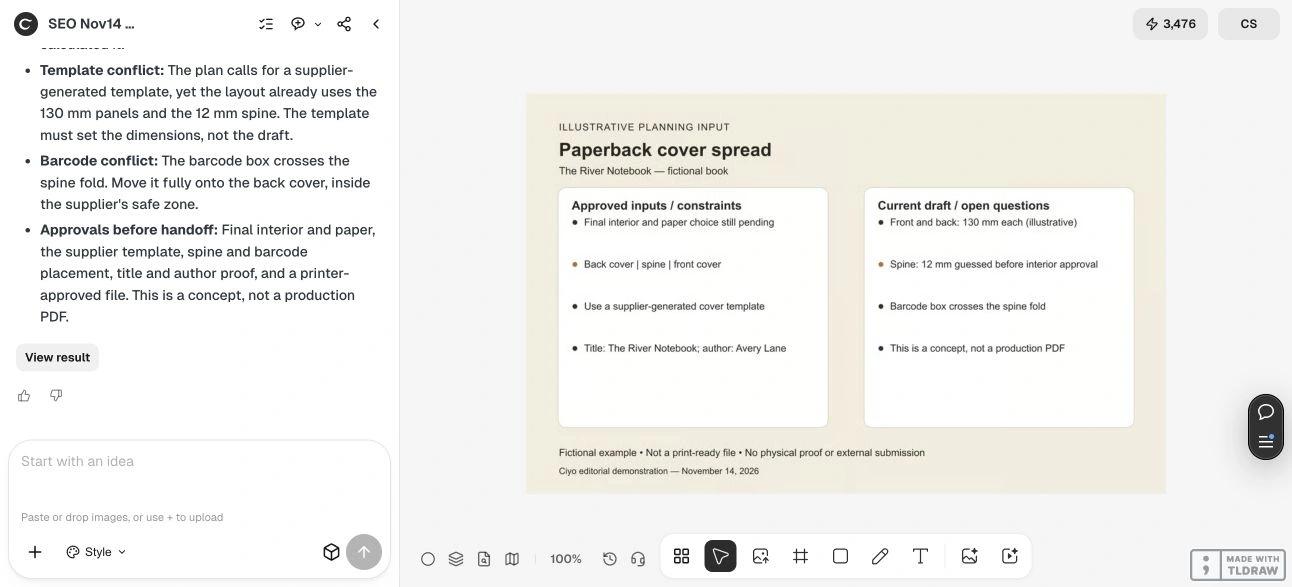
Copyable planning-review prompt
Replace the bracketed fields with your book’s actual inputs. If an input is unknown, leave it explicitly unknown.
Review the attached full wrap book cover plan for [TITLE] by [AUTHOR]. Final interior page count: [COUNT OR PENDING]. Paper, binding and trim: [CONFIRMED SPECIFICATION OR PENDING]. Supplier template: [VERSION OR NOT YET AVAILABLE]. Check back/spine/front orientation, content near folds, barcode space and contradictions. Do not guess the spine width, invent an ISBN or call the draft print-ready. Return corrections and required approvals.4. Move from the visual plan into production
Once the template is confirmed, assemble the approved artwork in the tool or prepress workflow your printer accepts. Verify its required PDF dimensions, image quality, fonts, bleed and export settings against the supplier’s current rules. A screenshot of a convincing spread cannot substitute for those checks.
Read the title and author on the front and spine separately; check the back copy against its approved text; confirm barcode requirements and placement with the printer. Request a physical proof when alignment, stock or color matters. If the proof exposes a shifted spine, resolve the specification and file together rather than simply nudging the title.
Choose the correct cover job
Use a front-only workflow for an ebook. Use a supplier-specific full-wrap workflow for a paperback, and obtain the separate construction requirements for a hardcover or jacket. Do not reuse a paperback template for those formats.
Source
Lulu guidance checked November 14, 2026; its cover-file page was modified June 11, 2026. The River Notebook and its deliberately incorrect dimensions are fictional.
Frequently asked questions
Can I calculate the spine from the trim size alone?
No. Get the printer’s template for the final book configuration, including page count and paper. Trim size alone does not determine the spine.
Can I reuse an ebook cover for print?
You may reuse approved front artwork if its rights and quality allow it, but a print wrap also needs the correct back, spine and supplier-specific production file.
Did this example create a print-ready PDF?
No. It demonstrated a live Ciyo planning review. File assembly, prepress validation and the printer’s proof remain separate steps.
Catch cover conflicts before prepress
Bring the approved book inputs and draft spread into Ciyo. Resolve the review list, then use your printer’s current template for production.