Practical product imagery
Remove the Background from Glass: Check What Shows Through
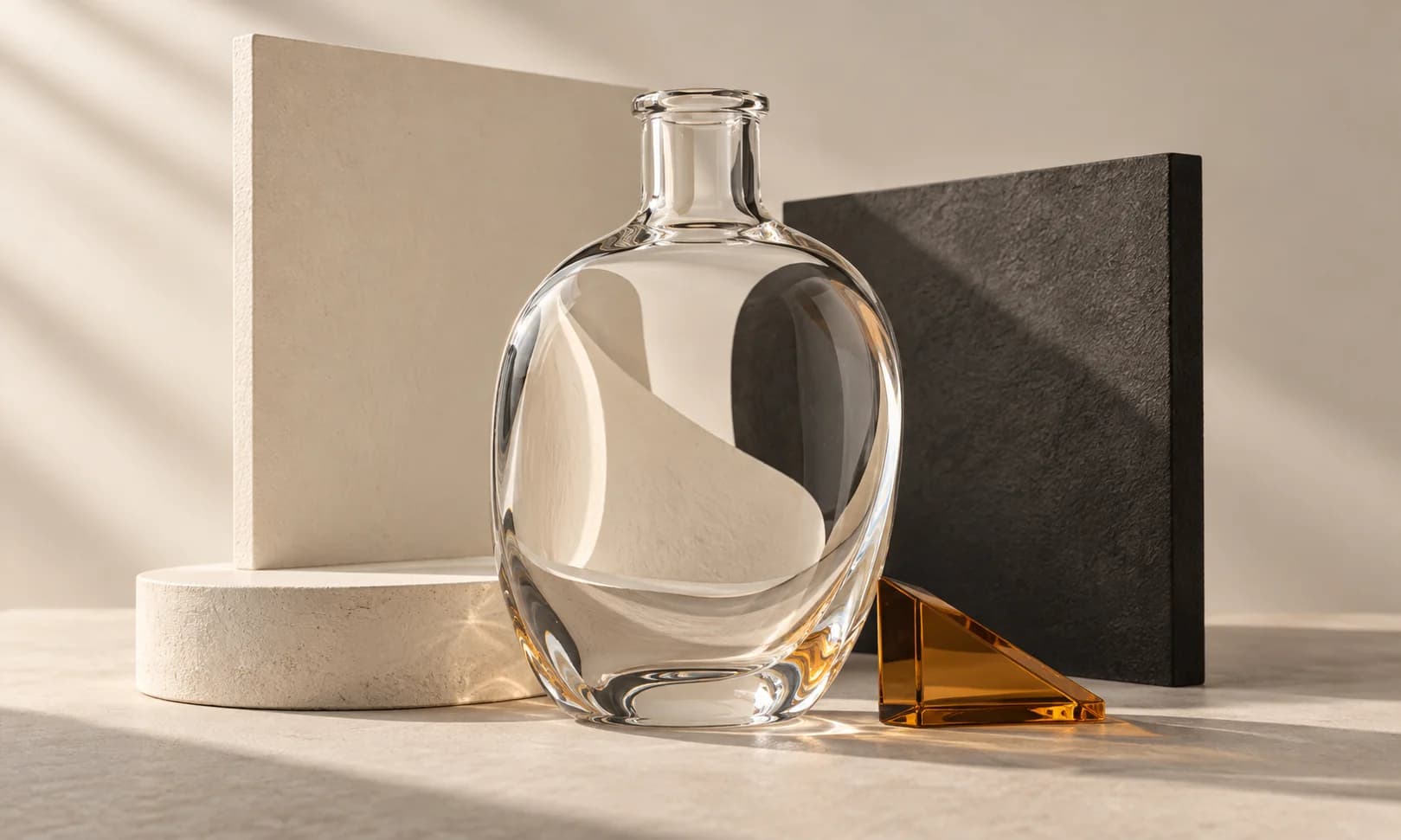
A glass bottle can have a clean outside edge and still carry its old background inside it. Put that cutout on another surface and the mistake becomes obvious: the bottle looks tinted by a room that is no longer there.
This guide uses a Ciyo background-removal workflow to explain that inspection problem. Current Photoroom guidance also identifies glass and transparent packaging as difficult edges. A standard cutout does not establish physically correct transmission or refraction on every new background.
The aim is to decide whether a particular glass image works on a particular destination. That is a narrower and more useful question than whether the file has an alpha channel.
Quick answer: test the inside of the bottle as well as its outline
Keep the original, run Remove Background, place the candidate on the intended background and inspect three areas separately: the outside edge, the glass interior and the remaining reflections. Check a contrasting surface as well if the asset will be reused.
If the old scene remains visible through the glass, stop treating a cleaner outline as a complete repair. Capture a better source or request specialist compositing for the destination.
| Area | What can go wrong | What to compare |
|---|---|---|
| Silhouette | Rim or thin stem is clipped | Original outside boundary |
| Transmission | Old background remains inside the object | Interior against the new background |
| Reflection | Highlights describe a different environment | Light direction and reflected shapes |
1. Choose the destination before removing the background
A bottle intended for a pale store card and the same bottle intended for a dark campaign banner may need different finishing. Specify the destination color or scene early, because it changes which contamination will be visible.
Use an authorized original image with a clear rim, visible base and enough detail in the transparent areas. Keep an untreated copy. Strongly colored surroundings can become part of the light passing through the glass; a cutout cannot always separate those contributions cleanly.
2. Run Ciyo Remove Background on the source image
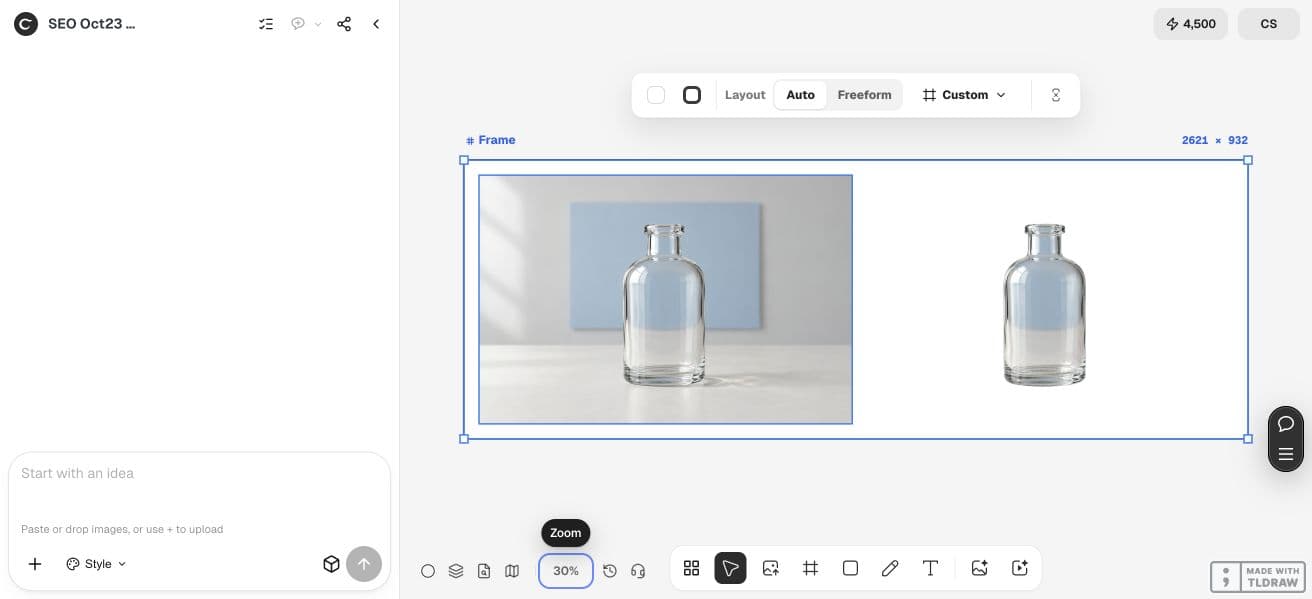
Import the image, select it and choose Remove Background from the available image actions. Inspect the quote or confirmation shown for the operation, then wait for its result. Keep the original beside the cutout rather than replacing your only copy.
Use this as a first pass. Do not assume the tool has reconstructed the glass material simply because the surrounding pixels have disappeared. Some transparent areas may retain background color; others may become too opaque or too faint.
A synthetic bottle can illustrate this workflow, but it cannot prove accurate handling of your real packaging. Run the check on the actual source before delivering a listing image.
3. Compare against the intended surface and a contrasting one
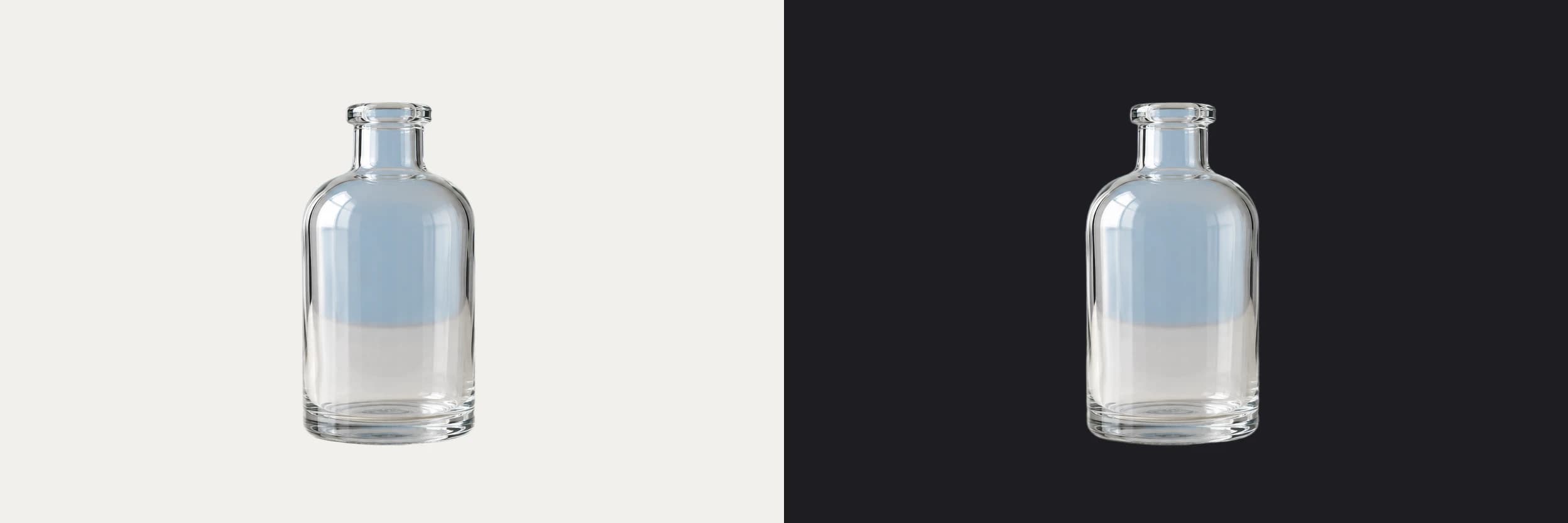
Place the candidate over the destination color or scene. Inspect the bottle body, neck opening, base and fine edges. Then check a contrasting background to expose halos or an opaque patch that happened to match the first surface.
Look for the shape of an old window, tabletop or colored wall within the glass. Also check whether the product’s legitimate tint has disappeared. A green bottle should not become colorless merely because the background changed.
The second background is a diagnostic check, not a promise that one raster cutout will look physically correct on every future surface.
Our October 23 dev example used a synthetic clear bottle photographed against a blue rectangle. The actual Remove Background cutout retained that blue shape within the bottle. Placing the same pixels on ivory and charcoal exposed the contamination on both surfaces. The outside boundary alone therefore did not pass this task.
4. Decide whether the defect is an edge, a reflection or transmitted color
An outside halo may be a boundary problem. A rectangle inside the bottle may come from the former environment. A highlight can be a genuine reflection that should remain, even when it no longer matches a new scene. Diagnose the specific issue before requesting another edit.
For a correction request, state the destination and the protected product details. Avoid asking the model to make the bottle perfectly transparent: that can erase tint, thickness and surface detail.
Compare this glass-product cutout with its original on [destination background]. Check the rim, neck opening, base and interior separately. Identify any old-background color or shapes still visible through the glass. Preserve the product tint, thickness cues, label and genuine surface detail. Do not approve the image merely because its outer background is transparent. Explain whether the source needs recapture or specialist compositing.5. Use a clear stop rule before exporting
Accept the image only for the destination you inspected, with its label, tint and outline still credible. Export in a format that preserves the transparency required by the next tool, and inspect that exported file on the destination again.
If the interior cannot be separated from the source environment, take a controlled photograph or send the original and destination brief to a specialist. A cutout with a correct edge is not automatically a transferable glass material.
For a team managing many products, document which destination each approved cutout was reviewed against. Do not turn one successful bottle into a blanket claim about an entire catalog.
Practical questions
Does a transparent PNG solve the glass problem?
It preserves transparency data, but it does not prove the old background has been removed from light passing through the glass. Inspect the interior on the destination.
Should all reflections be removed?
No. Reflections help describe the surface and shape. Judge whether they are plausible in the destination and whether removing them would erase product information.
Can one glass cutout work everywhere?
Sometimes it is usable across several simple surfaces, but that must be checked. A raster cutout does not reproduce the physics of every new environment.
When should I reshoot?
Reshoot when the source environment is strongly embedded in the glass or the source lacks enough detail to separate the product from its surroundings.
Inspect a cutout on its real destination
Start with one permitted source image and a clear acceptance check. Keep the original beside the result and approve the complete export before using it.