Product image workflow
How to remove a product-photo background and check the edges

Background removal is useful when one product needs to appear in several layouts. The difficult part is deciding whether the cutout still describes the object accurately, especially around openings, thin edges, and shadows.
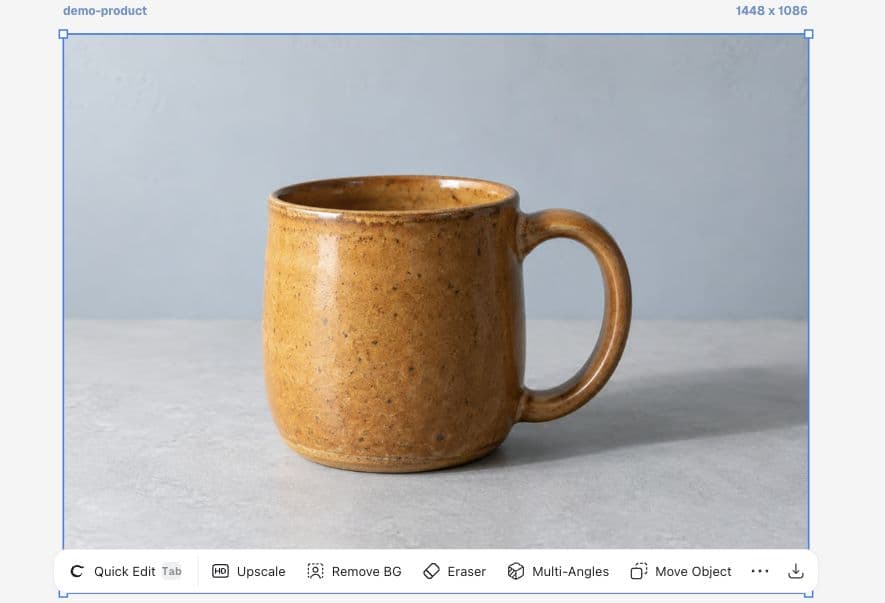
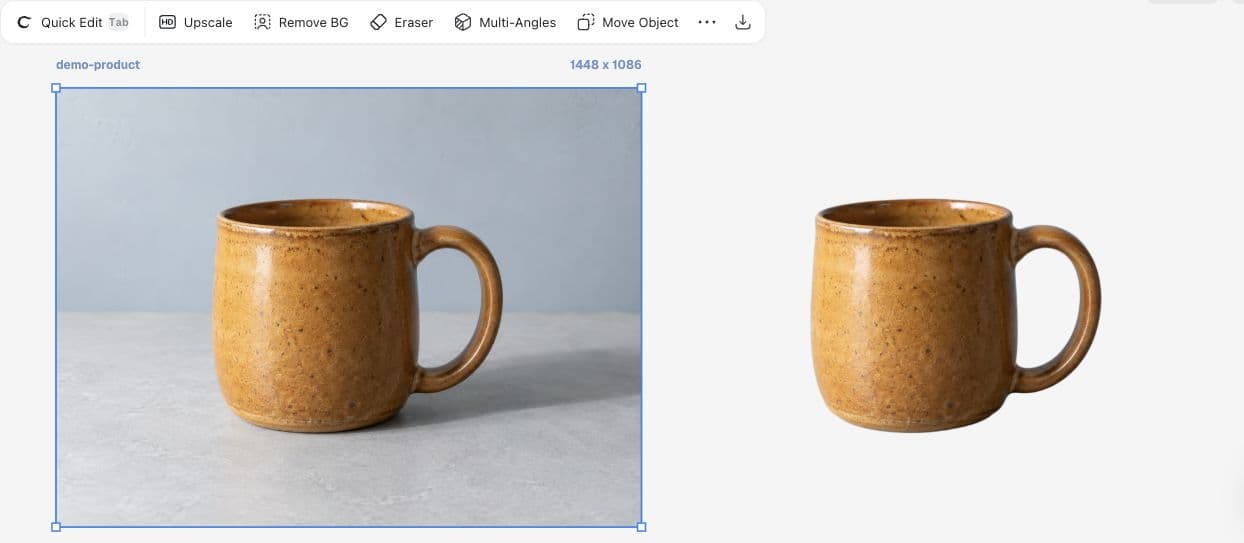
We use the same fictional Juniper Pottery mug to demonstrate Remove BG in Ciyo. The result appears as a separate cutout beside the original, so the handle opening and silhouette can be compared directly.
1. Start with a complete, readable subject
Upload the original image and select it. Check that the entire handle and base are visible before removing anything. A cutout cannot demonstrate the correct shape of a part already missing from the input.
The mug’s pale blue-gray background is visible both outside the object and through the handle. That makes the opening an important review area. We also note the original ground shadow: it helps the mug feel seated, but may not belong in the next layout.
2. Run Remove BG and retain the original
Select Remove BG in the selected-image toolbar. Ciyo creates a pending cutout beside the source. Wait for the image to appear before judging it; a blank pending card is not a completed transparent asset.
In our September 16 run, the finished cutout preserved the body and handle while removing the surrounding tabletop and wall. The original remained beside it. The broad cast shadow was removed, so the cutout no longer describes the same tabletop placement.
3. Inspect the opening, rim, and base
Zoom in far enough to examine the handle opening and thin bright edges. Look for leftover background, clipped ceramic, or a pale outline. Then zoom back out: an edge that looks acceptable close up can still look wrong against the destination color.
Place the cutout over the intended background before final use. The light canvas shown here proves the visible result on that surface only. A dark or strongly colored banner is a separate check. Preserve transparency in the exported format if the next tool needs it.
| Check | What to do | Decision |
|---|---|---|
| Handle opening | Inspect the inside boundary | Reject leftover background or missing handle |
| Outer edge | Try the intended background | Check light halos and clipped highlights |
| Ground contact | Review the removed shadow | Decide how the new layout seats the object |
Review the Juniper mug cutout against its original. Check the complete handle, the opening inside it, the bright rim, and the base. Inspect on the intended banner background. Record whether a separate contact shadow is needed.Keep transparency separate from the product surface
A product should not become translucent just because its background is removed. In Blender, material alpha and background transparency are separate concerns; in an image editor, the equivalent review question is whether the object remains intact while only its surroundings disappear.
A recent Blender help post about leaf textures illustrates how easy it is to confuse color information with transparency. It is not a background-removal demonstration, but it supports the same careful boundary check.
Published September 15, 2026. The post concerns imported Blender leaf textures. Replies distinguish color and alpha connections, and the author confirms the fix. Our mug-cutout checklist is a separate adaptation; no Ciyo endorsement is implied.
Approve the cutout in its final placement
For Juniper’s banner, the next decision is the background and placement, not another automatic edit. A clean silhouette can still look pasted on if its lighting conflicts with the scene around it.
Keep the original photograph and cutout together until the final layout is reviewed. That gives the reviewer a direct way to check whether the shape or finish has changed.
Practical questions
Does this result include the original shadow?
The demonstrated cutout removes the broad tabletop shadow. Review whether the destination layout needs a new contact shadow rather than assuming it survives removal.
Is a white-looking preview proof of transparency?
No. Check the downloaded file and place it on another background. A white background can be baked into an image.
Should I remove the background before cropping?
Keep a full original first. Choose the order based on the deliverable, and check that neither operation removes a necessary product detail.
Bring your next product image into Ciyo
Open a canvas, upload the image you want to review, and make one clear decision before preparing the final asset.