Practical design workflow
Inventory Sheet Template: Keep Count, Unit and Location Together

An empty count cell does not mean the shelf is empty. It may mean nobody has counted it yet. That distinction should remain visible when a stock sheet is handed to someone else.
This fictional workshop-supply example tracks paper, pencils and ribbon. Its independently authored HTML and CSV keep each count attached to a unit, location and status. The sheet is a physical snapshot, not an accounting valuation or a live inventory system.
Quick answer: a counted zero needs a counted status
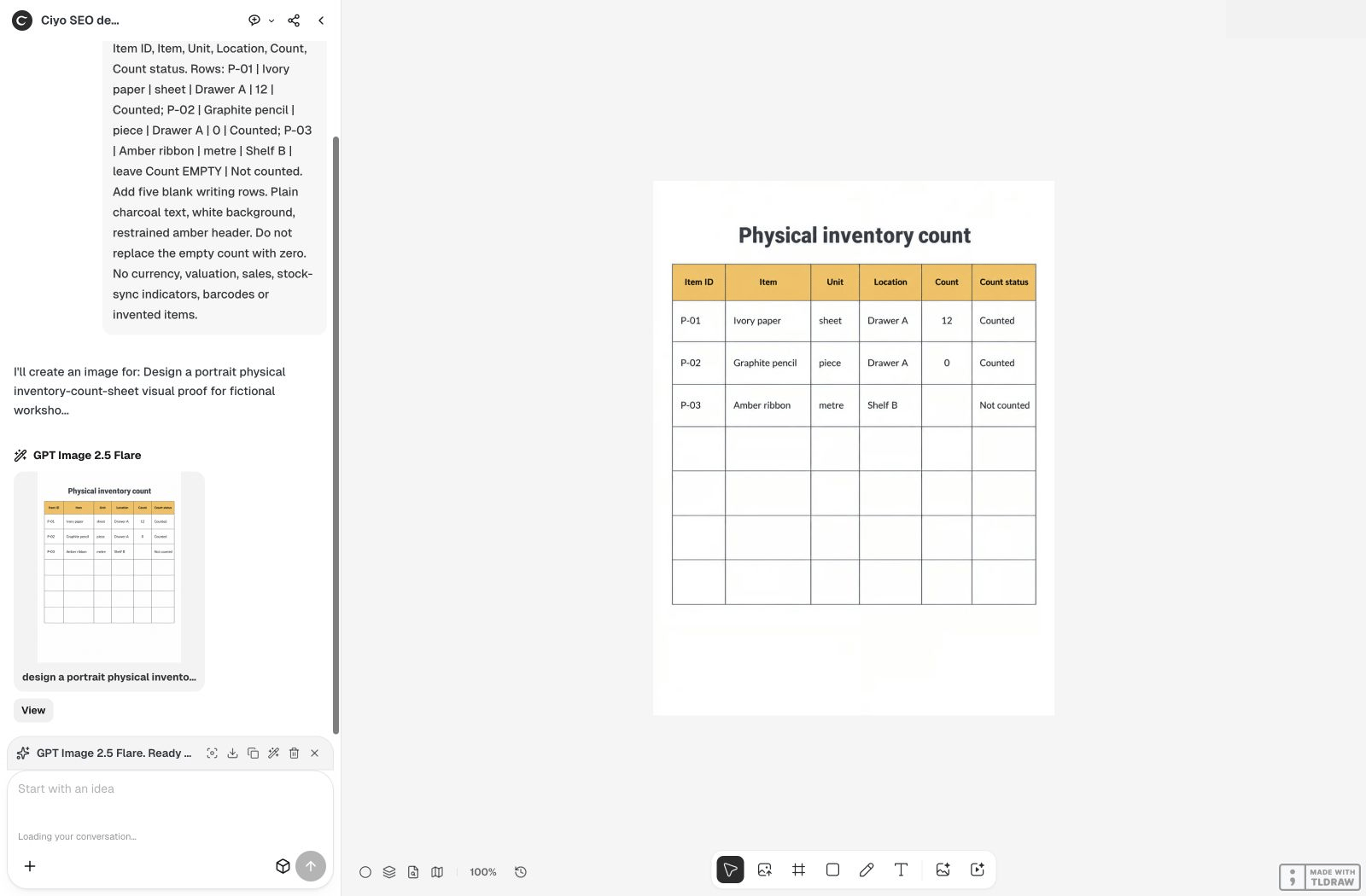
Use an item ID, name, unit, location, count and status in the same row. In this example, paper is counted as twelve sheets, pencils are counted as zero pieces, and the ribbon has not been counted. Leaving the ribbon count blank preserves that uncertainty.
Follow four steps: define the count unit, explore the visual sheet, complete the editable record and reconcile exceptions. Do not add the example numbers into one total: sheets, pieces and metres are different units.
| Item | Unit | Location | Count | Status |
|---|---|---|---|---|
| Ivory paper | sheet | Drawer A | 12 | Counted |
| Graphite pencil | piece | Drawer A | 0 | Counted |
| Amber ribbon | metre | Shelf B | Not counted |
1. Decide what one count represents
Choose a unit someone can actually count or measure. A box of paper and an individual sheet are different records unless the pack conversion is explicit. Use a stable item identifier when two supplies have similar names, and keep the location narrow enough for another person to find the same stock.
If an item occupies two locations, use two source rows or another explicit location structure. Do not overwrite one location's number with the other. For materials measured by length, state the unit and method used; a guessed remaining roll length should not be presented as a measured count.
2. Explore a count-sheet layout in Ciyo
Use a fictional project and request a plain table with adjacent unit, location and count columns. Review the generation settings and quote before running it. The visual goal is to help a person follow one item across the row without accidentally entering a number against its neighbor.
Compare every displayed row with the source. In particular, confirm that zero remains zero and that the unknown count stays blank with Not counted beside it. If the image fills every empty field to look complete, treat that as an error, not helpful completion.
On November 27, 2026, we used Ciyo’s production Image Generator with GPT Image 2.5 Flare, aspect ratio 3:4, 1K and one image. The displayed quote for this run was 2 credits. Check the quote in your own session.
Design a portrait physical inventory-count-sheet visual proof for fictional workshop supplies. Title: Physical inventory count. Columns: Item ID, Item, Unit, Location, Count, Count status. Rows: P-01 | Ivory paper | sheet | Drawer A | 12 | Counted; P-02 | Graphite pencil | piece | Drawer A | 0 | Counted; P-03 | Amber ribbon | metre | Shelf B | leave Count EMPTY | Not counted. Add five blank writing rows. Plain charcoal text, white background, restrained amber header. Do not replace the empty count with zero. No currency, valuation, sales, stock-sync indicators, barcodes or invented items.3. Record the count in editable source
The image kept the pencil count at zero and left the ribbon count blank. It provided four spare rows rather than five. Use the editable source when you need a specific row count.
Open the HTML example and replace the fictional items with the verified list. Count the actual stock, then enter both the quantity and status. Save the edited HTML. If you maintain the CSV, update it separately; the files have no synchronization and are not connected to a stock database.
For an actual count, keep its date and responsible person's record in your own workflow. Avoid changing a count after stock has moved without noting what changed. The form's visual design cannot preserve an audit trail or reconcile movement by itself.
4. Reconcile blanks, zeros and unit mismatches
Review all Not counted rows before describing the count as complete. Check each zero with the person or source that counted the location. A stockout, a missing item and an unvisited shelf may need different actions even when someone is tempted to enter the same digit.
When expected and observed counts differ, preserve both values in an explicit comparison record instead of replacing the source. Check units and locations before concluding that stock is missing. This article does not establish a reorder point, cost basis or inventory value from the three example rows.
Choose a count sheet or an inventory system
Smartsheet's inventory templates show a range of tracking fields and formats. Use a suitable system when you need movements, permissions, alerts or live stock updates, and verify those features in the actual product. Our original download is a local count sheet only.
A packing slip records what went into a particular shipment. It is related operationally, but it should not be mistaken for the remaining count at a location. Keep the count snapshot and outgoing shipment record connected through identifiers, with their purposes clear.
Inventory-sheet questions
Should a blank count be changed to zero?
Only after an actual count establishes zero. In this example, blank plus Not counted preserves an unknown value; zero plus Counted records a confirmed absence.
Can I total all rows?
Only when the units and meaning are compatible. Adding twelve sheets, zero pieces and an unknown number of metres produces no useful inventory total.
Does this sheet sync stock?
No. It is a local editable snapshot without inventory integrations, automatic movements or accounting calculations.
Keep the unknowns visible
Define units and locations, explore a readable layout in Ciyo and complete the count in the editable source without filling unknown values by guesswork.