Practical creative workflows
Pickup Order Labels: Keep Every Item with Its Order ID
Three attractive labels are not useful if one quantity belongs to the next order. For pickup graphics, the row mapping is the first thing to preserve; decoration comes after the identifier and item are readable.
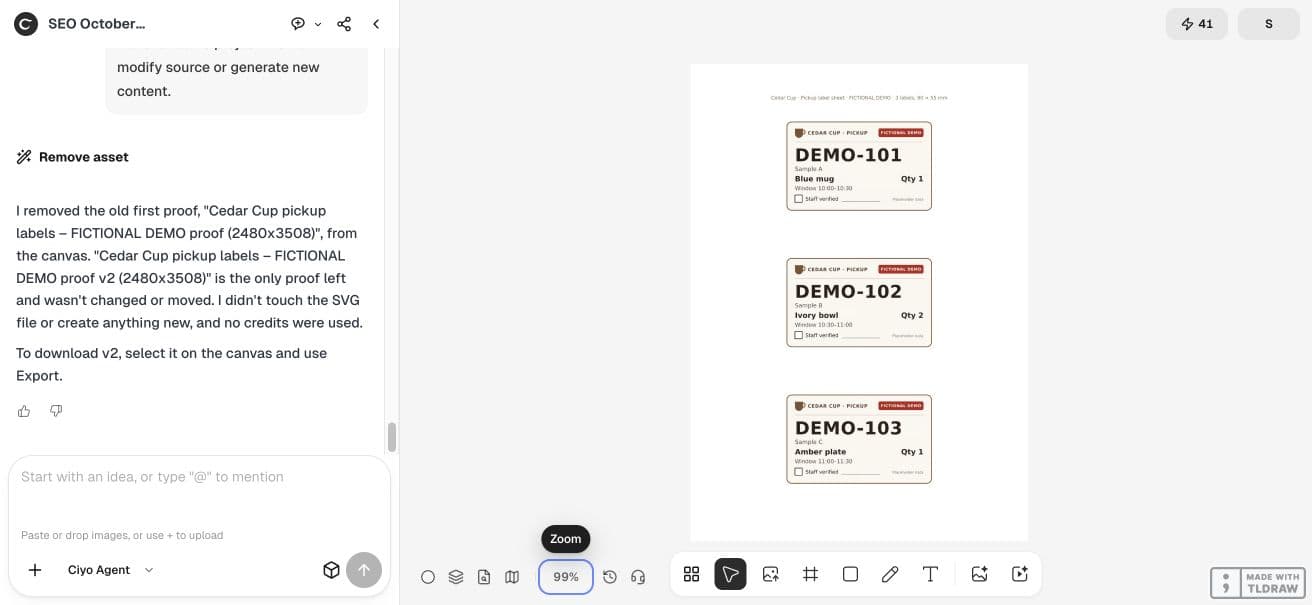
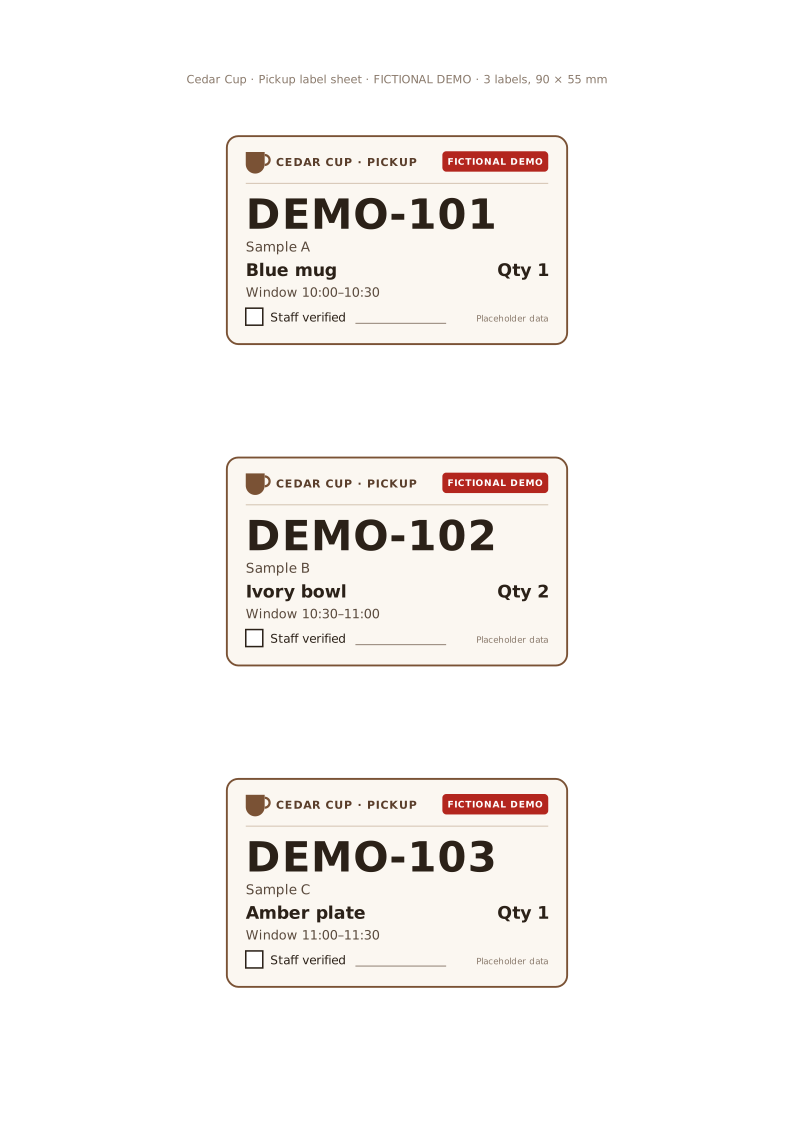
We created a fictional Cedar Cup A4 sheet with three 90×55 mm labels. All names and IDs are placeholders. The exercise prepares a printable graphic, not a connection to a store’s order or fulfilment system.
Keep each order as one complete row
Supply the identifier, display name, item, quantity and pickup window together. Do not send a list of names and a separate list of items that the agent has to infer how to pair. Use fictional records for a public demo.
The table below is our complete source. We requested no phone number, address, QR code or real customer information. If staff need additional fields in a real workflow, decide which are necessary and use an approved handling process.
| Order ID | Name | Item | Quantity | Window |
|---|---|---|---|---|
| DEMO-101 | Sample A | Blue mug | 1 | 10:00–10:30 |
| DEMO-102 | Sample B | Ivory bowl | 2 | 10:30–11:00 |
| DEMO-103 | Sample C | Amber plate | 1 | 11:00–11:30 |
Make the order ID the visual anchor
Ask for a large order ID above a smaller item and quantity. Keep the pickup window below those fields and leave an empty staff-verification box. Our three labels sit on an A4 portrait source, each measuring 90×55 mm.
The checkbox is a printed shape: checking it by hand does not update an order. Make that limitation clear when passing the graphic to anyone who expects an integrated pickup tool.
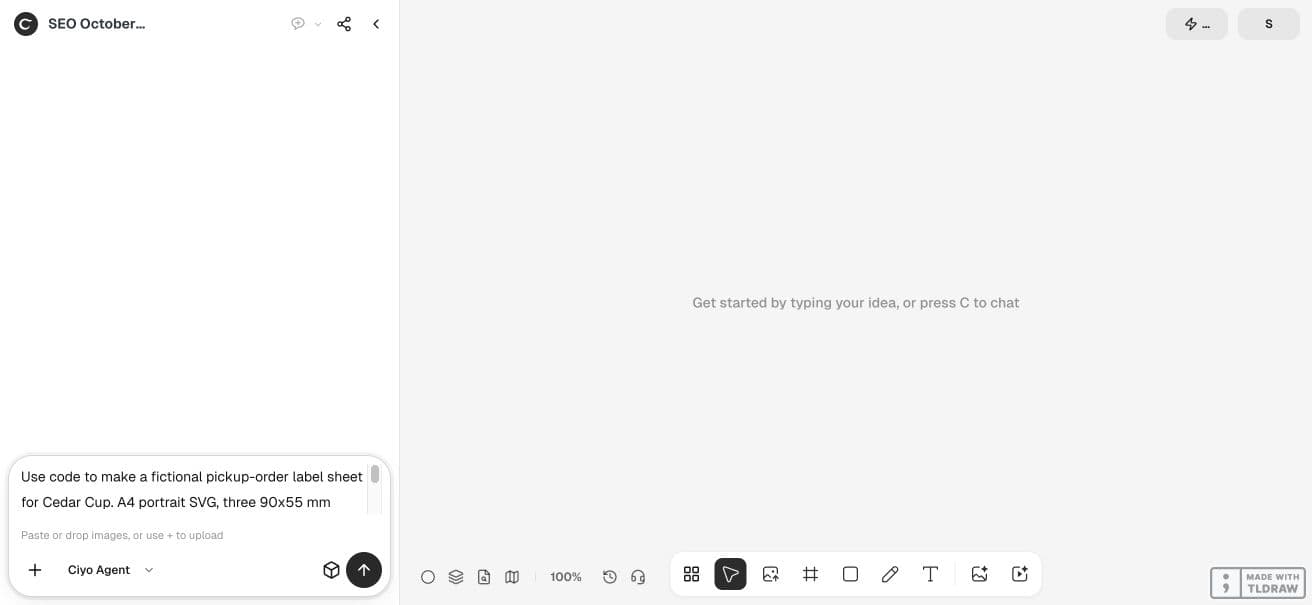
Use code to make a fictional pickup-order label sheet for Cedar Cup. A4 portrait SVG, three 90x55 mm labels. Source rows: DEMO-101 / Sample A / Blue mug / Qty 1 / Window 10:00–10:30; DEMO-102 / Sample B / Ivory bowl / Qty 2 / Window 10:30–11:00; DEMO-103 / Sample C / Amber plate / Qty 1 / Window 11:00–11:30. All names are fictional placeholders; add FICTIONAL DEMO on each label. No phone, address, QR or real customer data. Put large order ID above smaller item and quantity, retain exact mapping, and leave a checkbox for staff verification. Deliver SVG code in response and a 2480x3508 PNG proof download on canvas. Check each row pairing and label count from the SVG, explain this prepares graphics not order fulfilment software. No paid generator and no physical print claim.Correct overlaps before accepting the proof
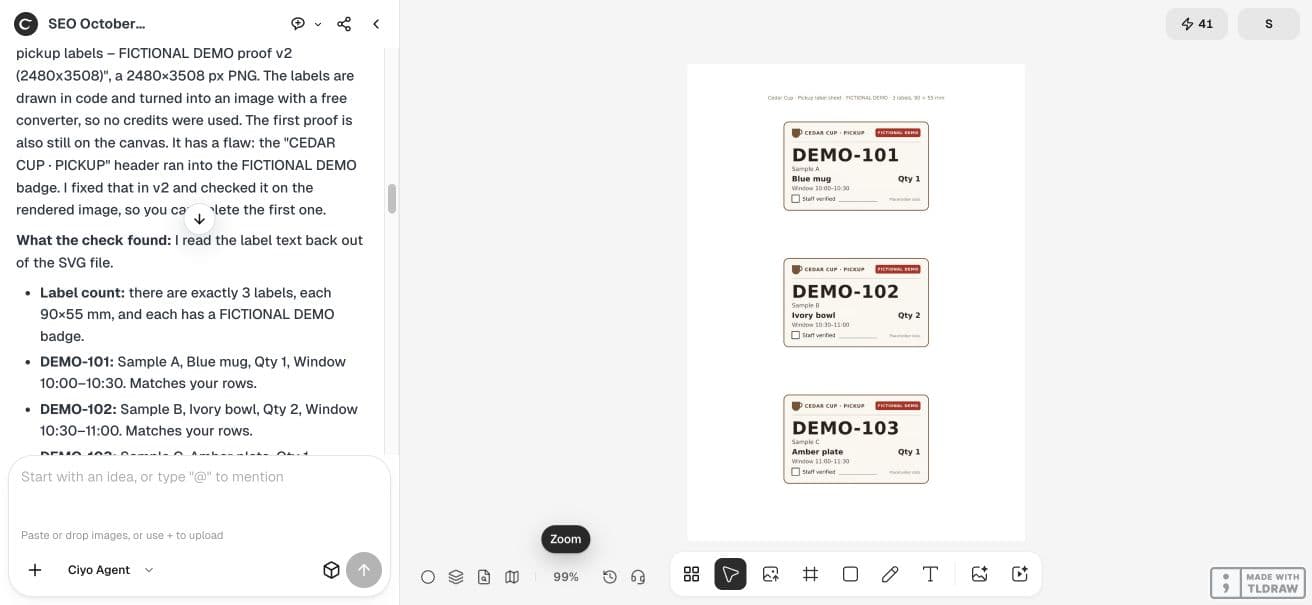
The agent’s first proof had a header that ran into the FICTIONAL DEMO badge. It reported the overlap, tightened the header and badge text, and produced a corrected v2. We retained the corrected source and removed the obsolete proof from the demo canvas.
The correction did not change the order records. The retained SVG still has exactly three label groups, three demo badges and the requested ID/name/item/quantity/window pairings. This is the result to review, rather than assuming the first export is the final one.
Check pairings, then check the physical sheet
Read every label against the source row, including the quantity and the end of the time window. Confirm the count is three and that each verification box belongs to the right label. In the retained source, the order groups carry their own data-order identifiers, which makes inspection straightforward.
Match your actual label stock
The page dimensions are 210×297 mm; the proof is 2480×3508 pixels. The labels are arranged with space between them. That does not establish compatibility with a commercial adhesive sheet: match its exact margins, pitch and label geometry before printing.
Keep staff fulfilment checks in the real workflow
Use the graphic only after checking the current order in the system staff rely on. Handle cancellations, substitutions and pickup confirmation there. A label can support identification, but it cannot establish that an order is still valid or already paid.
We did not print the sheet or fulfil any orders. A single physical sample and a staff walkthrough remain the next checks before using your own approved records.
Practical questions
Does the sheet mark an order as collected?
No. The checkbox is artwork. Collection status remains in the real staff process or order system.
Why keep the whole row together in the prompt?
It makes the intended ID, item, quantity and window pairing explicit and easy to compare against the result.
Can I use the A4 file on any label stock?
No. Match the actual sheet’s margins and label spacing, then print one sample at the intended scale.
Prepare labels with checkable order pairings
Start with one checked example in Ciyo. Keep the source and inspect the exported result before using it in your own project.