Printable picture cards
How to Make Picture Flashcards with One Clear Concept per Card
A picture flashcard becomes harder to review when the image contains several objects, the labels drift between cards or the illustration style changes halfway through the set. A tidy page can still contain a picture-to-word mismatch.
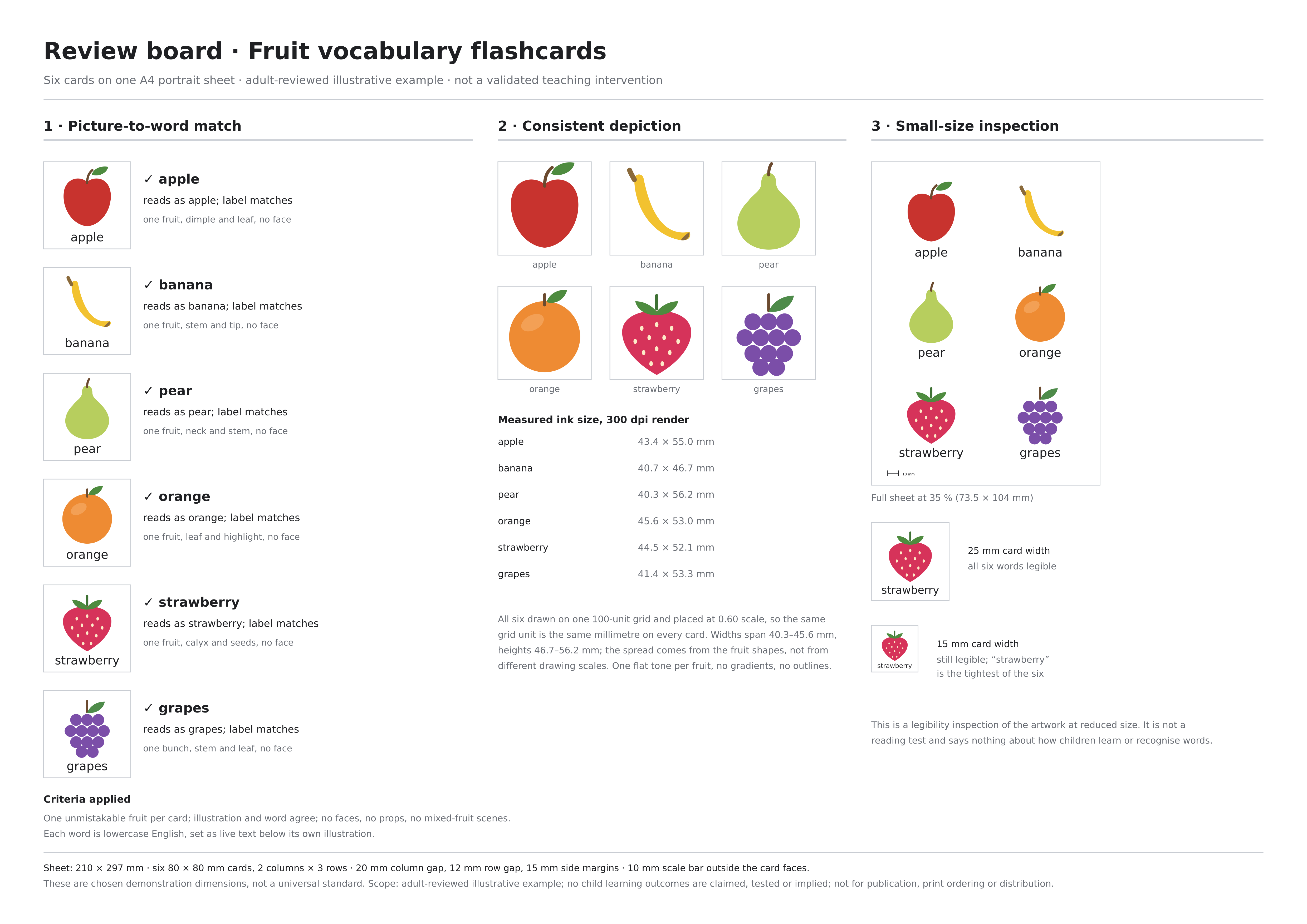
We made six original fruit cards in a live Ciyo project, checked their editable SVG structure and inspected the downloaded sheet. This guide follows that actual artwork task from a fixed word list to a printable source. It is an adult editorial review of a fictional vocabulary example, not a classroom study or evidence of learning outcomes.
Quick answer: fix the word list before designing the set
Use one intended concept per card, preserve an exact word-to-picture mapping and review the cards together before printing. Keep text editable so a spelling or language change does not require reconstructing the artwork.
Our five-step example uses apple, banana, pear, orange, strawberry and grapes. The chosen layout has six 80 × 80 mm card faces on an A4 sheet; those dimensions are a design choice for this demonstration.
| Step | Action | Review result |
|---|---|---|
| 1 | Write the exact concept and label list | Six explicit picture-to-word pairs |
| 2 | Brief a shared illustration system | One style and one concept per card |
| 3 | Inspect all six pictures and labels | Targeted corrections without changing the accepted set |
| 4 | Check source geometry and export | Editable labels, card dimensions and page scale |
| 5 | Print a measured proof before making the set | A real size and readability decision |
1. Define what each card should depict
Write a small source list with one row per card. Decide the exact label, including case and singular or plural form, before asking for illustrations. In our example, “grapes” refers to a bunch; it is still one vocabulary concept even though the drawing contains several individual grapes.
Keep distracting objects out of the brief. A fruit bowl, a smiling character or a decorative table scene would give the reviewer more than one possible thing to name. A plain background makes the intended picture-to-word relationship easier to inspect.
The scope matters. This is a picture-and-label sheet, not a spaced-repetition application or a front/back game-card system. If you need a hidden answer, card backs or a learning activity, specify and review those separately rather than assuming the printable sheet supplies them.
| Card | Label | Intended picture |
|---|---|---|
| 1 | apple | One apple with a stem and leaf |
| 2 | banana | One curved banana |
| 3 | pear | One pear with a narrow neck |
| 4 | orange | One round orange |
| 5 | strawberry | One strawberry with seeds and leaves |
| 6 | grapes | One bunch of grapes |
2. Brief the page, illustrations and editable labels together
Create an isolated Ciyo project and give the agent the complete list. Describe the illustration style, shared scale, label position and page geometry in the same request. Ask for the full source and a separate review board, not just a screenshot of the finished page.
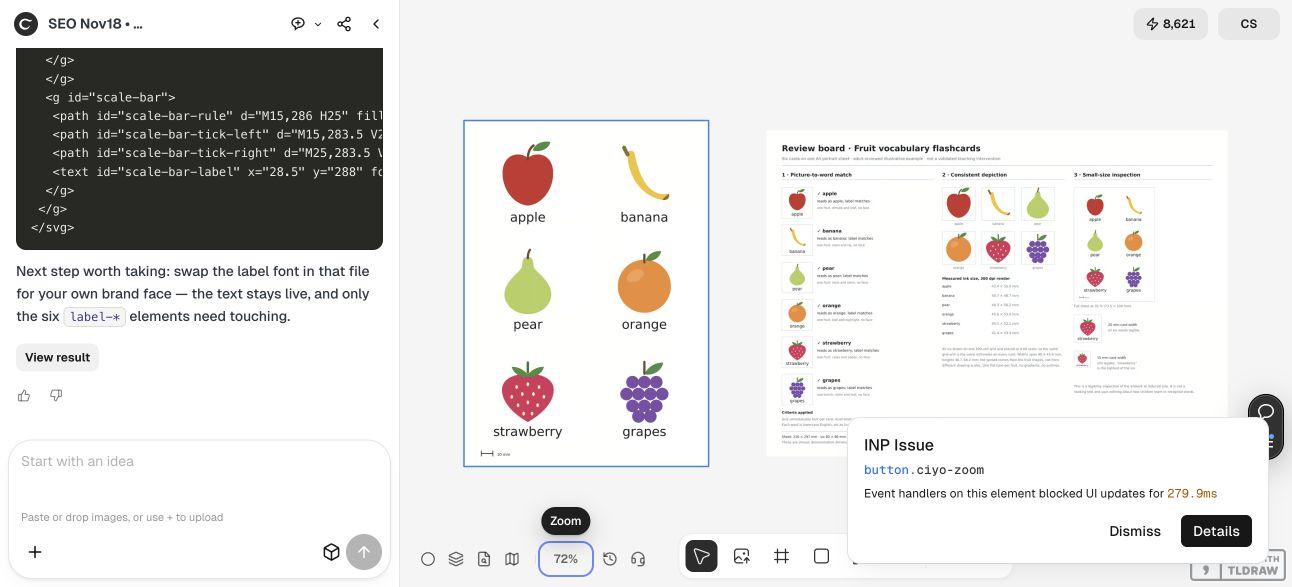
The live Design agent built vector illustrations and kept the labels as text. It placed the clean sheet and the annotated proof on the canvas. The canvas did not accept the SVG as an attachment in this run, so the complete source came through the conversation and was saved as the download in this article.
This route suits someone who needs to revise labels or reuse a small illustration system. It still requires a human depiction and spelling review. Vector output and code-based rendering do not make the overall task free; the Design agent’s reasoning is billable usage.
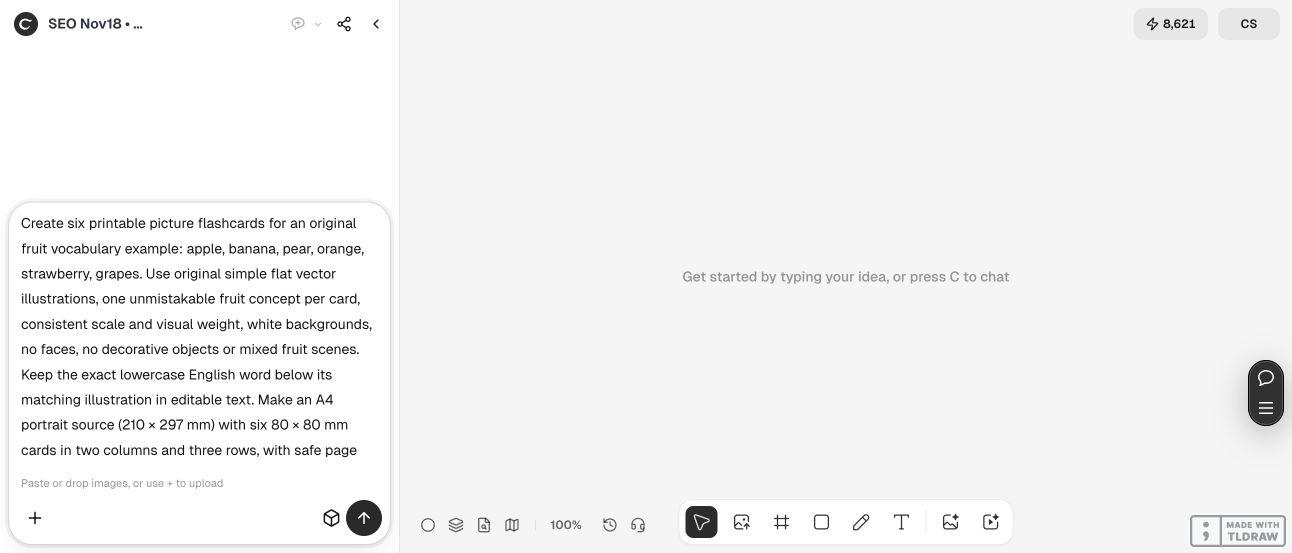
Create printable picture cards for this exact list: [concept and matching label for each card]. Use original simple flat vector illustrations, one clear concept per card, consistent drawing scale and white backgrounds. Keep each exact label as editable text beneath its matching picture. Prepare [page size] with [card face dimensions and arrangement], safe page margins and separation for cutting. Include a measured scale bar outside the card faces. Put a clean sheet preview and a separate picture-to-word review board on the Ciyo canvas. Return the complete editable source. Check depictions and spelling without claiming learning outcomes. Do not print, publish or send anything.3. Review the weakest depiction before accepting the whole set
Read the label, look at its picture and then cover or ignore the label. Does the picture still suggest the intended concept? Repeat that comparison for every card. A common style does not protect against a wrong shape or a label placed under the wrong illustration.
During the actual run, the first banana looked too much like a thin tube and the grapes merged into a blob. The agent revised those shapes before delivering the final sheet. Those focused changes are more useful than replacing the entire set after five cards already work.
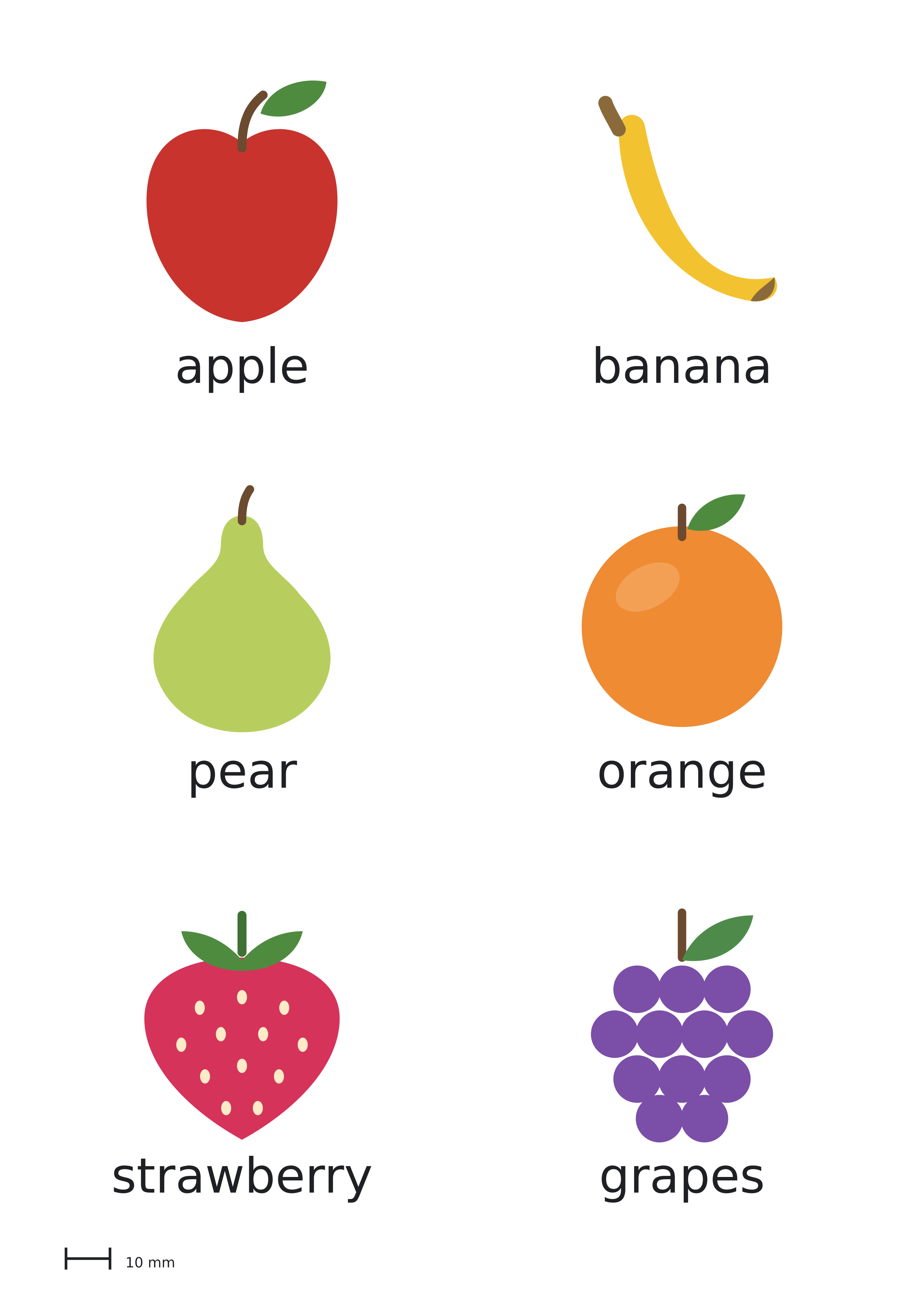
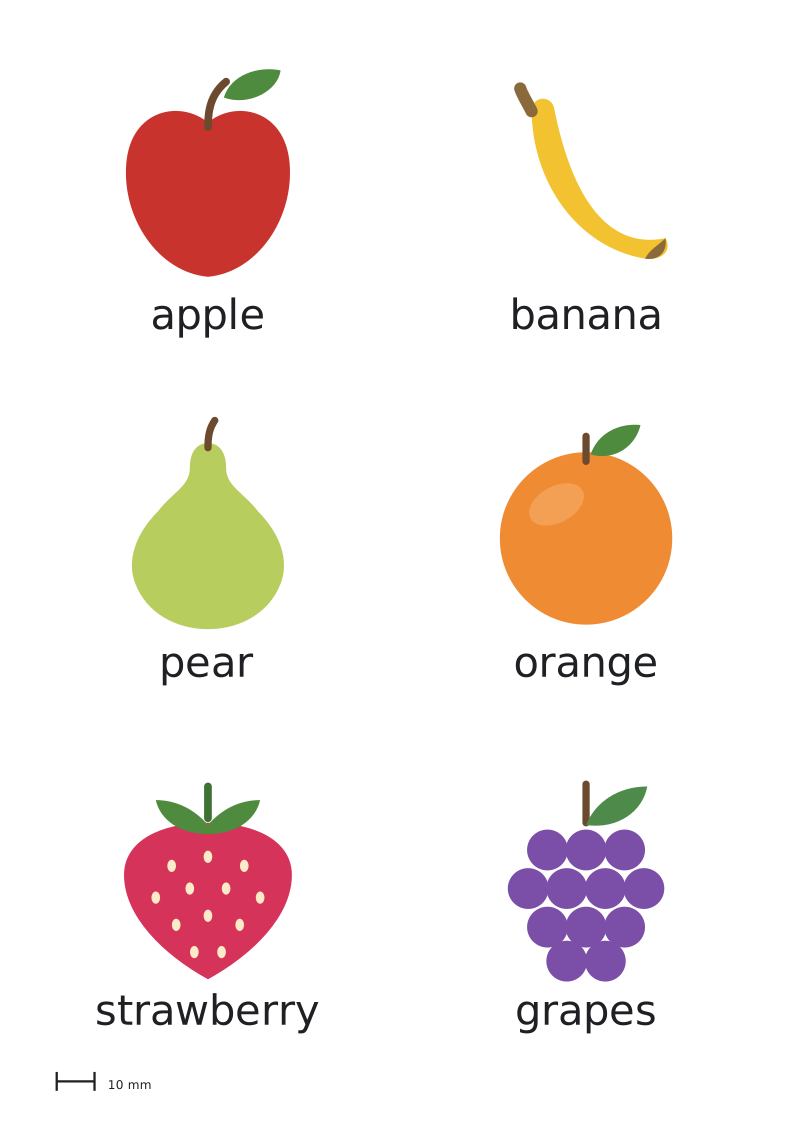
In the final artwork, the pear has a distinct narrow neck, the orange is round, and the strawberry’s seeds separate it from the apple. The grape circles still touch in places, so judge the overall bunch silhouette and the small white gaps rather than requiring every grape to be isolated.
The original English review board also shows smaller versions. Those are artwork inspection aids. We did not test recognition with children, measure reading accuracy or establish an educational benefit. A teacher or parent should judge whether the vocabulary, depiction and activity suit the actual learners.
4. Inspect the page geometry and keep the source editable
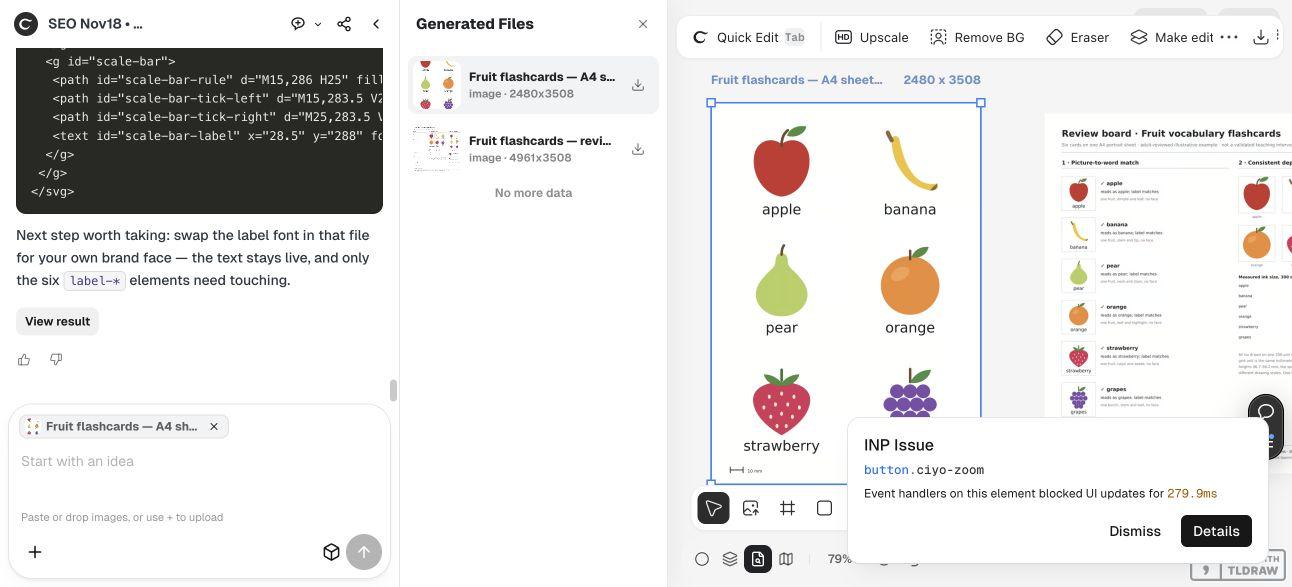
Select the clean sheet in Generated Files so it is clear which export you are keeping. We independently checked the downloaded PNG’s 2480 × 3508 dimensions. The larger 4961 × 3508 review image is a different file and should not be mistaken for the printable card sheet.
The SVG declares a 210 × 297 mm page and matching viewBox. Its six card faces are 80 × 80 mm, positioned at x = 15 or 115 mm and y = 14, 106 or 198 mm. That gives a 20 mm column gap and 12 mm row gaps. Each card has a named group and an exact editable text label.
The scale-bar rule runs from 15 to 25 mm near the page bottom, outside the card faces. Its endpoint-to-endpoint distance is 10 mm; the thick ticks extend slightly beyond those endpoints. Use the intended ruler marks when measuring a print, rather than measuring the outermost antialiased ink.
The source specifies a font stack rather than embedding a font. Open it in your editor and check the actual label widths after any font or wording change. “Strawberry” is the longest English label here; a translated word may need a different line or type decision. Keep the mapping intact while you make that decision.
5. Make one physical proof before preparing more cards
Choose a print setting that preserves the intended size, then measure the scale bar and one card face on the paper. If your printer scales the page, correct that setting or revise the layout for the paper you actually use. The digital dimensions alone cannot verify a physical print.
Cut one trial card and review its picture and label at the distance where it will be used. The white card faces have no colored cutting border, so keep a reference to the stated face positions or add temporary cut guides outside the artwork when preparing your own production sheet.
For a single vocabulary activity, a small carefully reviewed set may be enough. For a larger set, keep a concept list and check every new picture-to-word pair rather than assuming a shared prompt ensures consistency. Review spelling and suitability again when changing language or audience.
We did not print, laminate, test durability or run a classroom activity. The delivered package is a checked digital example and editable source. Use an actual proof and the educator’s judgment to decide whether your adapted cards are ready for their intended setting.
Picture-flashcard questions
Does one concept mean only one visible object?
It means one intended thing to identify. A bunch of grapes can represent the concept “grapes.” A mixed fruit bowl would introduce several possible answers and is outside this example’s brief.
Are 80 × 80 mm cards a required standard?
No. They are the chosen demonstration size. Adapt the face and page arrangement for your activity and printer, then measure a physical proof.
Can I change the labels?
Yes. The SVG keeps six labels as real text inside named card groups. Verify the picture-to-word mapping, font availability and text fit after each change.
Can I print the review board instead?
The review board contains annotations and smaller comparisons. Use the clean sheet or render the editable source for your print proof, keeping the review image as a separate reference.
Were these cards tested with learners?
No. The live task and independent checks covered digital artwork, labels and geometry. No classroom, reading or learning-outcome result is claimed.
Start with a short, exact picture-to-word list
Give Ciyo the concepts, labels and chosen page geometry. Review every pairing, save the editable source and measure a physical proof before making the set.