Practical creative workflows
Product Photo WebP Export: Check the Tradeoff

A shop owner wants a smaller product image without changing the mug they already approved. File conversion is different from another image-generation request: the source should remain unchanged while candidate exports make their tradeoffs visible.
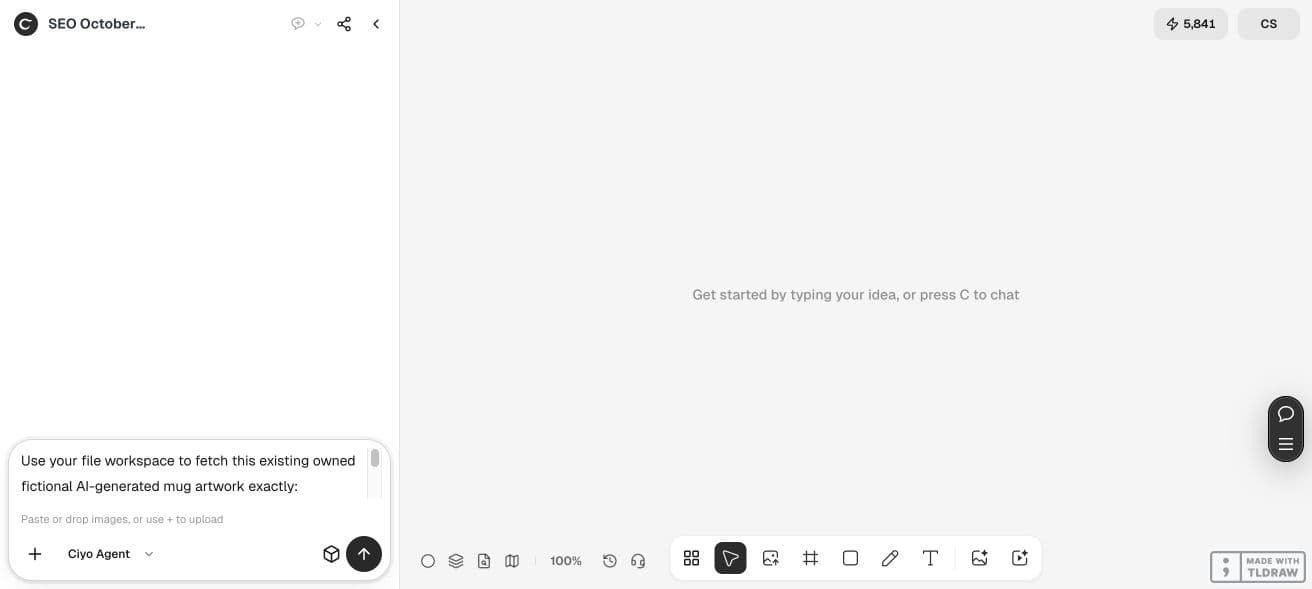
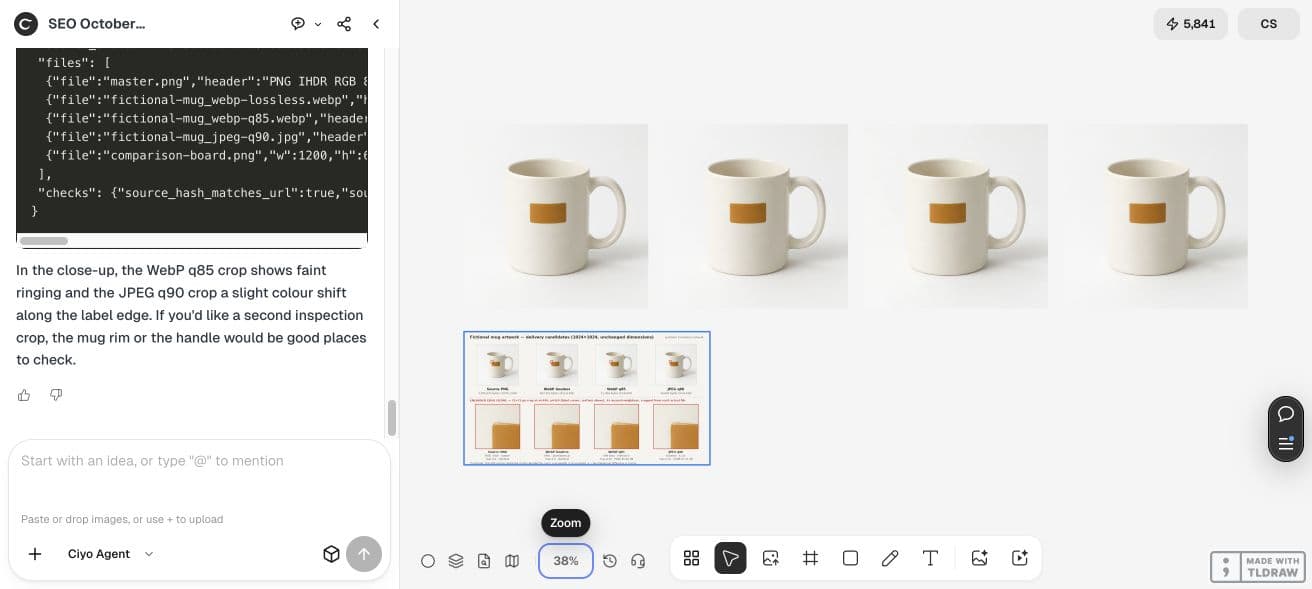
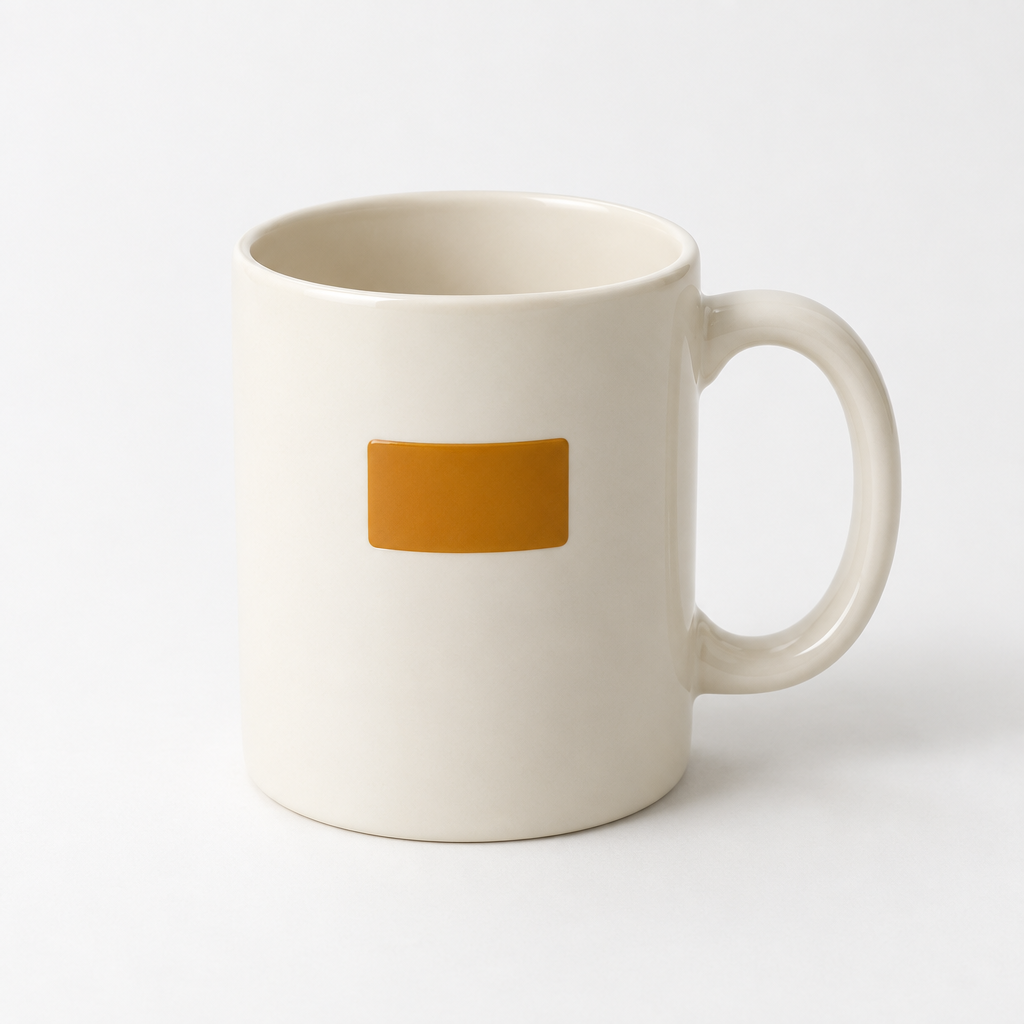
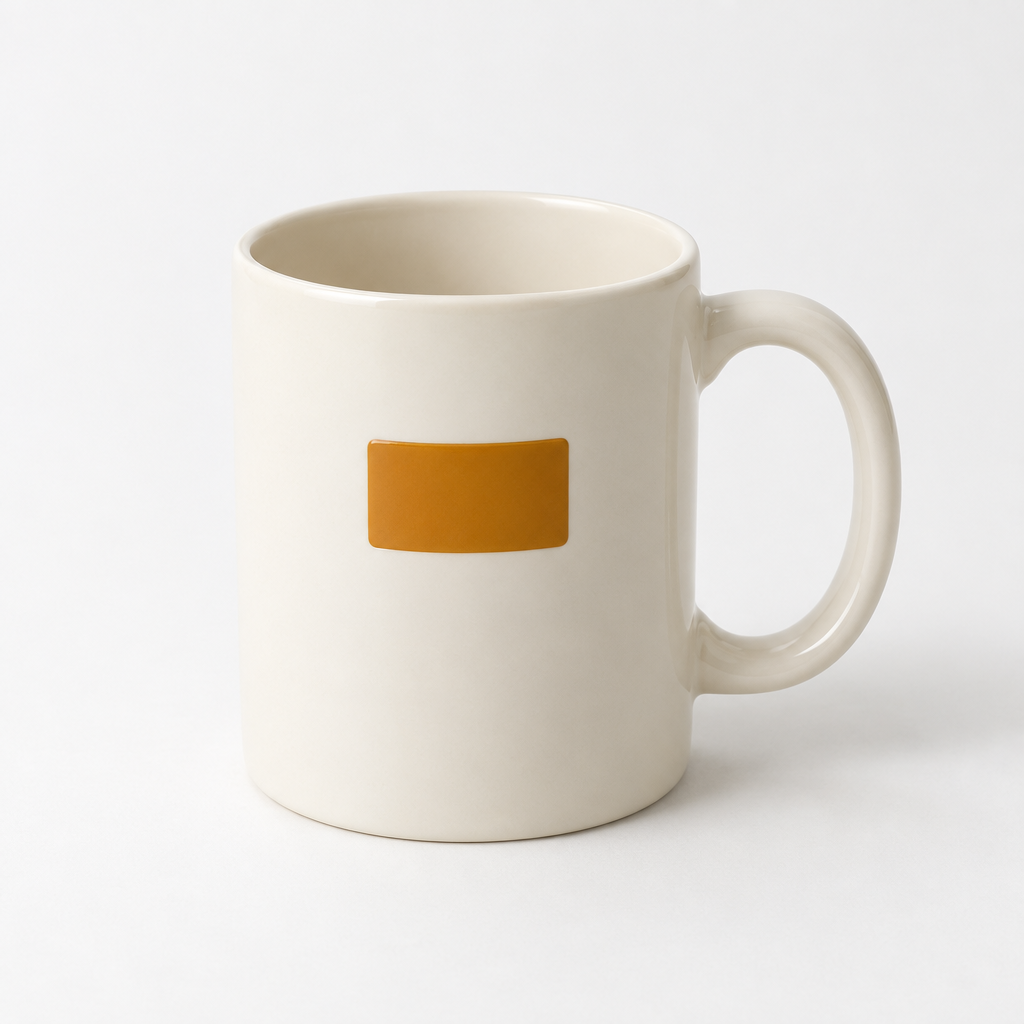
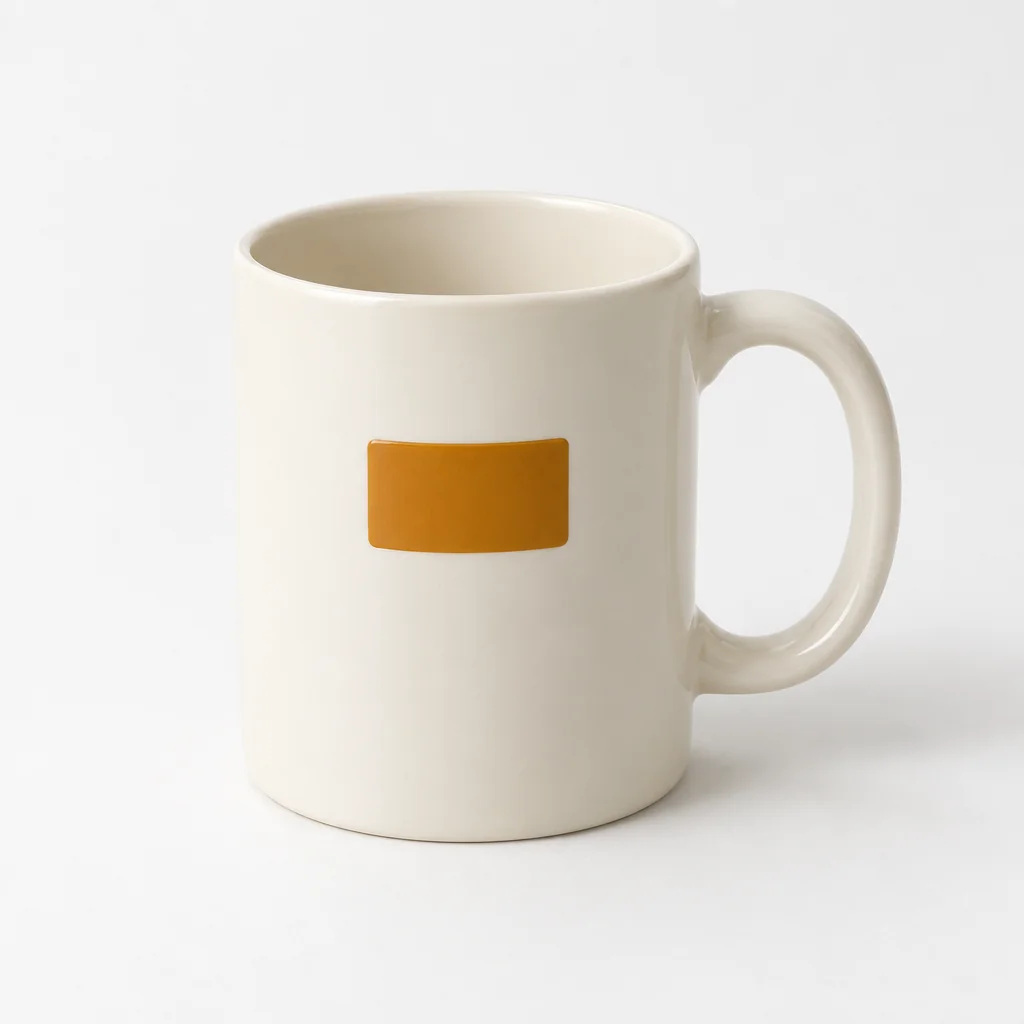
We used an existing fictional mug image as the controlled master. It is synthetic editorial imagery, not a merchant photograph. Ciyo fetched its original bytes, encoded three candidates and built an inspection board from the actual files. The results below describe this image only.
Record the master before exporting
Keep the approved original and inspect its dimensions, mode and transparency. An image can look transparent on a page while actually containing an opaque pale background; choose your format from the file’s data.
Our PNG is 1024×1024 RGB and has no alpha channel. It contains 1,105,072 bytes. Its SHA-256 matched the content-addressed source URL, and the master remained unchanged after encoding. JPEG needed no background flattening in this example.
Create candidates with explicit settings
Ciyo used Pillow to create a lossless WebP, WebP quality 85 and JPEG quality 90. Each retained the original dimensions. Those quality values belong to different encoders and do not establish equivalent visual quality.
If your source has transparency, specify how an opaque export should handle it. Keep a transparent master and review a deliberate matte colour; do not let a conversion silently create an unintended background.
Use this existing product PNG byte-for-byte and retain it unchanged. Encode separate lossless WebP, lossy WebP quality 85 and JPEG quality 90 candidates at the same dimensions. Report actual header format, bytes, mode and alpha. Reopen files and compare lossless decoded pixels with the master. Build a labelled comparison board with identical crops from every saved file. No image generation.Compare actual bytes and decoded pixels
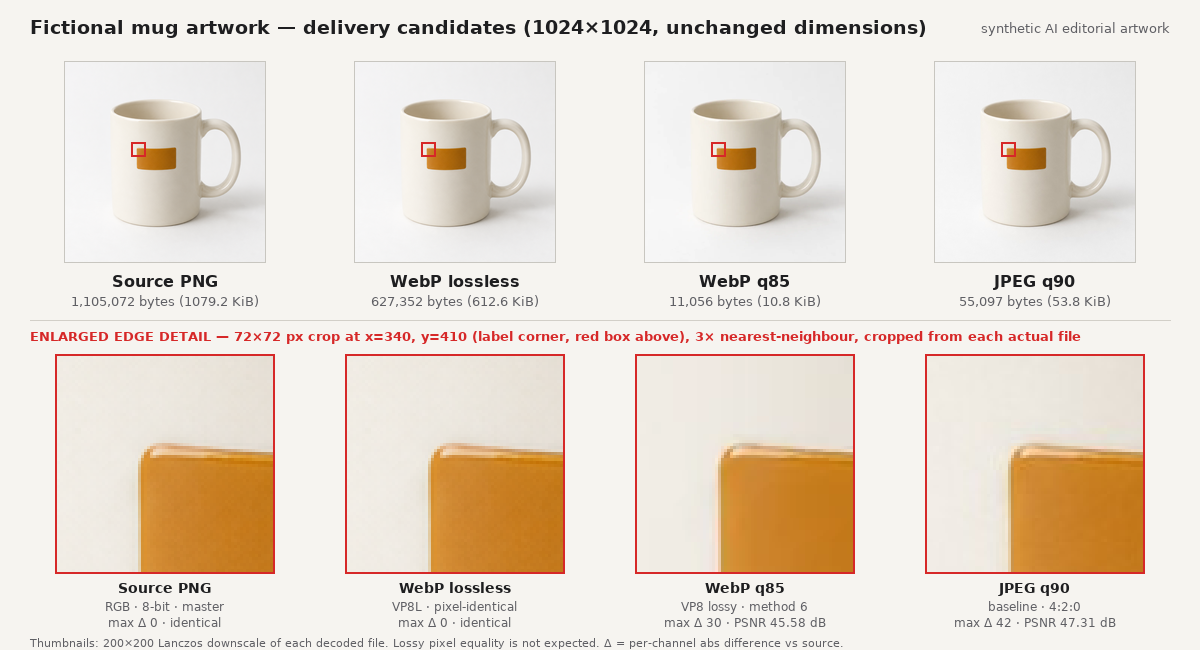
We downloaded the original canvas files and independently decoded them. Lossless WebP matched every source RGB pixel. The lossy candidates did not: their maximum channel differences were 30 for WebP quality 85 and 42 for JPEG quality 90. These values are checks on this image, not a ranking of general encoder quality.
The lossy WebP was much smaller here, but a smaller file is useful only if its visible changes are acceptable for your product. Test fine packaging text, hue boundaries and texture at the size customers will see.
| File | Dimensions | Bytes | Decoded pixels equal master |
|---|---|---|---|
| PNG master | 1024×1024 | 1,105,072 | Yes |
| Lossless WebP | 1024×1024 | 627,352 | Yes |
| WebP quality 85 | 1024×1024 | 11,056 | No |
| JPEG quality 90 | 1024×1024 | 55,097 | No |
Inspect the same detail in every candidate
The board includes a 72×72 crop at the orange label edge, enlarged 3× for inspection. Each crop comes from its corresponding saved file. Compare the same location at the same scale; changing crop or display size makes a visual judgment unreliable.
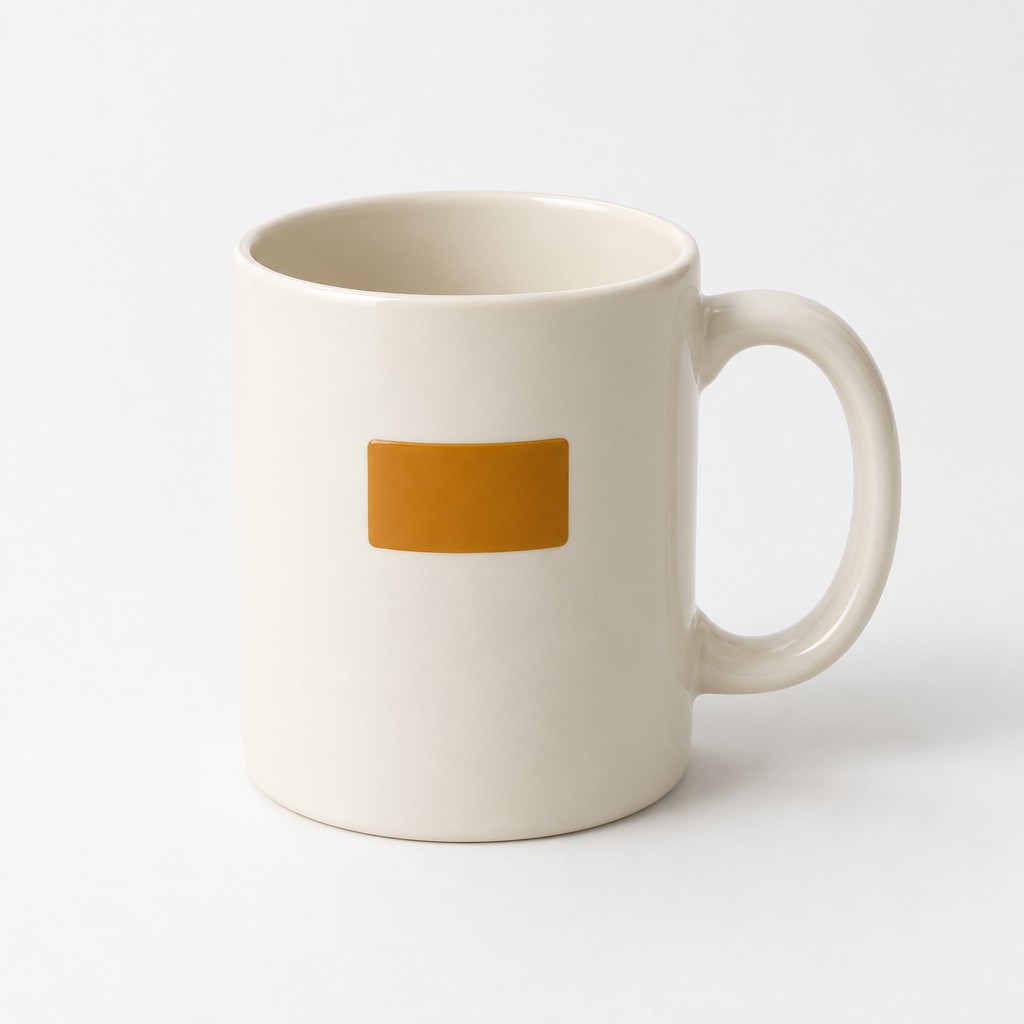
The board’s close-ups are labelled output inspections. They are separate from the whole-product screenshots in this walkthrough. They reveal local changes, while the full product image lets you decide whether those changes matter in context.
Separate an export test from a website test
Google’s WebP documentation describes lossless and lossy encoding, but a format capability is not a measured result for your store. Delivery transformations, caching, layout and the browser’s chosen image can all change what arrives on a customer’s screen.
Check the downloaded asset and the rendered storefront after integration. This demonstration measures file sizes and pixels. We did not measure loading speed, Core Web Vitals, conversion rates or a cross-browser storefront.
Deliver the accepted candidate with its master
Choose the smallest candidate that passes your visual criteria, then preserve the source and encoding settings. Use clear filenames so a teammate cannot mistake an experimental lossy file for the approved master.
For sensitive product details, lossless preservation may be the right choice even when a lossy candidate is smaller. Repeat the test for a representative set of your real images before establishing a default export setting.
Practical questions
Is WebP always smaller than JPEG?
This example’s lossy WebP is smaller, but results vary with image content and encoder settings. Measure your files.
Does lossless mean identical file bytes?
No. The format and bytes change; the decoded RGB pixels matched the master in this run.
Does this prove a faster shop page?
No. Test the actual delivered image and page performance separately.
Compare one approved product image
Bring a real master into Ciyo, generate explicit export candidates and accept a file only after checking its details.