Product image workflow
How to crop a product photo square without cutting off the handle

A square product card needs more than equal width and height. A mug can fit inside the frame while its handle nearly touches the edge, making the product feel squeezed. Choose the crop around the complete object, then judge the surrounding space.
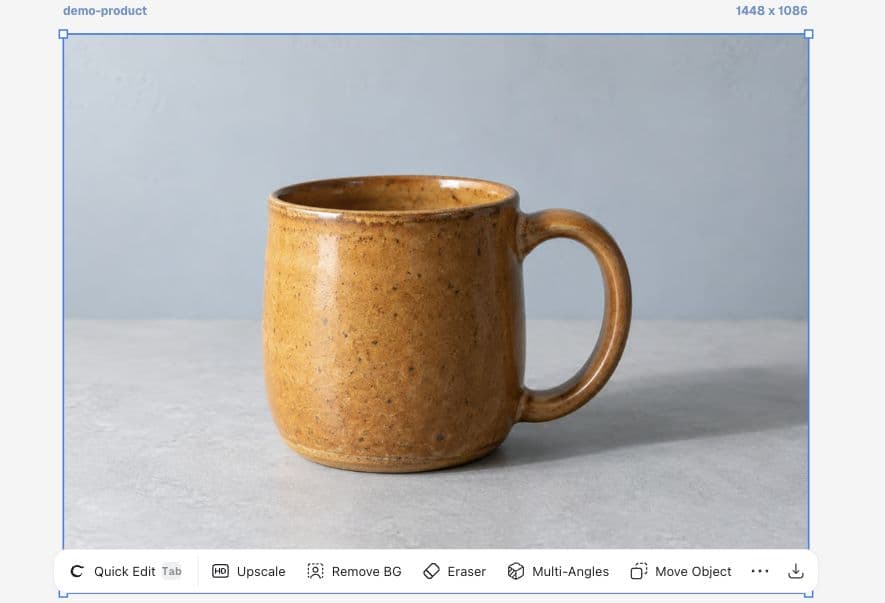
This walkthrough prepares a fictional Juniper Pottery mug for a square catalog tile. We start with a 1448 × 1086 image and make a 1086 × 1086 crop in Ciyo. The screenshots show the actual September 16 workflow.
1. Identify the details the crop must preserve
Upload the source image, select it, and look at the rim, handle, base, and contact shadow before opening Crop. Keep the original file available so you can return to it for a different placement. A catalog crop should not accidentally suggest a different shape.
For this mug, the handle is the limiting detail. The image also has a shadow extending to the right. We can shorten that shadow, but the handle itself needs breathing room. That is a deliberate composition choice, not a reason to shrink the product until everything feels distant.
2. Set a square size, then reposition the crop
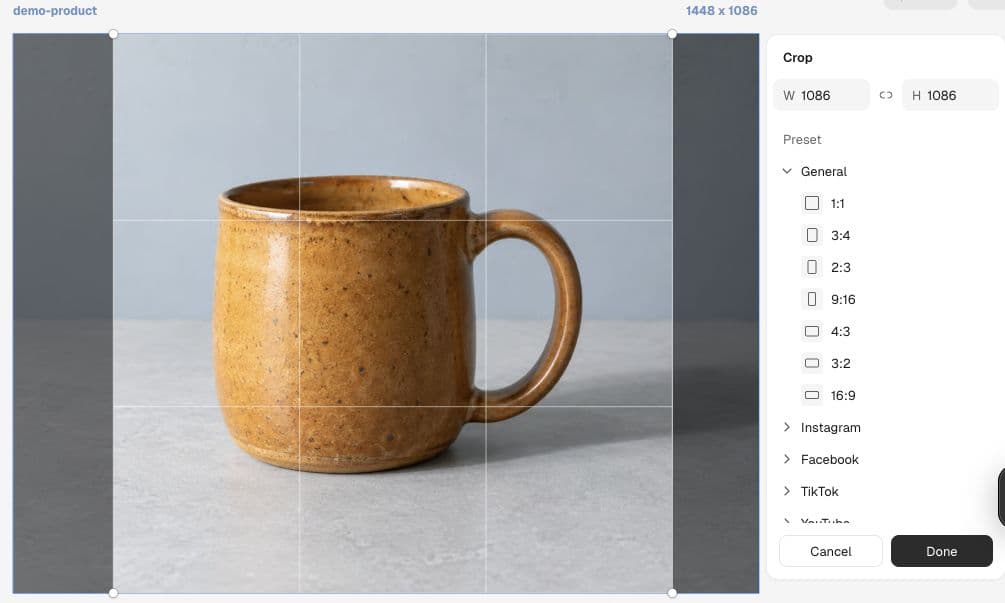
Choose More → Crop. With aspect-ratio locking off, enter 1086 for width and keep height at 1086. This removes horizontal space without asking the tool to invent any new pixels.
The initial square region in our run was anchored too far left and clipped the outside of the handle. Dragging inside the crop region to the right brought the entire handle back inside. Check both sides of the product after every reposition; equal margins are a useful starting point, not a rule that overrides the product’s shape.
3. Apply the crop and inspect the final tile
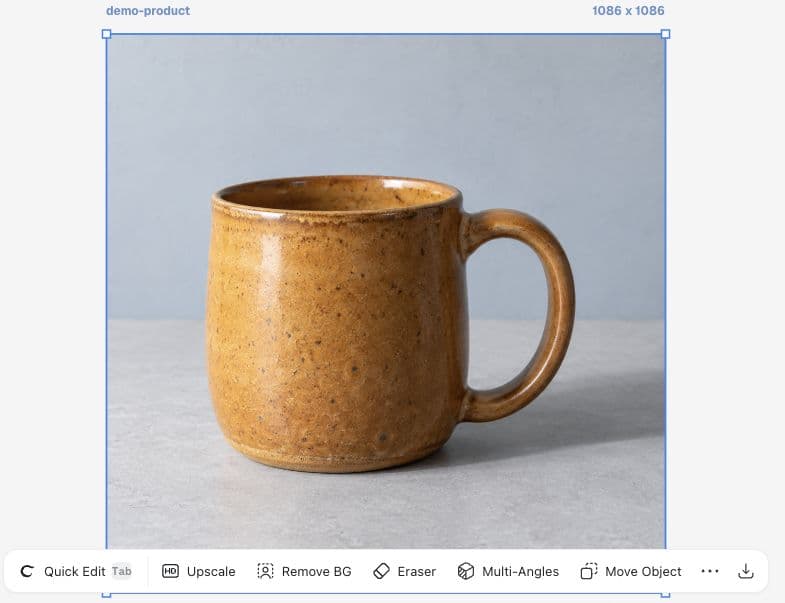
Select Done. The selected image now reports 1086 × 1086. Compare the result with the original: the mug’s silhouette is intact, the rim remains visible, and the base has room below it.
Preview the crop where shoppers will see it. At a small card size, the handle should remain distinct from the body. At a larger size, check that no edge is clipped. If a responsive website crops the image again, test that placement separately; the file being square does not control every layout.
Use a short acceptance check
Write down what must remain visible before comparing several crops. This makes the choice repeatable when the next product has a spout, strap, or decorative edge.
| Check | What to do | Decision |
|---|---|---|
| Silhouette | Inspect the rim, handle, and base | Reject a clipped product detail |
| Spacing | Compare the nearest edge on each side | Move the crop before shrinking the subject |
| Placement | View the actual catalog card | Check any additional website crop |
Juniper mug catalog crop: square 1086 × 1086. Preserve the full handle, rim, and base. Keep visible space around the handle. Review at the actual catalog-card size before approving.Composition starts with the original frame
A recent photographer’s critique request describes an image with leading lines and an alignment that could not be corrected before the subject moved. It is a useful reminder to identify what the original frame gives you before deciding what to remove. Our mug example is a separate composition exercise.
Published September 16, 2026. The original post concerns a car photograph, not Ciyo. We adapt the question of framing and alignment to a product crop; the photographer did not endorse this workflow.
Practical questions
Will cropping make the photo sharper?
Cropping removes part of the image. It does not establish new detail. Keep enough original pixels for the intended placement and inspect the exported file.
Should every product use the same crop?
Use consistent card dimensions, but judge the spacing around each product. A wide handle may need a different placement from a narrow bottle.
Can I use the sample mug as a real product listing?
The sample is an AI-generated fictional input. Use an accurate photograph of the product being sold for a real listing.
Bring your next product image into Ciyo
Open a canvas, upload the image you want to review, and make one clear decision before preparing the final asset.