Practical design guides
Real Estate Feature Sheet: Keep Photos and Approved Facts Together

A real estate feature sheet brings photographs and facts onto one page. That convenience becomes a problem when a draft adds an unverified floor area, changes a bedroom count or pairs a room caption with the wrong photograph.
This workflow uses an entirely fictional property worksheet and listing-content guidance from Zillow. It helps a designer keep approved facts and photo identities together. No real property, measurement, price estimate or lead result was tested.
Quick answer
Start with a dated register of approved facts and authorized photographs. Assign each image a room label, keep unknown facts out of the public draft, and compare the layout with that register. Obtain the responsible listing owner’s approval before producing the final sheet.
1. Give every property fact a source
Collect the approved address, room counts, listing copy, contact details and any other facts selected for the sheet. Keep the source, approval date and responsible owner alongside each value in the working brief. A blank field should stay unresolved until someone with the relevant information confirms it.
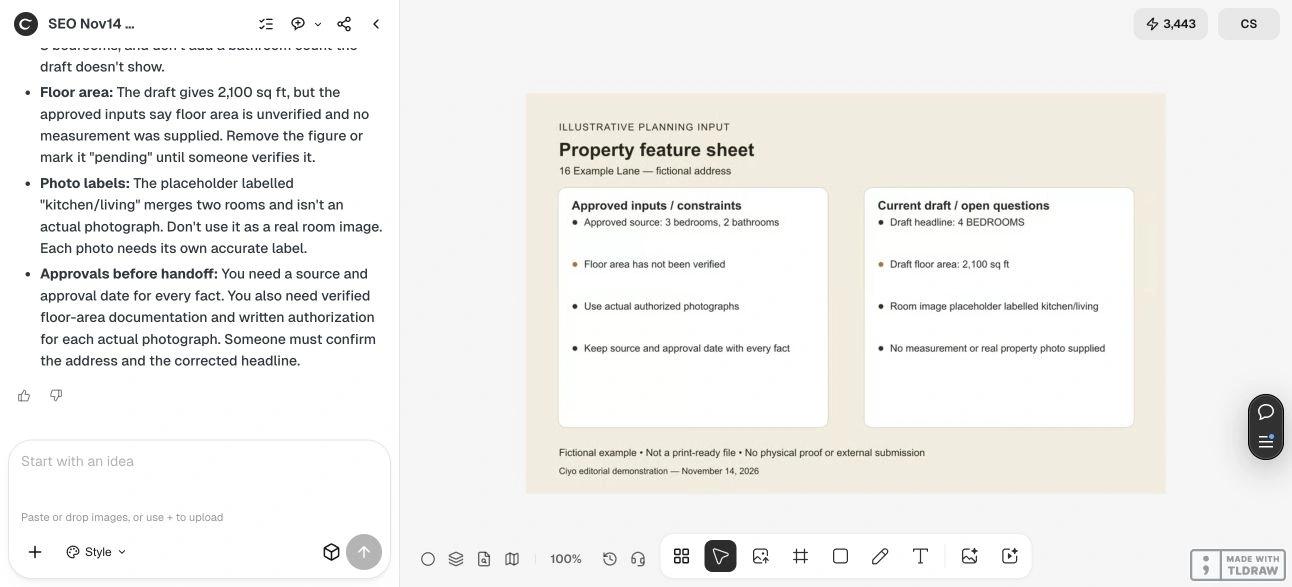
Our fictional address is 16 Example Lane. Its approved record says three bedrooms and two bathrooms; floor area is unverified. The deliberately flawed draft says four bedrooms and 2,100 sq ft. Neither a generated layout nor an attractive photograph can validate those numbers.
| Field | Approved record | Draft action |
|---|---|---|
| Bedrooms | 3 | Correct the draft’s 4 |
| Bathrooms | 2 | Keep the approved value |
| Floor area | Unverified | Omit until verified and approved |
| Photographs | Authorized sources required | Map each file to the correct room |
2. Match each photograph to the space it shows
Use authorized photographs and identify what each file depicts before arranging the page. Keep a simple photo register with filename, room, permission/source and any approved caption. Zillow’s listing guidance emphasizes accurate content and clear photographs; those principles are useful even when the deliverable is a separate feature sheet.
Choose a leading image that helps the reader understand the property. If supporting photos look similar, label them clearly in the working plan. Do not use a generated room or a materially changed property image as if it documents the actual listing. Any permitted illustration needs an accurate label and the responsible owner’s approval.
3. Review the fact-to-layout mapping in Ciyo
Upload a draft or planning sheet together with the approved fact register. Ask the Design agent to identify contradictions and missing sources, then separate content corrections from visual layout suggestions. Preserve the exact approved facts instead of asking the agent to make the listing more impressive.
Our worksheet intentionally includes the bedroom mismatch, an unsupported area figure and an ambiguous kitchen/living photo label. It contains no actual property photographs. A review can identify those stated conflicts; it cannot measure rooms or authenticate the listing from this input.
Live Ciyo review: a bedroom mismatch and an unsupported area
In the November 14 dev.ciyo.ai review, Ciyo compared the fictional worksheet’s four-bedroom headline with the approved three-bedroom source. It flagged the unsupported 2,100 sq ft figure, the combined kitchen/living placeholder label, and missing fact/photo approvals.
We retained the approved two-bathroom value in the source register and kept the unverified area out of the public-sheet plan. The input was a written worksheet, not an actual listing or room photograph. No measurement, image authentication or publication happened.
Copyable feature-sheet review
Replace the bracketed fields with approved information. Keep uncertain figures in the internal brief rather than the customer-facing sheet.
Review the attached real estate feature sheet against [DATED APPROVED FACT REGISTER] and [AUTHORIZED PHOTO LIST]. Identify mismatched room counts, unsupported measurements, wrong photo captions and missing sources. Preserve the approved values exactly. Suggest a clear one-page hierarchy without inventing features, changing the property or estimating price. Return a correction list for [LISTING OWNER] to approve.4. Fit the page around the verified essentials
Give the property identity, useful photo and essential facts a clear order. Use supporting copy only when it adds information rather than repeating a headline. Keep contact details readable and test any link or QR destination in the proof.
If the sheet feels crowded, remove repeated marketing language before shrinking factual text. A layout should make comparisons easy without concealing uncertainty. Do not replace an unresolved measurement with an estimate simply to complete a symmetrical row of statistics.
5. Approve a dated proof and archive its inputs
Compare the proof with the fact and photo registers one field at a time. Ask the responsible listing owner to approve the content and image use, and the printer to confirm file requirements when a printed sheet is needed. Keep the approved revision with its source list.
Reopen the proof when the listing details, photographs or contact destination change. The demonstrated planning workflow is not a measurement report, valuation or compliance review, and it supplies no evidence of improved sales or leads.
Source
Zillow listing-management guidance checked November 14, 2026. The property address, values and draft errors are fictional.
Frequently asked questions
Can I use an estimated floor area to fill an empty field?
Keep it unresolved until the responsible owner verifies and approves the information. A layout should not create facts to fill space.
Does this workflow verify a property from photographs?
No. It compares supplied draft content with an approved register. It does not measure, authenticate or value a property.
What should I retain after approval?
Keep the dated proof, approved fact register, photo-source/permission information and the name or role of the content approver.
Keep the sheet tied to its sources
Bring the approved facts, authorized photo list and draft into Ciyo. Resolve the correction list with the listing owner before publishing or printing.