Practical design guides
Twitch Emote Sizes: Judge the Expression at 28 Pixels

An emote can look expressive at a thousand pixels and turn into an indistinct dot in chat. The smallest version is where narrow eye shapes, delicate outlines and small accessories have to earn their place.
This guide uses Twitch’s standard-emote specifications and a fictional original acorn reaction made in a live Ciyo turn on November 15. It covers a static PNG workflow and checks the actual exported files. It does not upload to a channel or establish moderation approval.
Quick answer
Design one clear original expression, then inspect the 28-pixel version before polishing extra detail. For manual standard-emote uploads, Twitch lists square PNGs at 28 × 28, 56 × 56 and 112 × 112 pixels, with a transparent background. Confirm each actual file’s dimensions, format and byte size rather than trusting its filename.
1. Choose static or animated delivery first
Twitch’s standard static emotes use PNG. Its animated-emote workflow uses GIF and has additional requirements; an animated asset is not made compliant by renaming its extension. This tutorial stays with one standard static reaction.
Twitch also offers an auto-resize route accepting a single square PNG within its stated size range. If you use that route, follow the current upload control and still inspect the resulting small representation. The manual three-file route makes the size review explicit.
Start with an original character or shape you are authorized to use. Our fictional acorn has one cheerful reaction, a simple silhouette and no text. A separate facial expression is more useful than a miniature scene that depends on a background.
2. Make a master with simple, separable shapes
Give the design enough room around its edges without making the face occupy only a small part of the square. Keep eyes and mouth visually distinct. A strong outline can help some styles, but it must not close the gaps that make the expression readable.
Use Ciyo to explore the original design and ask for the source actually used to produce the preview. A vector or other editable master can simplify later changes; a large PNG remains a raster master. State the format you need and check what is delivered.
Do not add tiny wording to rescue a weak expression. At small size, a short word can still become unclear. Let the silhouette and features communicate the reaction, then test whether another person recognizes it without being told what it means.
Create one original [SUBJECT] emote expressing [REACTION]. Use a bold clear silhouette, distinguishable eyes and mouth, no text, no borrowed character and a genuinely transparent background. Prepare an editable master if supported and exact 28×28, 56×56 and 112×112 PNGs for review. Inspect the 28px result at native size and simplify details that disappear. Return actual supported files and state any missing export capability. Do not upload or claim Twitch approval.3. Review all three sizes at native scale
Generate the size variants from the same approved master so the expression does not drift between files. Then display them at 100% pixel size. A browser or previewer that enlarges the 28-pixel image can hide the problem you are trying to detect.
Check the smallest eyes, the mouth opening and the separation between major forms. If the smile closes into a dark patch, simplify the master or make a deliberate small-size variant. Keep any version-specific adjustment recorded so a later revision does not accidentally restore the unreadable detail.
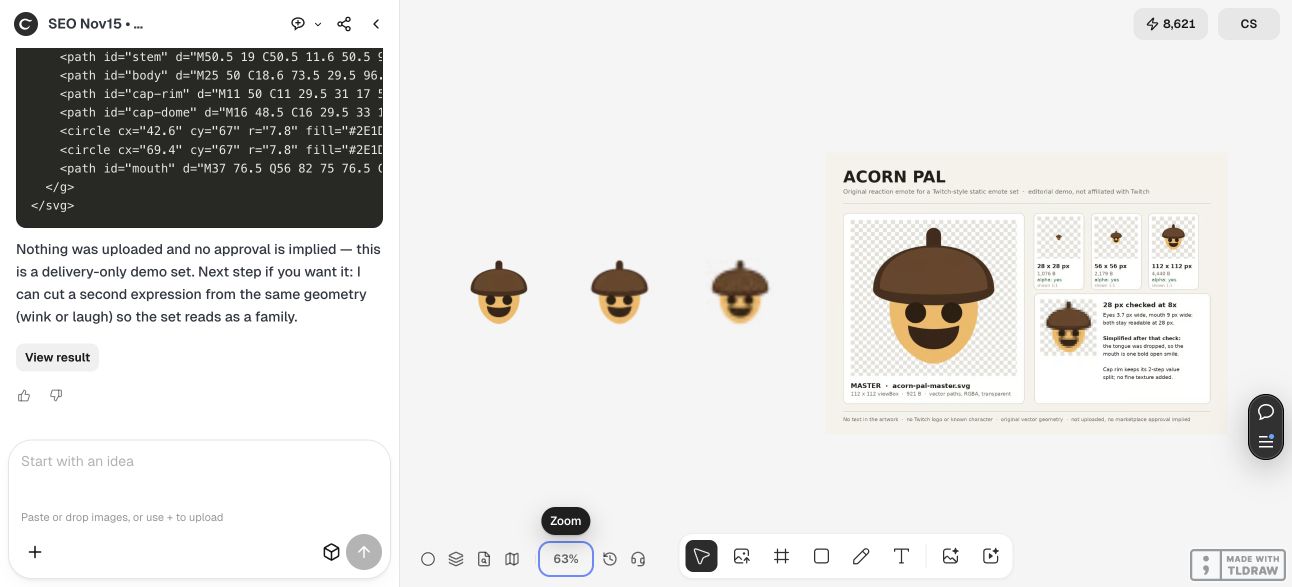
In the live run, Ciyo revised the cap silhouette and removed a tongue detail after it collapsed to a faint line at 28 pixels. It returned the three individual PNGs plus a review board. Our inspection confirmed exact square dimensions of 28, 56 and 112 pixels, true RGBA alpha spanning 0–255, and file sizes of 1,076, 2,179 and 4,440 bytes respectively.
The large view on the Ciyo canvas may enlarge a tiny file, so use the native-size comparisons on the board and inspect the downloaded PNGs at 100% in an image viewer. The SVG master was separately returned as source code; it is not the required Twitch upload format.
| File | Check at native size | Stop if |
|---|---|---|
| 28 × 28 PNG | The intended reaction is recognizable | Features merge or depend on zooming in |
| 56 × 56 PNG | Shape and edges match the approved design | A different expression or crop appears |
| 112 × 112 PNG | The largest upload remains clean | Extra details contradict the small version |
| Every file | Square dimensions and real alpha | Filename is correct but actual size or transparency is wrong |
4. Inspect transparency and file properties
Place the actual PNG over light and dark backgrounds. A painted checkerboard is not transparency, and an opaque white fringe can be easy to miss on a white page. Use a viewer or image editor that exposes alpha information if you are uncertain.
Verify that the actual pixel width equals the height and that each manual file has the intended dimensions. Twitch’s standard-emote guidance states a maximum file size of 1 MB. Keep the files below that limit without blurring the expression into indistinct shapes.
Keep the master outside the upload folder and use unambiguous names for the three outputs. Renaming a 512-pixel image to “28.png” changes none of its dimensions. Recheck the saved files after any export preset or format change.




5. Hand off the checked pack for channel review
Give the channel owner the approved files and a compact preview of the three native sizes. Include the original master and any font or asset requirements if the design uses them. This is a file handoff, not a channel upload or approval receipt.
A creator making one reaction can start with a single expression. An artist supplying a whole pack should agree on the style and small-size treatment before multiplying poses. A consistent large preview is not enough; every final reaction must survive the small review.
Use the current Creator Dashboard process when you are ready to upload. Follow Twitch’s content and formatting rules, and distinguish a successful file selection from acceptance or moderation approval. No such submission is demonstrated by this guide.
Questions about Twitch emote sizes
Do I always need three separate files?
The manual standard-emote route uses 28, 56 and 112 pixel PNGs. Twitch also documents an auto-resize route. Follow the current upload mode you choose.
Can I keep a checkerboard behind the image?
No. A checkerboard can be a viewer’s transparency indicator or painted pixels. The actual PNG needs real transparency.
Does SVG replace the required PNGs?
No. SVG can be a useful source master, but the standard static upload format in Twitch’s guidance is PNG.
Does a compliant size guarantee approval?
No. Formatting is one part of the requirements. The channel owner still needs to follow Twitch’s current content and upload rules.
Make one small, clear reaction
Start with one original emote in Ciyo. Judge its smallest version, then verify the actual exported PNGs before preparing a pack.