Practical design workflows
Discord Emoji Maker: Create a Transparent Three-Reaction Pack
An expression that looks charming at illustration size can become an orange blur in chat. A useful Discord emoji maker workflow has to solve identity, small-size readability and the saved file’s transparency together.
Our Ciyo demo uses an original fictional fox for Pip Club. We pair that exploration with Discord’s upload documentation and a file inspection workflow; a compliant PNG is distinct from a confirmed server upload.
Quick answer: three reactions, one reference, three file checks
Start with happy, surprised and cheering reactions from one approved character. Use a square composition, simple shapes and a true transparent background. Our target for this static example is 128 × 128 pixels per PNG, with each file below Discord’s 256 KB limit.
Inspect the downloaded files on light and dark backgrounds, then view them at the small size where members will actually use them. Upload only to a server you manage with the required permissions.
1. Lock the character before asking for expressions
Choose a character you own or have permission to adapt. Write a short identity specification: orange-and-cream fox, large ears, dark outline and no lettering. A short reaction pack is easier to check for consistency than a large set generated in one pass.
Create an isolated Ciyo project. Attach the approved reference where available and tell the Design agent which features must stay fixed. Keep the full face inside the square; a cropped ear can make the reaction feel broken at chat size.
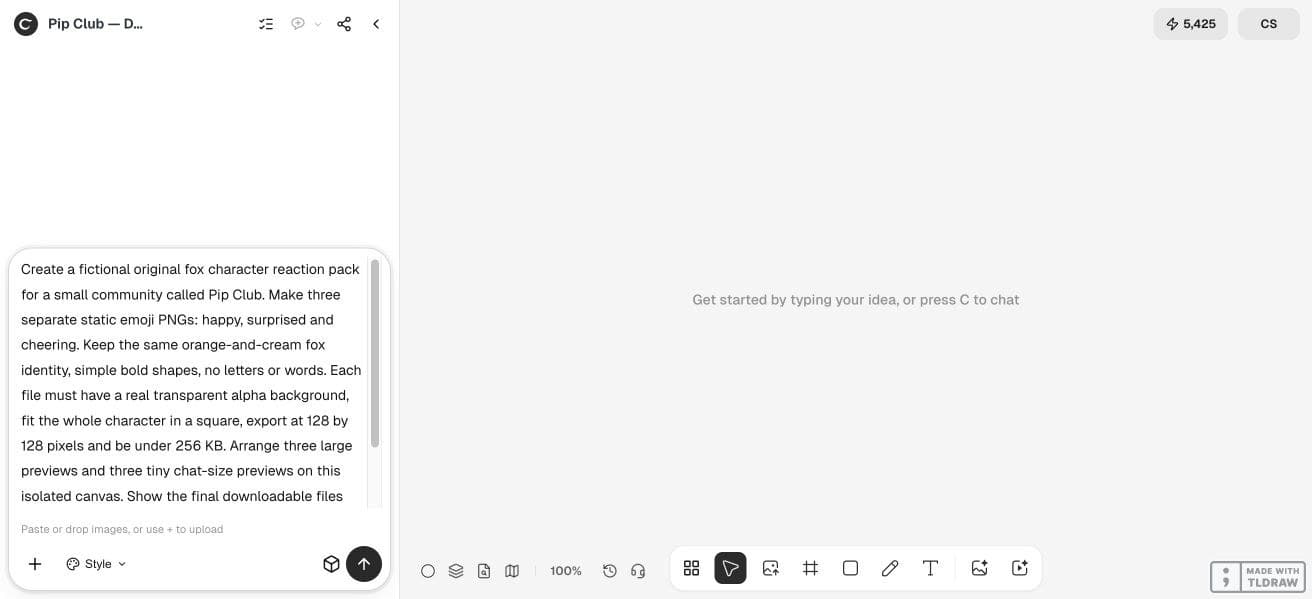
Use my attached original [character] as the identity reference. Create separate happy, surprised and cheering static emoji. Preserve [colors and defining shapes]. Use bold simple forms, no words, and a genuinely transparent background. Target square 128 × 128 PNGs under 256 KB each. State any external resizing or export needed.2. Make each expression different in silhouette
A happy face can use an open smile and upward eyes. Surprise needs a different eye and mouth shape. Cheering can add a clear raised-arm silhouette, provided the hands do not become tiny detached marks.
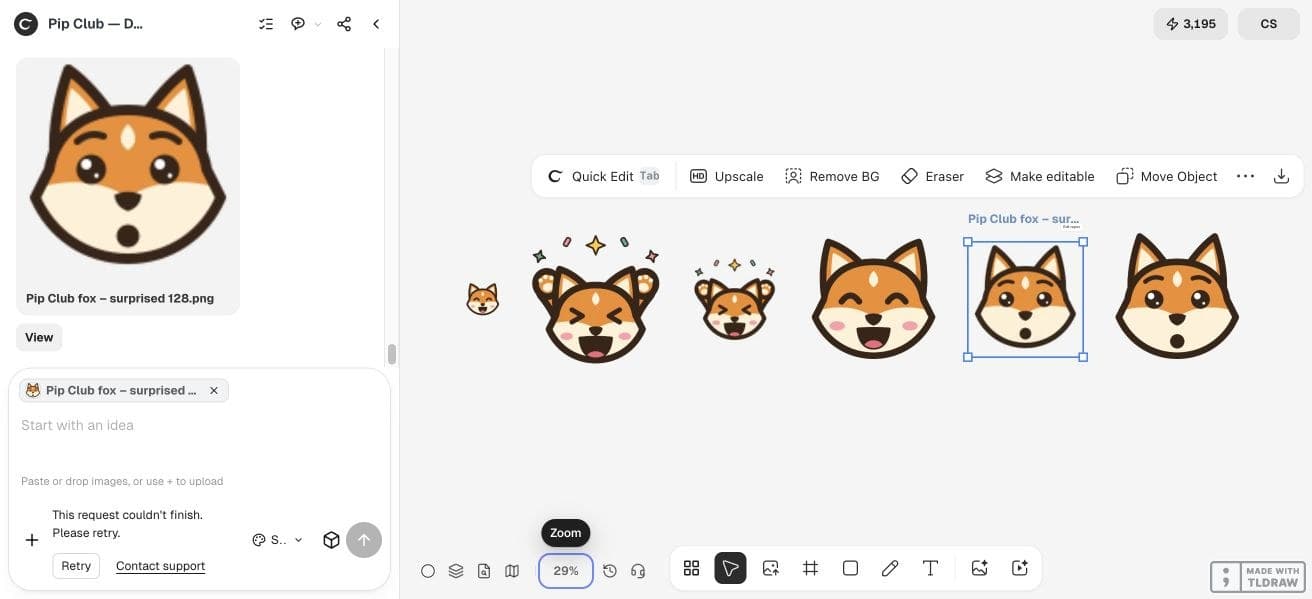
In the live exploration, the agent drew the pack in code and saved six files before the run stopped. We downloaded the three 128 × 128 PNGs independently: happy is 8,160 bytes, surprised is 8,190 bytes and cheering is 10,588 bytes. Each decoded with alpha values from 0 to 255. That verifies the saved file properties, not acceptance by Discord.
3. Check true transparency and the saved PNG
Download the original file, rather than taking a screenshot of its preview. Place it over both a light and dark fill in an image editor. The area around the fox should reveal the fill; a baked checkerboard is opaque artwork, even when it resembles a transparency preview.
Check dimensions and file bytes in the downloaded file’s properties or an image inspector. Keep a larger editable source if you made one, then export a small final copy. If the original lacks alpha, perform a separate background-removal and edge-cleanup step before resizing.
4. Compare the pack at chat size
Place all three files side by side at their export size and at a much smaller preview size. Inspect the eyes, ear separation, mouth and any outline on dark mode. The reader should recognize both the fox and the emotion without enlarging the image.
Choose clarity over texture. Remove stray whiskers, tiny highlights or small words if they collapse. If only the cheering pose fails, revise that pose while keeping the approved face reference.
| Check | Pass condition | If it fails |
|---|---|---|
| Identity | Same fox colors and defining shapes across reactions | Return to the approved reference. |
| Alpha | Background shows through, with clean edges | Remove the background and inspect edge halos. |
| File | Square PNG at the intended size, below 256 KB | Export a new final copy and inspect it again. |
| Small preview | Expression is understandable without zooming | Simplify the face or silhouette. |



5. Upload in Discord and verify it in a message
Discord’s official instructions describe adding custom emoji through the server’s emoji settings and specify supported formats, naming rules and permissions. Use short names such as pip_happy, pip_surprised and pip_cheer; the documented name minimum is two characters, using alphanumeric characters or underscores.
After uploading to your authorized server, insert each emoji in a test message and check its appearance. This guide does not claim that our fictional pack was uploaded to a Discord server. Account and server restrictions can affect use beyond file compliance.
Choose the smallest workflow that fits your community
For a new community, three strong static reactions are a manageable first pack. A community with an established mascot should reuse its approved artwork and involve the owner in expression review. Animation is a separate production task with additional file and motion checks.
Do not spend repeated generations correcting a literal pixel size or filename if a simple export can do it exactly. Use generation for expression exploration, and a reliable image editor for deterministic finishing.
Frequently asked questions
Is white the same as transparent?
No. White pixels hide whatever sits behind them. Inspect the original PNG over two different backgrounds to confirm real alpha.
Do I need an animated emoji?
Static reactions are a useful starting point. Add animation only when the motion improves the reaction and the server’s requirements support it.
Does a PNG under 256 KB guarantee acceptance?
No. Format and size are only part of the workflow; permissions, naming and the server’s current restrictions also matter.
Can I use a familiar copyrighted character?
Use your own original character or assets you are authorized to adapt. A recognizable existing character is not automatically available for your pack.
Make the first three reactions
Bring one original character reference, choose three emotions and inspect the downloaded files before expanding the pack.