Practical design guides
WhatsApp Catalog Images: Keep Each Photo with the Right Item

A consistent catalog needs more than matching backgrounds. If the graphite cup receives the oat cup’s photograph, a polished image makes the mistake harder to notice. The useful starting point is a reliable connection between the physical item, its approved name and every file used to represent it.
This workflow uses WhatsApp’s catalog help and a fictional Alder Ceramics handoff made in a live Ciyo turn on November 15. The example separates planning illustrations from real product photos. It does not create a live WhatsApp catalog, establish review approval or measure sales.
Quick answer
Assign each item a stable code, keep its original photos together, then record the exact image filenames beside the approved product name. Review the image and item fields as one unit before adding them to WhatsApp Business. A graphic review board helps organize the handoff; it does not replace the actual catalog item or its service review.
Input: build one row per real item
Start with the products or services you actually offer. Give each a stable internal code even if the customer-facing names are similar. Collect the approved name, source photo, description and other information your shop needs to maintain. Leave a missing fact visibly unresolved.
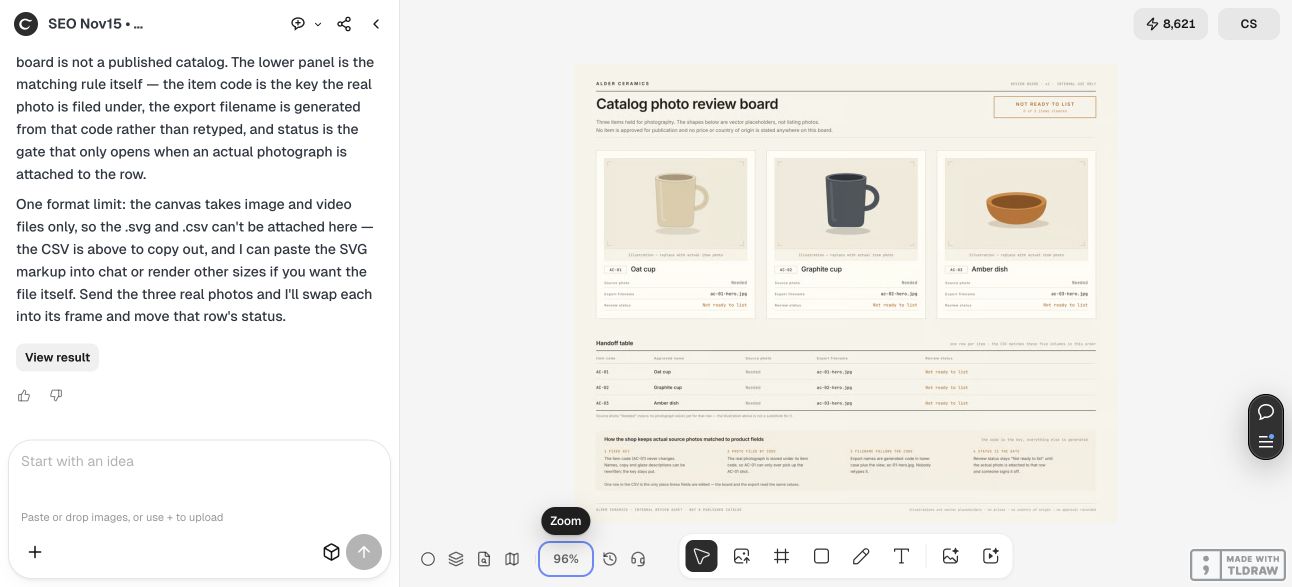
Our fictional collection contains AC-01 Oat cup, AC-02 Graphite cup and AC-03 Amber dish. The example board calls for source photos rather than pretending its vector placeholders are photographs. A preview of a generic cup cannot establish the color, glaze or dimensions of an actual item.
| Item code | Approved name | Expected hero filename | Photo status |
|---|---|---|---|
| AC-01 | Oat cup | ac-01-hero.jpg | Needed |
| AC-02 | Graphite cup | ac-02-hero.jpg | Needed |
| AC-03 | Amber dish | ac-03-hero.jpg | Needed |
Processing: prepare images without losing identity
Photograph or obtain authorized photographs of the actual item. Keep the original source files and work on copies. If you adjust the background or exposure, compare the result with the physical product and source photo; do not let a consistency edit erase a handle detail, change a glaze or imply that an accessory is included.
Choose one composition rule for the collection, such as a similar camera angle and enough margin around the whole object. That is a shop’s visual decision, not a universal WhatsApp pixel requirement. Inspect each exported file rather than assuming that a square canvas guarantees a useful product crop.
Keep detail images attached to the same item code. When an item’s appearance changes, identify whether the existing photos still represent the current stock. Reusing an old attractive image can be misleading if the finish or included parts have changed.
Review: put the images and fields together in Ciyo
Create a review board containing a clearly labeled space for each item’s approved hero image and its matching code, name and export filename. A board is useful because someone can inspect the visual and written identity together instead of comparing two separate folders.
When actual photos are missing, mark them “Needed” and keep the item “Not ready to list.” For this fictional example, vector product illustrations are planning placeholders only. Replace them with your own source photos before approving a real handoff; do not publish an illustration as evidence of a specific product’s appearance.
Ask the Design agent to identify mismatched codes, repeated filenames and unresolved facts. Then have the person who knows the stock approve each item. An agent’s neat table is not evidence that the source data was correct.
Our live Ciyo result was a 3200 × 2704 raster rendering of the review board. Each of the three illustrated items was paired with its exact code, name and filename, and all source photos and review states remained Needed and Not ready to list. The agent also returned CSV text, which we saved and parsed: it contains three matching item records with the same unresolved states.
The board is an actual Ciyo output, but its cup and dish illustrations are not product photography. The chat did not attach an editable SVG file. The supplied CSV is copied from the returned source text; it is a preparation sheet, not an export from WhatsApp or an approval receipt.
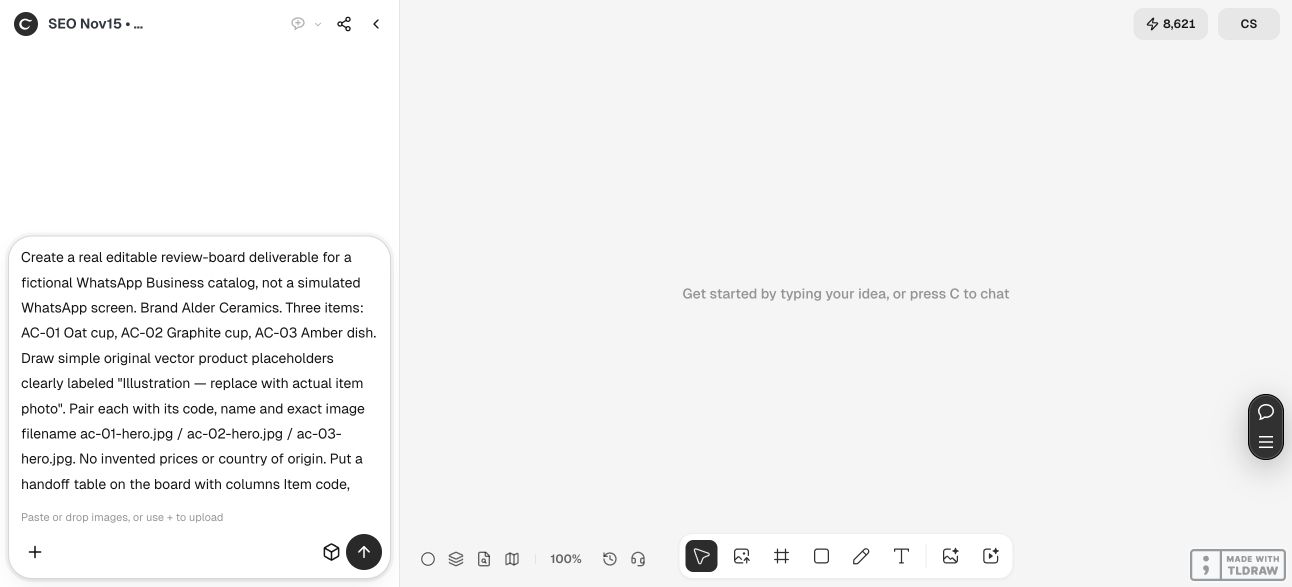
Prepare a review board for [SHOP]. One row per item: [ITEM CODE, APPROVED NAME, SOURCE PHOTO, EXPORT FILENAME]. Keep each actual photo matched to its code. If a source photo or product fact is missing, mark it Needed and keep the item Not ready to list. Any illustration must say Illustration — replace with actual item photo. Flag duplicate filenames and mismatched variants. Do not invent prices, product origin, stock or approval, and do not publish to WhatsApp.Output: add the checked item in WhatsApp Business
Use the current catalog flow in your WhatsApp Business app or web interface. WhatsApp’s web help describes adding images and a product or service name, then supplying the catalog fields offered by that flow. It currently allows up to ten images for an item and includes a country-of-origin step; verify the actual fields in your account.
Keep the product code or your internal mapping alongside the approved image set. Enter prices, descriptions and links as real catalog information where appropriate instead of baking changing details into every photograph. This makes later corrections easier to trace.
WhatsApp says uploaded catalog content is reviewed and items become visible after approval. A successful local export or a finished Ciyo review board does not establish that status. This demonstration does not submit items or appeal review decisions.
Maintenance: repeat the same check when stock changes
Choose one person to approve a new item, photo replacement or renamed variant. Update the source row, exported filename and actual catalog entry together. If a file is replaced, retain enough version information to tell which image was approved.
A solo shop can maintain a short table and one folder per item. A larger team should hand off only approved rows, with a reviewer and review date. When a row fails, return it to the missing-photo or missing-fact stage rather than copying a neighboring item’s values to finish the batch.
Measure catalog visibility and business outcomes separately if you need them. This article provides an image handoff method; it supplies no conversion-rate or revenue result.
Questions about WhatsApp catalog images
Is a review board the catalog itself?
No. It organizes images and product information before entry. The actual items are created and reviewed through WhatsApp Business.
Can the example illustrations serve as real product photos?
No. They are explicitly fictional placeholders. Use authorized photos that accurately represent the actual item you are offering.
Is there one required image size for every catalog?
This guide does not claim a universal pixel requirement. Follow the current service guidance and inspect the crop and detail in your own catalog flow.
Does exporting a file mean the item is approved?
No. WhatsApp’s content review is separate from preparing or exporting an image.
Prepare a matched item handoff
Bring one item list and its authorized source photos into Ciyo. Review the names, codes and image files together before listing.