Video-call background design
Zoom Virtual Background Design: Leave Space for the Presenter
A background can look balanced as a picture and feel crowded as soon as someone sits in front of it. A bright shape behind a face competes with the speaker; a small logo may disappear behind a shoulder. Compose around the person who will occupy the frame.
We created an original abstract background for the fictional Juniper Studio in a signed-in Ciyo development workspace on November 20. The run saved a clean background and a separate placement guide before its final response failed. We inspected the saved files independently: the clean PNG is 1920 × 1080. This tutorial explains what those files establish and the camera check you still need to perform in Zoom.
Quick answer: keep the center quiet and check the clean file
Match the background to your camera's aspect ratio, put the distinctive artwork away from your likely head-and-shoulders position, and export a clean image without review marks. Then inspect it with your actual camera and lighting. Our 1920 × 1080 example is a 16:9 starting point; its central placement guide is an editorial aid, not an official Zoom safe area.
Follow these five steps. The first four prepare and inspect the artwork. The last step happens in your own Zoom preview, where camera framing and background separation can differ from the design canvas.
| Step | Action | Keep |
|---|---|---|
| 1 | Identify camera ratio and presentation needs | A target size and a simple composition brief |
| 2 | Request a clean image and separate review guide | The prompt and actual Ciyo output |
| 3 | Inspect the original file | Verified dimensions, format and file size |
| 4 | Compare likely presenter positions | A guide kept separate from the clean image |
| 5 | Check the background in Zoom | Your own preview under normal lighting |
1. Choose a background size that fits your camera
Start with the camera framing you actually intend to use. Zoom's virtual-background guidance accepts PNG and JPEG images, recommends matching the camera aspect ratio, and gives 1280 × 720 and 1920 × 1080 as 16:9 examples. It also describes a 15 MB image limit. These are file requirements and recommendations; they do not guarantee that a particular computer can separate a moving person cleanly.
For Juniper Studio, the deliverable is a text-free 1920 × 1080 landscape background for a workshop host. The palette is warm ivory, charcoal and a small amber accent. Keeping the identifying shapes near the edges leaves the middle available for the host. A different camera ratio calls for a newly composed image or a deliberate crop, rather than stretching this file.
Decide whether a background is necessary for the session. A screen-sharing lesson may benefit from a very quiet field, while a discussion host might want a stronger identity at the far edge. If you need a name or event title, keep a separate title card or use your meeting's supported text features; this example deliberately contains no lettering.
2. Brief Ciyo around the presenter position
Create an isolated project and describe both the artwork and the space it must leave available. A request for a beautiful backdrop alone gives the design no reason to avoid the likely face position. Specify the size, palette, edge emphasis and absence of text in one reusable brief.
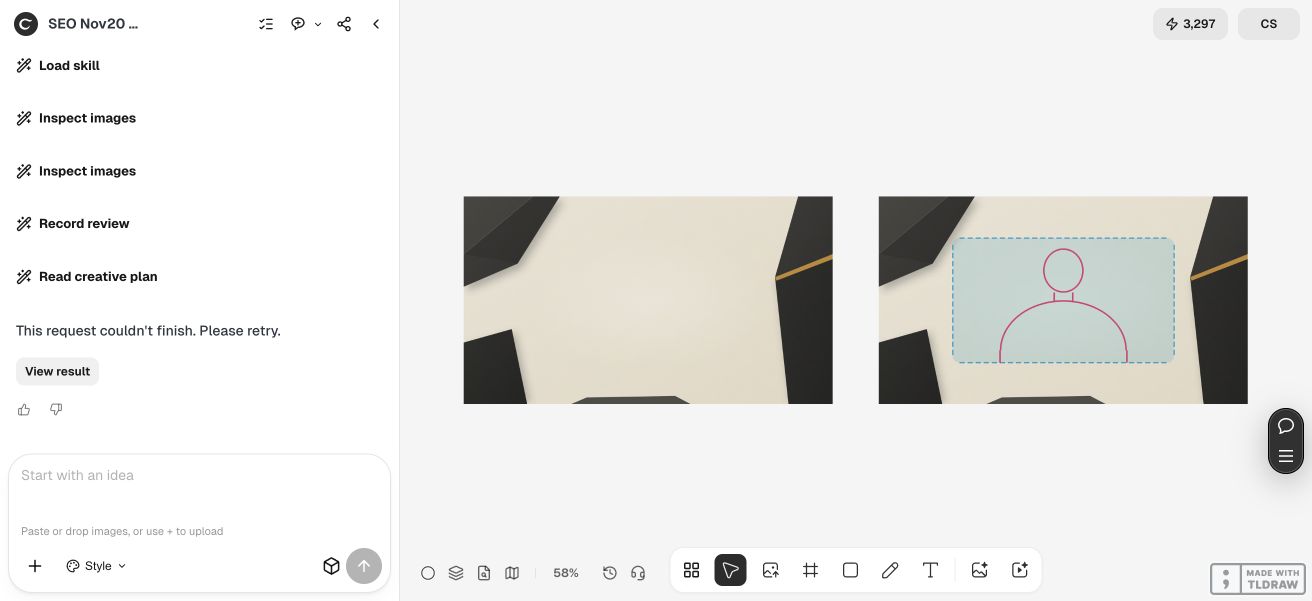
Our actual Ciyo request asked for the clean PNG and a separate illustrative overlay. The agent planned the work, produced both files and placed them on the canvas. It later reported that the request could not finish during the remaining review sequence. We kept that failure in the evidence instead of treating the final status as a successful completed turn.
An existing brand can replace Juniper Studio's fictional palette with approved colors. Keep the placement constraint stable while changing the artwork. This helps distinguish a visual revision from a new brief that changes size, style and composition at the same time.
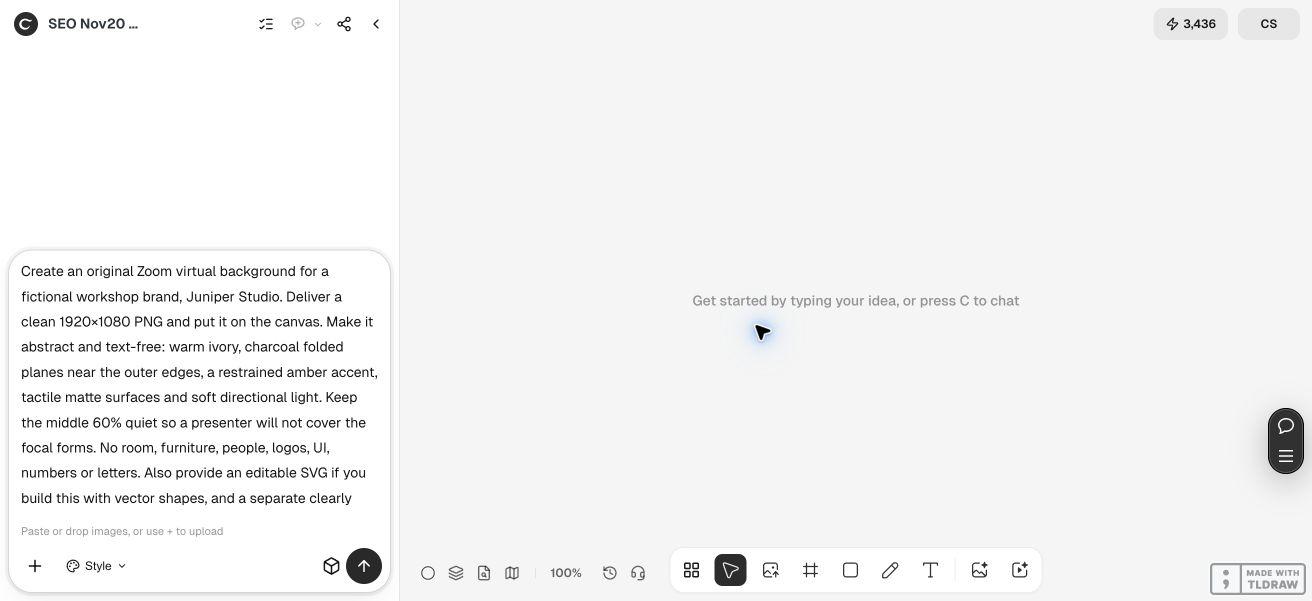
Create an original virtual background for [fictional or approved brand]. Deliver a clean [width × height] PNG and put it on the canvas. Use [approved palette] with simple abstract forms toward the outer edges. Keep [the area your camera framing needs] quiet so the presenter will not cover the focal artwork. No people, room scene, logos, interface, numbers or letters. Provide a separate clearly illustrative placement guide; do not burn it into the clean image. Report actual file dimensions. Do not upload to a meeting service.3. Inspect the original PNG rather than a scaled thumbnail
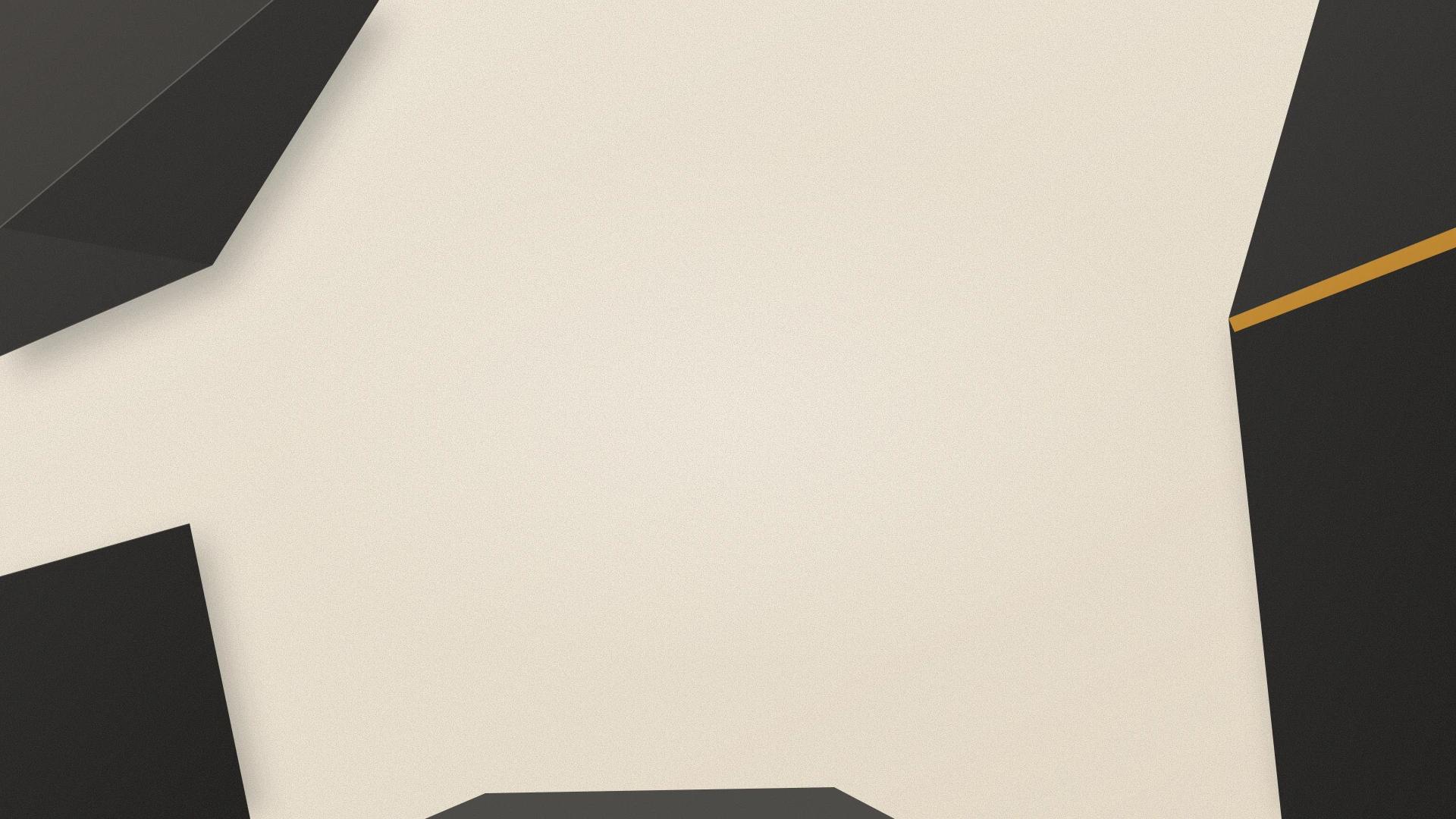
Open the actual delivered file and inspect its properties. A canvas thumbnail or browser preview can be resized or compressed; its dimensions may describe the preview rather than the original. In this run, one preview download was a 1024-pixel AVIF. The original clean file was a different asset: a 1920 × 1080, three-channel sRGB PNG containing 3,411,155 bytes, about 3.25 MiB.
The normal export controls did not produce an observed download during our check. We recovered the already-saved original asset through the workspace's rendered file reference and downloaded that file in Chrome. This is a limitation of the observed export path, not evidence that every Ciyo download fails. Verify your own file before proceeding; do not rename a compressed preview to PNG and assume it has become the requested original.
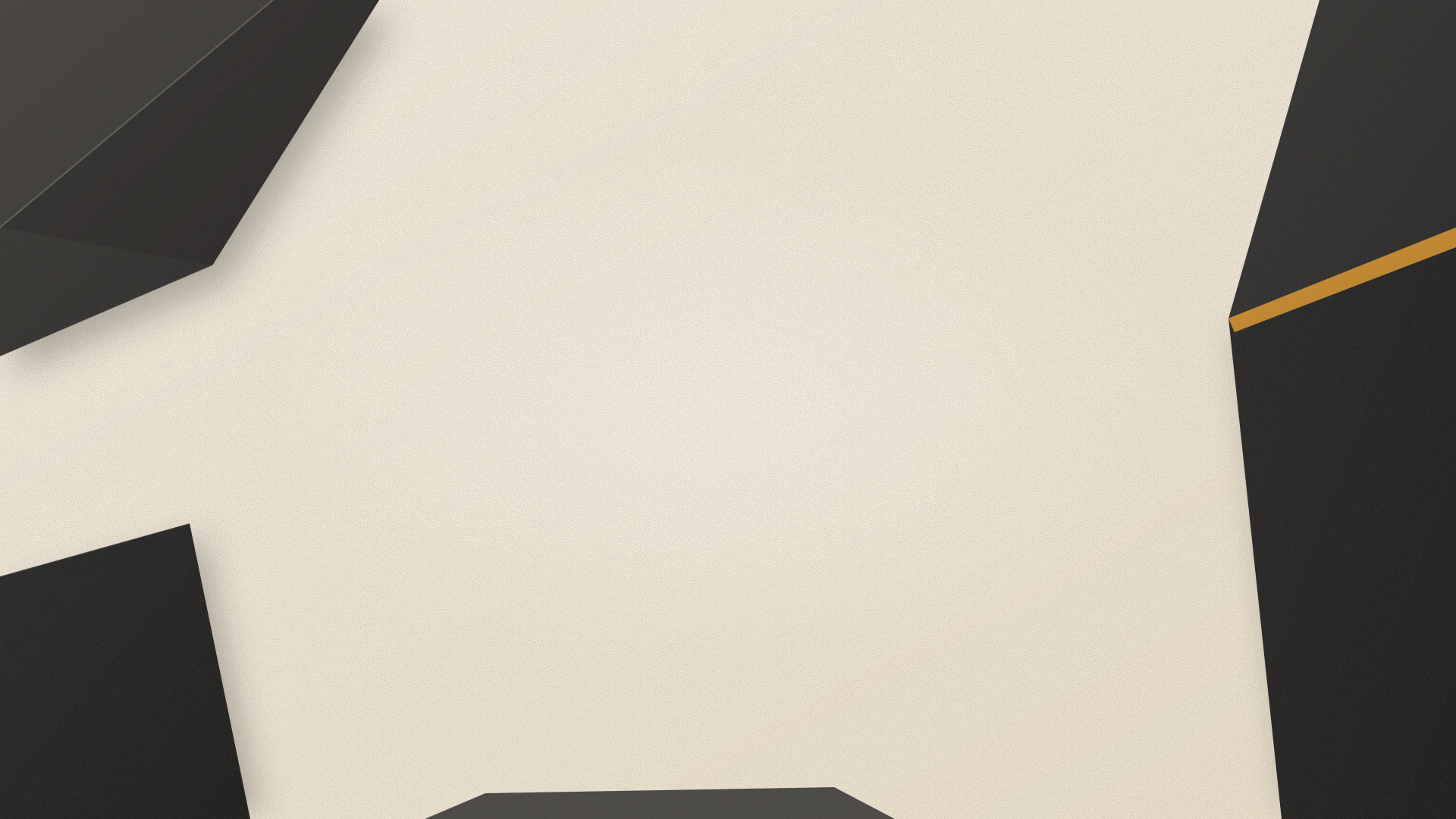
Inspect the image itself as well as its metadata. Our clean background has dark folded planes around a broad ivory middle, with a restrained amber diagonal near the right edge. It has no guide, lettering or person baked into it. The downloadable PNG below is that inspected original.
4. Review likely framing with a separate overlay
Place a rough head-and-shoulders shape over the design at the size and position your camera is likely to show. Move it left and right and consider a taller or wider crop. Look for bright edges cutting across the head, an accent hidden by a shoulder, or a remaining detail that suddenly draws attention beside the face.
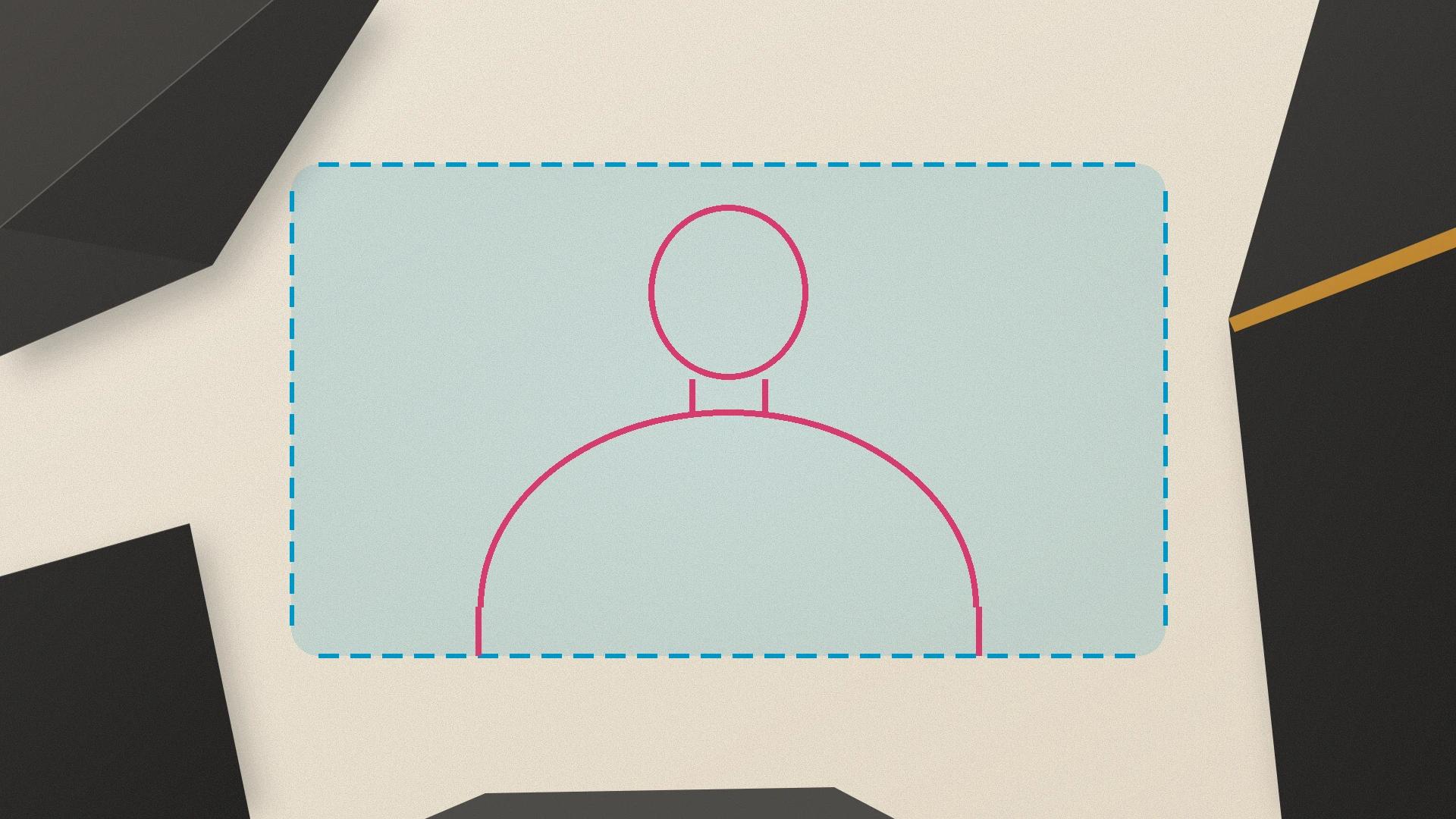
Ciyo produced a separate guide image with a cyan central rectangle and a simplified pink presenter outline. It is visibly an illustration, not a screenshot from Zoom or a segmentation measurement. Its rectangle spans the middle 60% of the image width. That was our composition choice; it is not a platform-prescribed boundary.
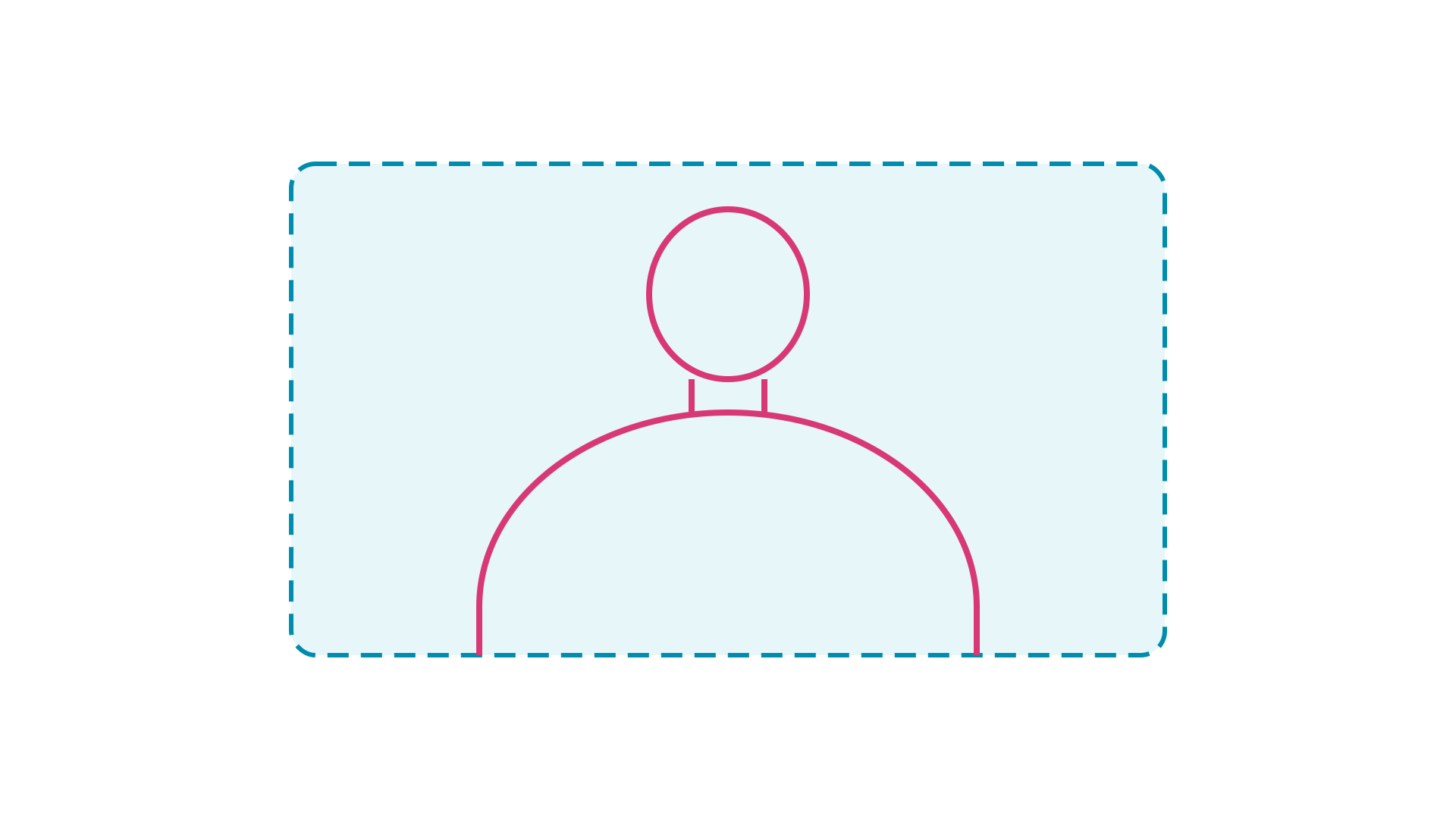
The editable SVG download is a separate editorial companion built for this article. It contains only the transparent guide geometry on a 1920 × 1080 coordinate space. Place it over the clean background in an editor, adjust the shapes to your own framing, then remove or hide it before exporting. The Ciyo preview and this companion are distinct files; neither proves the result of a live camera test.
5. Check the clean background in your own Zoom preview
Use the clean PNG when adding a custom background in Zoom. Follow the current instructions for your supported client and account. Sit where you normally present, use your normal camera, and review the result before joining an important session. We did not upload this example to Zoom or test it in a meeting.
Check an ordinary range of movement: turn your head, raise a hand and move slightly closer to the camera. Inspect whether hair, hands and clothing separate acceptably from the background. If separation is poor, investigate the lighting, physical backdrop and the requirements for your device before spending time redesigning small decorative details.
For a beginner, start with one quiet image and inspect one real preview. A workshop team can keep a shared approved source plus a short checklist for camera position and lighting. If the artwork works in one person's setup but fails in another, retain the design and diagnose that specific setup first. Neither this guide nor an attractive still image establishes a universal safe area or a fixed setup time.
Zoom background design questions
Is 1920 × 1080 required for every Zoom background?
It is a useful 16:9 example from Zoom's guidance. Match your actual camera aspect ratio and check the current client requirements. A different ratio can require a different composition or crop.
Is the middle 60% an official safe area?
No. It is an editorial placement choice for this fictional example. Your face position, camera crop and movement determine the space you need.
Did the Ciyo request complete successfully?
It saved the clean background and separate guide, but the final turn later reported a failure. We independently checked the saved original PNG and kept the failure in the review evidence. We did not retry the generation to obtain a cleaner success claim.
Do I need an image editor?
You can use the supplied clean PNG directly as a starting point. Editing the transparent placement-guide SVG or recomposing the artwork requires an editor that supports the relevant file type. The overlay is optional and must stay out of the final background.
How long does setup take, and does a good image guarantee clean separation?
This example establishes no fixed setup time. Allow time for output inspection, revisions and a real camera preview. Lighting, device support, clothing and movement affect separation; the artwork alone does not guarantee it.
Compose around the person who will be on camera
Give Ciyo a target size, an approved palette and a clear placement constraint. Inspect the clean file and keep review guides separate before checking your own camera.