Practical creative workflows
Accessible SVG Logo: Name the Right Element

A café’s cup mark has three different jobs: identify the business on its own, decorate visible brand text, or sit inside a home link. Giving every copy the same title can make an interface repetitive without helping a visitor understand the control.
Our fictional Cedar Cup example uses the same path in three real HTML contexts. Ciyo created the markup and browser render; we then opened the retained file and checked its exposed image and link names. This is a focused naming example, not a screen-reader certification.
Decide what the logo does in context
Start with the surrounding page, not the SVG alone. Is the mark the only business identifier? Does visible text already say the name? Is the whole area a link? Those answers determine which element should carry the information.
We prepared one cup path with viewBox 0 0 120 100 and fill #7A4A2A. The three examples keep that geometry. The changes concern names, hidden decorative content and link text; they do not alter the brand drawing.
Use this existing SVG path unchanged. Build real HTML showing a standalone informational logo named Cedar Cup, a decorative copy next to visible Cedar Cup text, and a home link named Cedar Cup home with a decorative icon. Use appropriate title, role and ARIA markup. Render and inspect the page, check exposed names and keyboard focus, and return the exact HTML.Name the standalone informational mark
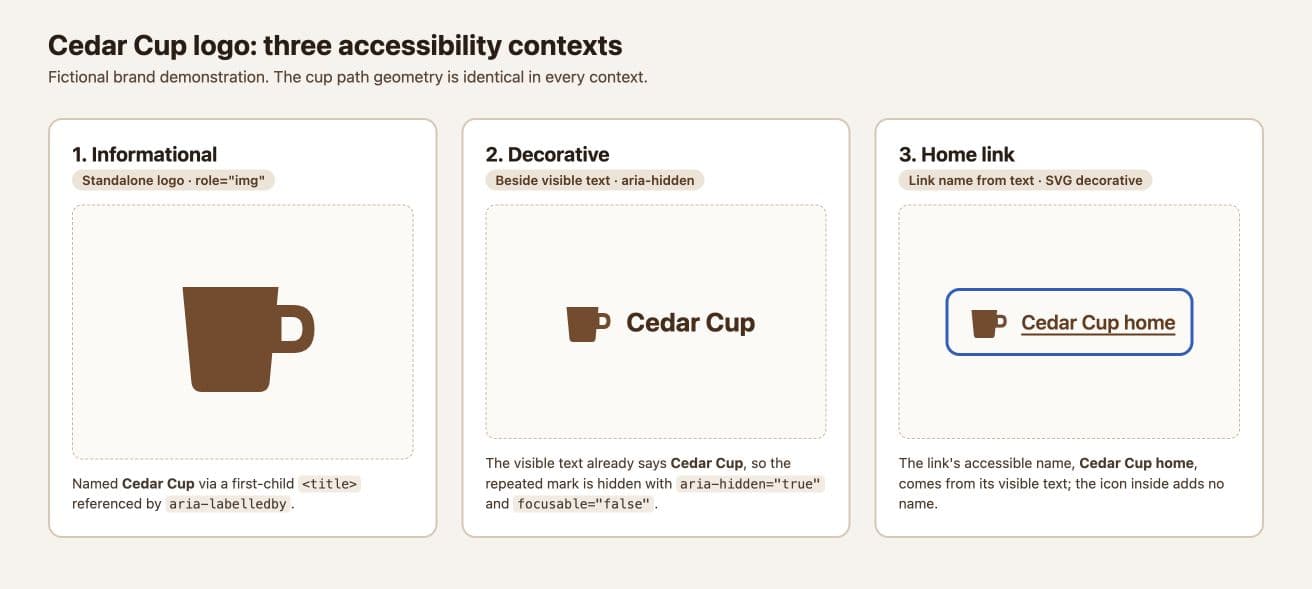
The standalone example uses role="img" and aria-labelledby referencing a first-child title element. That title says Cedar Cup. The browser exposes one image with that name, which communicates the identity without describing decorative cup geometry.
Use a unique title ID for each relevant inline instance. Duplicating an ID in a component repeated across a page can connect the name to the wrong element. The retained demo uses one informational copy and an explicit ID.
Hide the repeated decorative copy
When visible text already says Cedar Cup, the neighbouring cup is redundant in this example. It uses aria-hidden="true" and focusable="false". The visible text supplies the identity while the mark stays visually present.
Do not apply this treatment to a mark that supplies otherwise missing information. Hiding meaningful content because it resembles a decorative example would remove information the reader needs.
| Context | Name comes from | SVG treatment |
|---|---|---|
| Standalone mark | Referenced title: Cedar Cup | role="img" |
| Mark beside brand text | Visible Cedar Cup text | aria-hidden="true" |
| Home link | Visible Cedar Cup home text | Decorative SVG inside link |
Give the home link a useful name
The link’s visible text is Cedar Cup home. Its SVG is decorative, so the control’s name comes from the text. The saved page links to #home as a local demonstration; a real site should use its actual home destination.
We pressed Tab in the independently opened demo. Focus landed on the home link, and the browser exposed Cedar Cup home as its name. The decorative SVG did not create another image entry. That is a narrow, observable result for this page.
Check names in the page you ship
Open the saved HTML and inspect the accessibility tree, keyboard order and visible label. Review the actual implementation after inserting it into your header: a surrounding button, duplicate brand text or another link can change what the user encounters.
An SVG title is not a replacement for meaningful control text. The functional element should make its purpose clear. For a different context, choose an equally clear visible label or a carefully checked accessible name rather than copying this markup without context.

Include the context in your handoff
Send the developer the original SVG, the three-context example and a note identifying which instance should be informational or decorative. Request a check in the final page and with the assistive technologies relevant to your audience.
Keep colour and naming as separate reviews. A correctly named logo can still disappear on a dark background, and a visible logo can still have an unhelpful link name.
Practical questions
Should every SVG logo have a title?
Choose by context. This demo titles the standalone identifier and hides redundant decorative copies.
Is an SVG title enough to name a link?
Name the functional element clearly. This example uses visible Cedar Cup home text as the link name.
Was this tested with every screen reader?
No. We verified the browser’s exposed names and keyboard focus. Review the final interface with appropriate assistive technologies.
Review one logo in its real context
Ask Ciyo for an informational, decorative and linked example, then carry the relevant markup into a checked site implementation.