Practical creative workflows
SVG Logo Dark Mode: Test currentColor

A café logo disappears against a dark website header even though the same file looks fine on a pale invoice. The first decision is how the site inserts the SVG: inline markup and an external image do not receive the page’s colour in the same way.
We made a fictional Cedar Cup mark in Ciyo’s file workspace and retained an HTML demo you can open. Its single cup path stays unchanged. The example tests a specific colour edit and browser behaviour; it does not redesign the brand or audit an entire website.
Keep one untouched SVG master
Inspect the source before editing. Record its viewBox, path data and fixed fill. Multiple hard-coded fills, strokes or embedded styles can need separate decisions; replacing one attribute cannot establish a complete theme system.
Our original has viewBox 0 0 120 100 and one path filled #303036. Ciyo rendered a preview beside the original code. That preview helps identify the mark, while the SVG source supplies the information needed for a reliable edit.
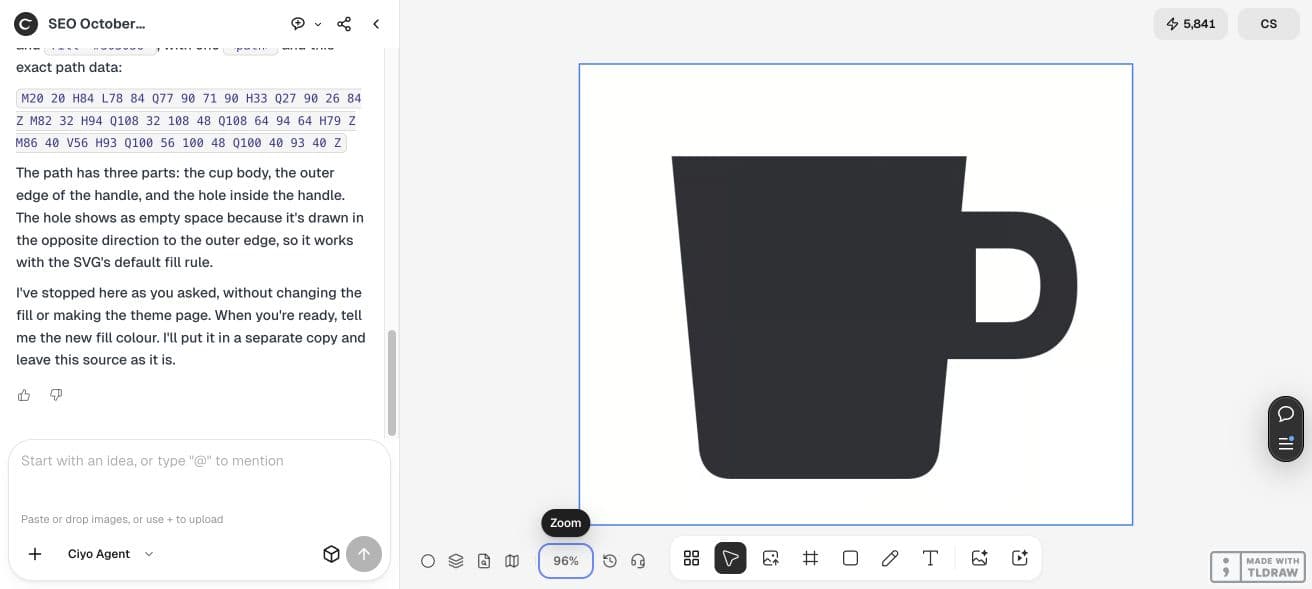
Change the paint, preserve the geometry
For this one-colour mark, Ciyo changed only fill="#303036" to fill="currentColor". An independent file comparison confirmed that the path and viewBox remained identical. The original is 266 bytes; the edited file is 271 bytes. Those counts describe these retained files.
currentColor uses the element’s colour value. When the SVG is inline, CSS can supply that value from its surrounding page context. Choose intentional light and dark colours rather than relying on an unspecified default.
Keep this SVG’s viewBox and every path unchanged. Save a separate copy replacing its one fixed fill with currentColor. Build real HTML with fixed and currentColor marks on light and dark panels, plus an external img control. Render that HTML, inspect it, and report computed fills. Return the editable SVG and HTML files.Test both backgrounds in actual HTML
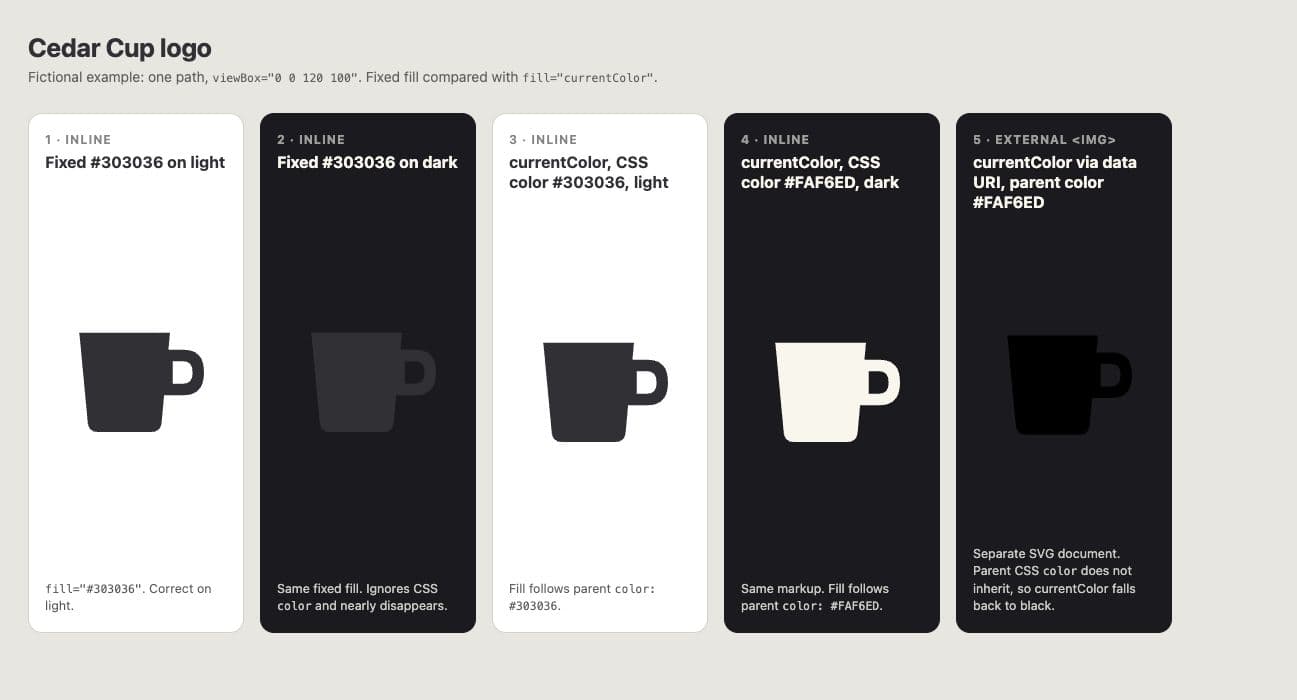
The retained page places fixed-fill and currentColor versions on two contrasting panels. On the light panel, both use #303036. On the dark panel, the currentColor mark uses #FAF6ED while the fixed original stays charcoal. The dark example makes the failure easy to see.
We opened the actual saved HTML in Chrome and checked the inline SVG fills. This verifies the shown markup and styles in that browser. It does not prove contrast across all brand colours or compatibility with every publishing tool.
| Panel | Fixed mark | currentColor mark |
|---|---|---|
| Light | #303036 | #303036 |
| Dark | #303036 | #FAF6ED |
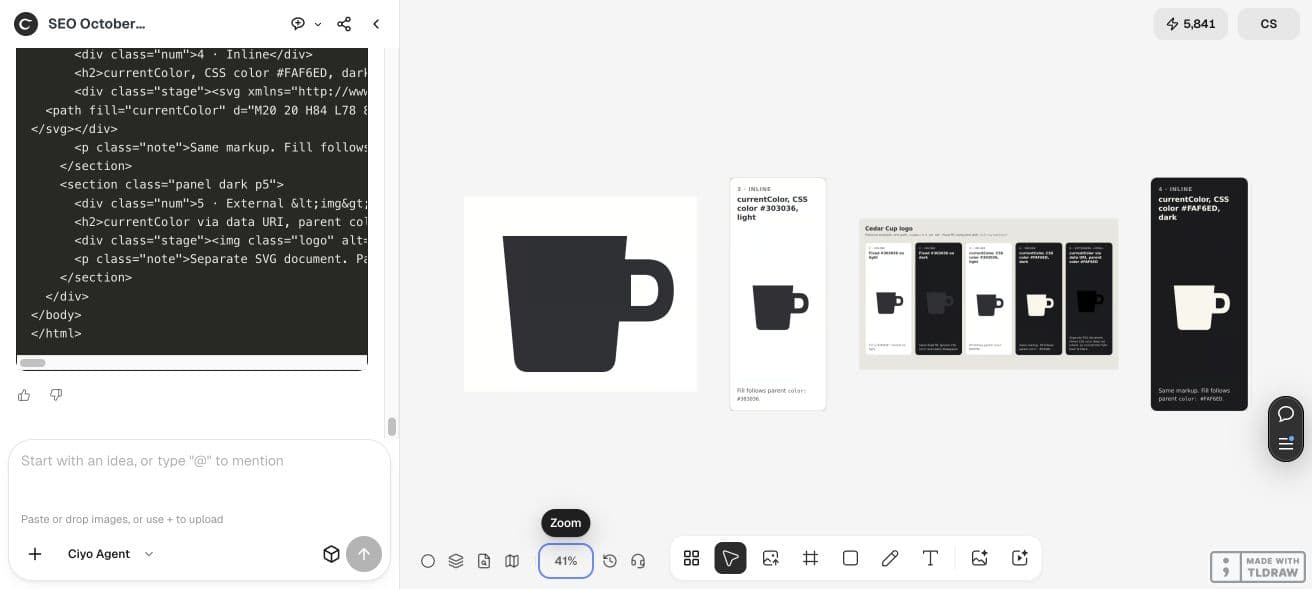
Keep an external image as a control
An SVG loaded through img is a separate image document. The parent’s colour declaration is not an instruction to recolour its internal paths. Our external-image control intentionally demonstrates that boundary. If your site needs theme-specific external files, export explicit colour variants or choose an appropriate inline implementation.
The first generated HTML had malformed quoting inside a data URI. Ciyo corrected the encoding before the final browser check. That is a useful reason to inspect the rendered file instead of accepting a code block that merely looks plausible.
Review the saved page before integration
Open the demo below, inspect both backgrounds, then review your real header at its intended logo size. A technically correct colour change can still leave small details indistinct. Check focus, link naming and accessible text separately if the mark is interactive.
The HTML is self-contained and the source contains no script. Its CSS and inline markup are an example for your developer to inspect, not an automatic update to your live site.


Hand over the colour rule with the file
Deliver the unchanged master, edited SVG and checked HTML together. Specify which insertion method you tested and the intended colour on each background. This prevents a teammate from placing the right file into a context that cannot inherit the expected colour.
For a multicolour brand, agree which regions should remain fixed before applying this approach. Start with a controlled single-colour mark; preserve intentional brand colour relationships rather than turning every paint into currentColor.
Practical questions
Does currentColor recolour an external img?
The parent page’s colour does not automatically enter the separate SVG image document. Test your insertion method and use explicit variants when appropriate.
Did this example redraw the logo?
No. The edited SVG changes one fill value; its path data and viewBox match the master.
Is dark-mode colour enough for accessibility?
No. Review contrast, size, naming and link behaviour in the final interface.
Test one mark on two backgrounds
Bring an approved SVG into Ciyo and request a retained browser demo before handing the edited file to your website developer.