Practical design workflows
AI GIF Maker: Create a Product Email GIF with a Useful First Frame

A product GIF can look good in a design preview and fail in an email: the first frame says nothing, the file is heavy, or a color gradient breaks into visible bands. The useful output is the encoded file your reader receives, not just an animation playing on your canvas.
This guide combines Mailchimp’s email-GIF guidance with a live Ciyo demonstration for a fictional Fern Shop product email graphic. We downloaded and decoded the actual GIF, checked every frame and compared its static fallback. Email-client support varies; no email was sent, so a destination preview remains a separate check.
Quick answer: make the still frame work before adding motion
Choose one product, one purpose and one restrained motion. Create a first frame that works as a static image, then build the animation around it. Export the GIF, inspect its timing and every frame, and test it in the email tool you actually use.
Keep essential offer details and the call to action in the email’s normal text and links as well. A GIF should support the message, not become the only place a reader can find it.
| Stage | Decision | Check |
|---|---|---|
| Still frame | What must be visible immediately? | Product and context make sense without motion |
| Animation | What change helps the reader? | No distracting movement or altered product facts |
| Encoding | Which dimensions and colors are sufficient? | Saved file looks acceptable and is reasonably small |
| Delivery | Where will it be viewed? | Actual email preview and fallback remain useful |
1. Choose motion that explains something
A reveal can introduce a product color, a short sequence can show two approved views, and a restrained accent can direct attention toward a static product. Choose one of those jobs. Combining several often makes the asset harder to understand and more expensive to encode.
For Fern Shop, the product stays fixed while a simple background accent moves. That choice makes it easier to compare the product against its reference. If the product itself rotates, the animation may invent surfaces that the source photograph never showed.
Use a photograph you own or may adapt, and preserve any product names or details that matter. If you are teaching with an illustration or fictional object, label it as such rather than presenting it as a real catalog item.
2. Design a useful first frame
Pause at the first decoded frame. The reader should be able to identify the product and understand the purpose without waiting for a reveal. Do not begin with an empty background merely because the transition looks elegant in a video preview.
Treat text as a separate reading problem. Large graphic text may survive a GIF export, but small legal terms and long offers rarely benefit from being baked into an animation. Put those details in the email’s HTML content, where they can remain readable and linked.
For the example, the product is visible from the start and the motion is decorative. If the email software or recipient environment presents a static frame, the main visual still has a job.
3. Ask Ciyo for an encoded deliverable
Create an isolated project and attach the approved product reference. Specify the output dimensions, the motion, a useful first frame and a GIF file. If an agent returns only an MP4, storyboard or still image, the delivery task is not finished.
Ask for a static fallback alongside the animation and keep the product’s shape, label and color fixed. A code-rendered composition can preserve a supplied image while animating the surrounding layout. If a generative video method changes product details, reject that result or choose a simpler motion.
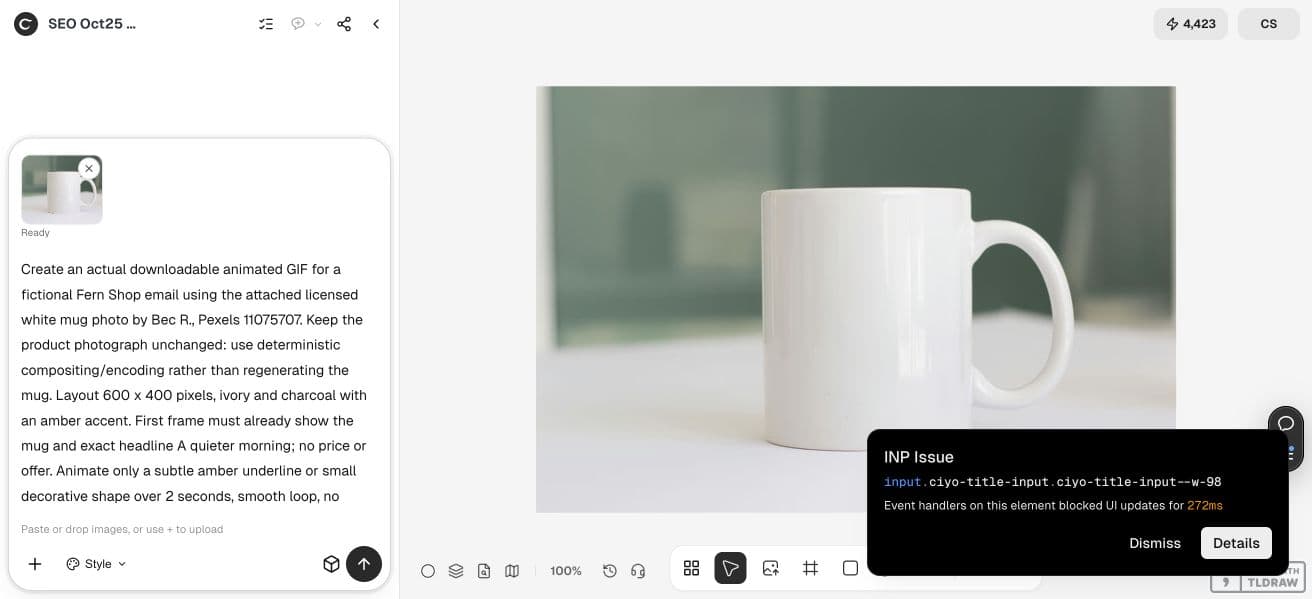
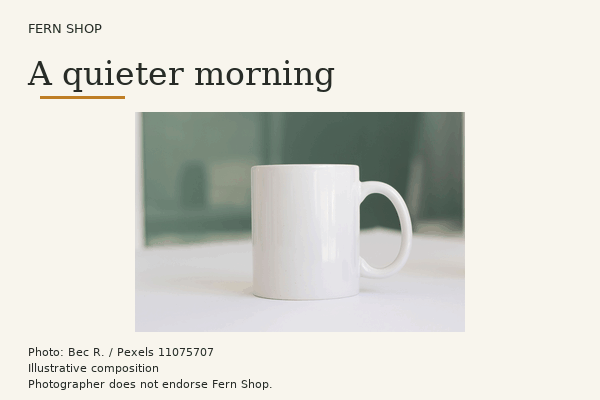
Create an actual downloadable animated GIF for a fictional Fern Shop email using the attached licensed white mug photo by Bec R., Pexels 11075707. Keep the product photograph unchanged: use deterministic compositing/encoding rather than regenerating the mug. Layout 600 x 400 pixels, ivory and charcoal with an amber accent. First frame must already show the mug and exact headline A quieter morning; no price or offer. Animate only a subtle amber underline or small decorative shape over 2 seconds, smooth loop, no flashing. Keep headline and photo static in every frame. Export a working GIF plus its static first-frame PNG and a comparison strip of several frames. Report actual bytes, frame count and timings from the saved GIF, and verify the loop. Save assets to the canvas with download links; do not send an email. Label as illustrative composition, photographer does not endorse the shop. Execute now.4. Inspect all frames and the transition back to the start
A canvas thumbnail may show only the first frame. Open the downloaded GIF in a viewer that plays it and, when necessary, extract or step through its frames. Check whether the image flashes, jumps at the loop boundary or leaves unwanted trails.
Confirm timing from the encoded file. A requested duration is not proof of the saved duration, and frames can use different delays. A pause on the first or last frame may be intentional; a dropped frame may not be.
Check the product in the middle of the motion as well as at the ends. A logo that looks correct in the opening frame can drift or blur later. If the whole idea depends on seamless repetition, compare the last-to-first transition explicitly.
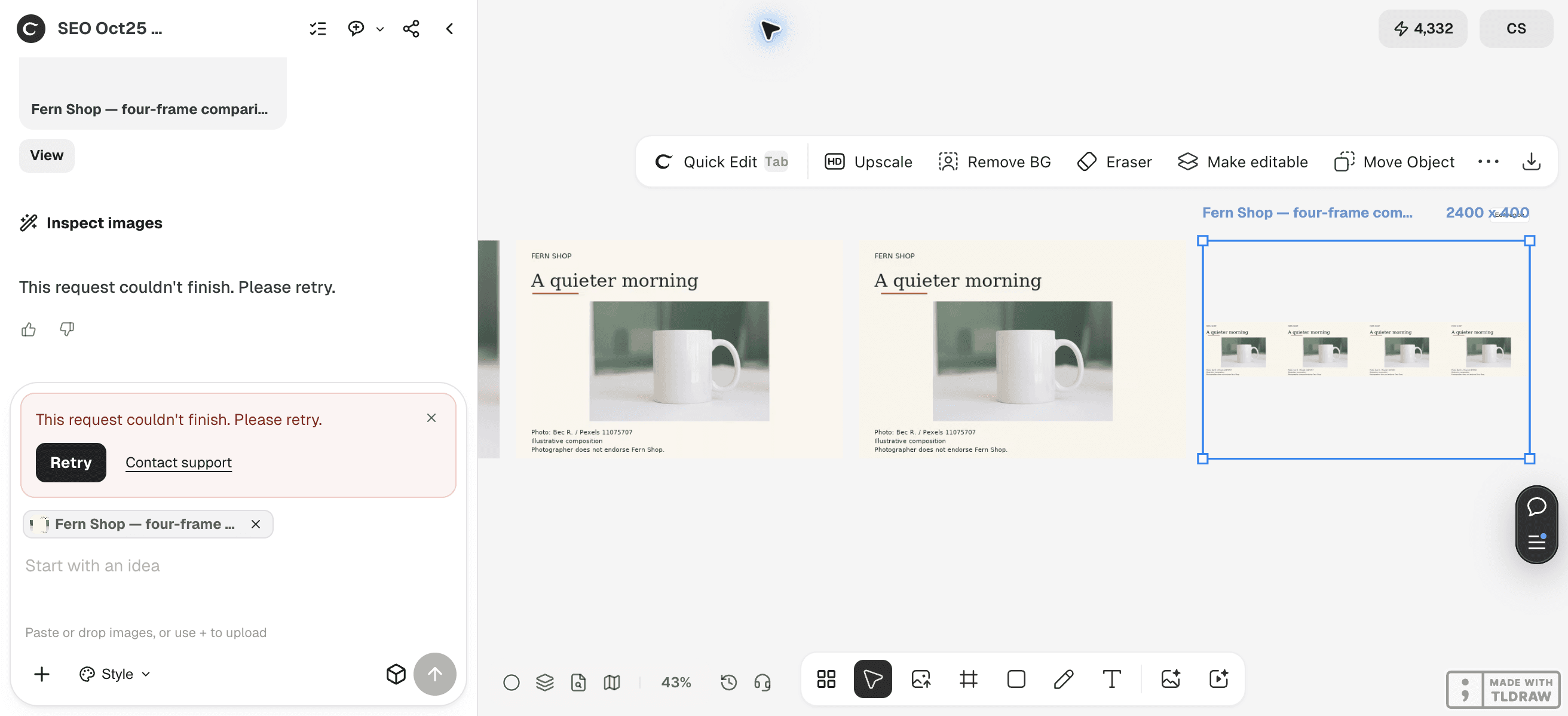
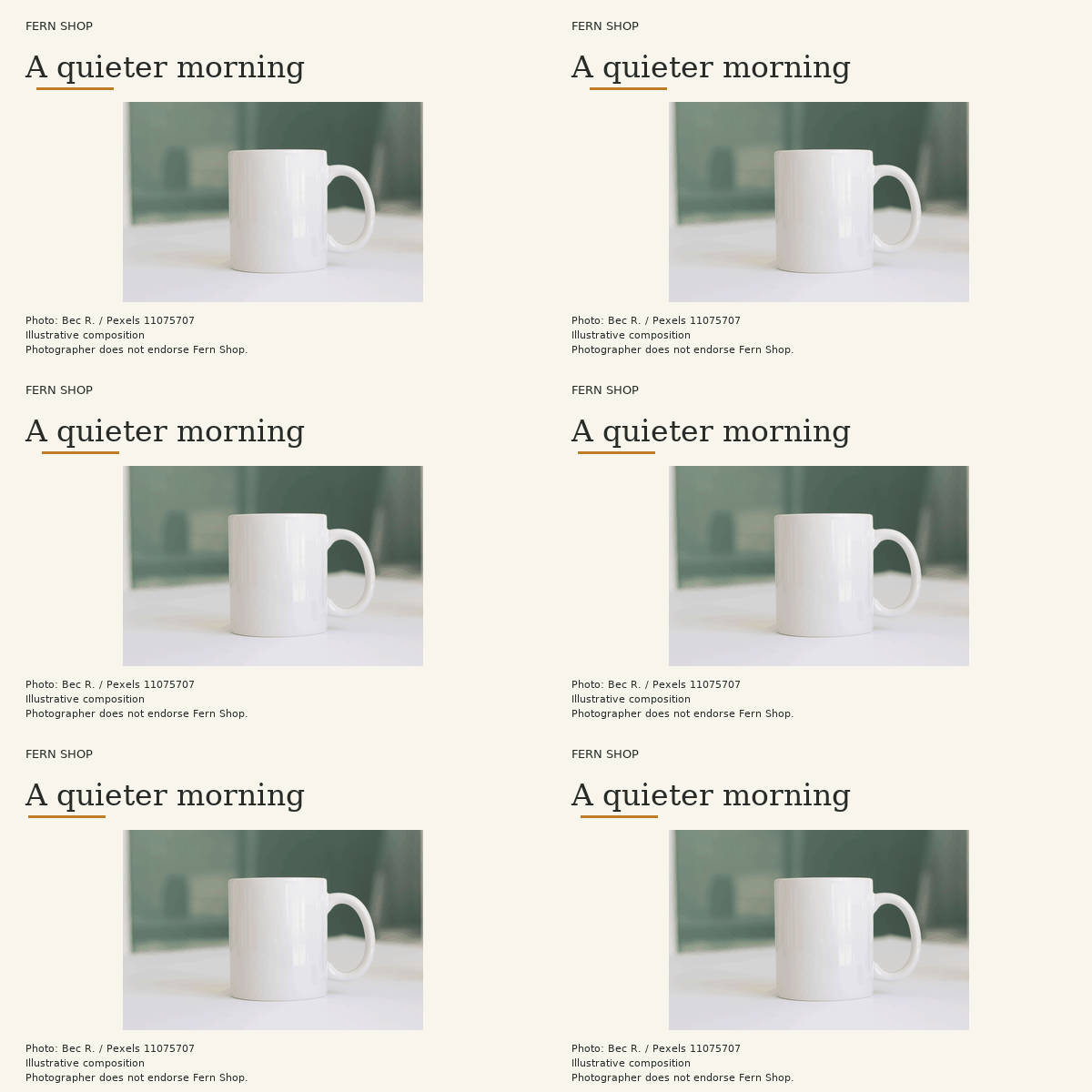
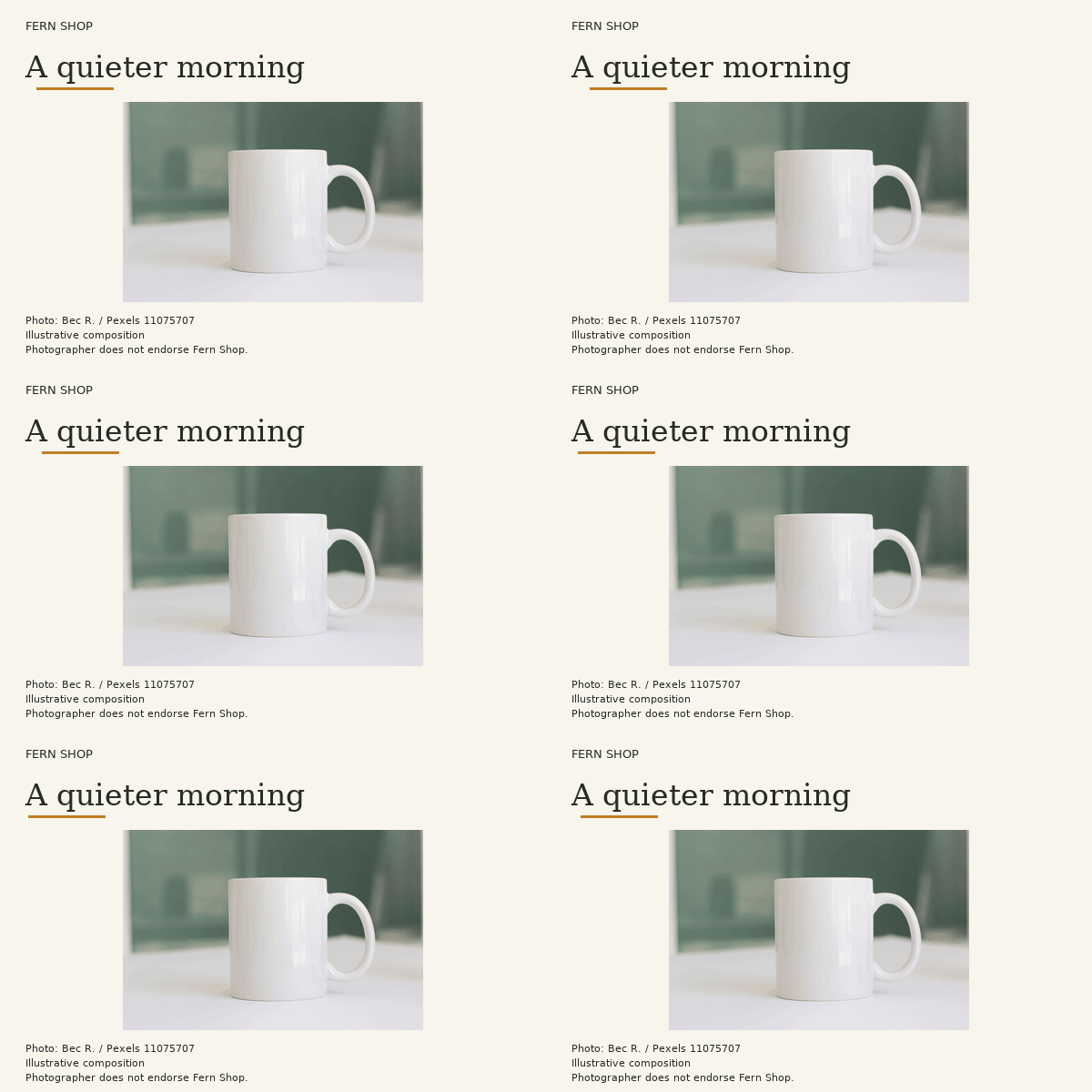
The live project saved its GIF, fallback and comparison strip before its final review failed. We inspected the downloads independently: the GIF is 600 × 400 pixels and 60,056 bytes, with 32 decoded frames totaling exactly 2,000 ms and an infinite-loop flag. Thirty frames last 50 ms each; two hold for 250 ms. These are measurements of this file, not general performance claims.
Pixel differences across all decoded frames stay inside the amber underline at x=30–134 and y=96–98. The headline, mug and surrounding layout remain static, and the fallback PNG exactly matches the first decoded frame. At the loop boundary only the underline changes; there is no full-frame flash. The intentionally subtle motion may add little on a small screen, so the still image remains a reasonable alternative.
5. Reduce weight without destroying the point of the image
Compare the actual displayed size with the export dimensions. An oversized animation may carry detail that the email never displays. Try a smaller dimension, a shorter sequence or fewer changing regions, then inspect the new file instead of assuming optimization is visually harmless.
GIF has a limited palette. Smooth gradients, translucent shadows and photographic detail can show banding or dithering. A simpler flat background can reduce distracting artifacts while leaving the product clear. Inspect skin tones, product colors and any brand accent after each re-encode.
Do not copy a universal file-size target from another campaign without checking your email tool and audience. Record the actual bytes and compare alternative exports. The smallest file is not the winner if it makes the product misleading or unreadable.
The exported layout keeps the product and headline legible at its intended size, but its baked-in attribution is small. Keep essential explanatory text and accessible image descriptions in the email itself. The mug photograph is scaled and palette-encoded for the GIF; preserving the subject does not mean preserving every source pixel.

6. Preview the message in its destination
Insert the chosen file into a draft in your email tool and use its current preview or test facilities. Check desktop and mobile layouts, the static fallback, surrounding copy and the destination link. This guide does not send an email or establish compatibility with every recipient client.
A solo shop can keep one approved GIF and its static fallback. A team should also retain the source image, production brief and encoding settings so another person can revise the campaign without starting from an unknown flattened file.
If motion adds little to the message, use the still image. A clear static product photograph can be the better delivery choice; the decision should come from the reader’s task and the actual saved outputs.
Frequently asked questions
Can I use an MP4 instead of a GIF in email?
Support and embedding behavior depend on the email platform and recipient environment. Verify the destination rather than assuming a video attachment behaves like an inline GIF.
Why does my GIF look worse than the original image?
Palette reduction, dithering, resizing and compression can change photographic detail. Compare the encoded output with the source and simplify the background or motion when needed.
Does a good Ciyo thumbnail prove the animation works?
No. A thumbnail can show only one frame. Inspect the saved GIF’s motion, frame timing and loop boundary separately.
How long should the GIF be?
Use only enough motion to do the chosen job. The right duration depends on the content and email placement; a requested duration must still be checked in the exported file.
Make one useful product animation
Bring an approved product image into Ciyo and request a restrained GIF with a static fallback, then inspect the saved files before email delivery.