Practical design workflows
JPEG or PNG for Print? Choose from the Artwork and the Printer’s Requirements
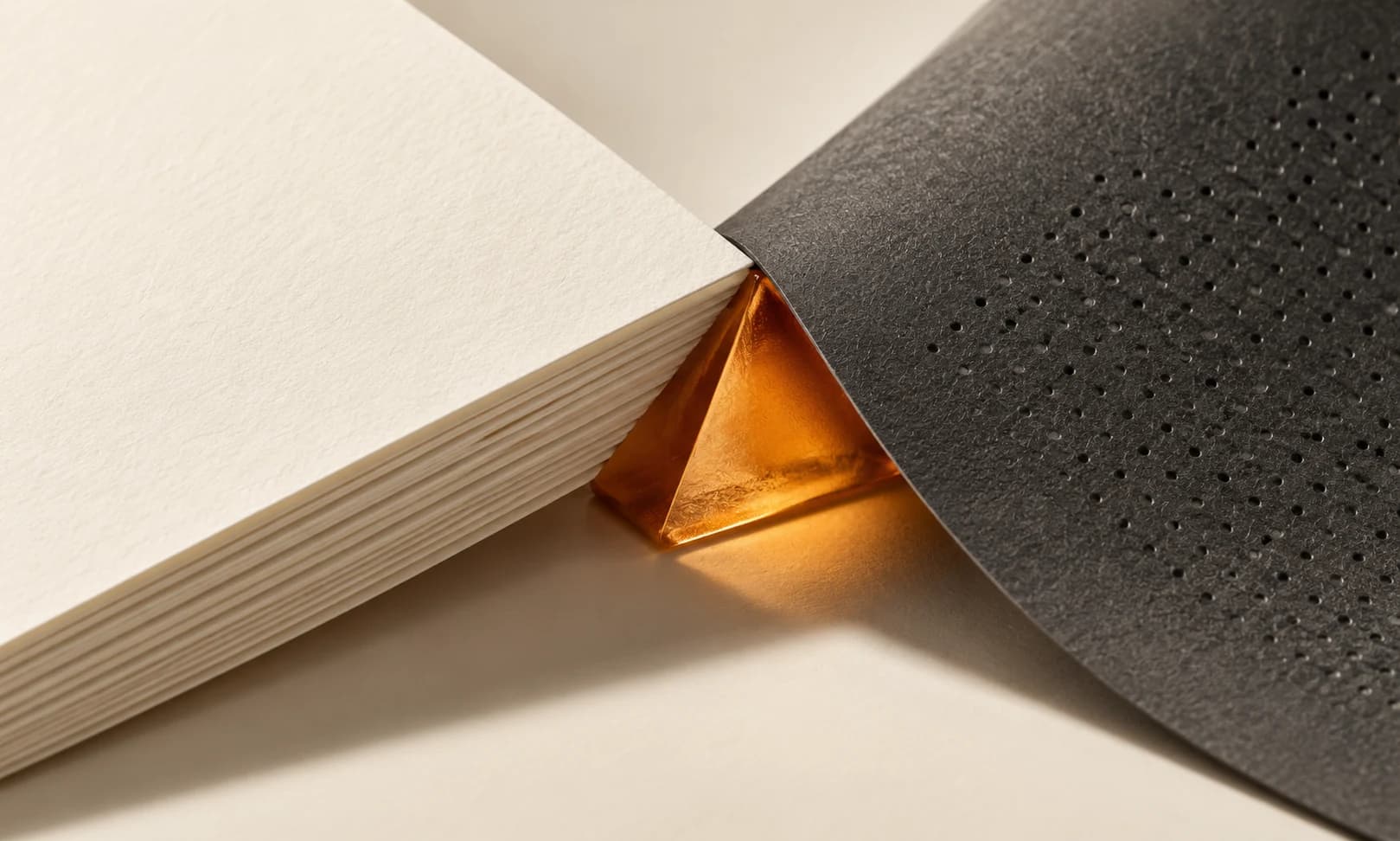
Choosing PNG does not automatically make an image print-ready, and choosing JPEG does not automatically make it unsuitable. The right decision depends on the artwork, the saved pixels and the file your printer actually accepts.
We opened a Ciyo format-inspection example and used Adobe’s file-format documentation to frame the checks. This guide distinguishes image generation, format conversion and print production so a filename change is never presented as restored detail.
Quick answer: start with the printer’s requested deliverable
For a photographic image, a high-quality JPEG may be appropriate when accepted by the printer. For sharp raster graphics or transparency, PNG can preserve useful properties. If the job requires a press PDF or vector artwork, supply that deliverable through an appropriate layout workflow.
Keep enough pixels for the intended print size in every case. Converting a small JPEG to PNG neither restores lost detail nor creates a vector logo.
1. Ask what the print job actually needs
Confirm the physical size, accepted file format, color instructions, bleed and safe area with the printer. A desktop photo print and a commercial stationery run may have different requirements.
Record the artwork’s actual pixel dimensions before conversion. A 1200-pixel image remains a 1200-pixel image when encoded as PNG unless a resize changes it; that resize does not recover missing source detail.
| Artwork or requirement | Useful starting choice | What still needs checking |
|---|---|---|
| Continuous-tone photograph | High-quality JPEG if accepted | Pixels, compression and color instructions |
| Sharp raster lettering or line art | PNG if accepted | Edge quality, sufficient pixels and final layout |
| Transparent cutout | PNG with real alpha | Clean edges and how the printer handles transparency |
| Vector logo or press-ready page required | Printer-requested vector or PDF workflow | Fonts, dimensions, color, bleed and export settings |
2. Compare equal-pixel files from the same source
To inspect compression, export JPEG and PNG from the same approved source at the same width and height. Compare them at the same viewing scale. Using different dimensions or different generations makes the format comparison misleading.
Look near high-contrast edges, small text and smooth gradients. JPEG uses lossy compression, so the chosen quality setting matters. PNG uses lossless compression, but it faithfully preserves existing source defects too; it cannot improve a blurry original.
3. Treat transparency as a separate requirement
JPEG does not preserve an alpha transparency channel. A transparent PNG can reveal the background beneath it, which matters for placed logos and cutouts. A screenshot of a checkerboard background is not a transparent source.
Inspect the downloaded PNG over a light and dark fill. Look for edge halos and unwanted opaque pixels. If a printer’s workflow requires a flattened page, use the intended background during that explicit finishing step rather than letting an unknown converter choose it.
4. Inspect Ciyo’s actual download before converting it
In Ciyo, review the generated asset, open its available download and inspect the original file. Note its format and dimensions. If the requested comparison format is unavailable, convert a copy externally and identify that step as conversion.
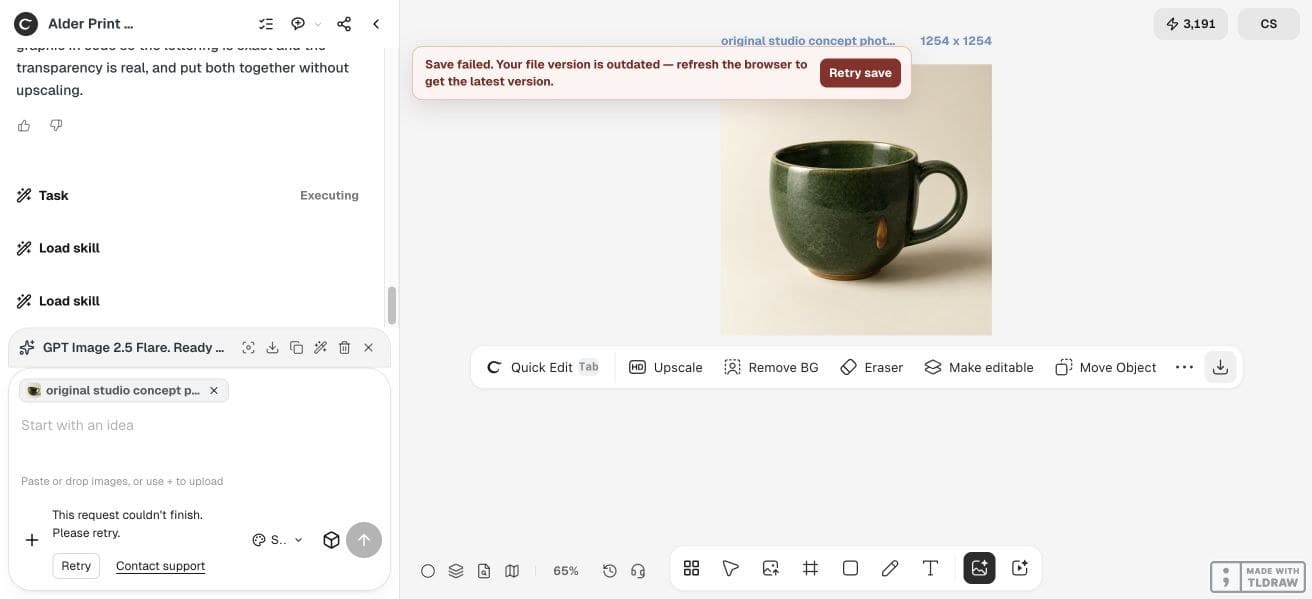
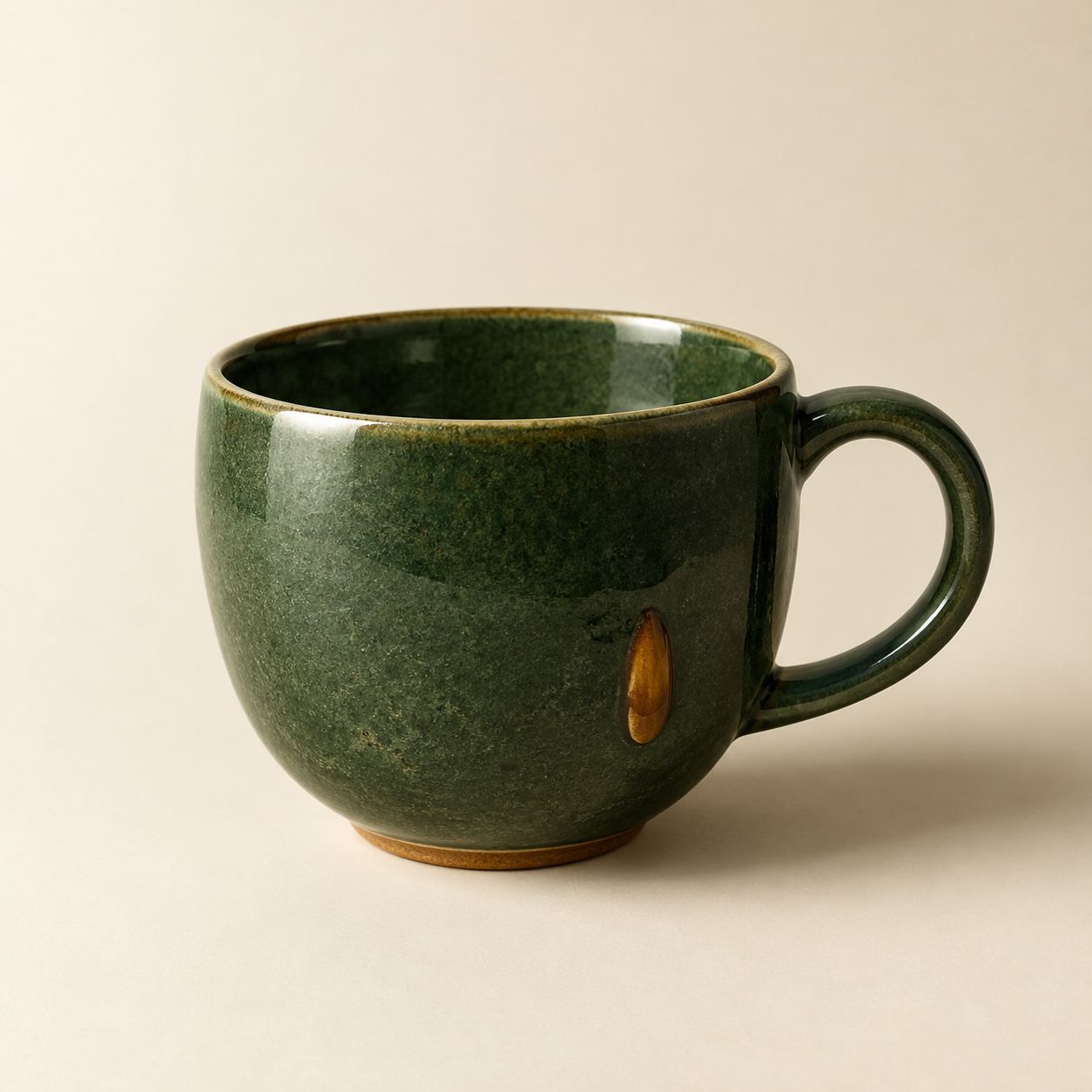
Our direct Ciyo generation produced the fictional ceramic-cup PNG at 1254 × 1254. An external Sharp quality-80 JPEG conversion preserves those dimensions: the PNG is 2,726,258 bytes and the JPEG 110,886 bytes. These are properties of this one export pair, not a general compression benchmark or printer approval. Both originals are linked for inspection.
For a hard-edge transparency example, we reused the original code-drawn happy fox from the emoji demo. Its 128 × 128 PNG is 8,160 bytes with alpha values spanning 0–255; an external quality-80 JPEG flattened onto white is 4,323 bytes and has no alpha. This small graphic is an inspection sample, unsuitable for a large print simply because it is a PNG. The planned ALDER line graphic did not complete.
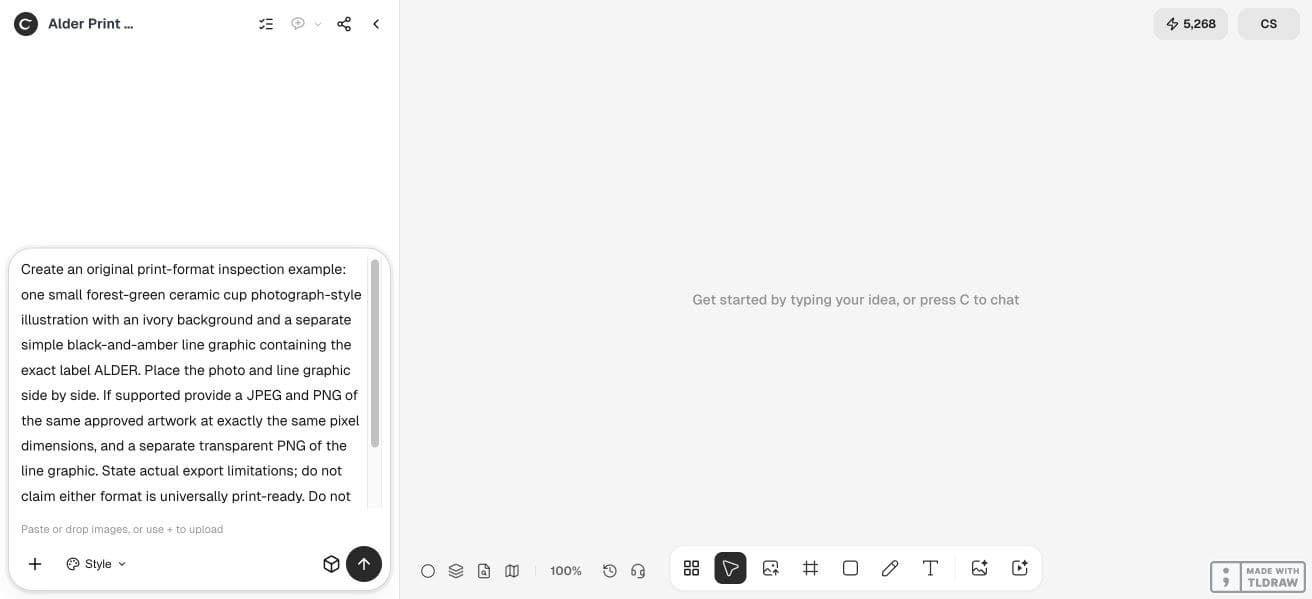
Create an original [photo or graphic] for a format inspection. Keep the approved source. If supported, provide JPEG and PNG copies at the same pixel dimensions, plus a transparent PNG where relevant. State the actual formats and any external conversion required. Do not call a low-resolution conversion restored detail or universally print-ready.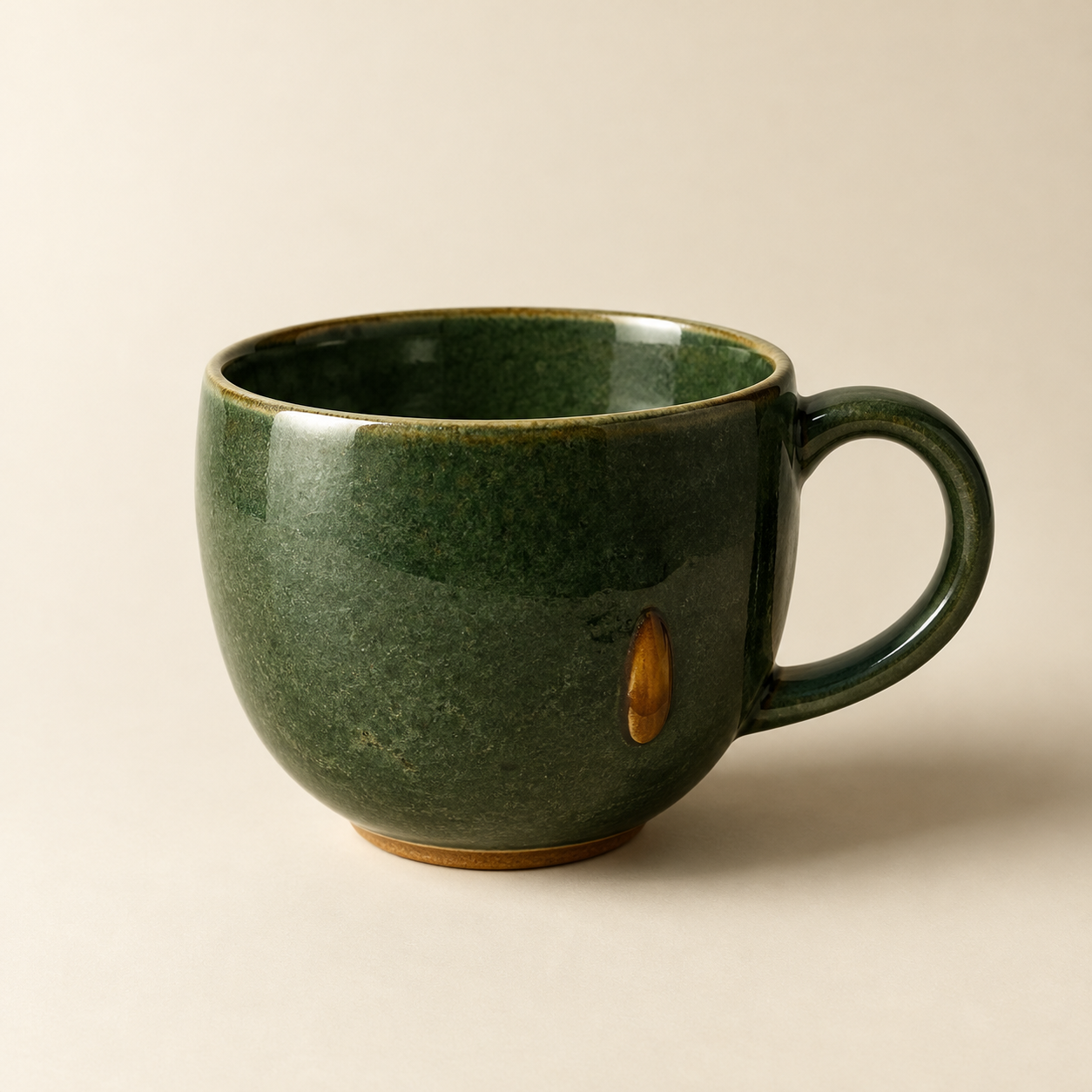


5. Check physical size without confusing it with format
A sharp small file may look poor when printed much larger. Divide pixel width by intended width in inches to understand the available pixels per inch at that size; then compare the result with your printer’s recommendation for the job.
That calculation does not choose JPEG or PNG for you. It answers a different question: whether enough source detail exists for the physical output. Keep a vector original for a logo where available rather than repeatedly enlarging a raster copy.
6. Proof one copy before committing to the run
Open the final file independently and inspect its smallest lettering, edge detail and intended background. For a consequential print order, request or produce a proof using the actual output process before ordering the full quantity.
A small-business owner sending a photograph may only need a high-quality file in the printer’s accepted format. A designer preparing a commercial page should keep the image source and layout source together. Neither path benefits from renaming an extension or repeatedly saving a lossy JPEG.
Frequently asked questions
Is PNG always better for print?
No. It preserves raster pixels losslessly and can retain alpha, but the printer’s required format, source detail and production workflow still decide suitability.
Does changing .jpg to .png improve the image?
Renaming an extension does not convert a file. Proper conversion also cannot recover detail already lost from the source.
Can a JPEG have a transparent background?
Standard JPEG image files do not retain alpha transparency. Use a suitable transparent source such as PNG when the workflow requires it.
What if the printer asks for PDF?
Use a page-layout or document workflow to create the requested PDF and inspect the result. An image-format choice alone does not establish a press-ready page.
Inspect one current asset
Bring the original artwork and your printer’s requirements. Review the saved pixels, transparency and destination before placing a full order.