Practical creative workflows
AI Pixel Art Walk Cycle: Fix Foot Sliding Before Export
A courier can look good in every still frame and still glide across the ground when you play the animation. A useful walk-cycle review follows the planted foot, not just the character’s outline.
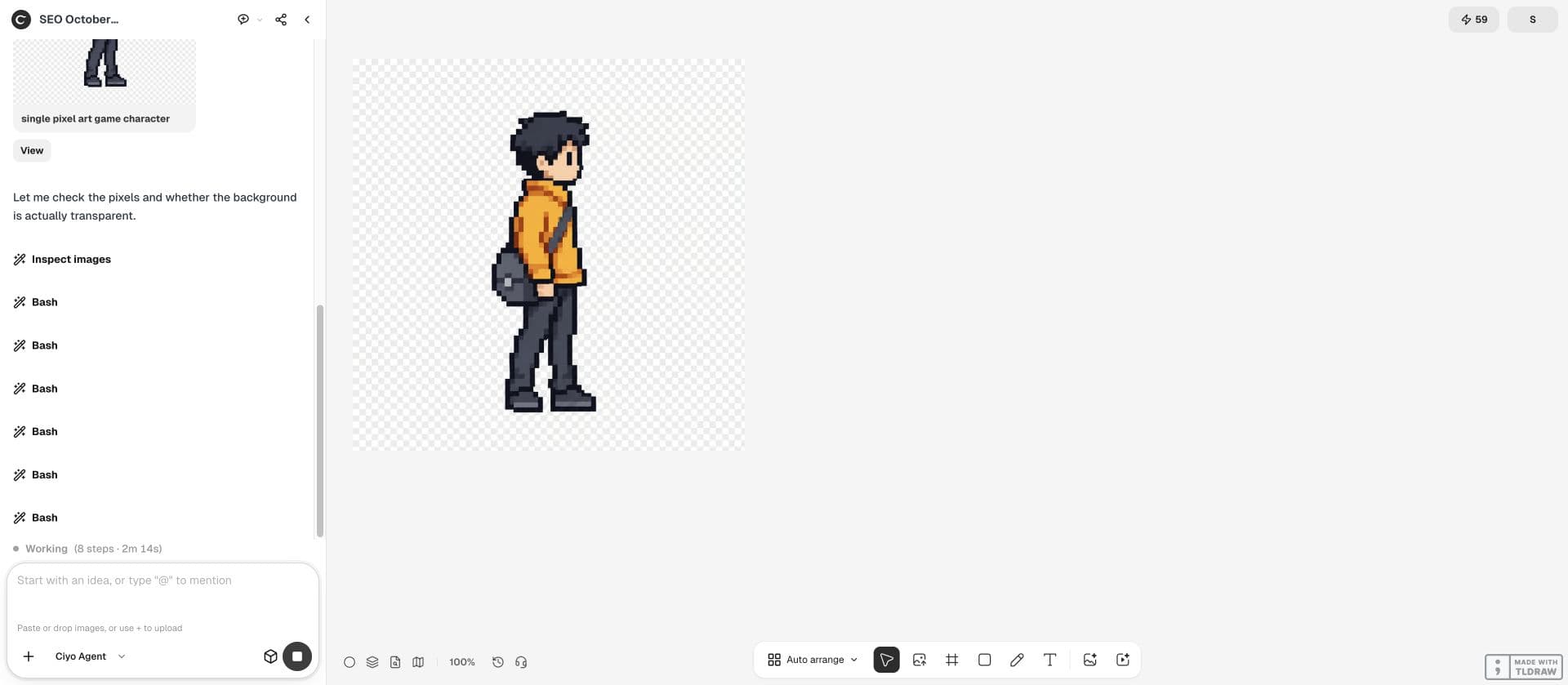
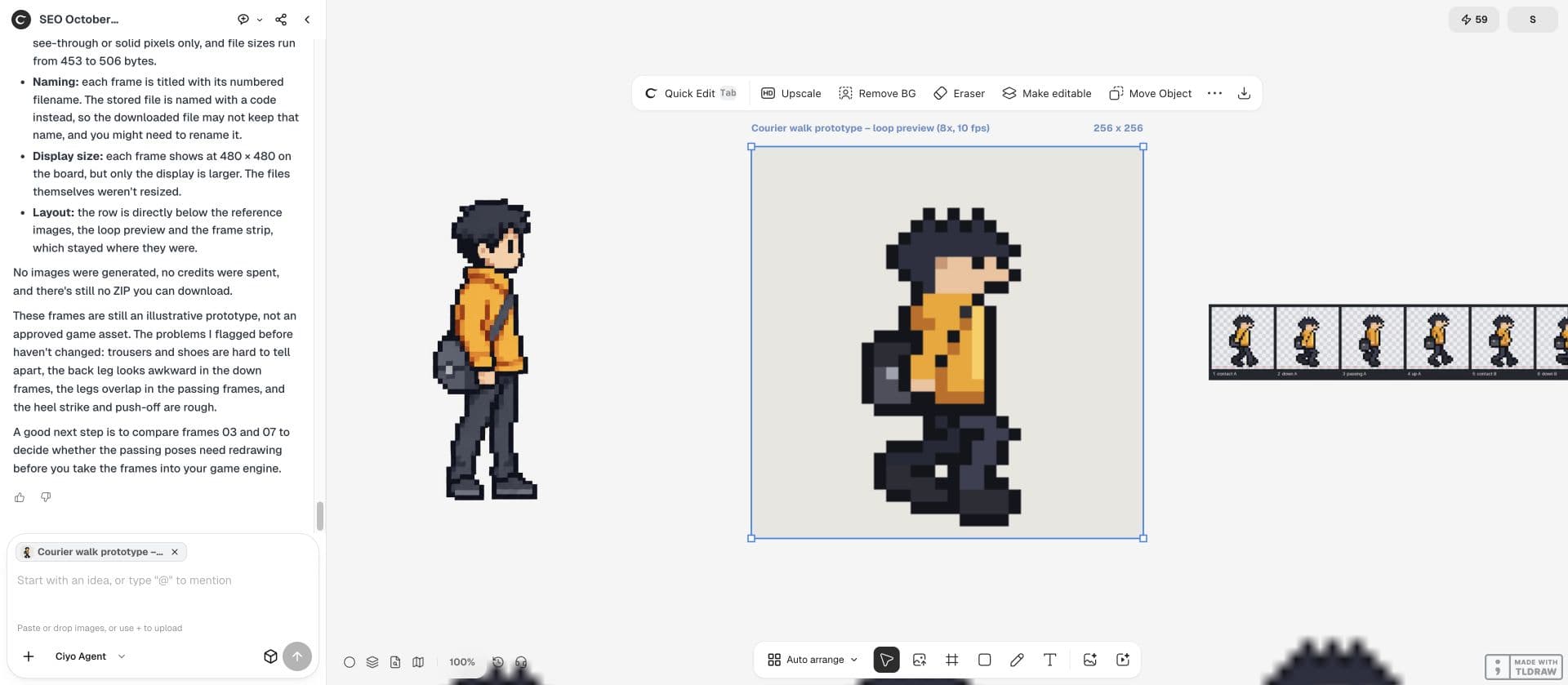
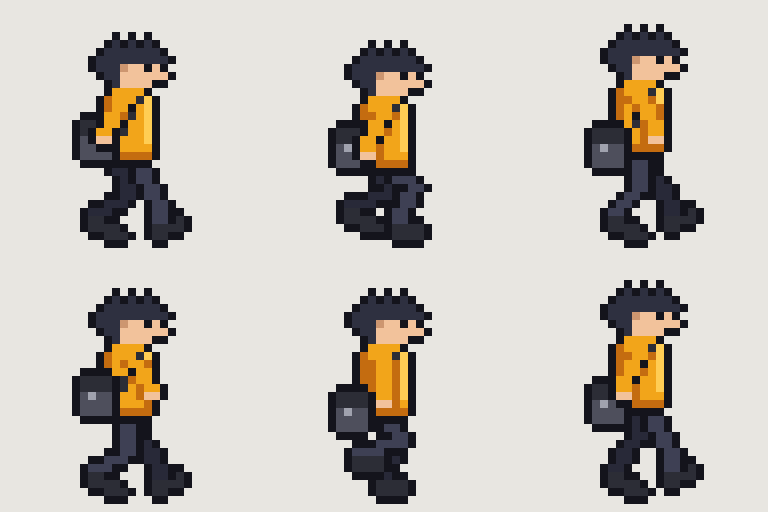
The fictional courier wears an amber jacket and a charcoal satchel. The live example produces eight 32 × 32 side-view prototype frames, a strip and a loop preview. File checks pass, while pose and movement review remain separate acceptance steps.
Start with a production brief, not eight unrelated pictures
Choose the facing direction, frame size, palette and intended speed before asking for poses. Keep the source character on the Ciyo canvas and tell the design agent which features must remain recognizable: the jacket, bag strap and head shape.
An image model can help establish the visual direction. It can also draw a contact sheet with uneven spacing or invented pixels. Treat that sheet as reference until you have individual files whose dimensions and alignment you have inspected.
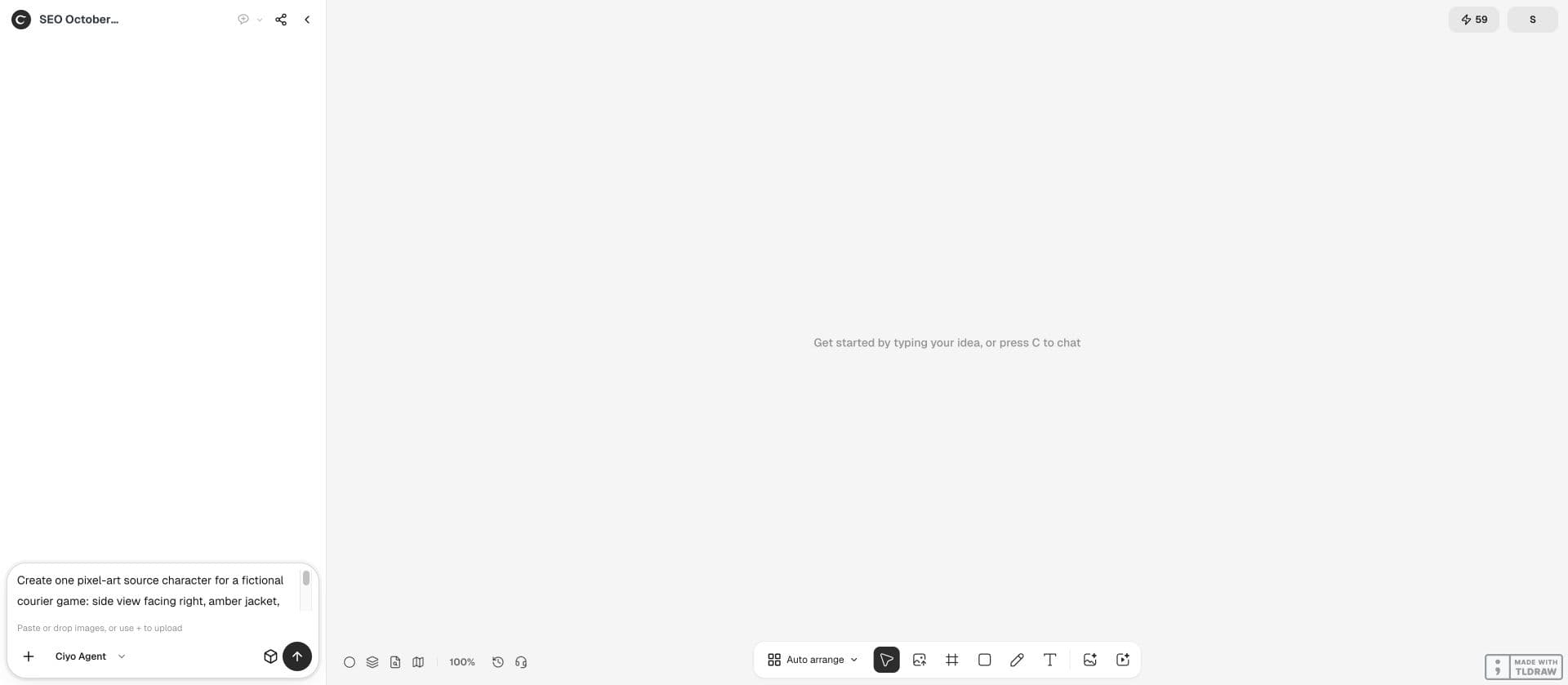
Plan an eight-frame side-view walk cycle for this courier. Use a 32 × 32 frame, a transparent background and the approved amber/charcoal palette. Keep the head and satchel consistent. Specify contact, down, passing and up poses for both legs. Do not claim a finished sprite sheet until actual frame files have been checked.Keep one origin and one ground line
Put every frame inside an identically sized box. Choose one origin for the character’s feet and retain it throughout the loop. If the agent crops each pose tightly, the character’s apparent position will jump when the engine plays the files.
Ask Ciyo’s design agent to use its file workspace to prepare frame previews without smoothing. When resizing a production sprite, use nearest-neighbour scaling; a soft photographic resize introduces intermediate colours and obscures the grid. Keep the source files so you can return to the original pixels.
Track the foot during the contact phase
For a character moving across the screen, the supporting foot should stay approximately fixed against the ground during its planted phase. In a stationary preview the foot instead travels backward relative to the body. Review those two situations separately.
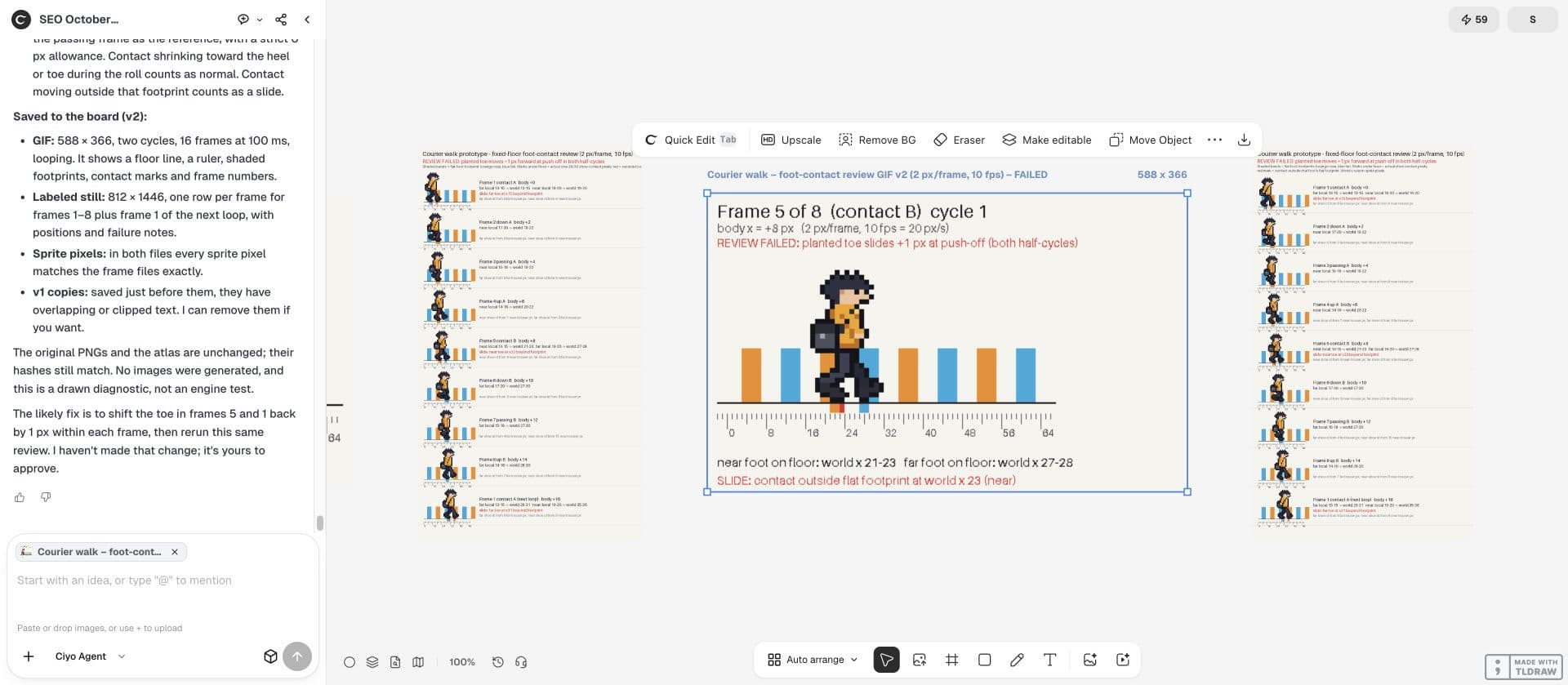
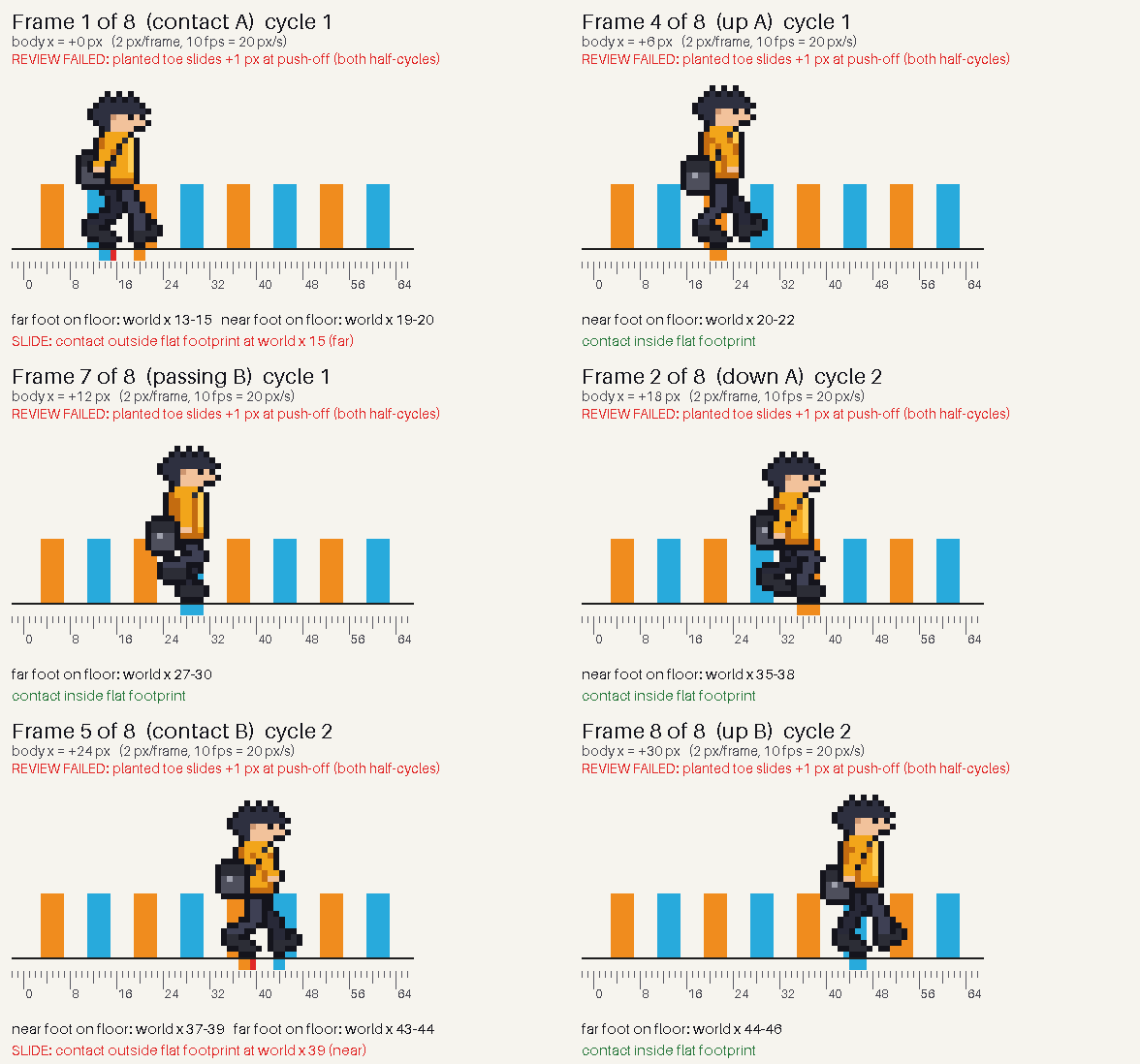
Play the loop over a simple floor with visible markers. If the foot moves forward with the body while supposedly planted, revise the contact poses or synchronize animation speed with movement. A smooth-looking preview alone does not establish a correct walk.
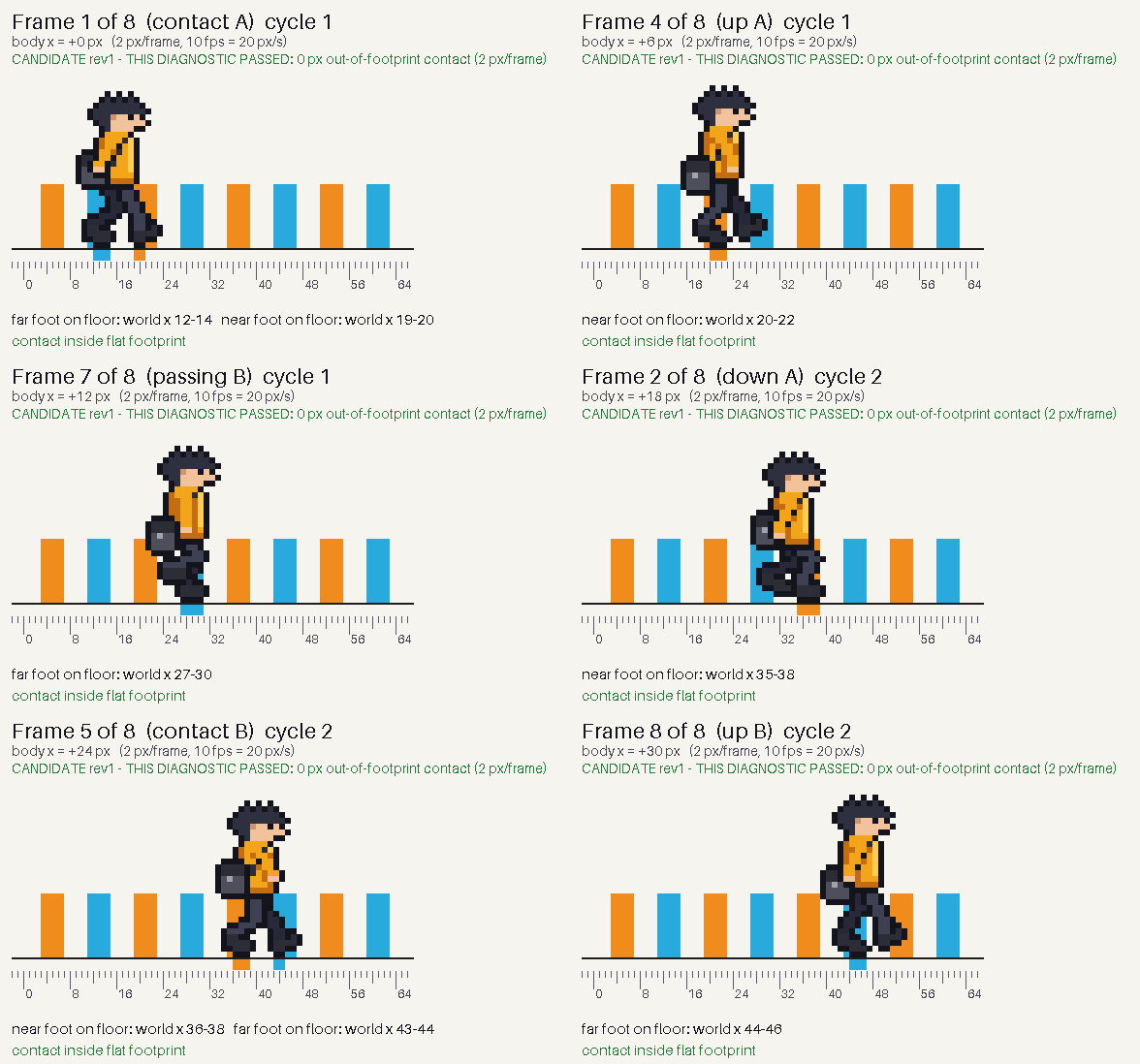
The fixed-floor review uses the actual PNGs at an illustrative 2 pixels per frame and 10 fps (20 px/s). Under a strict zero-pixel allowance outside the flat-foot footprint, the original toe slides forward by 1 pixel at push-off in both half-cycles: 22→23 and 30→31. The review is visibly failed; frame dimensions and transparency cannot prove correct motion.
Review a frame strip as well as the loop
Use an enlarged strip to locate changes in the head, strap and palette. Then return to the actual display size. A one-pixel satchel jump may look trivial enlarged but distracting when repeated through the whole animation.
| Check | What to inspect | Revision trigger |
|---|---|---|
| Grid | Eight individual 32 × 32 frames | Different dimensions or fractional scaling |
| Contact | Foot position against floor markers | Sliding during the planted phase |
| Identity | Head, jacket and satchel | Unplanned changes between adjacent frames |
| Loop seam | Last frame followed by first | A jump or an unintended pause |
Separate frame count from playback speed
Eight frames does not mean eight frames per second. Specify the playback rate independently, then evaluate it alongside the character’s movement. A slower walk can use a different timing schedule without changing the artwork.
Save a frame-numbered preview and a plain preview. The numbered version helps you report which transition fails; the plain one shows what players see. Check the final-to-first transition rather than only the middle of the strip.
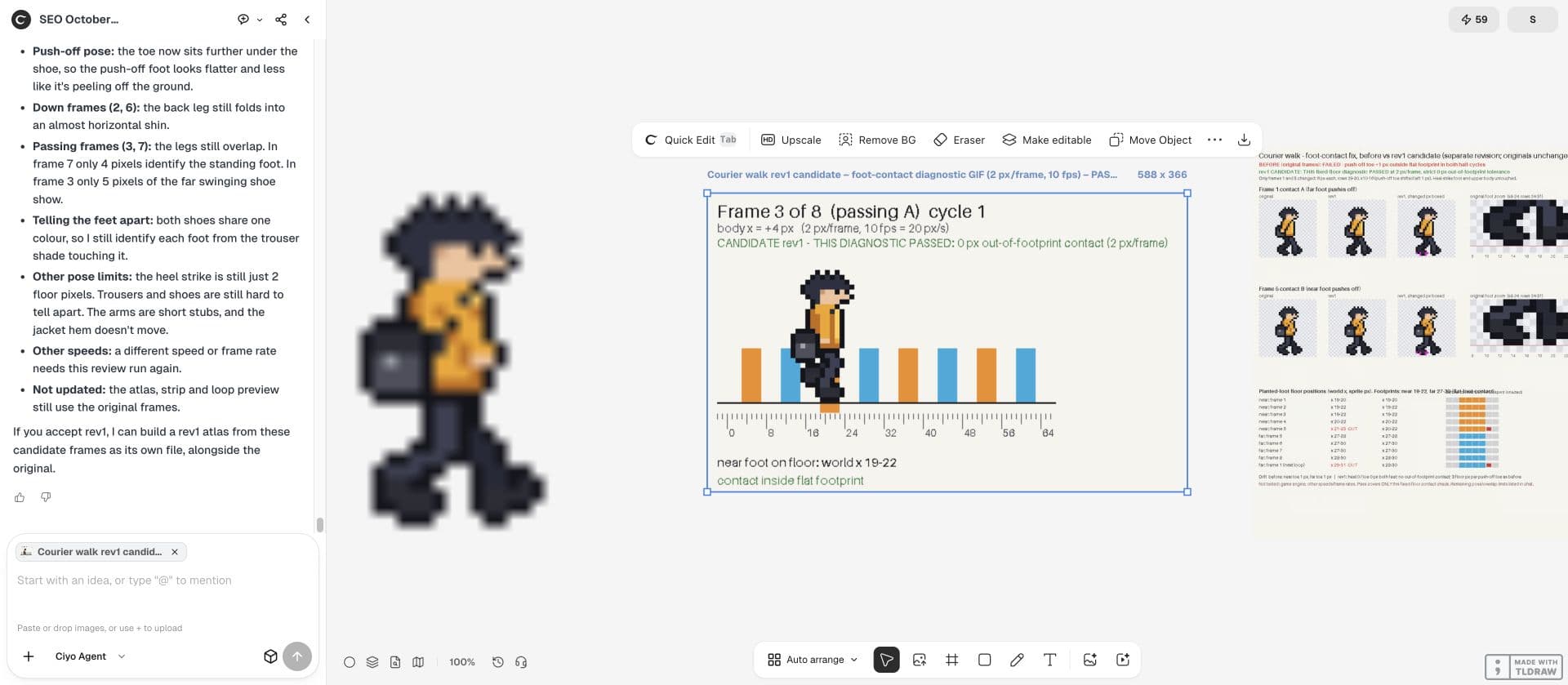
In a separate rev1 candidate, only six pixels change in each of contact frames 1 and 5, moving the pushing-off toe back by one pixel. The other six frames are retained. Ciyo’s agent reports zero contact outside the footprint under the same diagnostic. Independent file checks confirm the pixel deltas, 32 × 32 size, binary alpha and original palette. Passing poses still overlap and the revised toe looks flatter. The original downloads and atlas remain unchanged; this is not an engine test or a speed recommendation.


Export the frames, then test the engine import
Keep individual PNGs as well as a sheet if your engine needs one. Inspect alpha, frame order and dimensions after download. Preview the files in the actual animation component and confirm that filtering and import settings preserve the intended pixel grid.
The next step is a packed atlas once the movement works. Packing cannot repair a sliding foot or a discontinuous loop.


Practical questions
Can an AI contact sheet go straight into a game?
Only after checking its actual frame boundaries, dimensions, transparency and order. A contact sheet is not automatically an animation atlas.
Why does the character slide?
The planted foot may move relative to the ground, or playback speed may not match movement speed. Inspect contact frames in a moving preview.
Should I review at enlarged size?
Use enlargement to find errors and native size to judge readability. Both views answer different questions.
Prepare one readable walk loop
Bring your character reference into Ciyo and establish the grid, poses and checks before creating more animations.