Practical creative workflows
Add a Natural Shadow to a Product Photo with AI
A clean product cutout can look as if it floats above the page. A contact shadow connects it to a surface, but the edit should not change what the customer is buying.
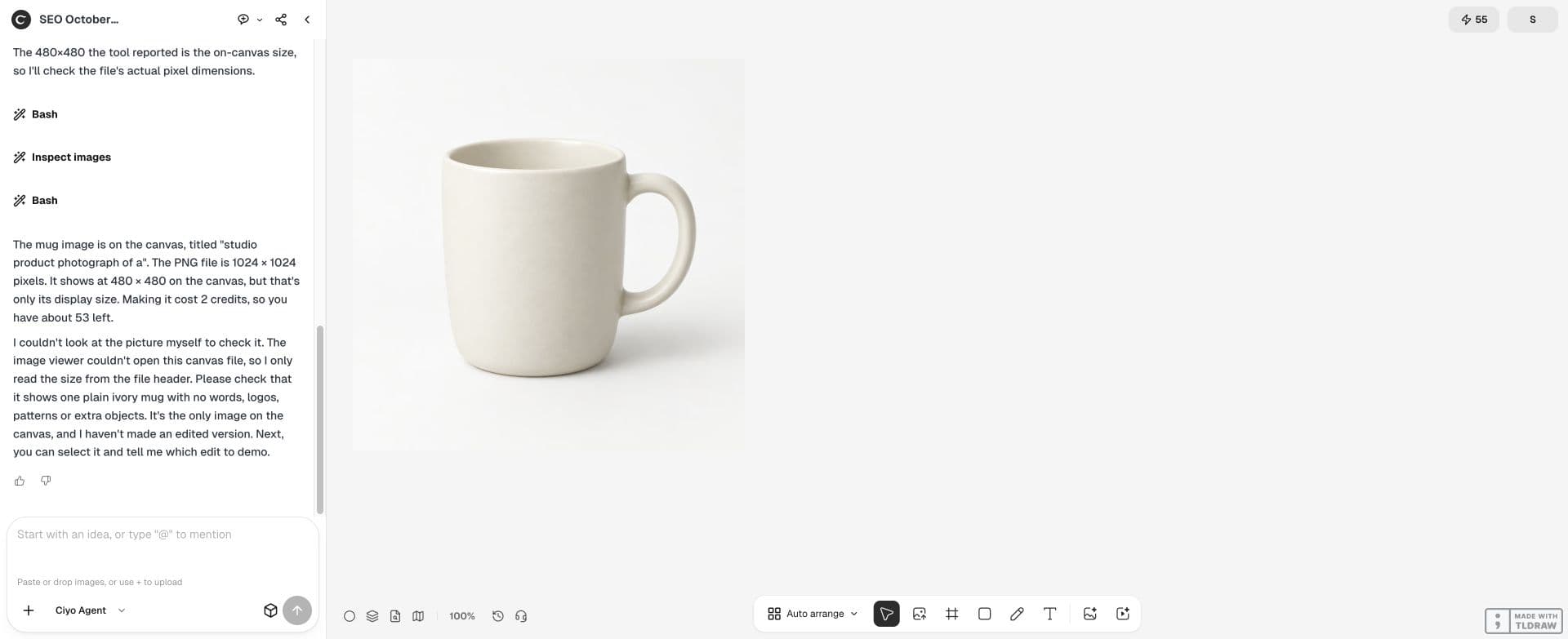
The live example uses a fictional AI-generated plain ivory mug. The goal is a square shop composition with a soft shadow, retaining the actual cutout as the product reference. A real merchant should supply their own verified product photograph.
Read the light in the original photo
Look at the bright side, existing highlights and shaded side of the mug. The new ground shadow should agree with those cues. A strong shadow pointing toward the light makes the composite difficult to believe.
Choose the background before editing. A matte tabletop needs a different treatment from a reflective surface. Start with an uncomplicated ivory backdrop so you can judge the contact edge without decorative distractions.
Keep an untouched reference on the canvas
Import the original and retain a separate copy before using Quick Edit or asking the design agent for the shadow. Keep the view and product size comparable so the result is easy to assess.
Record the features that must stay intact: handle opening, rim, label wording and product colour. If the photo already contains a soft shadow, decide whether to retain it rather than adding a second one.
Request the contact shadow explicitly
Describe where the product touches the surface and how the shadow softens farther away. Ask for the smallest edit that solves the floating appearance. A broad instruction to improve the photo invites unrelated changes.
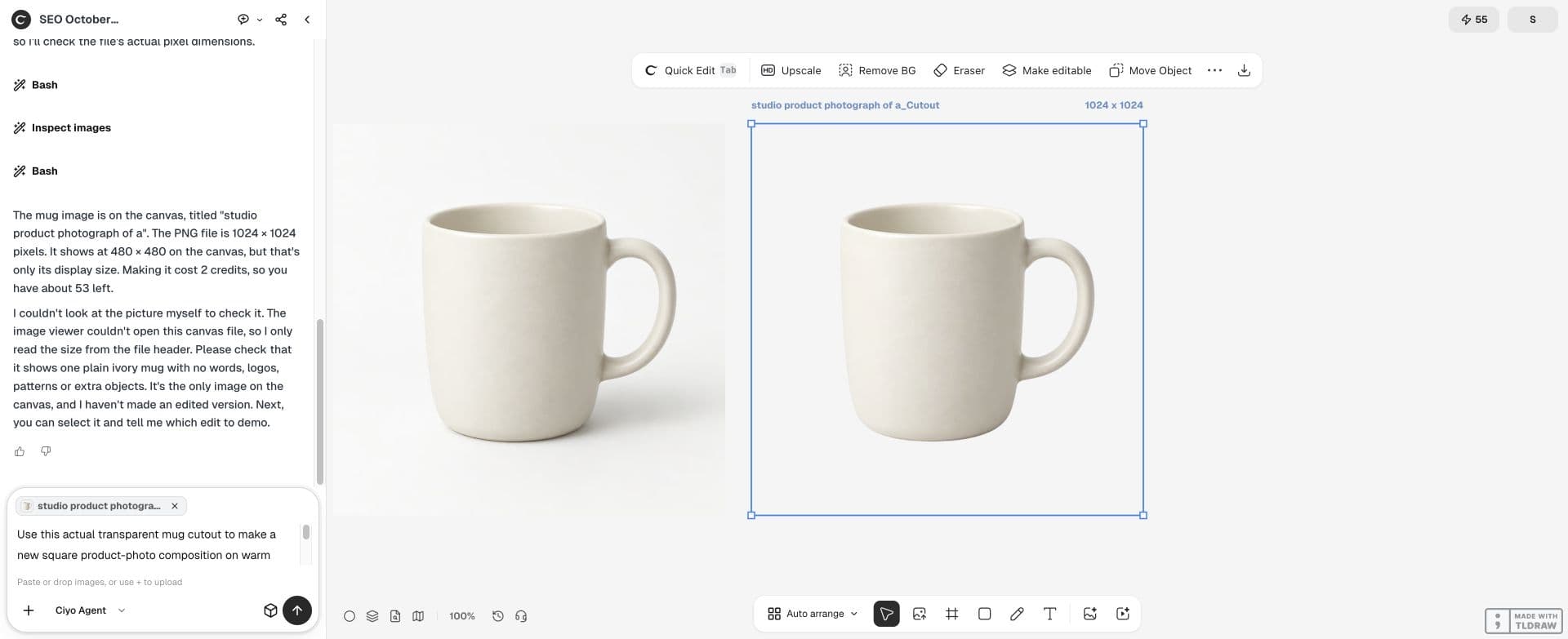
Composite this actual transparent mug cutout on warm ivory in your file workspace. Keep its pixels, alpha, rim and handle unchanged; do not redraw the product or call image generation. Add a tight contact shadow that touches the curved base and a softer shadow toward the lower right, matching upper-left light. Save a separate 1024 × 1024 result, retain source and cutout, and report any halo or partially transparent edges.Compare the product before judging the styling
First compare the outline, handle, label and highlights against the original. A nicer shadow does not compensate for a changed product. Look for duplicated handles, thicker rims, invented lettering or a glaze that no longer matches the item.
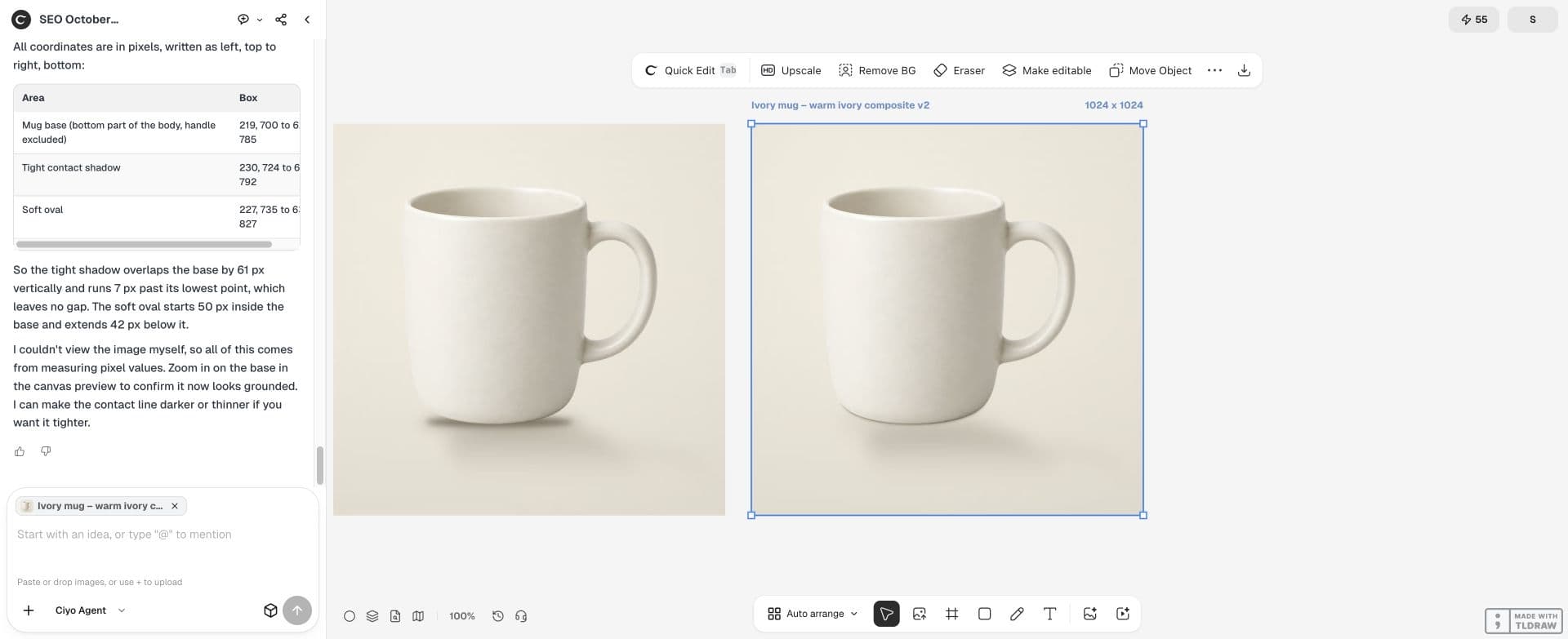
Then inspect the shadow: it should meet the base, agree with the lighting and remain plausible at thumbnail size. A dark blur detached from the mug makes the floating problem worse.
| Check | Reference | Reject when |
|---|---|---|
| Geometry | Original handle, rim and silhouette | The product changes shape |
| Label | Original wording and colour | Text is invented or blurred |
| Contact | Bottom edge of the mug | Shadow has a visible gap |
| Lighting | Existing highlights | Shadow direction contradicts the light |
Revise the observed failure rather than the whole picture
If the shadow is too heavy, ask for a lighter shadow while preserving the accepted mug and background. If the label changed, return to the untouched reference and narrow the edit. Continuing from a damaged label can carry that error into every later version.
Keep the versions side by side and name the reason for each revision. You should be able to tell which file passed the product check without reconstructing the chat.
Export and check the shop thumbnail
Download the accepted image and inspect its actual dimensions. View it in a representative product grid beside your existing photographs. The product should still be readable, and the shadow should not make the image look much darker than its neighbors.
For a factual listing, retain the original photo as the product reference. Generated atmosphere is useful only when it leaves the actual item clear and accurate.
Practical questions
Can I use the same shadow on every product?
Match the original light, contact surface and product shape. A copied shadow may not fit another photograph.
What if the AI changes the label?
Return to the untouched original and narrow the edit. Do not accept a changed product because the background looks better.
Should the shadow be visible in a small preview?
It should ground the product without distracting from it. Check the actual shop thumbnail size.
Ground one product photo
Keep an untouched reference in Ciyo and make a focused shadow edit you can compare before publishing.