Creative workflows
Digital Product Mockup: Show the Actual Downloaded Pages

A planner mockup can promise pages that do not exist when the artwork is generated from a vague description. The honest starting point is the actual downloadable file and a clear list of what the buyer receives.
The example below is fictional and describes a manual design process. It is a preparation and review exercise, not a measured customer result or a completed production order.
Quick answer
Export real preview pages, place them in a consistent scene, and state which files are included. Keep the underlying page content unchanged and show at least one flat readable preview alongside the styled mockup.
1. Select actual preview pages
For a fictional weekly planner PDF, choose the cover, weekly page and notes page from the deliverable itself. Check the current version before exporting previews. Remove private sample content that is not intended for the listing.
Write the included-file list separately: format, page count and any approved size options. A tablet in the scene is a display prop, not evidence that the file includes an app or editable digital template.
2. Style the presentation without changing the product
In Ciyo, import the real preview images and explore a clean arrangement or background. Preserve text, grids and page count. If perspective placement makes content unreadable, include a separate flat preview rather than redrawing the page with an image model.
Use subtle shadows and consistent perspective when appropriate, but compare each visible page with its source. A generated handwritten note, extra checklist or new page tab can imply functionality the file does not contain.
3. Review the buyer’s expectations
Read the listing and look at the mockup together. Can the buyer distinguish a printable PDF from an editable source, an app or a physical notebook? Make the included files and excluded props clear in approved copy.
Download the final product package yourself through the intended review route and compare it with the previews. Inspect the actual images after export for legibility and accidental changes. This is a manual review method, not proof of compatibility with every device or note-taking app.
Copy and adapt this request
Replace the bracketed fields with your own approved information. The requested output is a draft for review; the example has not been run as a model benchmark.
Plan a digital-product mockup using only [ACTUAL PAGE PREVIEWS] from [FILE VERSION]. Preserve all page content. Included files are [APPROVED LIST]; props are not included. Suggest layout, background and shadows without inventing pages, tabs, handwriting or app functions. Include one flat readable preview and a file-to-image reconciliation checklist.Mockup-to-deliverable checks
These example checks describe acceptance criteria, not observed model results.
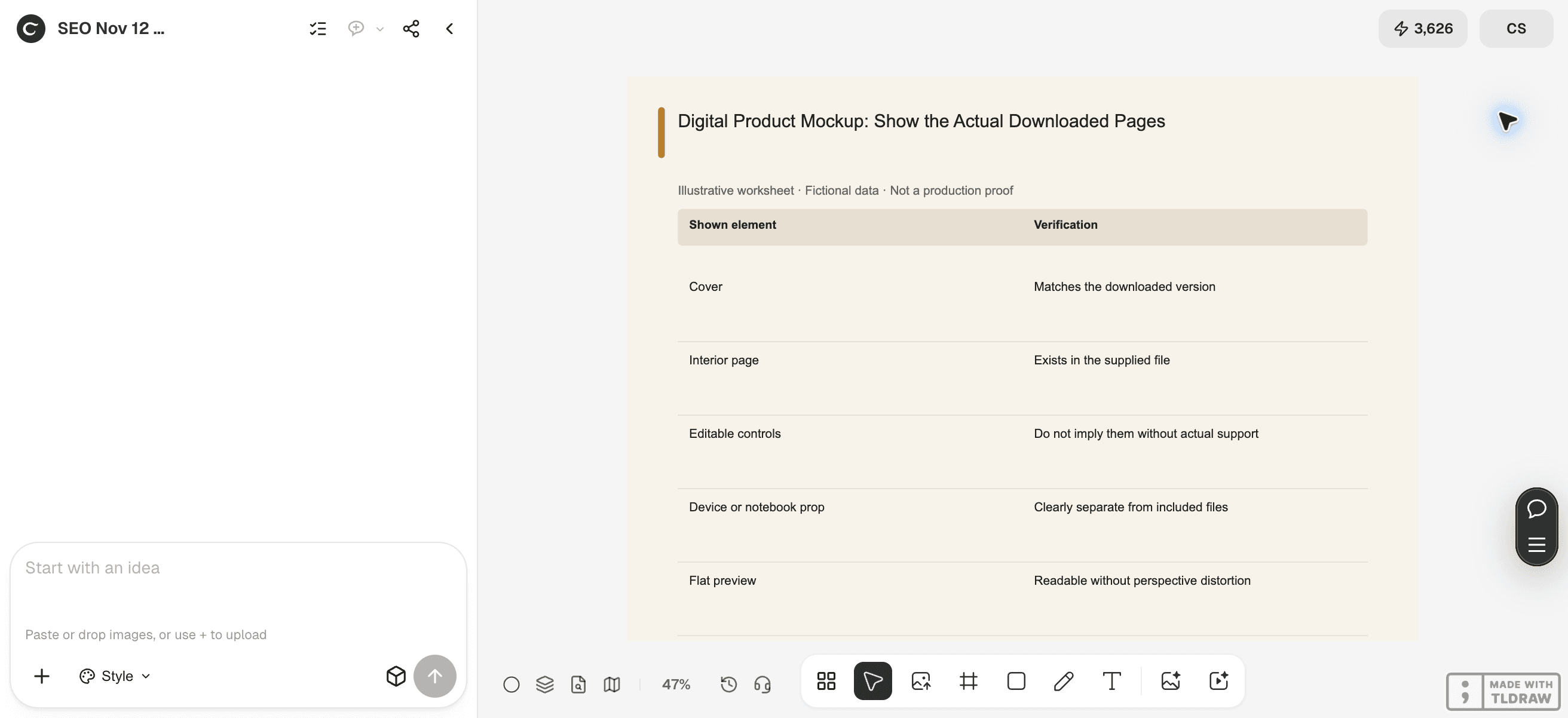
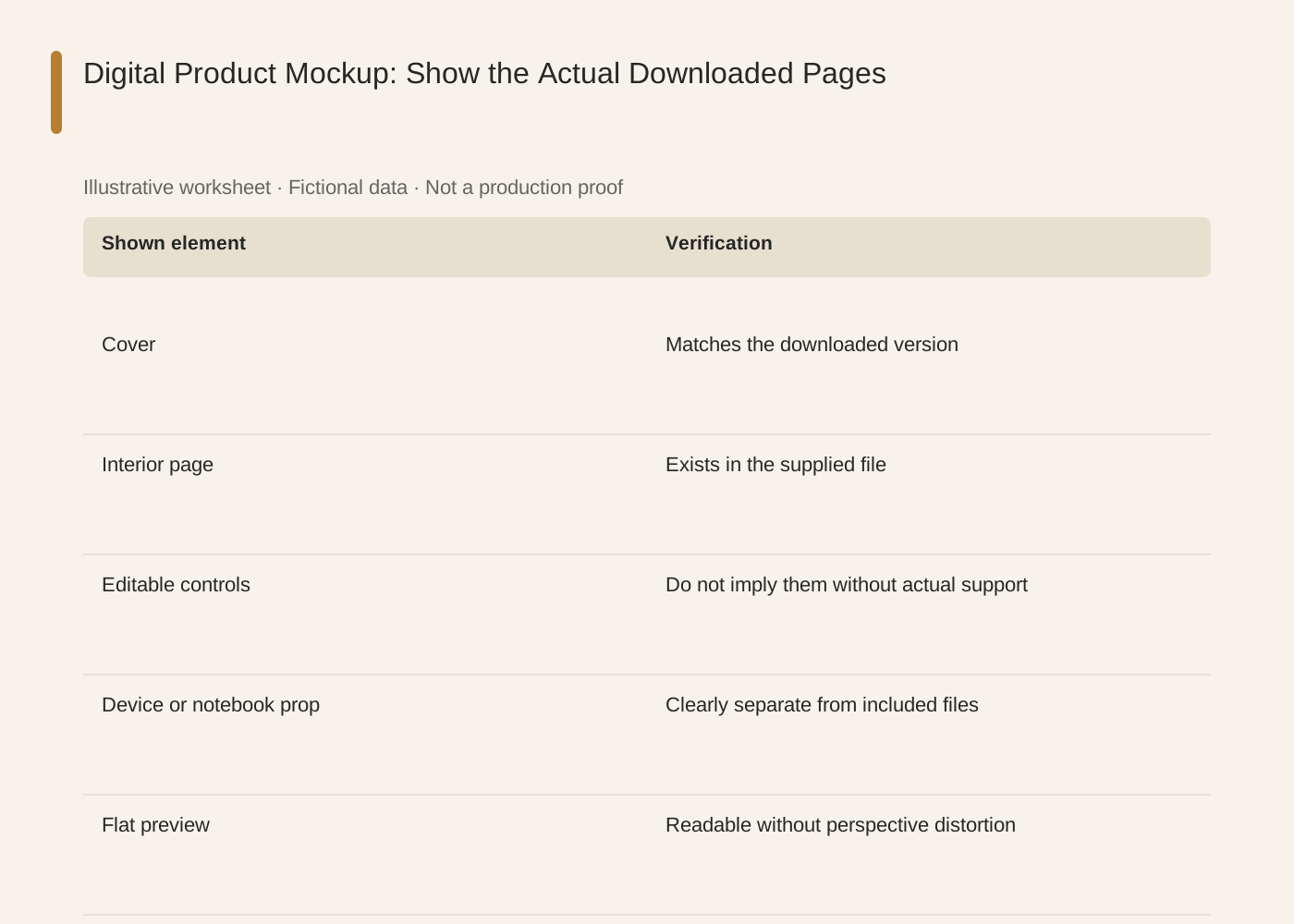
The linked SVG is an illustrative worksheet containing the same fictional review fields. It is separate from native editable canvas text and from a finished production design.
| Shown element | Verification |
|---|---|
| Cover | Matches the downloaded version |
| Interior page | Exists in the supplied file |
| Editable controls | Do not imply them without actual support |
| Device or notebook prop | Clearly separate from included files |
| Flat preview | Readable without perspective distortion |
Common mistakes and how to recover
Do not generate a replacement planner page because the original looks plain. The mockup must represent the actual product.
If a revision changes the PDF, update all affected previews. An attractive older mockup can still misdescribe the current download.
Choose a working method and make the handoff
For a solo shop, start with one item and keep the source facts beside the draft. A team should name one approver and keep a dated version so an old comment cannot silently override the current decision. If the input is incomplete, return to the owner of that fact before polishing the artwork.
Use Ciyo for the visual work described here with the controls and models currently offered in your account. Keep the approved copy separately and add exact wording with editable canvas text where needed. A generated picture is a visual draft; inspect its exported file before using it.
Sources and further reading
Primary documentation and related guides used for this article. Availability and controls can vary by account; verify them before beginning your own run.
Frequently asked questions
Can I show a tablet?
Yes as a presentation prop when the copy does not imply unsupported device or app functionality.
Should every page appear in the mockup?
Not necessarily, but every shown page must exist in the deliverable and the included-file list should be accurate.
Can Ciyo verify the downloaded file automatically?
This guide describes a manual comparison. Open and inspect the actual package rather than assuming automatic verification.
Prepare one visual draft in Ciyo
Bring the approved inputs and review one version against the checks in this guide before making more variants.