Blender workflow
GPT-6 Astra + Blender: export a transparent product render

For a GPT-6 Astra Blender transparent-render task, define what should disappear. Usually the background should become transparent while the product remains opaque. Changing the product material’s alpha is a different operation.
We export the fictional Juniper vase as a 1440 × 900 RGBA PNG. The tested script enables transparent film and hides the ground plane for this render. That gives a reusable cutout, with an explicit tradeoff: the ground shadow is absent.
1. Start from an approved opaque render
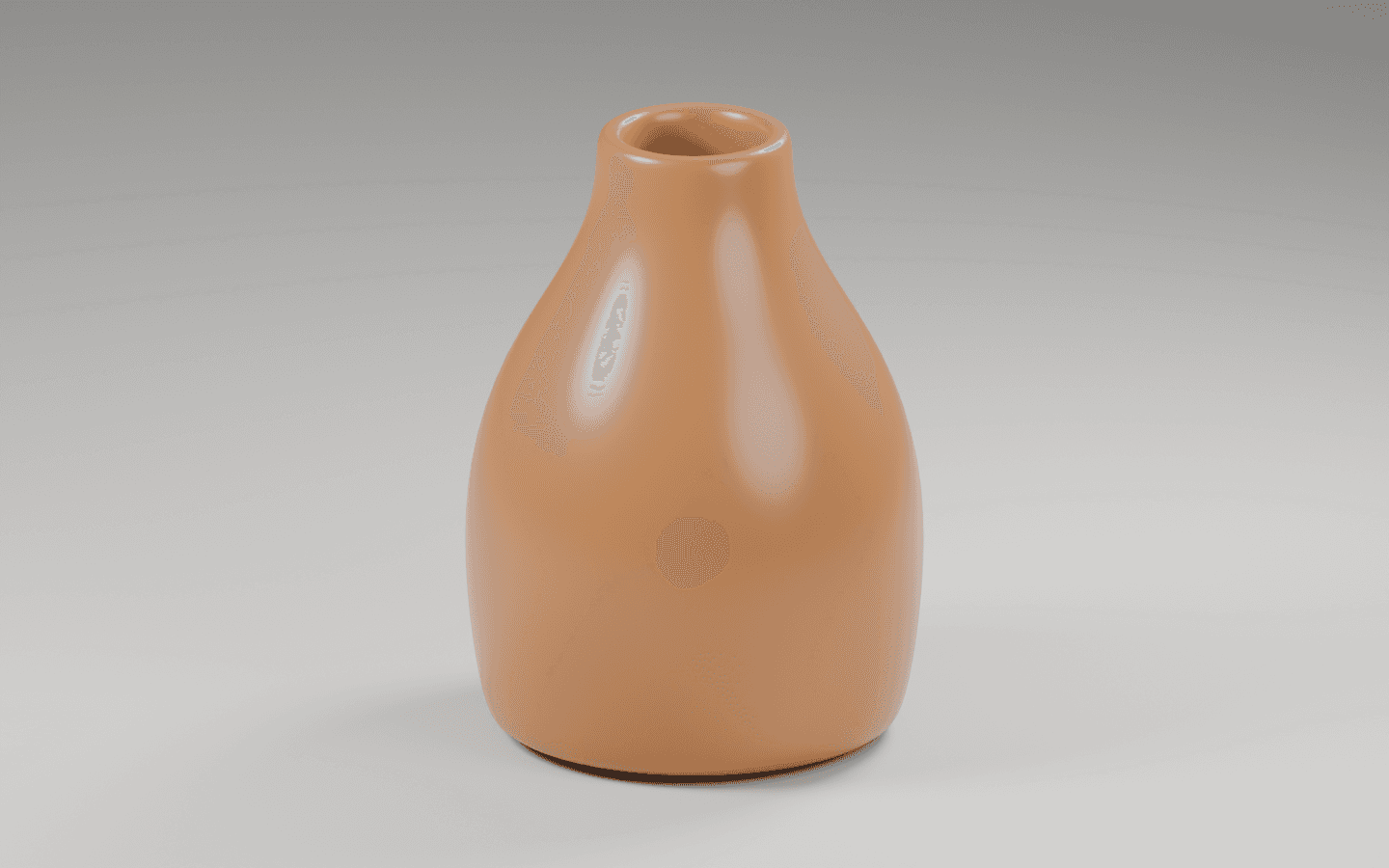
Check the product’s silhouette, opening, and highlights against the normal studio render first. If those features need correction, fix the scene before exporting a cutout for several layouts.
The amber vase remains an opaque ceramic concept. We keep its material, lighting, and camera unchanged when preparing the transparent version.
2. Ask for background transparency explicitly
In Blender, Film → Transparent controls whether the world background appears in the render. Choose PNG with RGBA so the saved file retains an alpha channel. Alpha records coverage or transparency; a white-looking image does not establish that the file has usable alpha.
Our script sets scene.render.film_transparent = True, sets the output color mode to RGBA, and hides Ground from rendering. The last step is specific to this simple cutout. Transparent film alone does not remove visible geometry such as a floor plane.
Export the approved Juniper vase as a transparent PNG. Keep the ceramic material opaque. Enable transparent film, save RGBA, and hide the ground plane for this cutout. Preserve lights and camera. State that removing the ground also removes its cast shadow. Save a separate file and keep the opaque studio version.3. Inspect the actual transparent output
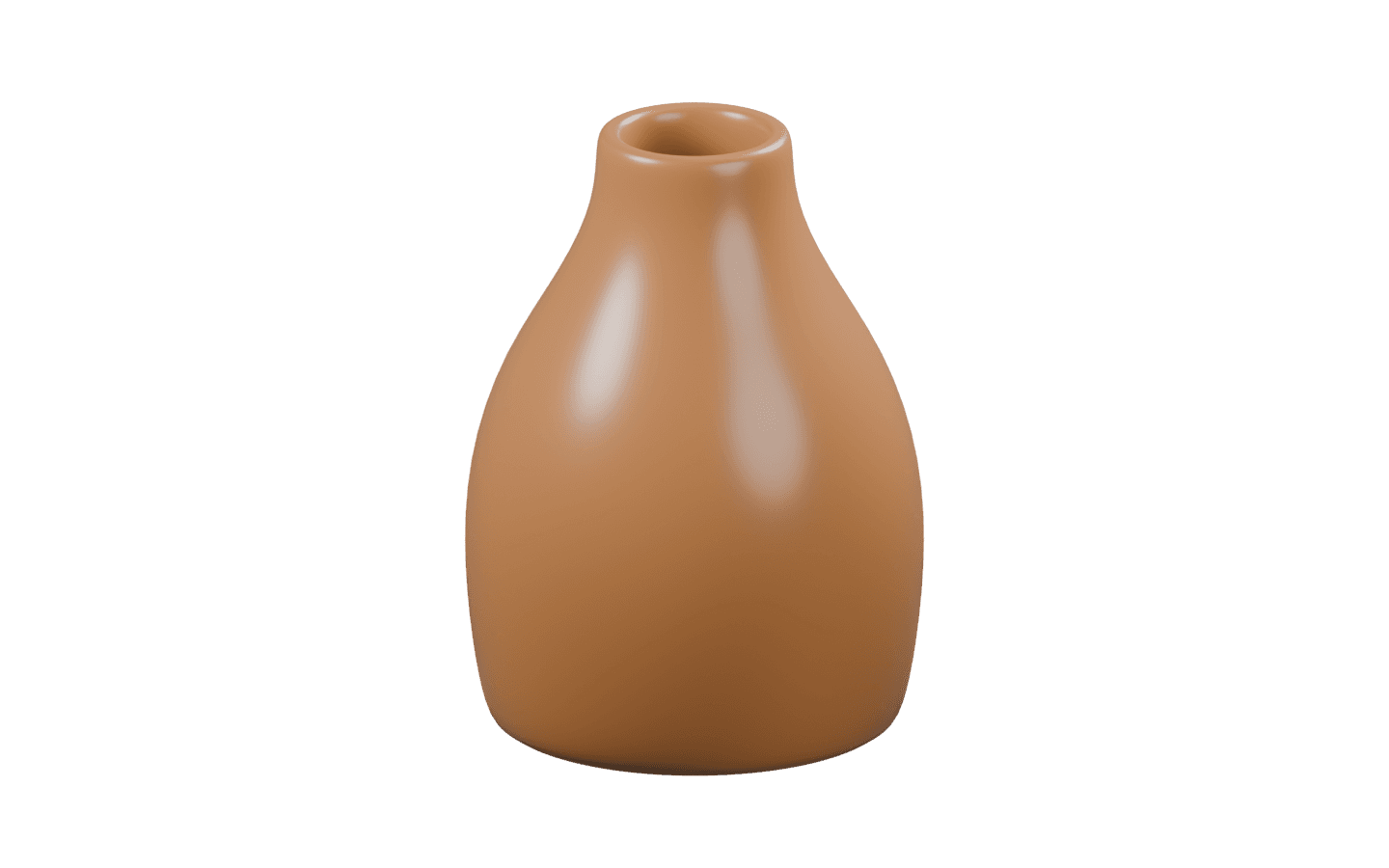
The image below is the real transparent.png produced by the script. The vase remains visible while the surrounding area has alpha. Its edge and opening still need review at the size used in the final layout.
This export has no ground contact shadow. For a floating product treatment that may be intentional. For a vase placed on a surface, plan a separate shadow or a scene render that already matches the destination. Do not call the cutout physically integrated merely because its background is transparent.
4. Upload and test the destination background
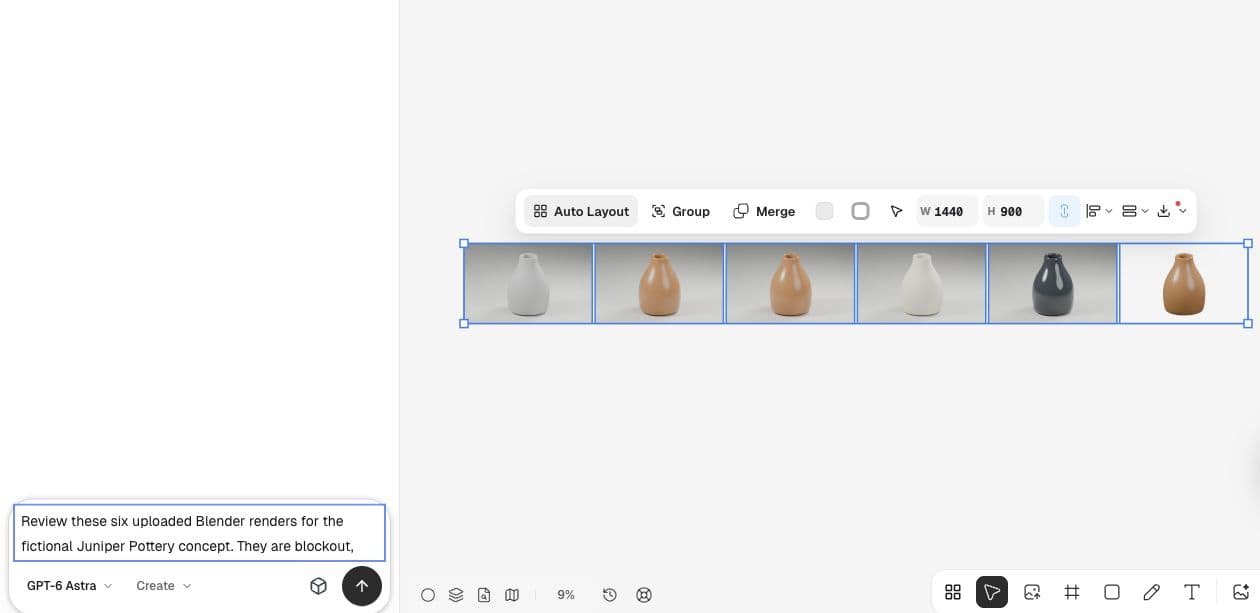
Upload the PNG into Ciyo alongside the opaque render. The demonstrated canvas contains the transparent version as a separate image. Check it on the intended banner background and compare the edge against both light and dark surfaces before approving it.
Our initial Astra review correctly said that filenames and PNG format alone could not establish transparency or banner readiness. Use a visible composite and a downloaded-file check as evidence. Keep any model suggestion separate from what you actually inspected.
| Check | What to do | Decision |
|---|---|---|
| Film | Enable background transparency | World background is omitted |
| Geometry | Decide whether the floor stays visible | Remove or retain the grounding context deliberately |
| Export | Save RGBA and inspect alpha | Preserve the transparent channel |
| Placement | Check contrasting backgrounds | Look for halos and clipped edges |
Do not confuse film alpha with material alpha
A recent Blender help thread concerns imported tree leaves showing unwanted texture-card areas. Replies explain connecting the texture’s color and alpha separately, and the author confirms the fix. That is material transparency, which differs from hiding the background behind our opaque vase.
Use that distinction when describing a problem to Astra. Say whether you see an unwanted world background, an opaque floor, or an incorrect material surface. Each observation points to a different part of the scene.
Published September 15, 2026. The tree-material discussion is an original Blender support exchange. Our film-transparency example is separate; the author did not use or endorse Ciyo.
Practical questions
Does Film → Transparent hide the floor?
No. The floor is scene geometry. The companion script hides Ground specifically for the cutout export.
Will the ground shadow remain?
Not in this demonstrated export. Hiding the ground removes its visible surface and cast shadow. A shadow-preserving workflow needs a separate setup.
Should I lower the ceramic material’s alpha?
Not for this goal. Keep the vase opaque and change the background/export settings. Material alpha changes the product surface itself.
Bring your next product image into Ciyo
Open a canvas, upload the image you want to review, and make one clear decision before preparing the final asset.