Practical design workflows
Instagram Highlight Cover Maker: Build a Readable Icon Set

Four attractive icons can still make a confusing profile. If Products and Delivery both look like small boxes, a visitor has to read every label to understand where to go. An Instagram Highlight cover maker is most useful when it helps you build clear navigation.
This walkthrough uses Fern Shop, a fictional retailer, and four customer tasks: Products, Sizing, Care and Delivery. The example starts with a precise Ciyo design brief and a small circular-preview requirement. The 1080-pixel export and 64-pixel review size are our design choices, not claims about a universal Instagram requirement.
Quick answer: choose the categories, then design the family
Use one recognizable symbol for each customer task. Keep the palette, visual weight and padding consistent, then compare the full set through circular masks at a small size. Export each cover separately and check the actual platform crop before saving it to your profile.
Do the small-size check early. Fine lines and decorative details can look polished at full size while disappearing in a navigation circle.
| Category | Chosen symbol | Why it differs |
|---|---|---|
| Products | Tote bag | Recognizable handles and soft body |
| Sizing | Ruler | Long straight shape with a few marks |
| Care | Water drop | One simple organic silhouette |
| Delivery | Parcel | Rigid box with a restrained seam |
1. Name the questions your customers ask
Start with the content inside the Highlights. A cover titled Care should lead to care instructions, not a mixture of unrelated launches and promotions. Write the category names in plain language before deciding on a visual style.
Four categories are enough for our example. A larger shop may need more, but every extra icon adds another distinction to maintain. If two categories answer the same question, combining them can make the profile easier to scan.
Use familiar symbols where possible. A delicate abstract leaf might match the brand, but it will not reliably explain sizing. A symbol and a short label should reinforce each other rather than leave the label to do all the work.
2. Give Ciyo one shared visual specification
Open an isolated project and describe the entire icon family in one brief. Specify the background, stroke color, accent, symbol list and the absence of lettering inside the icons. Ask for separate files so you do not have to crop a generated contact sheet into final assets.
For simple geometric marks, an SVG or code-rendered approach makes exact dimensions and shared stroke values easier to control. A more illustrated style can work too, but it needs an additional consistency review. Choose the method for the visual task instead of assuming every asset needs a photo-generation model.
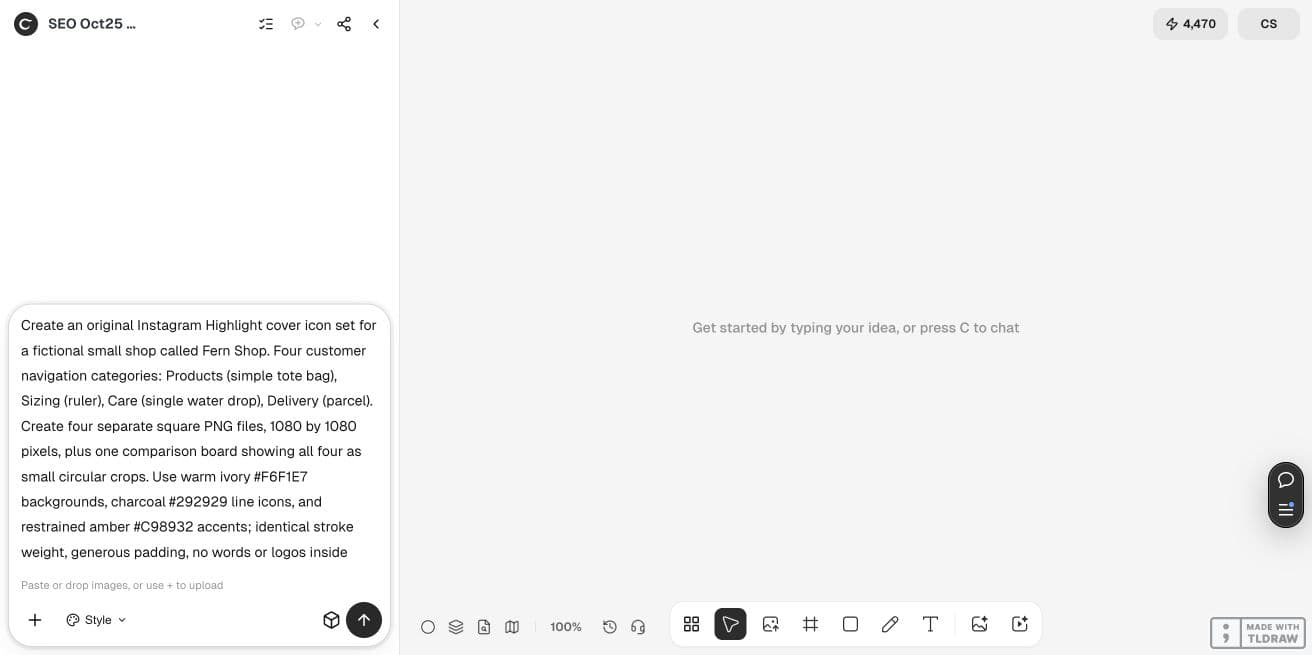
Create four original Instagram Highlight covers for fictional Fern Shop: Products = tote bag, Sizing = ruler, Care = water drop, Delivery = parcel. Use warm ivory #F6F1E7, charcoal #292929 and one restrained amber #C98932 accent per icon. Match rounded stroke weight, padding and visual scale. No words or logos inside the icons. Render four separate 1080 × 1080 PNGs and a comparison board with labeled circular previews, including actual 64-pixel previews. Keep category labels outside the icons. Save separate downloadable files and canvas copies, inspect the outer edges and small-size readability, and do not post to Instagram.3. Review the plan before creating the set
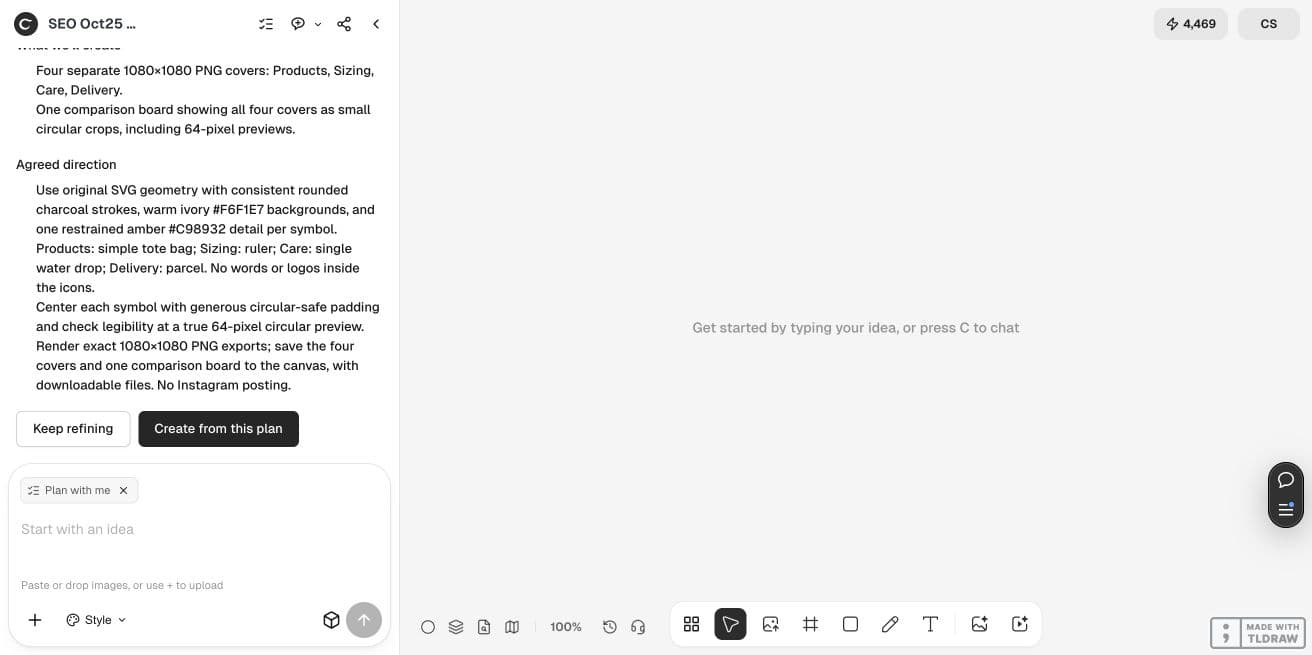
In our live Ciyo session, the Design agent turned the Fern Shop request into a design brief with four separate covers and a comparison board. Review that brief for missing categories or an unexpected style choice. A plan is useful for catching a misunderstanding before it spreads across the files.
The proposed geometry used rounded charcoal strokes, ivory backgrounds and one restrained amber detail per symbol. It also placed comparison-board labels outside the icons. That separation keeps the production files clean while making the review board easy to discuss.
Confirm the direction only when the symbol choices make sense together. If the agent proposes two similar silhouettes, change one now; color alone is a weak way to distinguish customer tasks.
4. Check the circle, not just the square
Place each square behind a circular mask. Check that handles, ruler ends, droplet tips and parcel corners remain comfortably inside it. Similar numeric margins do not always produce similar visual scale: a tall narrow ruler may need different treatment from a broad bag.
Compare all four at a small display size. Look for thin gaps that close, accents that become stray dots and two symbols that collapse into the same shape. Enlarge only to diagnose the issue, then return to the small preview to judge the fix.
Request a specific correction, such as removing two ruler marks or increasing the gap inside the tote handle. Avoid “make it more professional,” which leaves the important decision unspecified.
Our first 1600 × 1100 comparison board clipped the rightmost large circular preview. We rejected that board and requested a layout-only correction while preserving the four separate icons. This distinction matters: valid individual exports do not automatically make the review board correct.
5. Inspect and name the separate exports
Open the downloaded images rather than relying on their canvas thumbnails. Confirm the dimensions, color treatment and absence of unwanted text. Name the files by function, such as fern-products.png and fern-care.png, so they remain recognizable outside the project.
An opaque square background is intentional in this example; transparency is not required to create the circular appearance. The circle preview is a review aid. Keep the original square files so you can adjust the platform crop without stretching or rebuilding the artwork.
Keep the comparison board with the source files. If you add Returns later, use the existing family as the reference and compare the new symbol to all four originals.
The live project saved four separate 1080 × 1080 PNGs, shown here. We opened every downloaded file: the outlines are intact, each has circular-safe padding, and none contains a wordmark. The internal amber mark in Care can read like a downward symbol, so the category label remains useful; a small icon should not carry the full explanation alone.




6. Check the profile preview and keep the content useful
Use Instagram’s current Highlight editing controls and inspect the crop on the actual account before saving. Interface details can change, so treat an old screenshot of the upload flow as a clue rather than a fixed specification. This walkthrough does not post to an account.
A new shop can start with the four questions customers already ask. An agency should keep a shared category-to-symbol list for each client. Both should review the contents of the Highlights when those categories change; decorative consistency cannot repair a misleading navigation label.
When you need broader identity work, build that separately. Reworking the logo, palette and storefront at the same time makes it harder to determine why one small icon is failing.
Frequently asked questions
Must every cover be 1080 × 1080?
That is the working export size chosen for this example. Use a sufficiently clear square source and verify the current platform’s actual crop and upload behavior.
Should the icon include its category name?
Our example keeps words outside the icon and uses the profile label for the category. Tiny lettering often becomes harder to read than a simple symbol.
Can I generate one sheet and crop it into covers?
You can, but separate outputs give you more control over consistent padding and dimensions. Ask for both separate files and a review board.
Will the same prompt guarantee matching icons?
No. Compare stroke weight, shapes, spacing and colors across the saved files. Shared instructions reduce ambiguity but do not replace inspection.
Build a small navigation set
Name four customer tasks, give each a distinct symbol, and review the family together in Ciyo before uploading your covers.