Creative workflows
Preorder Announcement Graphic: Separate Order Dates from Shipping Estimates

A preorder graphic becomes confusing when a big launch date could mean orders open, production starts or parcels leave. A buyer needs those events named separately before choosing to place an order.
The example below is fictional and describes a manual design process. It is a preparation and review exercise, not a measured customer result or a completed production order.
Quick answer
Give each event a label, retain the owner-approved estimate language, and make the booking or product destination match the graphic. Use a timeline only when it explains real approved milestones.
1. Write an event table before designing
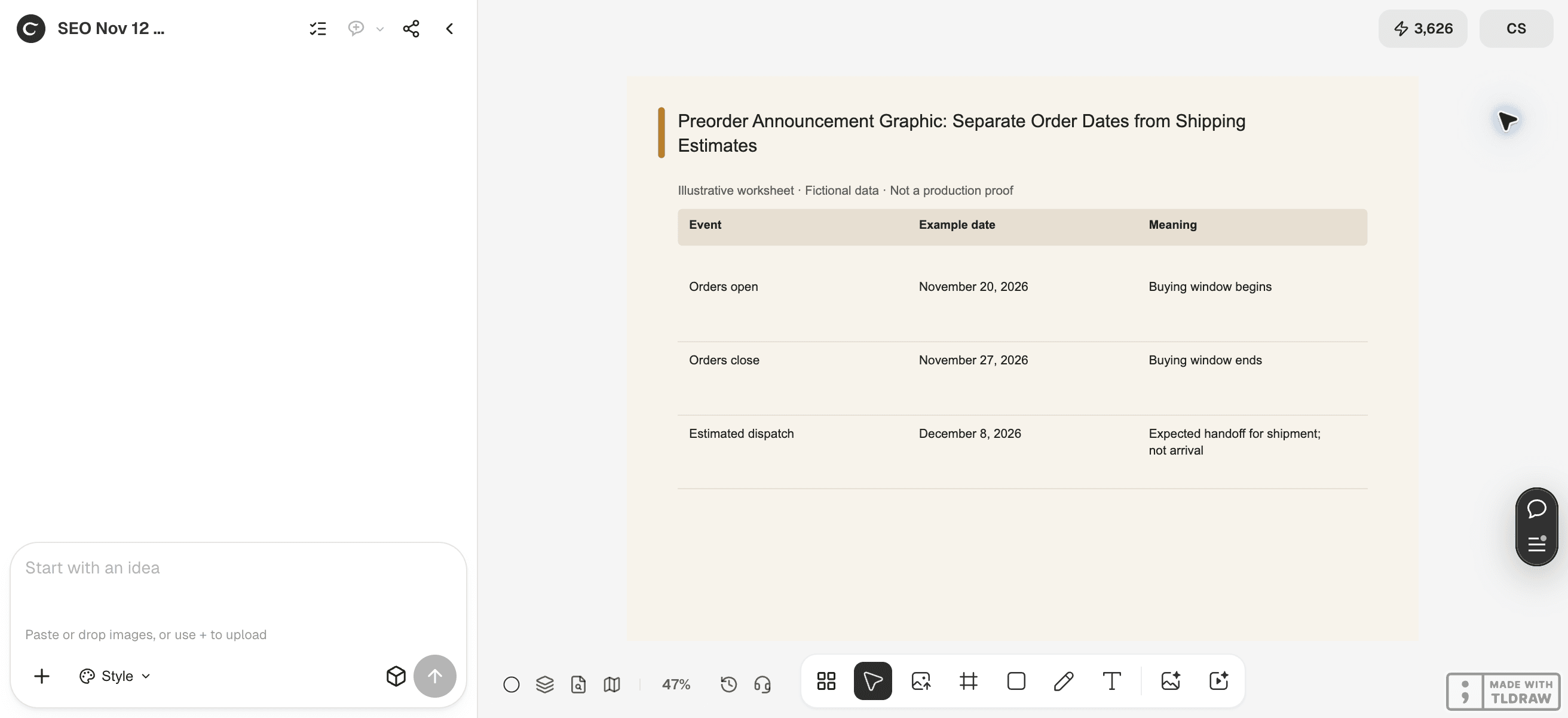
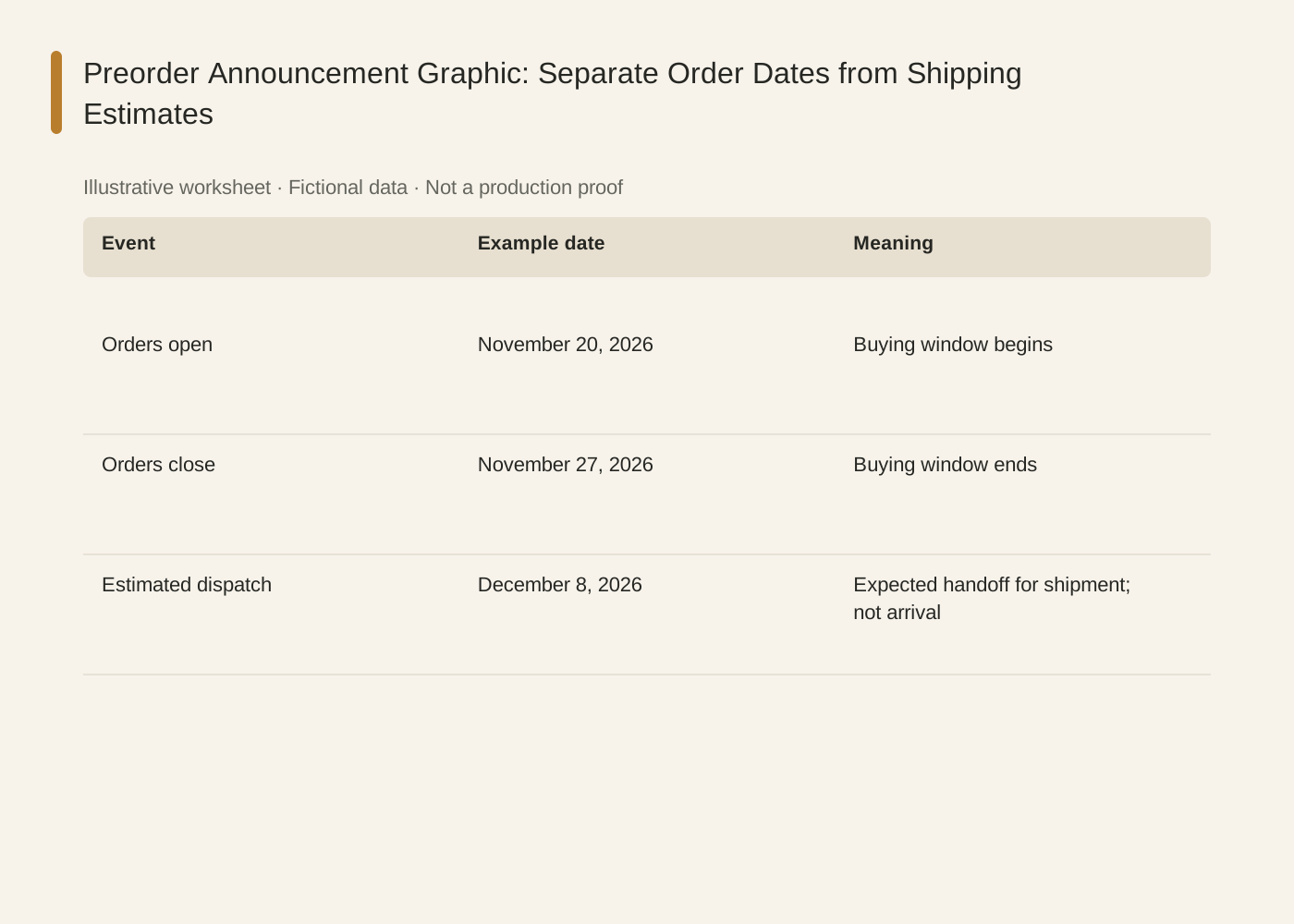
For a fictional art-print preorder, the owner supplies orders open November 20, orders close November 27 and estimated dispatch December 8. These dates are examples, not a carrier promise. Record the year and applicable time zone when a cutoff needs one.
Keep dispatch separate from arrival. If no delivery estimate is approved, do not turn the dispatch date into arrives by December 8. Ask the owner to supply the exact terms and the destination where buyers can read them.
2. Build a hierarchy that preserves the distinction
Make preorder the primary status, then show the order window and estimated dispatch as separate labeled lines. In Ciyo, use editable text for the dates and a simple visual motif that does not crowd the qualification.
If the layout has room for only one date, choose the date associated with the action and keep the dispatch estimate in a readable supporting line or clearly linked terms. Do not shrink a material condition until it becomes invisible on a phone.
3. Compare the export with the order page
Check the exact words, all dates and whether the product page uses the same order window. Open the exported file rather than reviewing only the canvas. Read it without the caption to see whether the graphic itself creates a misleading promise.
Assign an owner to update every placement if the estimate changes. Keep the previous version in the review record so the team can identify which promise was communicated and where. Do not automatically publish a changed delivery commitment.
Copy and adapt this request
Replace the bracketed fields with your own approved information. The requested output is a draft for review; the example has not been run as a model benchmark.
Plan a preorder graphic from [APPROVED EVENT TABLE] and [PRODUCT PHOTO]. Clearly label order opening, order closing and estimated dispatch. Preserve all estimate qualifications and [TERMS URL]. Do not infer arrival dates, availability or refund rules. Keep dates as editable text and include a final consistency checklist for the product page.Fictional preorder milestones
These example checks describe acceptance criteria, not observed model results.
The linked SVG is an illustrative worksheet containing the same fictional review fields. It is separate from native editable canvas text and from a finished production design.
| Event | Example date | Meaning |
|---|---|---|
| Orders open | November 20, 2026 | Buying window begins |
| Orders close | November 27, 2026 | Buying window ends |
| Estimated dispatch | December 8, 2026 | Expected handoff for shipment; not arrival |
Common mistakes and how to recover
Do not use launch date as a substitute for three different events. Name the event even when the timeline looks less minimal.
If an estimate changes, revise the terms and graphic together through the owner’s approval process. A fresh design alone does not update an existing order agreement.
Choose a working method and make the handoff
For a solo shop, start with one item and keep the source facts beside the draft. A team should name one approver and keep a dated version so an old comment cannot silently override the current decision. If the input is incomplete, return to the owner of that fact before polishing the artwork.
Use Ciyo for the visual work described here with the controls and models currently offered in your account. Keep the approved copy separately and add exact wording with editable canvas text where needed. A generated picture is a visual draft; inspect its exported file before using it.
Sources and further reading
Primary documentation and related guides used for this article. Availability and controls can vary by account; verify them before beginning your own run.
Frequently asked questions
Is this legal wording for a preorder?
No. Use your owner-approved terms and obtain appropriate advice where needed. This guide addresses layout and consistency.
Should I promise holiday arrival?
Only when the responsible business has approved and can support that promise. An estimated dispatch date is different.
Can an agency use one template for many products?
Yes, but keep a separate approved event table and product destination for each product.
Prepare one visual draft in Ciyo
Bring the approved inputs and review one version against the checks in this guide before making more variants.