Shop operations · Tutorial
Holiday Shipping Cutoff Graphic: Make the Order Deadline Clear

A buyer sees “holiday shipping” and assumes the parcel will arrive by a particular day. Your shop may mean something quite different: the last date to place an order before production starts. A useful cutoff graphic makes that distinction visible.
This tutorial uses fictional Juniper Goods dates in a development-canvas run prepared on November 3, 2026. They are illustrative shop decisions, not carrier deadlines. Ciyo saved two PNGs, but the request failed and the proposed editable sources could not be recovered. Below, a separately supplied editorial SVG template makes the correction step reproducible.
Quick answer: lead with “order by”
Use an explicit order deadline, service, destination region and time zone. Keep any delivery estimate in a separate sentence. A date beside a parcel icon is too ambiguous: readers should not have to guess whether it means ordering, dispatch or arrival.
The process is: approve the facts, write the notice, create two layouts, revise a deadline in the text source, and inspect the actual destination preview. Repeat the notice in accessible listing or shop text so the graphic is not the only source.
1. Approve one source-of-truth table
Ask whoever owns fulfillment to confirm the two product groups. Include production lead time in the merchant decision before approving the order cutoff. Do not copy a carrier cutoff and present it as your own production deadline.
Our example covers US domestic standard service only. A shop serving other regions or express services needs separate approved rows. A vague “international orders earlier” qualifier does not tell an overseas customer what to do.
| Item group | Order by | Scope |
|---|---|---|
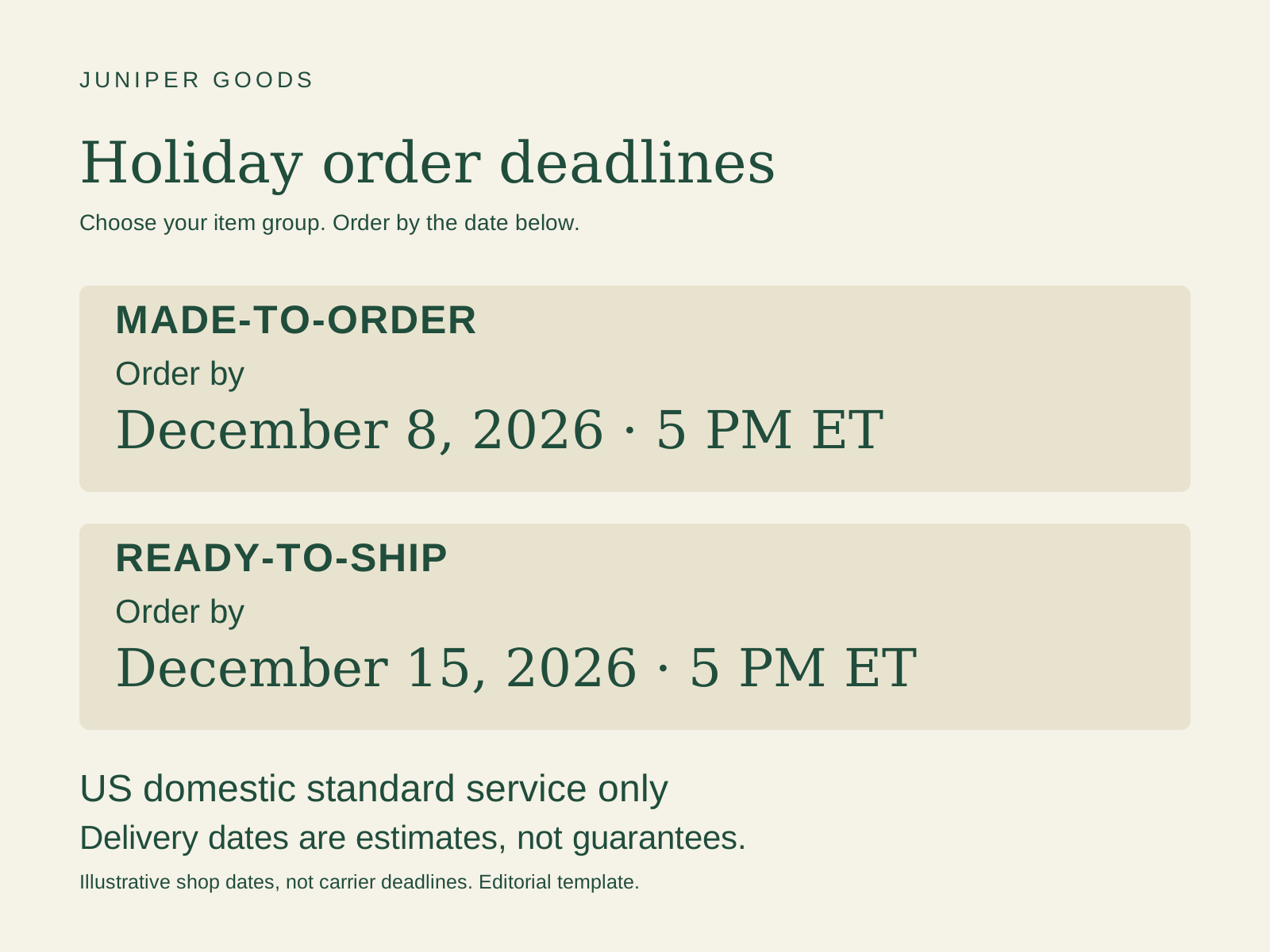
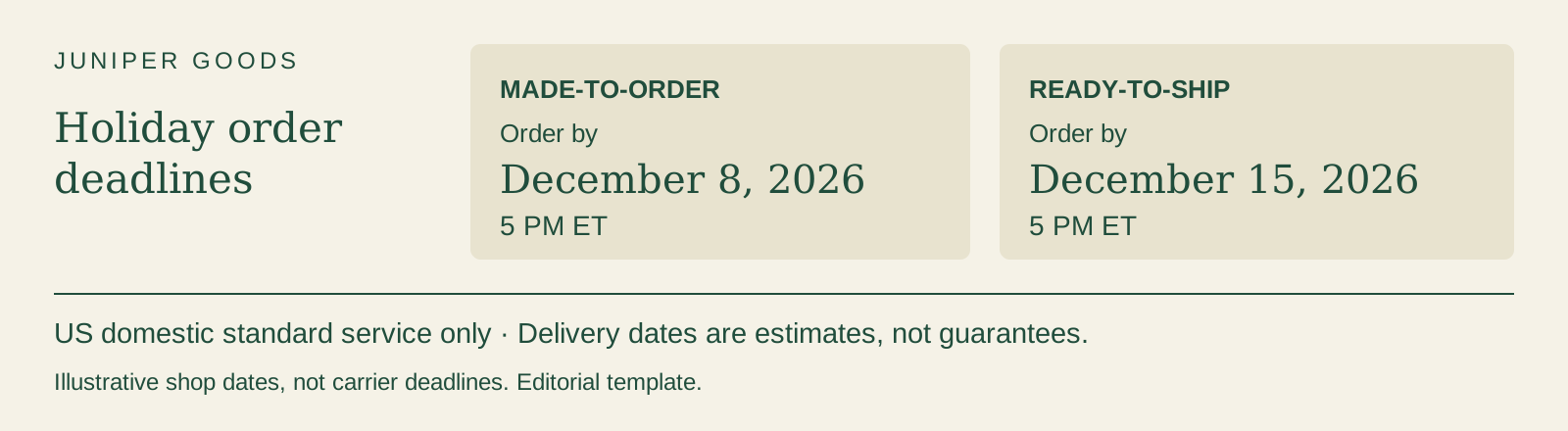
| Made-to-order | December 8, 2026 · 5 PM ET | US domestic standard service |
| Ready-to-ship | December 15, 2026 · 5 PM ET | US domestic standard service |
| Delivery wording | Dates are estimates, not guarantees | Keep visible with the notice |
2. Write the message before generating artwork
Use the product group as the heading and “Order by” directly before the date. Place the service and region nearby. A decorative gift illustration can support the message, but it should not compete with the dates.
For a small shop, two clear groups usually beat a dense shipping-policy image. If an item has a different processing time, put that exception in its listing and exclude it from the general promise.
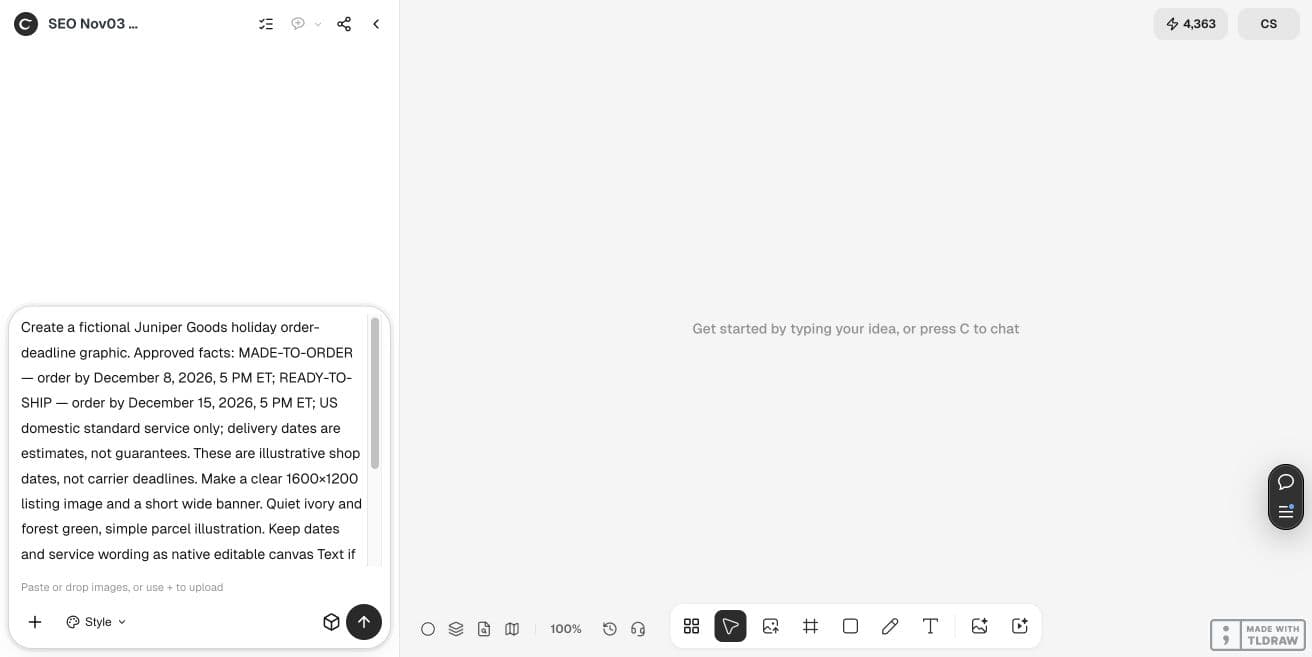
Create a Juniper Goods order-deadline notice. MADE-TO-ORDER: order by December 8, 2026, 5 PM ET. READY-TO-SHIP: order by December 15, 2026, 5 PM ET. US domestic standard service only. Delivery dates are estimates, not guarantees. These are illustrative shop dates, not carrier deadlines. Make a 1600×1200 listing image and a shorter wide banner. Keep dates as editable text in a source file, separate from the parcel illustration. Do not publish.3. Keep a text source beside the exported images
The agent proposed an SVG route, but the run ended after saving a 1600×1200 listing PNG and a 1600×400 banner. A focused recovery found no original SVG sources. We can verify the raster outputs, not claim that an editable Ciyo handoff succeeded. Make editable would create picture layers, not native typed text.
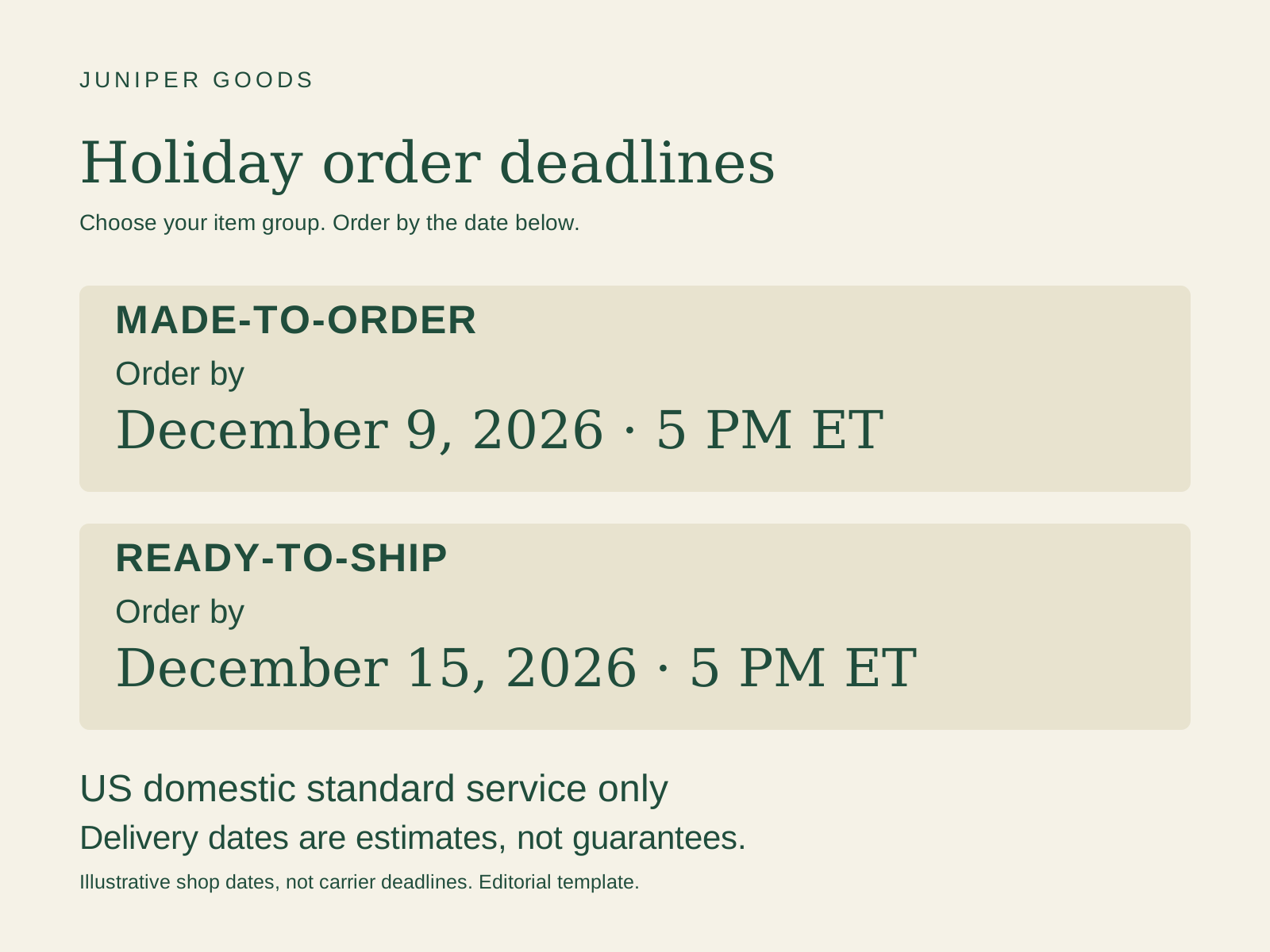
For the correction exercise, this article supplies new English SVG templates created outside Ciyo. They are separate editorial files, not recovered originals or exact reconstructions of the saved PNGs. Keep each template with its export, edit its text in a suitable SVG editor, and inspect a fresh rendering.
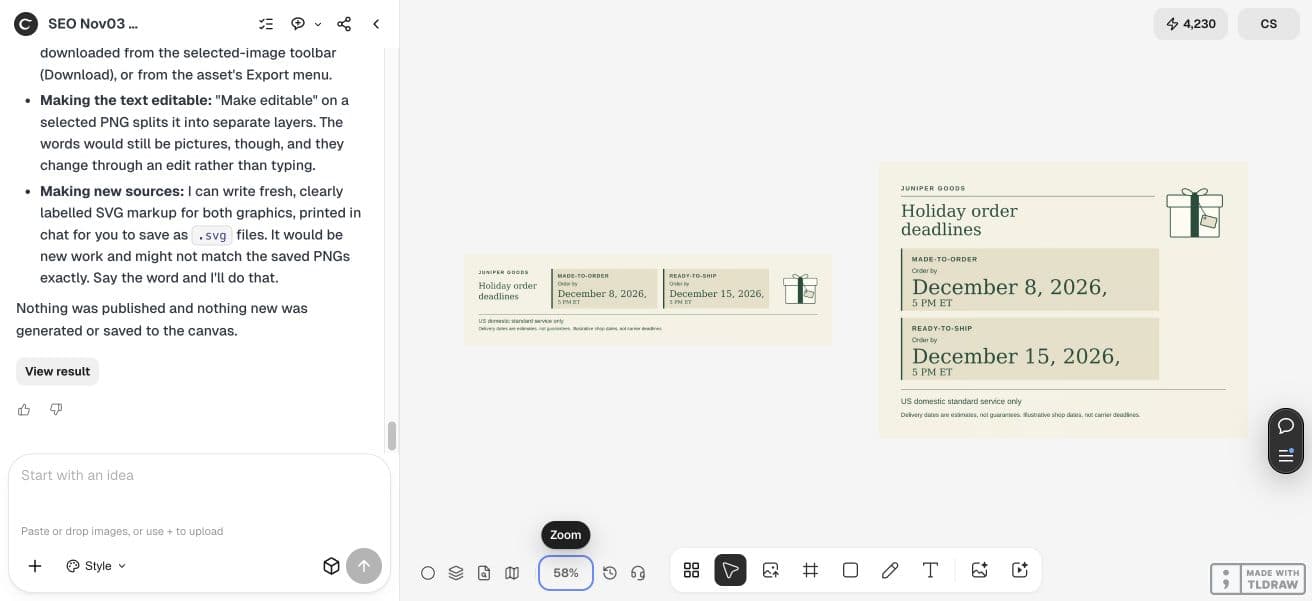
4. Revise a deadline across both sizes
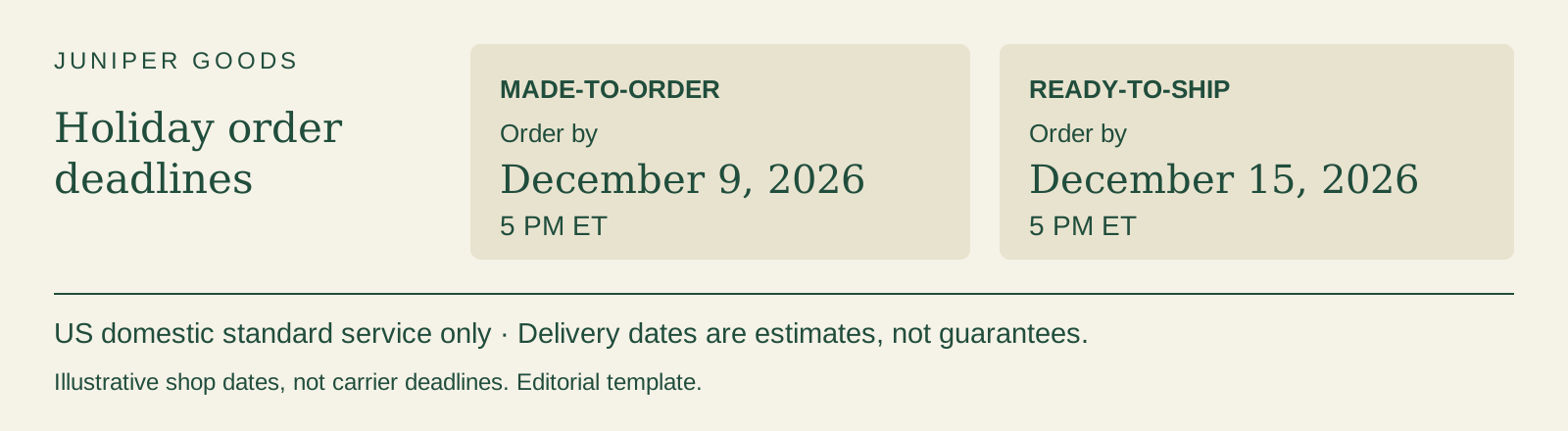
In the supplied editorial templates, we changed only the made-to-order deadline from December 8 to December 9, 2026. The ready-to-ship date, 5 PM ET, qualifiers and drawing geometry remain unchanged. A source comparison confirmed that only those date-text occurrences changed.
This is a source-file revision outside Ciyo. It does not make the old canvas PNG editable or automatically update its exports. Download the initial and revised sources, check both layouts against the approved table, then produce new output files for the real destination.
5. Review at the size the buyer will see
At a 390-pixel-wide review, the Ciyo listing’s dates were prominent but its service and delivery qualifiers were very small. The separate listing template enlarges those lines. A short desktop banner still needs its own placement check; use visible adjacent text or a different mobile layout when qualifiers cannot remain readable. Do not approve it just because the dates look good.
The fulfillment owner should approve the wording; the person updating listings should check every affected placement. Keep a dated copy of the approval and remove superseded notices when the offer changes. A clear graphic cannot guarantee that a buyer reads it or that a parcel arrives.
Practical questions
Are these the 2026 carrier deadlines?
No. All dates here are fictional shop order cutoffs. Check the relevant carrier’s current official schedule and your own production buffer before approving real dates.
Should the banner promise arrival by a holiday?
Only publish a promise the business has actually approved and can support. This example uses delivery estimates, not guaranteed arrival.
Can I edit the dates in the PNG?
The PNG is raster output. Keep the editable SVG text source, change that source, and render a new export.
Which size should I export?
Use the current requirements of your actual listing and banner destination. The example’s 1600×1200 size is a design input, not a universal platform specification.
Prepare your shop’s actual notice
Bring approved cutoff dates, service regions and delivery wording to one brief, then check the exported notice before updating listings.