Image troubleshooting · Soft edges
Remove a Background from Fur: Inspect the Soft Edges
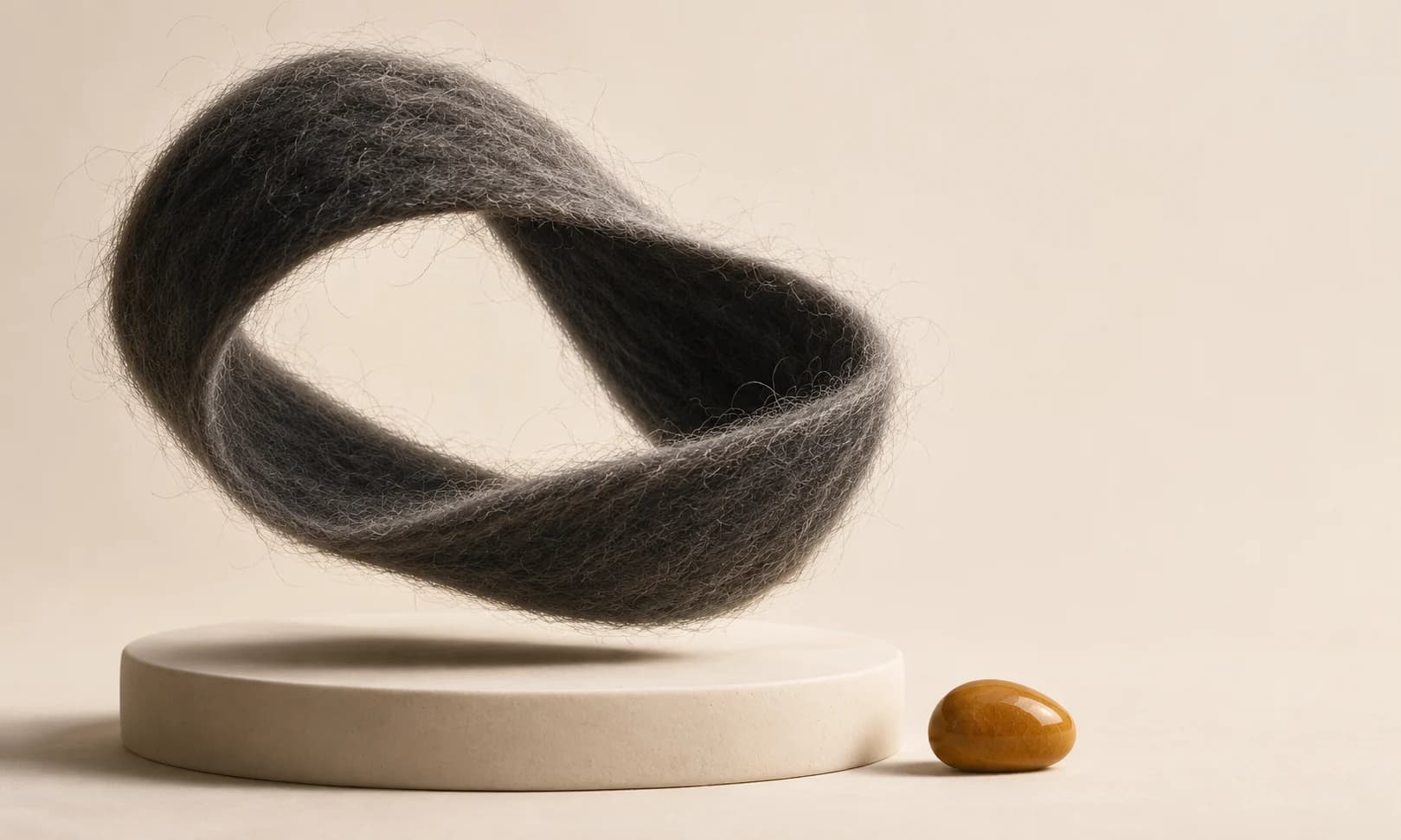
A fluffy scarf can look neatly cut out on white and reveal a pale fringe as soon as it moves onto a dark card. Fine fibers need partial transparency; removing every soft pixel can make the item look shaved.
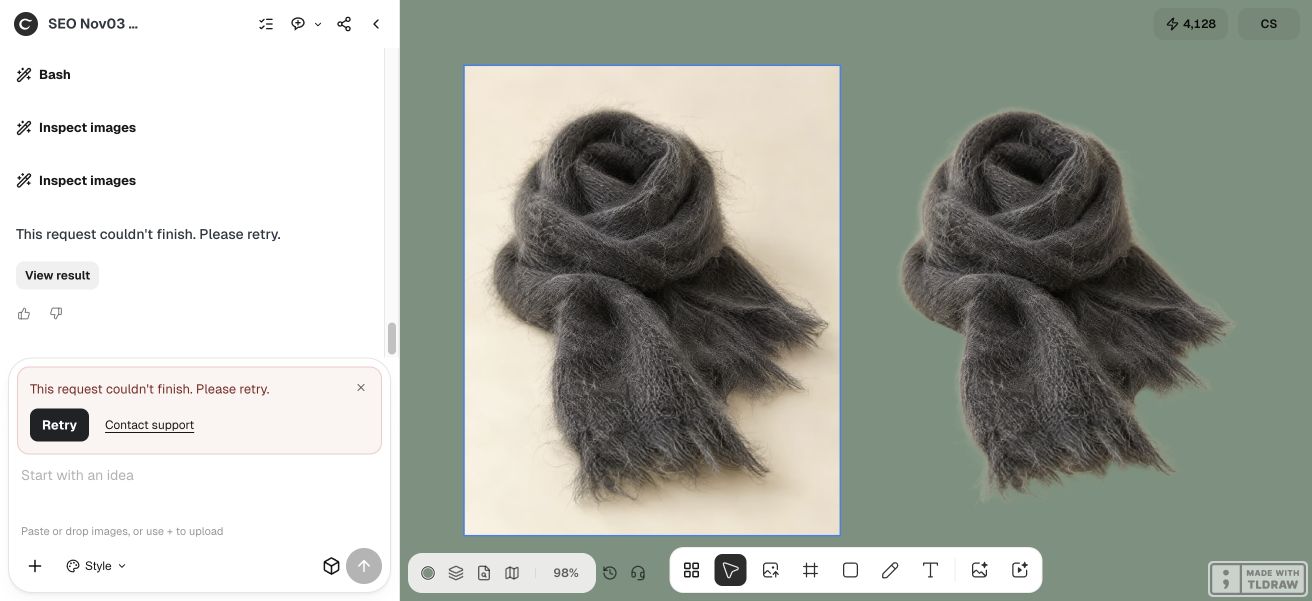
We changed the actual canvas background to white, charcoal and muted green without changing the saved cutout. Fine fibers survive, but a pale fringe is conspicuous on charcoal and faintly visible on green. We would not approve this unchanged extraction for a dark product card. The full request also ended in an error after saving the cutout; alpha alone did not make it a finished result.
Quick answer: test the saved cutout on three backgrounds
Keep the source, remove the background once, and inspect the PNG over light, dark and intended placements. Look for pale contamination, lost fibers, holes and abrupt edges. Judge at native size and at the final display size.
Do not keep eroding the edge until it looks clean on one background. If the source blends fibers and backdrop too strongly, use a better photograph or a manual matting workflow. This guide does not claim Ciyo exposes a native hair-refinement slider.
1. Start with a source that reveals the fibers
A contrasting, evenly lit background makes the edge easier to inspect. Avoid deep blur at the outline and a backdrop that shares the fibers’ color. Keep the original so you can tell which strands were lost or added.
Our synthetic scarf sits against a pale warm background. That creates a useful test of pale edge contamination on a charcoal item, but the result cannot establish performance on all fur, hair or real textiles.
2. Run removal on the saved image
Ask Ciyo to use the saved source with the actual Remove Background utility and retain both files. Avoid generating a new imitation of a cutout when the goal is to extract the original object.
The run encountered creative-input update errors before reaching a Remove Background result. We retain that limitation in the demonstration rather than treating every step as successful. A successful saved utility output still needs a separate edge review.

Remove the background from this saved fuzzy-item image using the background-removal utility. Keep the original. Export a real PNG with alpha and inspect the same cutout on white, charcoal and the intended background without redrawing its fibers. Report pale halos, clipped strands, holes and any tool error. Do not claim perfect matting or invent a native refinement control. Stop after one removal result; do not regenerate to hide a failure.3. Distinguish transparency from edge quality
The downloaded example is 1792×2240 and contains transparent, partially transparent and opaque pixels. A real alpha channel is necessary for compositing, but partial pixels may contain both useful wisps and unwanted backdrop color.
A pale halo that appears against dark material is a different defect from missing strands. Compare with the source at the same scale. If the outer silhouette becomes unnaturally hard, cleaning has probably removed useful soft detail too.
| Symptom | What to inspect | Possible next step |
|---|---|---|
| Pale fringe on dark | Background color in partly transparent pixels | Manual edge-color/matting work |
| Shaved silhouette | Fine strands missing from the source comparison | Return to the source; avoid further erosion |
| Interior holes | Dense material incorrectly transparent | Repair the mask in a suitable editor |
| Softness everywhere | Source blur or inadequate resolution | Use a sharper authorized photograph |
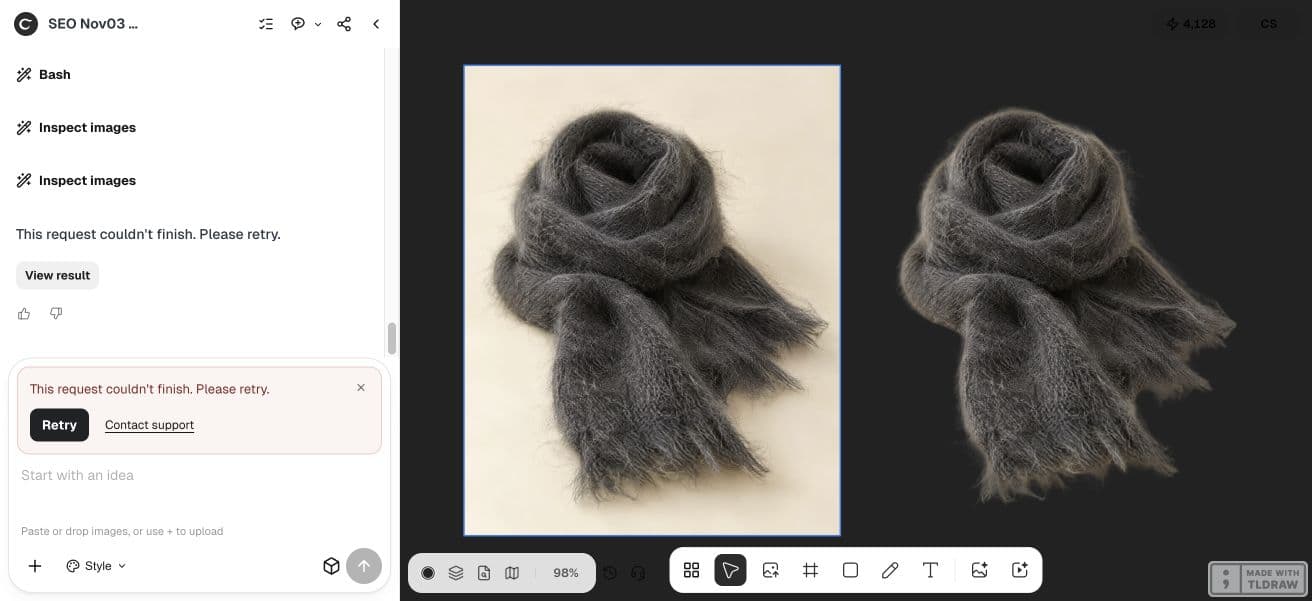
4. Compare light, dark and intended placement
White can hide light contamination; charcoal can expose it. The intended background shows whether the cutout works in the actual design. Use all three without changing the cutout between comparisons so you are judging the same extraction.
Look around the top loop, loose side fibers and the scarf ends. Check both native size and final placement size. A small thumbnail may be usable while a large product detail is not; describe that decision rather than declaring the cutout universally good.
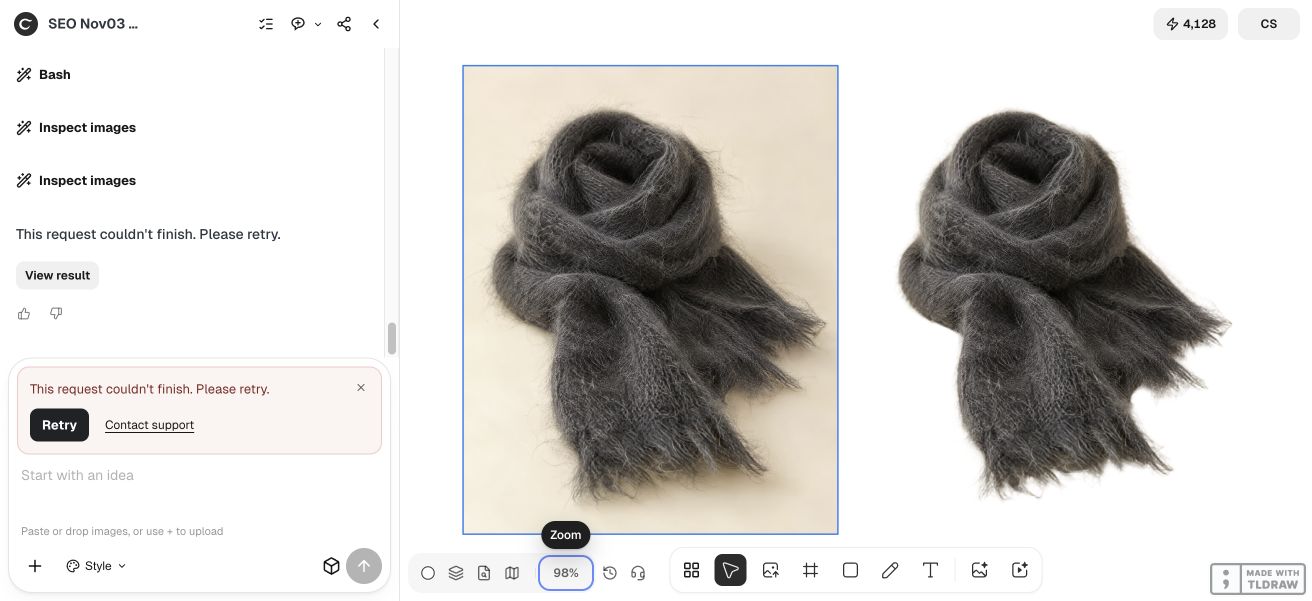
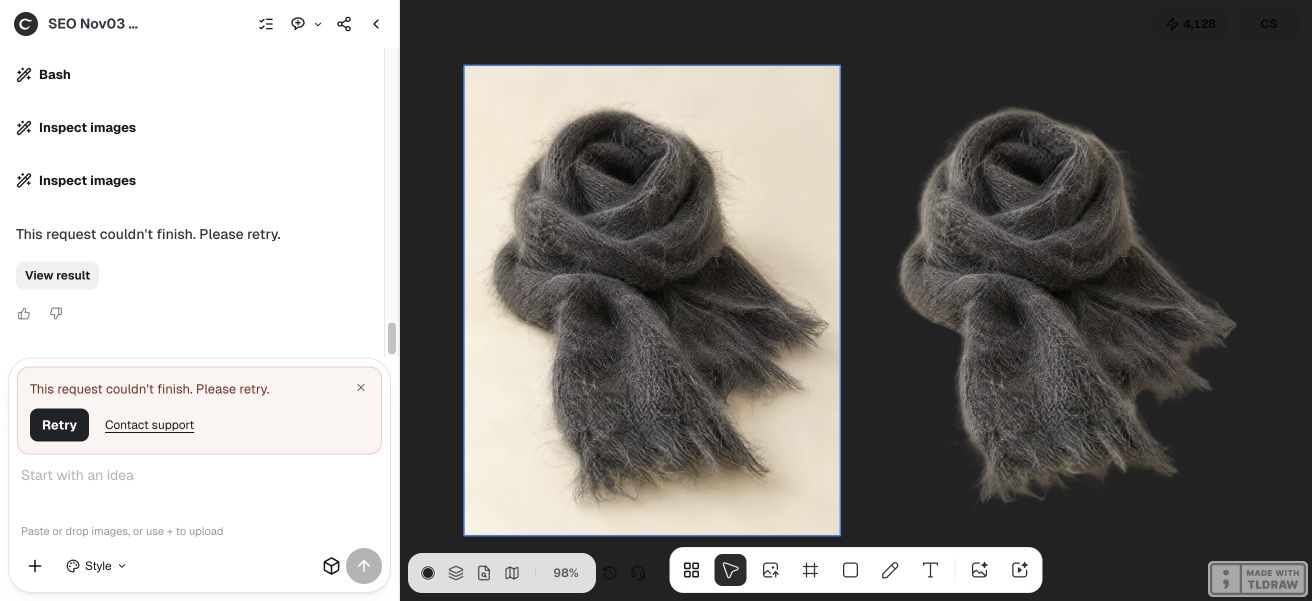
5. Decide when to repair, reshoot or stop
Use a manual matting editor when the source contains the detail but the mask needs local work. Retake a real photograph when blur, lighting or background similarity prevents a reliable separation. Avoid inventing new fibers for a listing where the product’s actual texture matters.
A solo seller can begin with a contrasting source and one honest review. An agency should preserve the source, cutout and acceptance decision with the job. A smooth-looking edge is not automatically a faithful edge, and this single synthetic test is not a vendor ranking.
Practical questions
Does PNG mean the background is transparent?
No. Check the actual alpha channel and place the file over contrasting backgrounds. PNG also supports fully opaque images.
Should every edge pixel be fully opaque or fully transparent?
No. Soft fibers often need partial transparency. The challenge is retaining useful wisps without unwanted backdrop color.
Can Ciyo refine fur with a brush in this guide?
A native hair-refinement brush or slider was not verified. This workflow uses removal and inspection, with an explicit external matting handoff when needed.
Can I generate replacement fibers?
For editorial illustration that may be an intentional creative edit. For a real listing, it can misrepresent the product; prefer a faithful source and suitable extraction.
Inspect the edge before using the cutout
Keep your source and compare one saved result on light, dark and intended backgrounds. Choose a repair or new photograph when the edge does not hold up.