Practical design guides
Reserved Table Sign Template: Fit the Name, Time and View

A reserved sign needs to answer a small question quickly: is this table available, and which reservation does it belong to? Decorative lettering alone cannot resolve a hidden name or an ambiguous time.
This guide uses a published table-sign example and an original fictional café reservation. It focuses on a reusable layout in Ciyo and a physical reading check, rather than a seating-management or reservation integration.
Quick answer
Keep Reserved as the primary message, add the approved party name and the relevant time only when needed, and check the sign from both approaches. For a folded tent, verify the orientation of each printed face with a paper prototype.
1. Choose what the sign identifies
Decide whether the sign holds one table, a group of tables or an area. For a single table, a table number may help staff more than a long event title. Keep the public information minimal and use only what the host has approved for display.
Our fictional Juniper Café example reads Reserved, Morgan party, 12:30–14:00, Table 4. The party name is invented. Do not import a live reservation list into a demonstration or assume that every customer wants a full name displayed.
2. Test the longest likely name before styling
Create a short example and a deliberately long fictional name. Check that both fit without pushing the time into an unreadable line. Prefer a planned second line or a simplified label to shrinking the entire sign whenever a name is longer.
Use a clear distinction between the status, identity and time. If staff reuse the sign throughout the day, make the changing fields easy to replace in the source. Keep a time range only when it has a clear operational meaning; an unexplained 14:00 could mean the booking starts or ends.
3. Plan one face, then verify the second
In an isolated Ciyo project, create a flat concept showing the approved copy and a reference for the folded structure. Ask for consistent hierarchy across the front and back. Keep the fields as editable text if staff will update them regularly.
A folded tent’s opposite face may need to appear upside down in the flat print file to read correctly after folding. Confirm this with the chosen template and a prototype. A generated photograph of a tent cannot establish correct print orientation.
Live Ciyo check: content is not a folded proof
We supplied our fictional Juniper Cafe planning sheet for a text-only review. Ciyo checked the RESERVED, Morgan party, 12:30–14:00 and Table 4 fields, and flagged missing dimensions, opposite-face orientation and viewing distance. The uploaded table was our reference, not a finished tent design. We did not print, fold or read-test a physical sign.
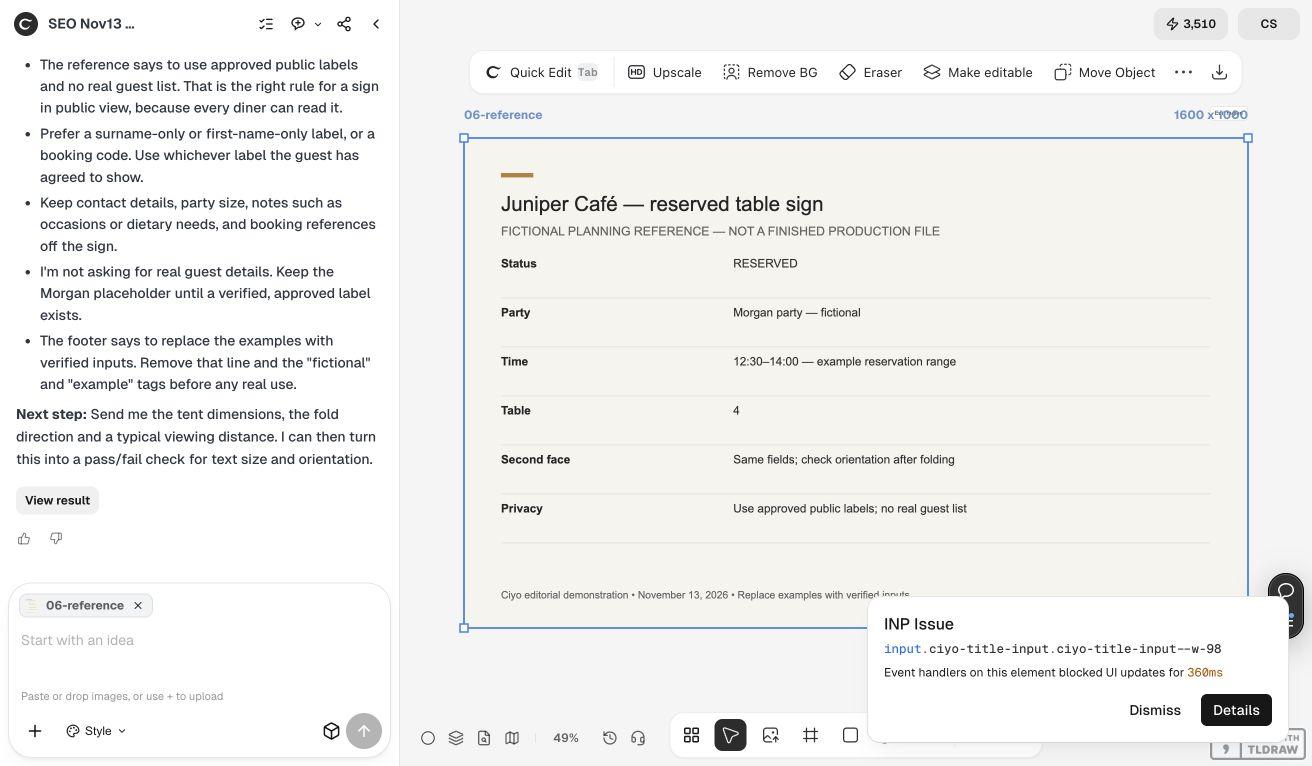
Example checks for a reusable sign
The values below are fictional and describe a review target, not live booking information.
| Field | Example | Check |
|---|---|---|
| Status | Reserved | Readable from the guest approach |
| Party | Morgan party | Fits without hiding the time |
| Time | 12:30–14:00 | Meaning agreed with staff |
| Table | 4 | Matches the seating plan |
| Second face | Same approved fields | Upright after folding |
4. Check the sign where it will stand
Print one actual-size example, fold it and put it in the intended holder or on the intended table. Approach from both sides at the distance a guest normally sees it. Check glare, nearby decorations and whether menus or glassware obscure the important fields.
Ask a colleague to identify the status, name and time without an explanation. If they read the wrong field first or cannot tell what the time means, simplify the hierarchy. This is a usability check, not evidence of a measured effect on booking accuracy.
Copyable sign brief
Replace all fields with owner-approved public information.
Plan a reserved table sign for [VENUE] with these public fields: [STATUS], [FICTIONAL OR APPROVED PARTY LABEL], [TIME RANGE IF NEEDED], [TABLE NUMBER]. Format is [FLAT / FOLDED TENT] using [TEMPLATE]. Keep status dominant and the longest name readable. Show the two faces separately and flag orientation checks for the flat print. Do not infer booking data, availability or guest details.Choose a flat sign or tent by the viewing situation
A sign in a holder is useful when guests approach from one direction and staff need to swap inserts. A two-sided tent makes sense when both sides of a table are visible. Test the actual placement before deciding that a more elaborate format is better.
Keep the approved template and a short change checklist together. Staff should be able to update the party label without accidentally leaving the previous time on the back.
Source
The published sign-maker example was checked November 13, 2026. The venue, party and test procedure here are fictional.
Frequently asked questions
Does the same text need to appear on both sides?
Use the information needed from each approach. If both sides show the booking, verify that staff update both together.
Can the sign be connected to my reservation system?
This article describes a manual design and review process. It does not establish an integration with a booking system.
How big should the type be?
Choose it by actual viewing distance, contrast and placement, then test the printed sign. One fixed type size will not suit every table or holder.
Build one reusable reservation-sign draft
Bring your approved copy and reference files, make one draft, and compare the result with your checklist before creating more versions.