Practical creative workflows
Resize Pixel Art Without Blur: Check the File You Export
Your game’s parcel icon looks sharp at its native size, then turns soft when you enlarge it for a shop page or a development update. Another generation is unnecessary if the drawing is already approved. The useful deliverable is a larger file that repeats the existing pixels exactly.
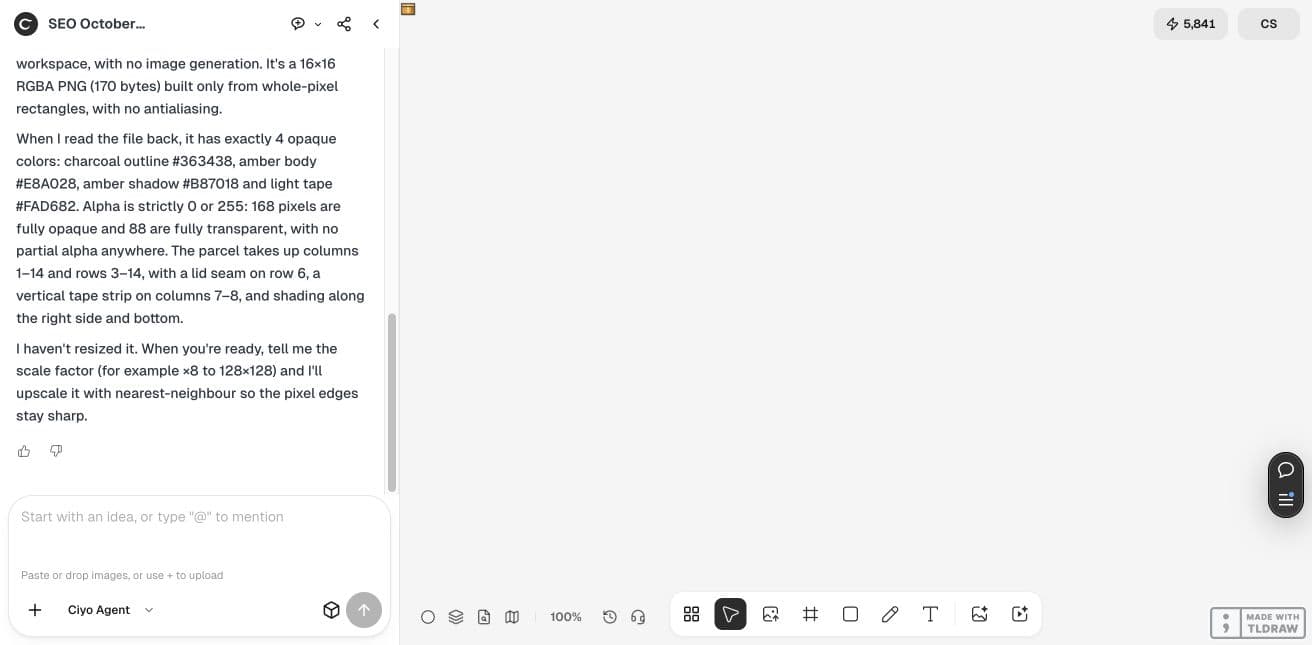
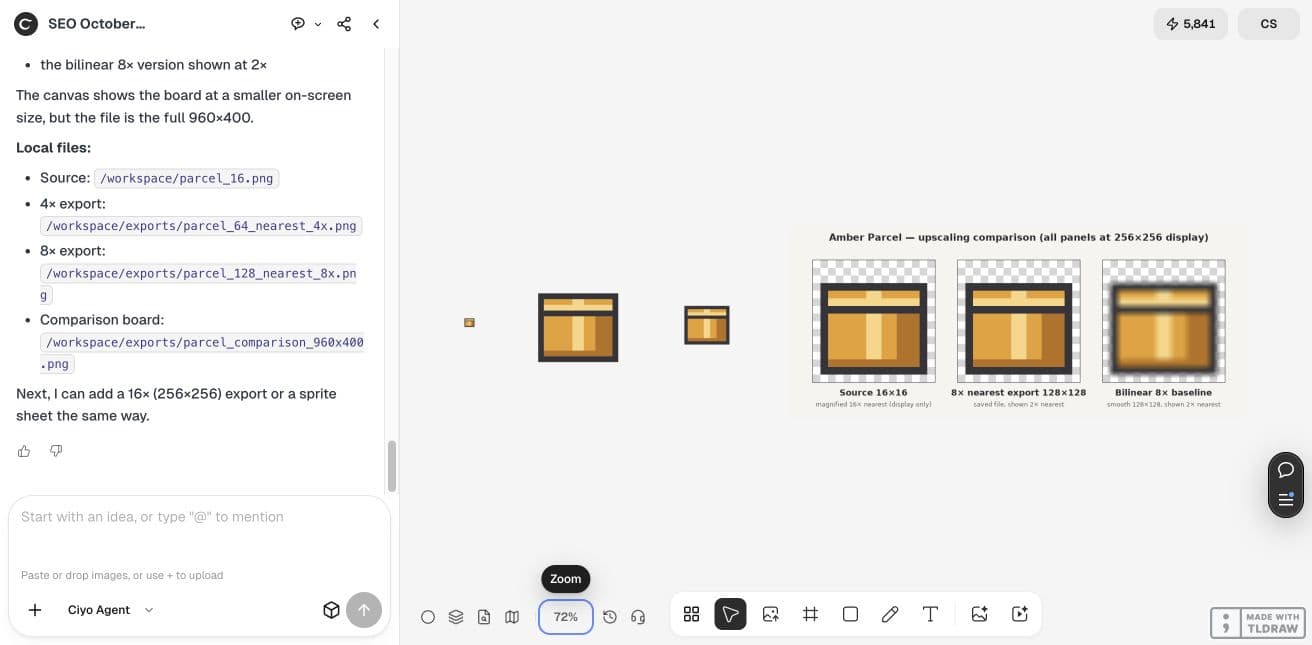
We ran this example in Ciyo with a fictional 16×16 parcel drawn by a short file-workspace script. It is a controlled four-colour test image, rather than a photograph or an image-model result. The downloadable 64×64 and 128×128 files let you inspect the operation yourself.
Start with the native PNG
Keep an untouched master and confirm its actual dimensions. A large image that merely resembles pixel art may contain soft edges and hundreds of colours already. Enlarging it faithfully preserves those problems too; it does not establish a native pixel grid.
Our source contains 4 opaque colours, with alpha limited to 0 and 255. It is 170 bytes. Ciyo created it with whole-pixel rectangles and retained it beside the exports. For your project, import your approved PNG instead of asking the agent to recreate the drawing.
Choose a whole-number enlargement
At 4×, every source pixel becomes a 4×4 block. At 8× it becomes an 8×8 block. These sizes give each original pixel the same area. An arbitrary target such as 100×100 cannot distribute a 16×16 grid into equal whole-number blocks.
Ask for nearest-neighbor file resizing and a separate output. Avoid instructions such as improve the detail or make it high resolution: those can invite a new rendering. This task changes the file’s dimensions while retaining the drawing.
Use this existing 16×16 RGBA PNG. Save separate nearest-neighbor exports at 4× (64×64) and 8× (128×128), without redrawing or generating an image. Reopen each saved file and verify that every k×k block equals its source pixel, including alpha. Report dimensions, opaque-colour counts and bytes. Keep the master unchanged and save the exports to the canvas.Compare the saved pixels, including transparency
A pleasant canvas preview is insufficient. Download the PNG, decode it and compare each output pixel with the corresponding source pixel. Include alpha in that comparison: an opaque background or softened transparent border can be hard to notice on a light canvas.
Both exports passed our independent decoded-pixel comparison with 0 mismatched channels. They retain 4 opaque colours and binary transparency. Their larger byte counts describe these tiny example files only; they are not a general prediction for your artwork.
| File | Dimensions | Opaque colours | Bytes |
|---|---|---|---|
| Untouched source | 16×16 | 4 | 170 |
| Nearest-neighbor 4× | 64×64 | 4 | 261 |
| Nearest-neighbor 8× | 128×128 | 4 | 376 |
Use a smooth baseline to reveal the difference
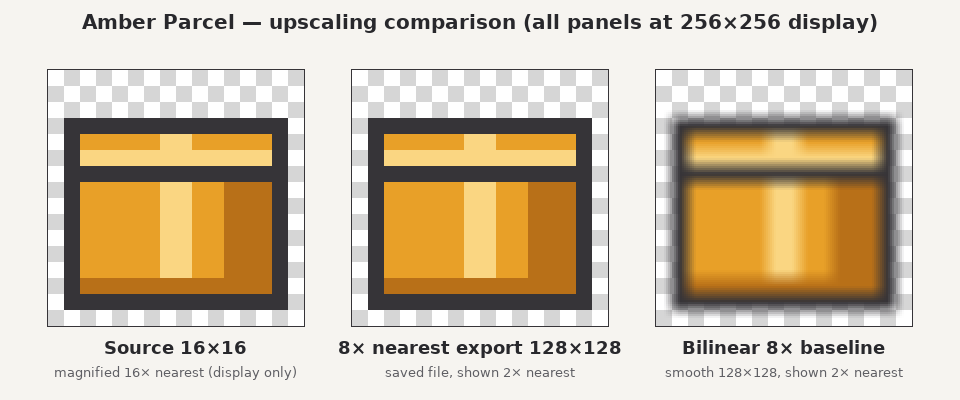
The comparison board displays the original and nearest-neighbor export at the same apparent size beside a deliberately bilinear version. The nearest pair has the same square transitions. The smooth baseline blends edges and creates intermediate colours; it is labelled as a comparison, not an accepted export.
Ciyo’s board is a 960×400 raster containing three labelled panels. The native files remain separate. If your canvas or browser smooths a preview, inspect the downloaded file in an appropriate viewer before concluding that the export itself changed.
The FrameSprite team’s October 4 post promotes its own resizer and distinguishes repeated pixels from added detail or engine filtering. Our Ciyo file comparison is an independent adaptation of that distinction. The poster does not claim to use or endorse Ciyo; its promotional video could not be played during our source check.
Check the destination’s display settings separately
The file can be correct while a website or game smooths it again. For a website, MDN documents image-rendering controls for scaled images. Test the actual displayed size and browser; a correct PNG does not automatically choose the site’s CSS or a game engine’s texture filter.
Prefer an integer display scale when crisp, equally sized pixel blocks are the goal. This demonstration verifies exported pixels. It does not establish compatibility with your engine, animation timing or every browser’s scaling behaviour.
Keep the master and deliver the required size
Name the output with its scale and dimensions so a teammate can distinguish the master from the delivery file. Keep the source, accepted export and scaling instruction together. Future changes should start with the native master, rather than a screenshot or a previously smoothed preview.
Use the samples below to repeat the pixel check. For an icon that is already blurry at its native size, return to the drawing and repair the grid first. Nearest-neighbor enlargement preserves existing information; it cannot recover details that the source never contained.



Practical questions
Does nearest-neighbor scaling add detail?
It repeats existing pixels. Use it to retain an approved grid, not to invent additional drawing detail.
Why can the canvas preview look soft?
The viewer may scale the image with smoothing. Inspect the downloaded file and check the destination’s display settings separately.
Can I choose any output dimensions?
Whole-number multiples give every source pixel an equal block. An arbitrary size requires uneven blocks or another resampling step.
Enlarge one approved icon
Open the original PNG in Ciyo, request a separate integer-scale export and check its pixels before replacing your delivery file.