Creative workflows
Restock Announcement Graphic: Show the Exact Variant That Is Back

A restock post can disappoint buyers when the photograph shows every color but only one variant is available. The useful graphic answers what is back, when it is available and where the reader can get it.
The example below is fictional and describes a manual design process. It is a preparation and review exercise, not a measured customer result or a completed production order.
Quick answer
Confirm the specific variant, use its actual photograph, write one approved availability statement, then test the ordering destination. Keep stock updates manual unless a separate verified system supplies them.
1. Confirm the exact stock statement
For the fictional Alder Pottery shop, the moss-green cup is back while the sand-colored cup remains unavailable. Record the SKU, approved color name, availability time and product URL. A warehouse delivery is not necessarily stock ready for sale.
Ask the owner whether online and in-store availability differ. Do not use back everywhere when only one channel has the item. If quantity is unknown, leave it out rather than adding a scarcity line for visual drama.
2. Make the variant the visual subject
Use the moss-green cup’s source photo and keep the unavailable color out of the main picture. In Ciyo, import that photograph, prepare a simple background and place the approved headline with editable text.
Keep color names beside the photo when shades look similar. A warm background or color cast can make a green glaze look brown; compare the draft to the source before approving it. Match the crop to the actual channel preview rather than a remembered universal safe area.
3. Verify the action and retirement plan
Open the exact product destination and check that the featured variant can be selected. Inspect the exported graphic at phone size for the variant name, availability statement and next action. Keep an owner responsible for withdrawing or updating the post if stock changes.
If stock sells out, prepare a clearly different sold-out update. Do not leave the restock image as a current promise simply because it is still visually attractive. Ciyo’s visual canvas is not described here as an inventory sync service.
Copy and adapt this request
Replace the bracketed fields with your own approved information. The requested output is a draft for review; the example has not been run as a model benchmark.
Prepare a restock graphic for [SHOP] using [ACTUAL VARIANT PHOTO]. Exact approved copy: [PRODUCT], [VARIANT], [AVAILABILITY], [ACTION]. Preserve the item’s color and shape. Leave unverified quantity, discounts and delivery promises out. Plan one clear headline and a readable variant label; keep the editable text separate from the image.Restock fact check
These example checks describe acceptance criteria, not observed model results.
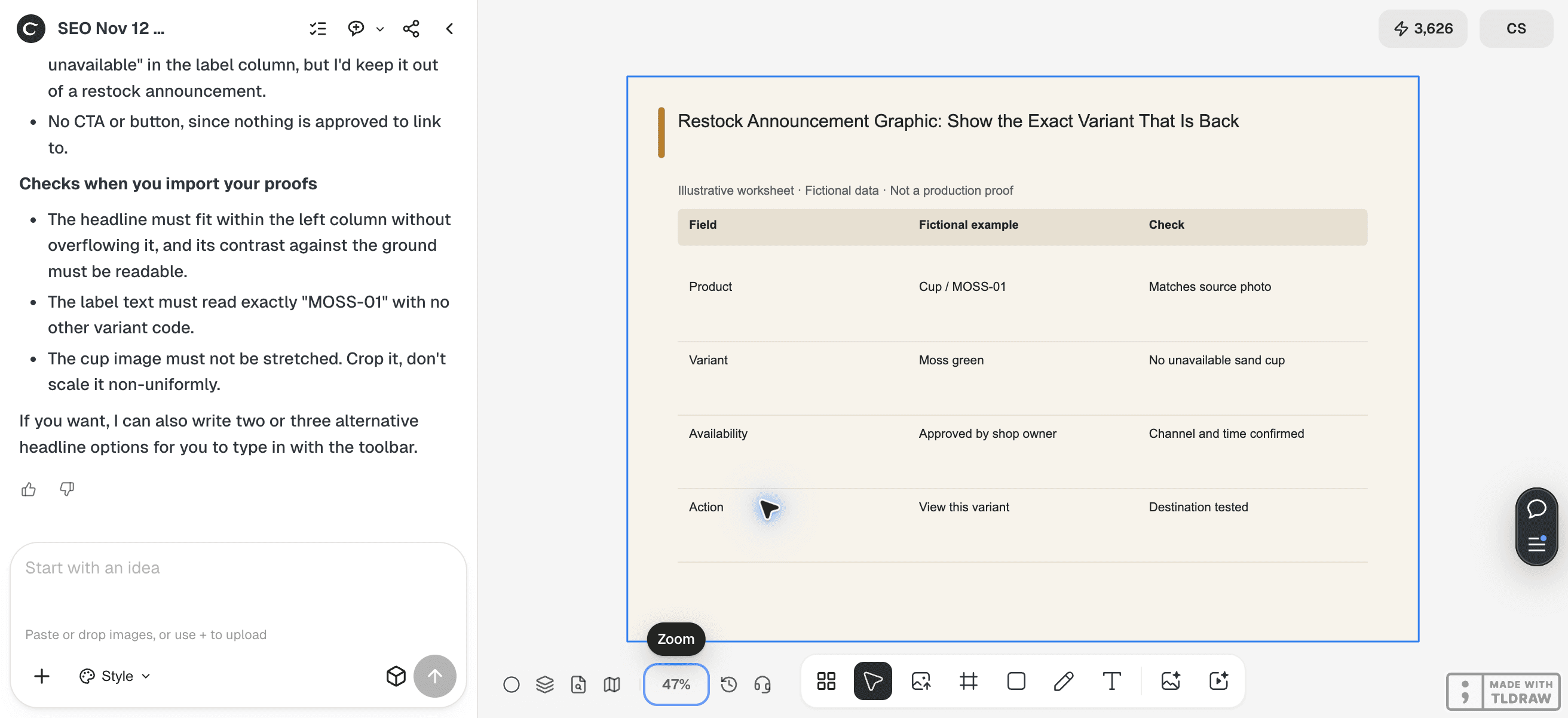
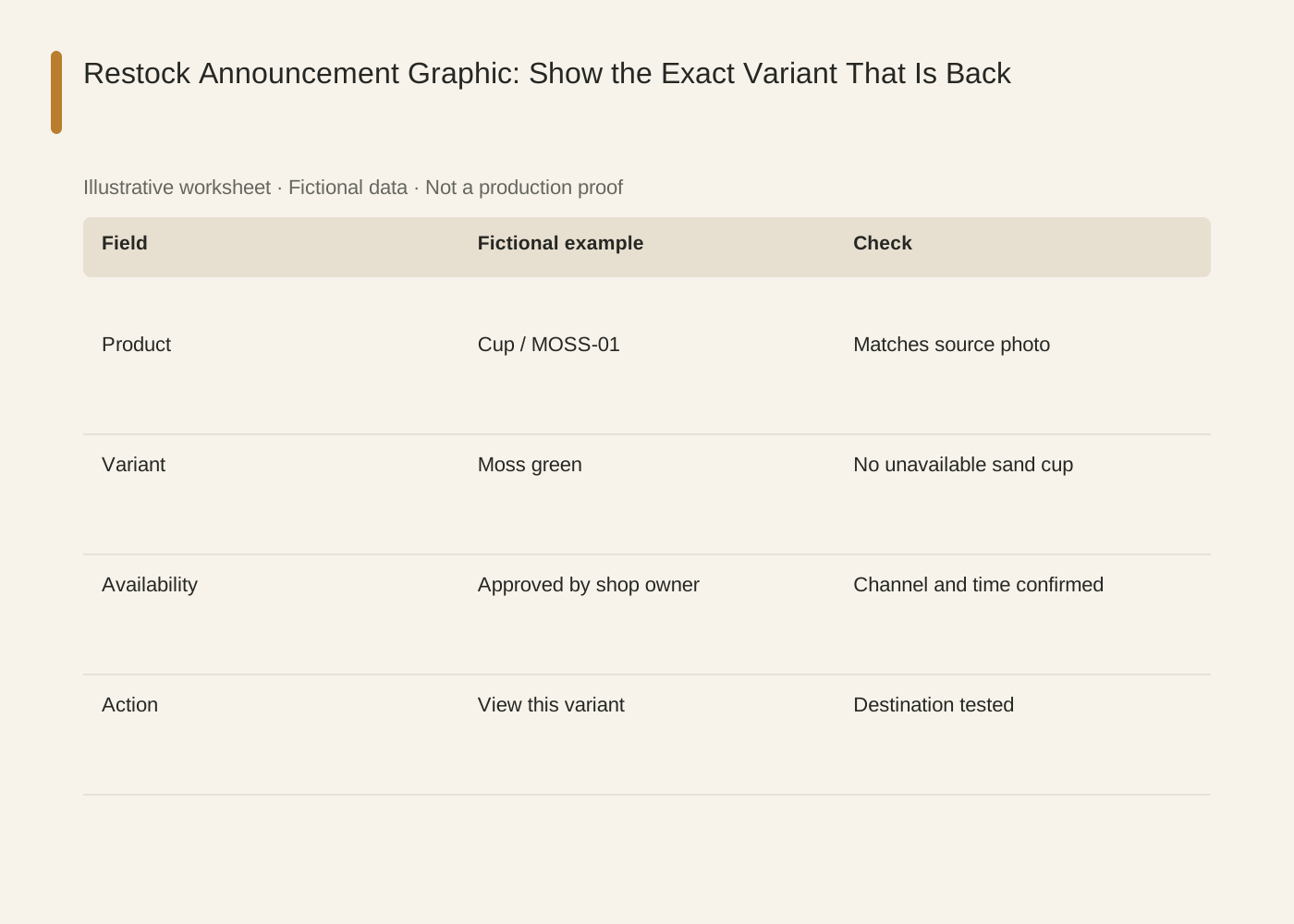
The linked SVG is an illustrative worksheet containing the same fictional review fields. It is separate from native editable canvas text and from a finished production design.
| Field | Fictional example | Check |
|---|---|---|
| Product | Cup / MOSS-01 | Matches source photo |
| Variant | Moss green | No unavailable sand cup |
| Availability | Approved by shop owner | Channel and time confirmed |
| Action | View this variant | Destination tested |
Common mistakes and how to recover
A group photograph can imply that every shown variant is back. Crop to the available item or label the other items clearly.
If the product link opens a different default color, change the destination or make the selection instruction explicit.
Choose a working method and make the handoff
For a solo shop, start with one item and keep the source facts beside the draft. A team should name one approver and keep a dated version so an old comment cannot silently override the current decision. If the input is incomplete, return to the owner of that fact before polishing the artwork.
Use Ciyo for the visual work described here with the controls and models currently offered in your account. Keep the approved copy separately and add exact wording with editable canvas text where needed. A generated picture is a visual draft; inspect its exported file before using it.
Sources and further reading
Primary documentation and related guides used for this article. Availability and controls can vary by account; verify them before beginning your own run.
Frequently asked questions
Should I show the remaining quantity?
Only if the owner confirms it and can keep the statement current. A visual draft is not live stock data.
Can I use an AI-generated product photo?
Use a real source when identity and color matter. Any generated edit needs comparison with the actual item.
What changes for a multi-store business?
Name the participating stores or direct readers to current availability. Do not imply the same stock in every location.
Prepare one visual draft in Ciyo
Bring the approved inputs and review one version against the checks in this guide before making more variants.