Creative workflows
Shipping Delay Announcement Graphic: State What Changed and the Next Update

A delay announcement is unhelpful when it says sorry for the inconvenience but never identifies which orders are affected. A useful graphic gives a confirmed scope, the current status and a reliable next update.
The example below is fictional and describes a manual design process. It is a preparation and review exercise, not a measured customer result or a completed production order.
Quick answer
Confirm the affected order group, approved status and next-update time, then design a clear notice. Keep individual order details out of public artwork and use the business’s authorized channel for customer-specific information.
1. Establish what the business can confirm
For a fictional print shop, orders from a named preorder batch are delayed at packing. The owner has not confirmed a new dispatch date but can commit to a status update on a specified day. Do not convert that update date into a shipping promise.
Keep the reason as specific as the owner approves. A generic logistics issue may be less informative, but a designer should not speculate about a carrier or supplier. Use an internal fact table to resolve uncertainty before choosing the wording.
2. Make the changed information easy to scan
Use a status heading, affected batch, current estimate if approved, next-update time and support route. In Ciyo, keep this copy editable and prioritize the scope above decorative apology imagery. A simple layout helps readers distinguish the two dates.
Create separate public and individual-message versions if necessary. The public graphic should not contain customer names, order numbers or private contact details. The wording must match the approved customer communication rather than inventing compensation or cancellation terms.
3. Maintain one current notice
Open the exported notice at phone size and check whether a reader can identify the affected batch without reading a caption. Verify any linked status page or support destination. Ask the owner to approve the notice and its distribution.
Record where each version is used so the team can replace it when facts change. The workflow prepares a draft graphic; it does not authorize sending it to customers or posting it publicly. Keep previous promises and updates in the internal record.
Copy and adapt this request
Replace the bracketed fields with your own approved information. The requested output is a draft for review; the example has not been run as a model benchmark.
Prepare a delay-notice layout using [CONFIRMED SCOPE], [APPROVED STATUS], [ESTIMATE IF APPROVED], [NEXT UPDATE] and [SUPPORT ROUTE]. Distinguish an update date from dispatch or arrival. Do not invent reasons, compensation or customer rights. Keep personal order data out of the public version. Return copy hierarchy and a consistency checklist.Illustrative delay notice fields
These example checks describe acceptance criteria, not observed model results.
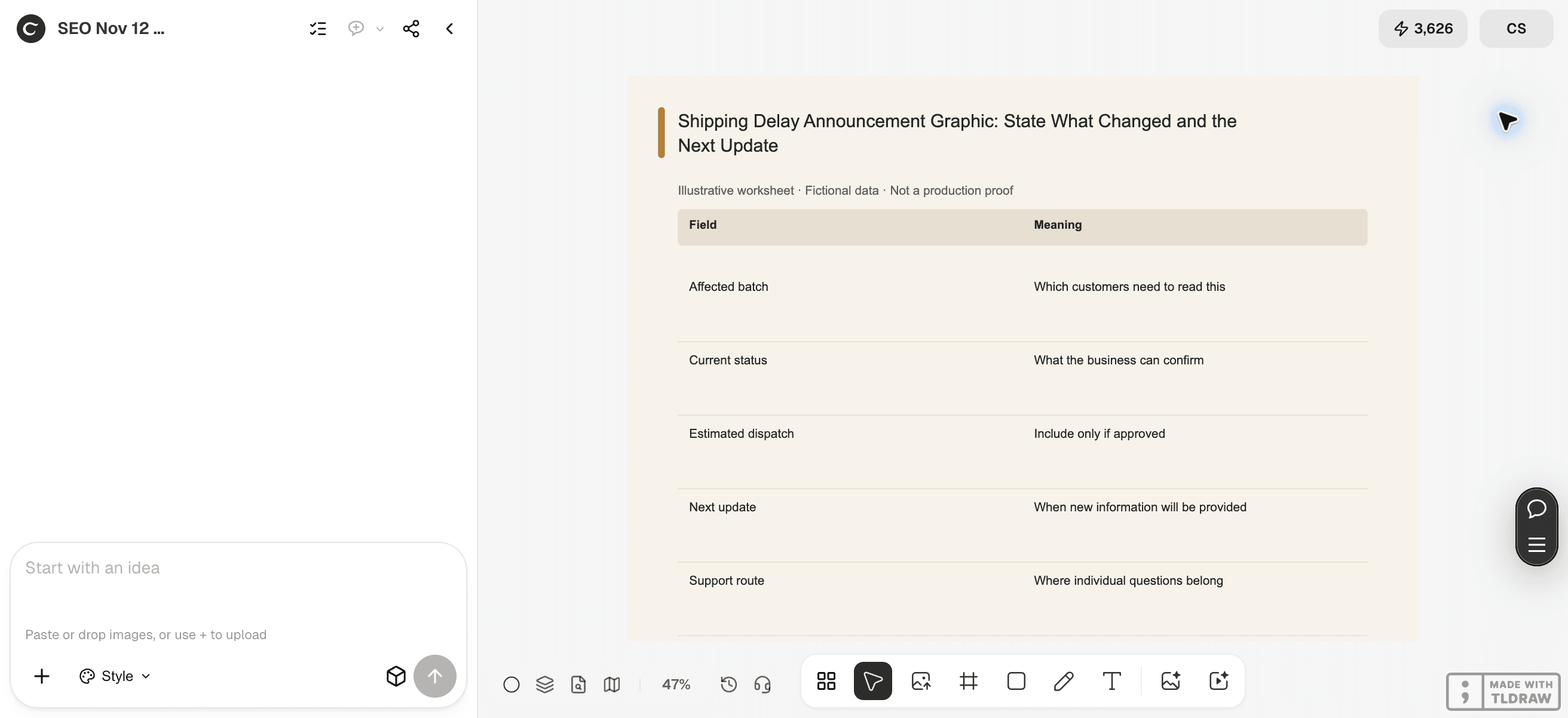
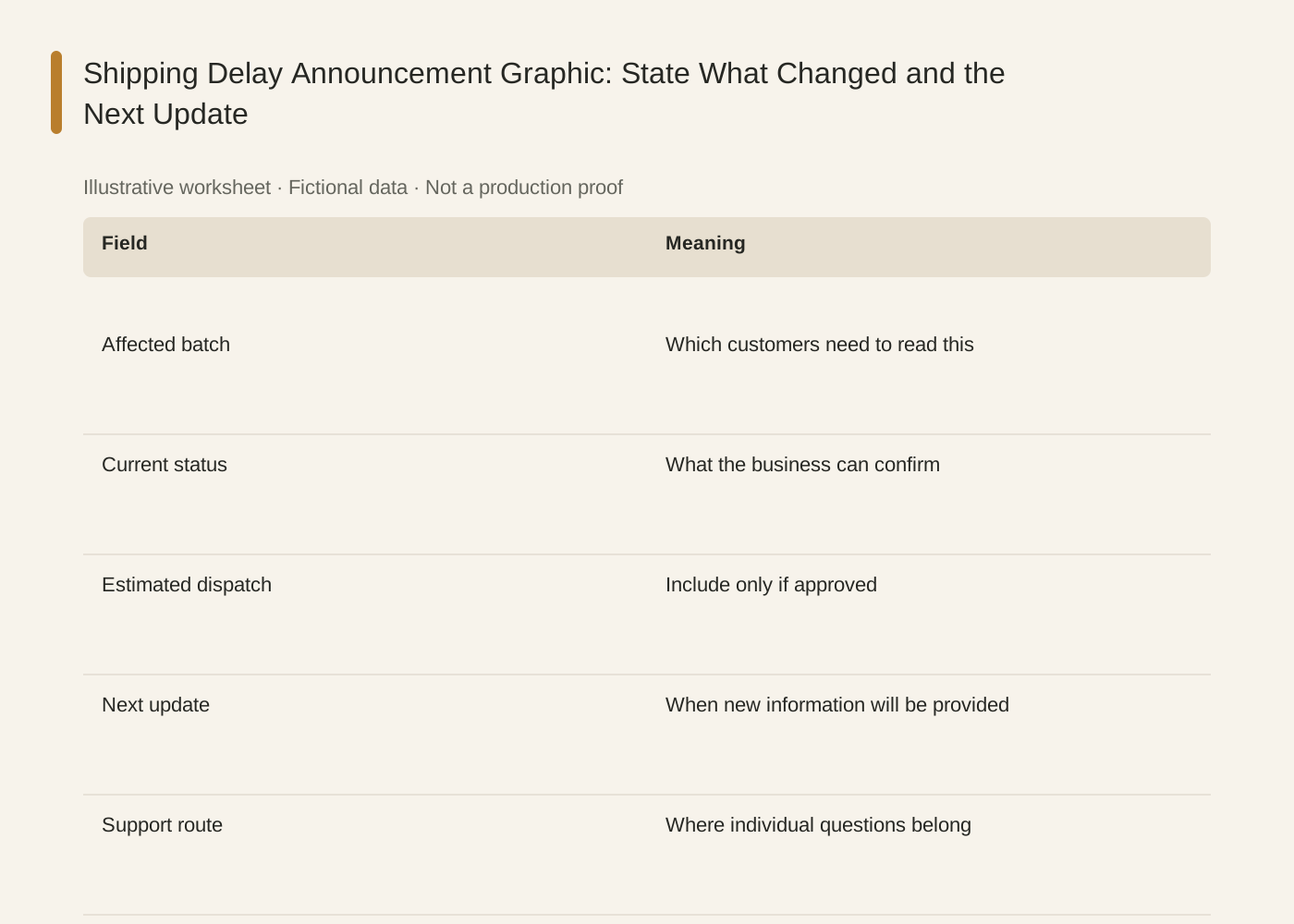
The linked SVG is an illustrative worksheet containing the same fictional review fields. It is separate from native editable canvas text and from a finished production design.
| Field | Meaning |
|---|---|
| Affected batch | Which customers need to read this |
| Current status | What the business can confirm |
| Estimated dispatch | Include only if approved |
| Next update | When new information will be provided |
| Support route | Where individual questions belong |
Common mistakes and how to recover
Do not promise a new shipping date simply to fill an empty line. State the next confirmed update instead.
If an old notice remains on another channel, update the distribution record and replace it through the owner’s process.
Choose a working method and make the handoff
For a solo shop, start with one item and keep the source facts beside the draft. A team should name one approver and keep a dated version so an old comment cannot silently override the current decision. If the input is incomplete, return to the owner of that fact before polishing the artwork.
Use Ciyo for the visual work described here with the controls and models currently offered in your account. Keep the approved copy separately and add exact wording with editable canvas text where needed. A generated picture is a visual draft; inspect its exported file before using it.
Sources and further reading
Primary documentation and related guides used for this article. Availability and controls can vary by account; verify them before beginning your own run.
Frequently asked questions
Should I include every order number?
Keep personal order details out of public artwork. Use the authorized individual communication channel for those details.
What if the new dispatch date is unknown?
Say what is confirmed and identify the next approved update. Do not manufacture a date.
Does this send the notice?
No. It prepares a design for review; distribution requires a separate authorized action.
Prepare one visual draft in Ciyo
Bring the approved inputs and review one version against the checks in this guide before making more variants.