Motion design
Upload your own looping GIF to a Discord chat
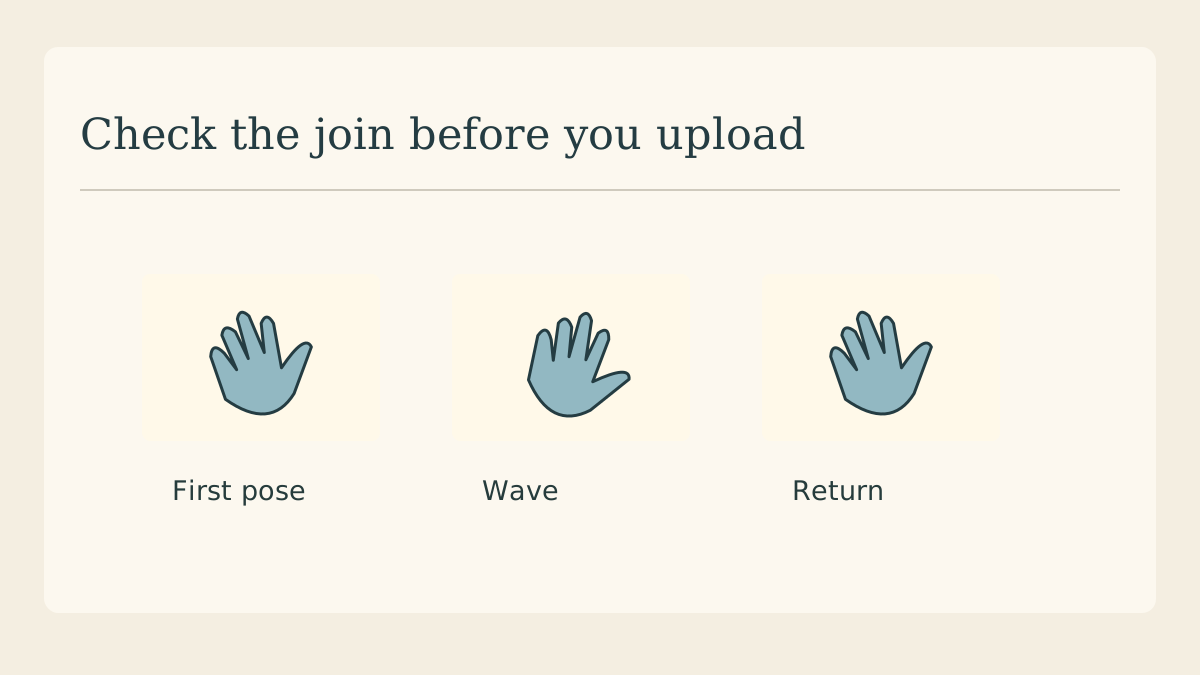
Say you animated a three-frame wave for your art club. You want friends to see that exact animation in a message. Start with the saved animated file and test it in a chat where you can attach files before sharing it widely.
Open the saved animation
Play the file in a browser. Watch for two complete waves and check the join between the last and first frame. If it opens as a still, inspect the export settings and source frames before changing anything in Discord.
Trim the expensive part
A wide empty border can make a tiny hand occupy a very large canvas. Crop the working copy around the motion and remove duplicate hold frames where the editor can express a delay instead. Keep the original frames for a larger version later.
Attach the local file
In a chat where attachments are enabled, add the saved GIF through the attachment control or drag the file into the message field on desktop. Discord’s GIF search is helpful for finding an existing reaction. A local attachment carries your own drawing.
Check the sent message
Send to a test conversation and open the attachment. If your viewer has animation playback reduced, test by opening the file directly. Compare its first visible pose with your original before assuming that the upload dropped frames.
Work through an upload rejection
Read the error shown for the current account and channel. If the file exceeds the displayed allowance, shorten the loop or reduce its pixel dimensions and try the smaller copy. If attachments are disabled, ask the channel owner where artwork belongs.
Keep an accessible description
Add a short message such as “A blue glove waves twice” so the joke survives when motion is paused. For a tutorial GIF, include the actual step in text. The saved drawing and a one-line description work independently.
Continue with a recorded example
Use a short screen recording as the source for your next instructional animation.