Video stills
Choose a sharp frame to extract as a video thumbnail
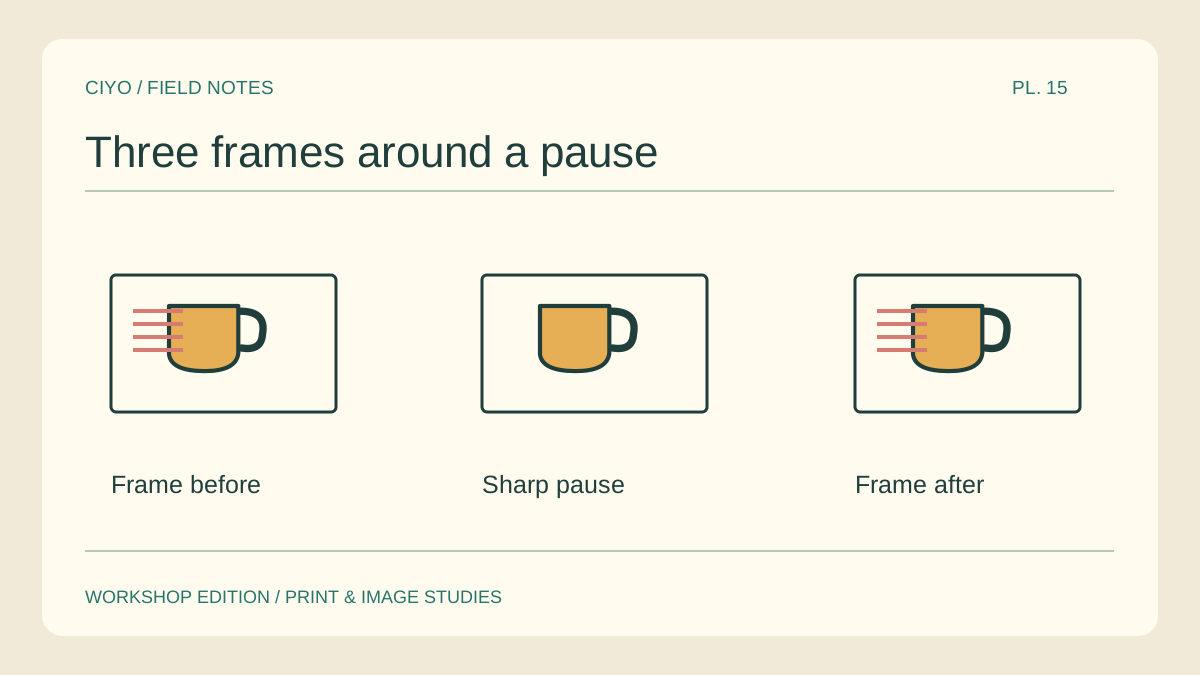
A frame that feels sharp in motion can show a smeared product label when paused. Extract several nearby frames from your own source video before designing the thumbnail. The goal is a still that works at a glance on its own.
Find the informative moment
Look for a moment when the subject faces the camera and the viewer can recognise the action. For a mug demonstration, the instant after the hand settles may work better than the middle of the lift.
Check three neighbours
Step one frame backward and forward from your chosen moment. Compare the handle, printed letters and outline of the hand. Save the best timecode with the source clip so a second editor can find it again.
Use the source resolution
Use the editor’s frame-export function or export a still from the original timeline at its intended resolution. A screenshot of a player can include controls and reduce the useful image area before cropping begins.
Inspect a contrast edge
Zoom into a high-contrast letter or the junction between the handle and cup. A double edge often means movement during the exposure. A sharpening filter cannot recover the original edges if they overlap severely.
Make the small preview
Crop for the intended thumbnail and reduce a copy to display size. If the main subject occupies only a few pixels, select a closer frame or a different shot. Keep any text on a separate layer while testing it.
Save the frame reference
Store the still with a filename identifying the clip and timecode. Keep a second candidate if the first has limited room for text. An editor can then revise the title without searching the entire video again.
Compare key frames
Place likely frames next to one another and choose the one with the clearest product detail.