Generate product visuals
Describe your subject, lighting, and composition to make a studio image from a brief.
Generate product visuals, refine them with a reference, and make short animated GIFs. Explore Flare and Sunburst on one canvas.
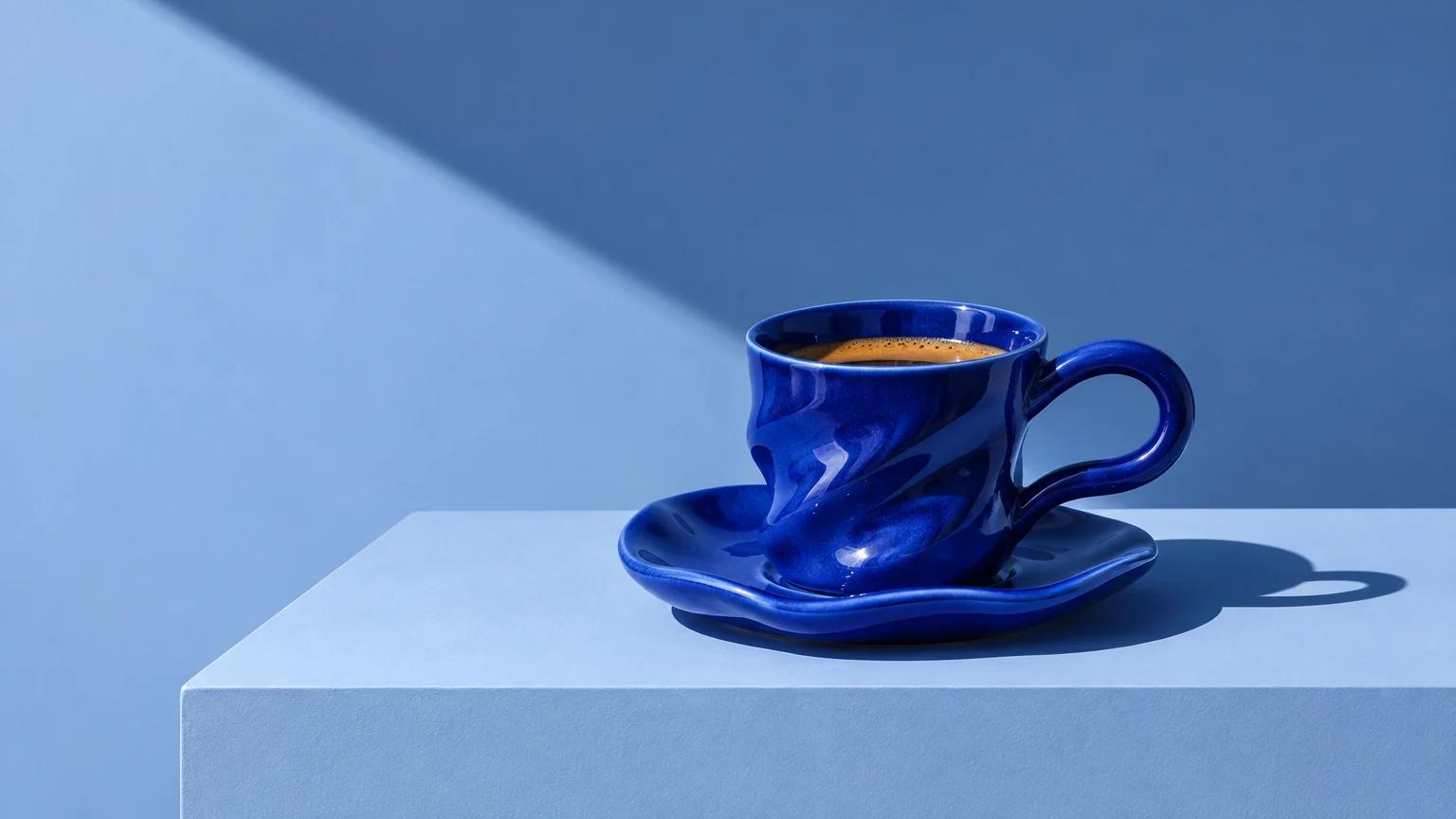
A studio product image made with Sunburst.
Describe your subject, lighting, and composition to make a studio image from a brief.
Attach an image and specify what to change. Name the details you want to preserve.
Describe a small movement to generate a native nine-frame loop from text.
Use Flare to try different compositions, palettes, and campaign ideas.
Choose Sunburst for detailed visual work. Compare your drafts side by side on the canvas.
Specify the hierarchy and exact wording, then check the render before you publish.
Pick Flare or Sunburst, then choose a still image or an animated GIF.
Start from a sample prompt or write your own. For an edit, add your reference in Ciyo.
Review the unsent draft and generation quote. Send when ready, then compare and refine on the canvas.
Opens an unsent draft. Review the model and quote in Ciyo before sending. Existing unfinished drafts are preserved.
Yes. Choose GPT Image 2.6 Flare or Sunburst in the image model menu. The existing default is still GPT Image 2.5 Flare; choosing 2.6 is explicit.
Ciyo keeps the creative brief, model choice, generated media and follow-up requests in one visual workspace. You can compare directions and ask for a specific next change without starting a separate project for every version.
No. This release generates GIFs from text, without image references. Use it for a related motion concept. For animation tied to an exact product source, evaluate a separate image-to-video workflow.
Ciyo uses prepaid credits. The generation quote depends on the model settings and any reference images. You can prepare a draft before deciding whether to send it.
No. The controls prepare a request. Open in Ciyo carries it to an unsent, editable canvas draft. Generation starts only after you send; account access and sufficient credits are required for paid work.

Three campaign briefs and the checks each output needs.
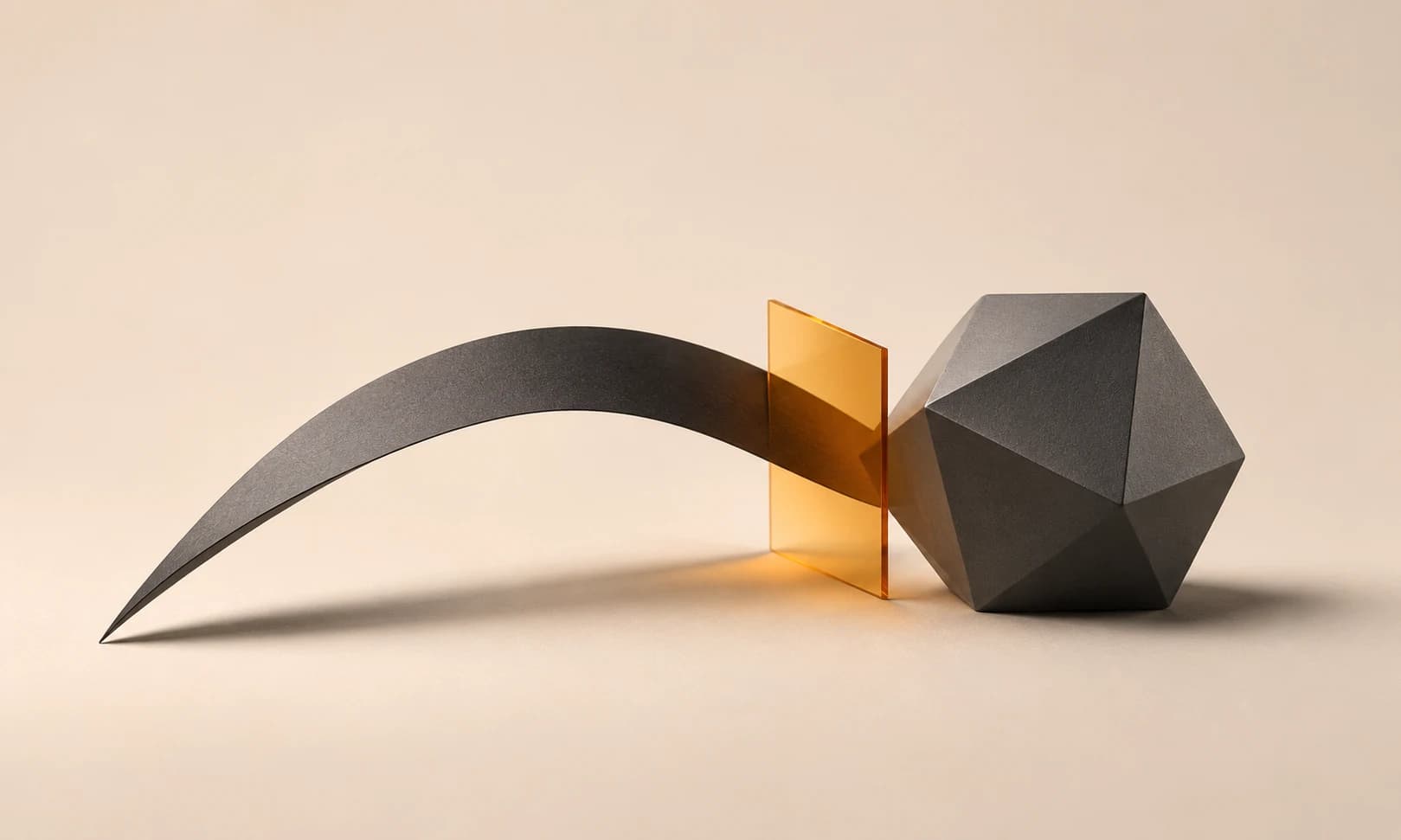
Compare the intended roles and limits of the two models.