Campaign prompt guide
GPT Image 2.6 Prompts: Three Campaign Templates

A useful campaign prompt says what the image must deliver and which details must survive. A long list of attractive adjectives rarely resolves a missing copy area or a changed product handle.
These three templates adapt OpenAI's 2.6 prompting guidance to a fictional café campaign. They are starting points, not verified 2.6 outputs. The separate Ciyo example was made with GPT Image 2.5 before 2.6 was added, and it is not a 2.6 benchmark.
Quick picks: generate, edit or recompose
Use template 1 for a new visual concept, template 2 for one change to an approved reference, and template 3 for another layout. Start with one output, inspect it, then continue. Replace every bracketed field with your own brief.
Keep a compact structure: purpose, subject or reference, composition, visual treatment, required details and exclusions. A model can still miss constraints, so write the acceptance checklist before generating.
| Task | Starting input | Review first |
|---|---|---|
| New campaign image | A written creative brief | Composition and useful copy space |
| Focused edit | The approved original image | Requested change and preserved details |
| Layout variant | An approved reference and new crop | Product identity and safe area |
1. Create a campaign image with room for copy
Best for a café owner exploring a visual direction before adding the offer. Replace [subject], [surface], [light] and [palette]. The illustrative target is one ivory coffee cup on a stone counter with space on the left; it is not a photo of an item for sale.
The empty-area instruction connects the picture to the final layout. Check that the cup does not occupy the headline space, and that no extra cups, invented logos or stray lettering appear. Add exact offer wording later as native canvas text when it must remain editable.
Create a square campaign concept for a fictional café. Subject: [subject]. Setting: [surface]. Lighting: [light]. Palette: [palette]. Keep the subject in the right half and leave the left third uncluttered for a headline added later. No writing, logos, people or duplicate products. Keep a clear silhouette and believable contact shadows. This is an invented teaching example, not a real product listing.2. Change one detail while preserving the product
Best for a marketer revising an already approved image. Attach your original as the main reference. Replace [change] and list specific invariants rather than saying only 'keep everything else'. For the café example, the illustrative target is a warmer background with the same cup outline and handle.
Review both the requested area and nearby edges. If the cup drifts, return to the original and simplify the change. This template is text guidance; it does not enable API markup or a mask in a product that does not expose those controls.
Use the attached original image as the reference. Change only [change]. Preserve the cup's outline, handle opening, rim, material, perspective and position. Keep the existing light direction and product scale. Do not add lettering, props or extra cups. If a requested change conflicts with those constraints, preserve the product rather than inventing a replacement.3. Recompose the approved idea for another placement
Best for a creator adapting a square image to a different crop. Replace [target shape], [product position] and [copy area]; set a supported output size separately. An illustrative target is a tall café story with the cup below the headline area.
This prompt requests a new composition, so expect to inspect identity again. Check the actual export in its destination crop, not only the canvas preview. Avoid claiming a pixel-perfect product match until you compare the reference and output at the same scale.
Adapt the attached fictional café image for [target shape]. Preserve the recognizable ivory cup, handle design, warm stone setting and amber-charcoal visual direction. Place the product at [product position]. Keep [copy area] quiet and uncluttered. Extend the setting naturally without stretching the cup. No text, logos or extra products. Leave sufficient margins for a placement crop.A Ciyo example made with GPT Image 2.5
For this guide we entered a fictional café brief in Ciyo's Image Generator, with GPT Image 2.5 Flare, Auto aspect ratio, 1K and one image. The interface displayed a two-credit generation quote. This demonstration does not test 2.6. Ciyo now also lists 2.6 Flare and Sunburst: to run these templates on 2.6, select it in the same model menu and set Effort in Image settings.
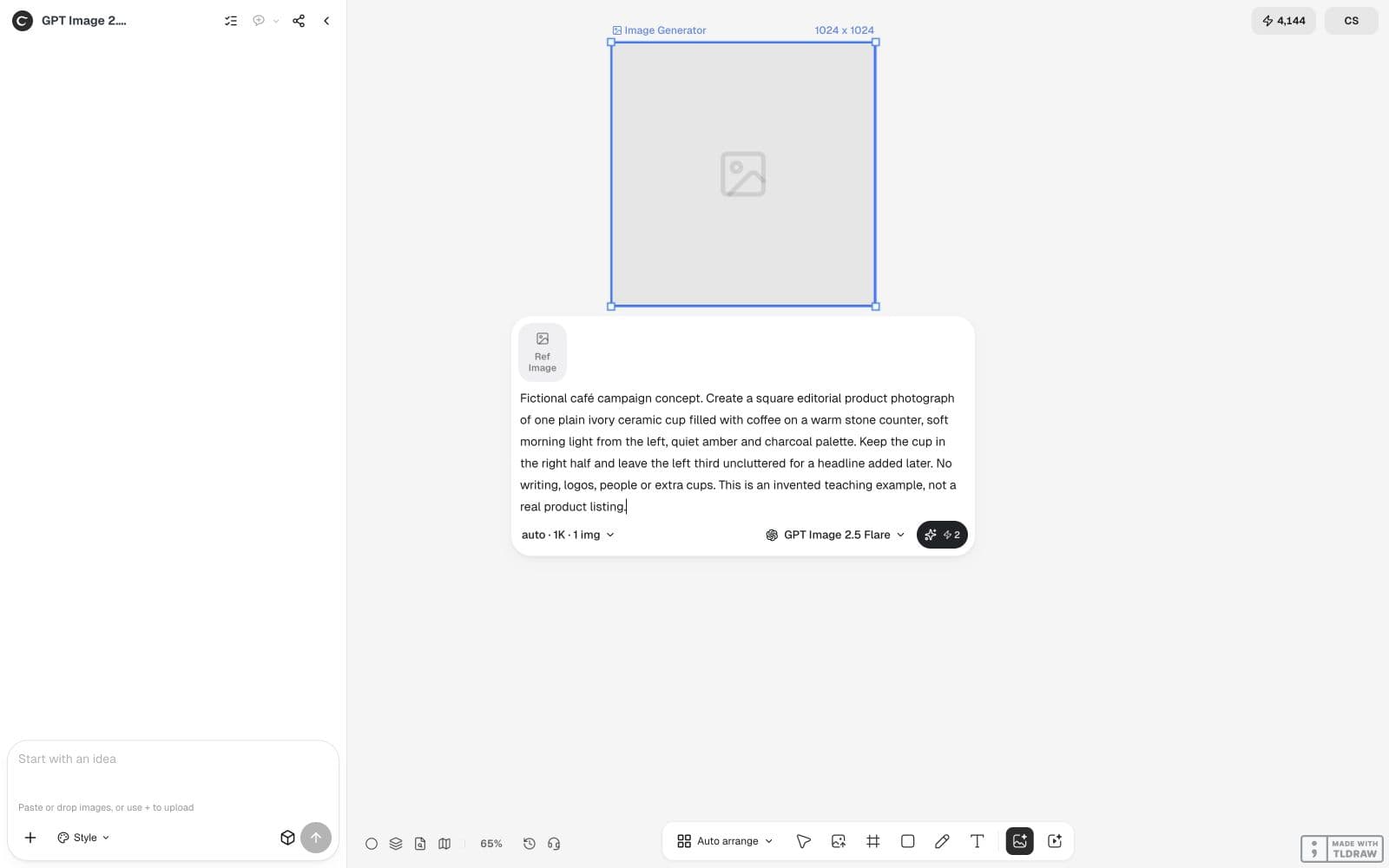
Observed result: check the composition before adding copy
The selected-image metadata showed 1,254 × 1,254, and the visible balance fell from 4,144 to 4,142 credits. We observed one ivory cup on the right, open counter on the left and no visible lettering. This checks one concept's composition; it does not test product preservation or establish 2.6 quality. Inspect the final crop and headline contrast before use.
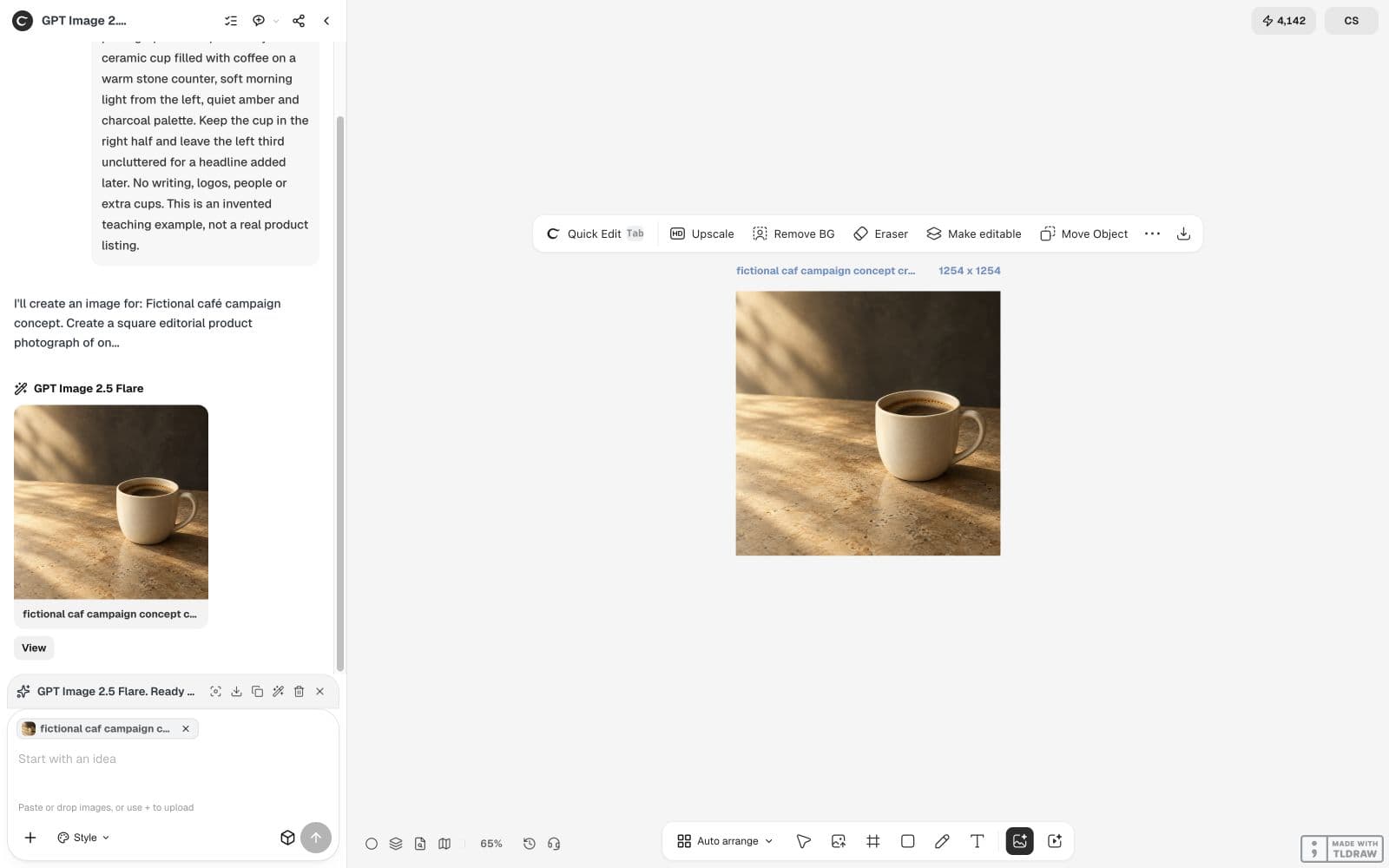
Check the deliverable before making a batch
Inspect the outline, handle opening, shadows, copy area and any accidental text. Review edits against the original, not only against the last version. Keep successful prompts alongside references and the settings that actually produced them.
For a solo café owner, one accepted concept may be enough to decide the direction. For a team, have another person check product identity and offer wording. These checks establish whether an image is usable; they do not predict campaign clicks or revenue.
Create with 2.6
Choose your model and format, describe the result, and take the request into Ciyo.
Prompt questions
Were these templates tested on GPT Image 2.6?
No controlled 2.6 test of these templates is claimed. They are editorial starting points based on OpenAI's prompting guidance, and the Ciyo demonstration is labeled as a 2.5 workflow. Ciyo now lists 2.6, so you can run the templates there yourself.
Should I include API settings in the prompt?
Describe the desired image in the prompt. Set model, size, quality and complexity through supported interface controls or request fields; in Ciyo, complexity is the Effort setting. Plain prompt text does not add unavailable settings.
How do I handle exact campaign text?
Keep copy separate when it needs reliable spelling and direct editing. In Ciyo, native canvas Text can be revised directly; words painted into an image remain pixels.
Turn your campaign idea into a clear brief
Try GPT Image 2.6 Flare or Sunburst in Ciyo's Image Generator, set Effort, or make an Animated GIF from text. Read the generation quote before you start.