Practical design workflows
AI Door Hanger Design: Make Both Sides Work Around the Cutout

A door hanger has a small, awkward reading area: the handle hole removes space near the top, the narrow shape limits line length, and an optional tear-off can separate the offer from its explanation. A layout that works on a flyer can fail on this object.
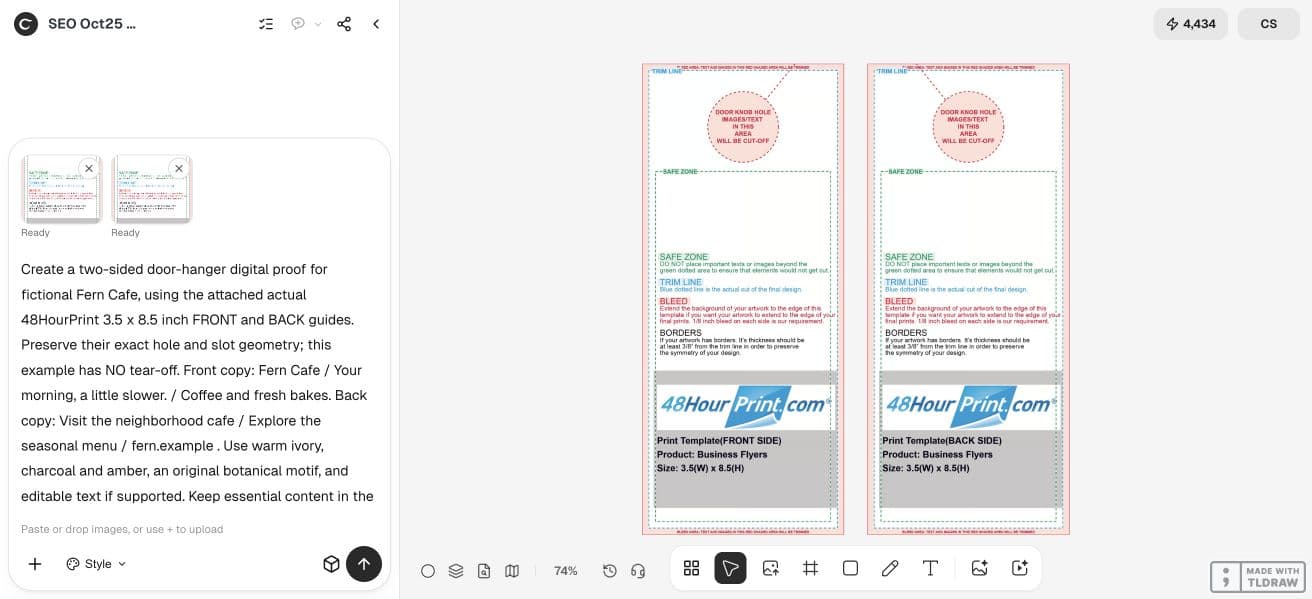
This tutorial uses a fictional Fern Cafe campaign and the actual 48HourPrint 3.5 × 8.5-inch front and back guides. This example has no tear-off. It is a digital layout exercise; printer acceptance and a physical sample are separate steps.
Our live Ciyo attempt did not save the front/back artwork or proofs. The supplier guides and fictional brief are real; the steps below explain preparation and acceptance checks rather than a finished print file.
Quick answer: reserve the physical constraints before placing the message
Choose one printer and one template. Mark the handle opening, safe area and any perforation, then give the two sides different jobs. Put the main service and next action on the front; use the back for scope, conditions and useful details.
If a tear-off is part of the product, make the detached portion understandable on its own. It should retain the business name and a usable contact or redemption instruction.
| Area | Content | Review question |
|---|---|---|
| Front | Fern Cafe / Your morning, a little slower. / Coffee and fresh bakes. | Does the headline sit clearly below the opening? |
| Back | Visit the neighborhood cafe / Explore the seasonal menu | Does the reverse have its own clear reading order? |
| Illustrative address | fern.example | Is it clearly a fictional example rather than a working customer destination? |
| Physical constraint | No tear-off in this template | Do both sides follow their own supplied hole and slot geometry? |
1. Choose the printer’s current template
48HourPrint’s guidance describes different sizes, a handle opening and an optional perforated section. Those are product choices, not universal specifications for every printer. Download the template matching the exact combination you plan to order.
Keep the template’s original scale and read its guide labels before adding content. The cutout is an area where no readable message can survive. The safe area is where the important text should remain after normal cutting tolerances.
Do not invent the hole position from a reference picture. If a supplier provides only a preview and no downloadable geometry, request its current preparation instructions before treating your file as ready for production.
We used the supplier’s Photoshop template download for the regular 3.5 × 8.5-inch hanger. Each supplied JPG is 1125 × 2625 pixels, with labeled bleed, trim and safe-area guides. The front and back have different slot orientations, so the two source files remain separate throughout review.
2. Write the front and back before designing either
For fictional Fern Cafe, the front establishes the name and a short morning message. The back invites a menu review. We supplied every line, including the reserved example address fern.example, and omitted prices, hours, discounts and QR codes.
Use a short headline with enough room for its longest line. Put supporting information in a clear reading order rather than filling every remaining space. A small amount of purposeful empty space can make the whole piece easier to read.
If the hanger includes a coupon, write its value, eligibility and expiry explicitly before arranging it. Do not rely on a large percentage to explain conditions that become unreadably small elsewhere.
3. Build the artwork and text in Ciyo
Create an isolated project, import the chosen template and provide the approved copy. Ask for separate front and back layouts, with the guide geometry retained only in review copies. Keep the final production artwork clean.
Use original imagery that supports the business. A simple botanical motif is enough for Fern Cafe; a detailed scene would compete with the narrow text column. Ask for editable copy where later changes are likely, then inspect what the delivered file actually contains.
Create a two-sided door-hanger digital proof for fictional Fern Cafe, using the attached actual 48HourPrint 3.5 x 8.5 inch FRONT and BACK guides. Preserve their exact hole and slot geometry; this example has NO tear-off. Front copy: Fern Cafe / Your morning, a little slower. / Coffee and fresh bakes. Back copy: Visit the neighborhood cafe / Explore the seasonal menu / fern.example . Use warm ivory, charcoal and amber, an original botanical motif, and editable text if supported. Keep essential content in the marked green safe region below the hole, extend backgrounds to the bleed edge. Produce separate front/back PNGs at the source size 1125 x 2625 pixels and an annotated proof board showing each against its own exact guide. Do not print supplier instructional text in clean artwork. No prices, opening hours, discount, QR code or real address. Label as illustrative digital proof requiring printer preflight, not certified press-ready. Save downloadable files and canvas assets, review small type and cutout clearance. Execute this concrete brief now.4. Inspect each side against its own opening
Turn on the template overlay and trace the reading path from the top down. A headline should not bend around the hole so tightly that the reader has to assemble it from disconnected fragments. Move the message below the opening if that gives it a cleaner shape.
Check each side independently. Do not assume the back uses the same apparent left and right as the front once the physical object is turned over. Follow the printer’s orientation instructions for the supplied file.
This demonstration has no perforation. If you choose a different product with a tear-off, add a separate check of the detached portion and ensure it retains enough information to be useful.
5. Review type at the intended physical size
Print a local scale proof or inspect the layout at its intended dimensions in a suitable design program. Reading a zoomed-in canvas is not the same as reading a narrow hanger. Check contact details, conditions and any line near a guide.
If a line is too small, shorten the approved copy or move secondary information to the back. Increasing every text size without revisiting the layout can push important content into the cutout or trim area.
A QR code, if used, needs its own real destination and scan test. A decorative square that resembles a code is not a working shortcut. This example does not require a QR code or invent a destination.
6. Export, remove guides and request a production proof
Follow the supplier’s file-format, color and size instructions. Inspect the saved front and back files after export, checking for missing fonts, unintended transparency, visible guide lines and swapped sides. A file extension alone does not prove production readiness.
When additional preflight or PDF assembly is required, perform it in an appropriate layout tool and record the handoff. Do not describe a raster preview as a verified press-ready PDF.
A solo business can keep one approved source and its printer proof. An agency handling several offers should name versions by business, offer and template so an old expiry or contact line cannot be mistaken for the current job.
Frequently asked questions
Can I use a flyer layout for a door hanger?
You can reuse its visual direction, but rebuild the hierarchy for the narrow shape, hole and optional tear-off. Do not simply squeeze the flyer to fit.
Are all door-hanger cutouts the same?
No. Use the actual product template and supplier instructions rather than assuming a universal size or position.
Should both sides repeat the same information?
Repeat what is necessary for independent understanding, especially contact details on a detached portion. Give the front and back different reading jobs.
Does Ciyo approve my file for a printer?
This workflow creates and reviews artwork. The chosen supplier’s specifications, preflight and proof determine production acceptance.
Start with a two-sided brief
Bring the printer template and approved copy into Ciyo, then review each side’s hole, slot and text clearance before exporting.