Practical design workflows
AI Screenshot Editor: Frame a Real App Screen for Marketing

A launch graphic should make a product easier to understand. If an image edit rewrites a button, invents a chart or changes a number, the graphic can become a picture of a different product. A polished frame does not make that change harmless.
This guide treats the captured interface as source material and the background, frame and callouts as separate design work. The Ciyo workflow is intended for a founder or marketer making one static product graphic, with a saved-file comparison before delivery.
Our live Ciyo attempt did not save the framed graphic. The supplied interface capture is real; the composition and pixel-comparison steps below describe what to request and verify, not a completed export.
Quick answer: protect the screen and design around it
Capture the real interface, remove private information before upload, and keep the screenshot as a separate image layer. Add the frame, background and truthful callouts around that layer. Compare the exported screen region with the original and check the whole composition at its actual display size.
A prompt saying “keep everything unchanged” is not a pixel-preservation guarantee. When the interface must remain exact, use a composition method that retains the original image instead of regenerating it.
| Element | Source of truth | Permitted design change |
|---|---|---|
| Interface | Actual captured product state | Deliberate crop or uniform scaling |
| Callout | Feature visible in the screen | Wording and placement after fact review |
| Background | Original decorative artwork | Color, texture and composition |
| Numbers and claims | Verified product data | No invented replacement values |
1. Capture the state that explains the feature
Choose one product action or result. A full dashboard with unrelated panels can make the graphic harder to read than a focused, truthful view. Capture the interface at a useful resolution and make sure the relevant controls have finished loading.
Use a clean demo project with fictional data where possible. Remove customer names, private messages, tokens and other information that should not appear in a marketing asset before you upload the source. Retake the screenshot when a clean state is easier than redacting a crowded one.
Keep a copy of the original capture. Record which product version or date it represents if the interface changes frequently. That gives the next editor a way to distinguish a stale screenshot from a design mistake.
For the live example, we captured the full Ciyo viewport at 1312 × 655 pixels in a fictional Fern Shop icon project on October 25, 2026. We requested a native-size paste with no crop, scaling or perspective transformation. The icon board visible inside the screenshot is an in-progress review, not evidence of an approved icon export.
2. Choose a readable composition before adding decoration
Decide where the graphic will appear: a landing-page section, social post or announcement email. The destination determines how large the interface text can be. A whole desktop screen shrunk into a small square may be technically sharp but practically unreadable.
If the important detail becomes too small, use an intentional crop and explain what it shows. Do not enlarge one part while presenting it as an untouched full-screen capture. Keep enough surrounding context for the reader to understand the action.
Use a calm background and a modest frame. A dramatic perspective tilt can look impressive but distort the text and obscure the product. For a factual feature explanation, a straight screen is often easier to inspect.
3. Ask Ciyo to preserve the source image
Upload the screenshot into an isolated project. Tell the Design agent to keep it as an unchanged raster layer and create the surrounding composition separately. Supply the exact headline or callout text so it does not have to infer product claims.
If the returned method sends the whole screenshot through generative image editing, inspect it especially carefully. Reject altered interface content and switch to a layout method that retains the original pixels. A decorative background can be generated independently without recreating the application.
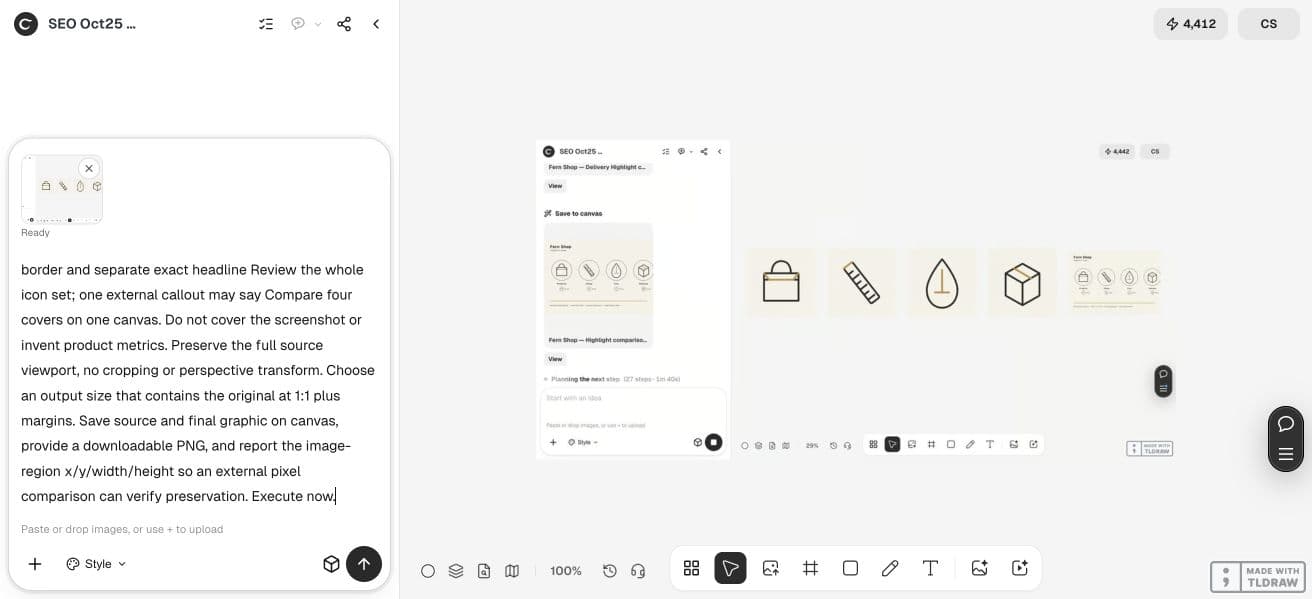
Create a marketing graphic around this ACTUAL Ciyo screenshot of a fictional Fern Shop icon project. The interface pixels must remain identical to the uploaded screenshot: use deterministic composition with the screenshot pasted unscaled at integer coordinates, never image generation or UI repainting. Add an ivory border and separate exact headline Review the whole icon set; one external callout may say Compare four covers on one canvas. Do not cover the screenshot or invent product metrics. Preserve the full source viewport, no cropping or perspective transform. Choose an output size that contains the original at 1:1 plus margins. Save source and final graphic on canvas, provide a downloadable PNG, and report the image-region x/y/width/height so an external pixel comparison can verify preservation. Execute now.4. Make each callout point to something visible
A callout should explain a concrete part of the screen. “Review four assets together” can point toward a visible board; “Save ten hours every week” requires evidence beyond a screenshot. Keep the language close to what the image actually demonstrates.
Use a small number of callouts and give them clear attachment points. If several lines cross, simplify the composition or make a separate graphic for the second feature. More annotations do not necessarily create a clearer explanation.
Keep annotations outside important controls and text. A highlight box can help direct attention, but it should not hide the very detail the reader needs to verify.
5. Compare the saved interface with the original
Open the exported file and inspect its screen region. Compare button labels, icons, numbers, table rows and small status messages. If you scaled the screenshot, account for that scale when comparing rather than mistaking normal resampling for a changed feature.
Look for unexpected softening, duplicated text, invented borders or altered spacing. A visual comparison catches many problems; a deterministic composition can also be checked against the source region when exact preservation matters.
The result should be judged at two sizes: enlarged enough to inspect the interface and small enough to represent the destination. Passing one does not guarantee the other. If the tiny version fails, simplify the scope or choose a larger placement.
6. Keep the graphic maintainable
Save the original screenshot, exact copy and composition source together. A founder can then replace the screen after a UI update without reconstructing the background. An agency can hand the same package to a client without leaving them only a flattened image.
Before publishing, verify that the feature still exists in the state shown and that the surrounding words remain accurate. A graphic can become misleading after a product change even when its pixels were preserved perfectly.
Use the Design agent to plan and revise the presentation, while treating the real application capture as evidence. That division makes visual experimentation easier without losing the product’s actual behavior.
Frequently asked questions
Can AI improve the text inside my screenshot?
It may produce a cleaner-looking approximation, but that can change labels or facts. For a real product screenshot, preserve the source and improve the surrounding layout or recapture at a better resolution.
Is a fictional interface acceptable in an article?
Only when clearly labeled as an illustrative mockup. It cannot prove a shipped product has the controls or results pictured.
Should I use a browser frame?
Use one only if it helps the reader recognize the context. A frame is presentation; it does not validate the underlying screenshot.
What if the full screen is unreadable on mobile?
Use a focused, clearly identified crop or a larger placement. Do not solve the problem by generating replacement interface text.
Frame a real product moment
Bring a clean screenshot into Ciyo and create the background and callouts around it, then compare the exported interface with the source.