Ciyo practical guide
Amazon A+ Content Design: A Product-Photo Workflow for Modular Images

A set of attractive product images can still make a disjointed A+ page. One module repeats the hero shot, another uses a different product color, and the important detail becomes unreadable on a phone. Plan the buyer's questions before generating the assets.
This workflow uses Amazon's official A+ guidance, checked October 20, 2026, and a Ciyo asset-preparation process. It covers visual planning and production. Eligibility, module configuration, validation and submission happen in Amazon's tools; a Ciyo export does not establish Amazon approval.
Quick workflow: product facts → module plan → assets → preview
Start with approved photos and specifications. Give each module one job, prepare coordinated assets, keep factual text separately editable, and inspect Amazon's desktop and mobile previews before submitting.
The handoff is deliberate: Ciyo helps create and review visual assets; the seller or campaign owner confirms the selected Amazon module and its current requirements. If a preview reveals a crop or reading problem, return to that asset instead of rebuilding the whole story.
| Stage | Input | Output / next owner |
|---|---|---|
| Define | Approved photos, product facts and audience | A checked brief |
| Plan | Buyer questions and available A+ modules | One purpose per module |
| Create | Module brief and authorized photos | Candidate visual assets in Ciyo |
| Review | Assets, factual copy and source record | Accepted exports |
| Configure | Exports and selected module requirements | Amazon desktop/mobile preview |
| Submit | Approved preview | Amazon validation, handled separately |
1. Confirm the module you can actually use
Amazon distinguishes Basic A+, Brand Story and Premium A+. Its public guide describes Professional selling-plan and Brand Registry requirements for Basic, with additional eligibility for Premium. Confirm the options available to your account before planning a feature that depends on a different tier.
Select the actual module before choosing a crop size. A generic landscape image is not automatically the right size for every module. Read the dimensions and constraints in the current module editor and record them in the creative brief.
Amazon's guide advises separating text from images for mobile readability and checking both desktop and mobile previews. Apply those requirements to the final configuration rather than assuming that a large canvas preview proves the asset will fit.
2. Assign one buyer question to each visual
For a fictional ceramic mug, useful questions might be: what does the piece look like, what visible detail distinguishes it, how large is it, and which variant should I choose? Use only facts supplied by the product owner; do not infer capacity, care instructions or material claims from an image.
Give the opening visual a clear identity job. Use a detail image to answer a different question. Add a comparison only when real variants have meaningful verified differences. Repeating the same product photo against three decorative backgrounds adds visual variety without necessarily adding information.
| Purpose | Visual input | Copy kept separate |
|---|---|---|
| Recognize the product | Approved full-product hero photo | Product name and factual introduction |
| Understand a detail | Authorized handle or finish close-up | Verified explanation of that feature |
| Judge fit | An accurate size reference or dimension asset | Approved dimensions and units |
| Choose a variant | Consistent photos of real variants | A verified comparison table |
3. Prepare a coherent asset set in Ciyo
Bring the approved source photos into one isolated project. Keep a visible original and label each candidate by its intended module purpose. Use a shared palette, lighting direction and product identity while allowing the compositions to answer different questions.
Ask for one module asset first. Inspect the product, crop and background before expanding to the others. If a background edit changes the handle or finish, return to the original; consistency across inaccurate images is not a successful result.
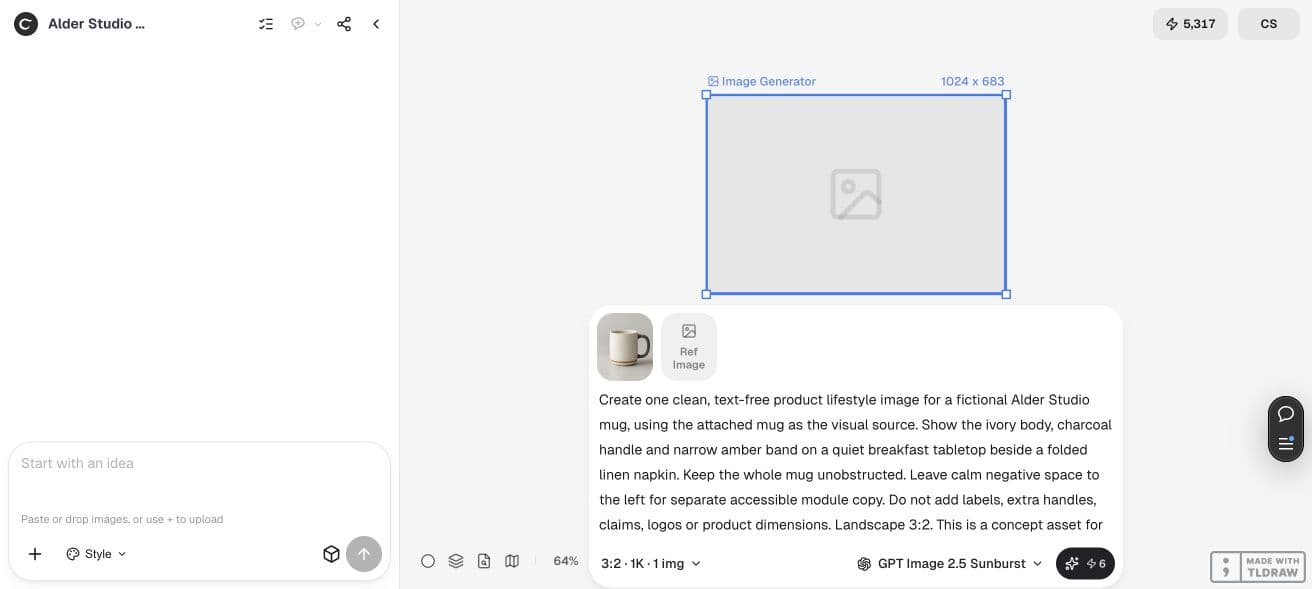
Prepare one visual asset for an A+ content module using the attached authorized product photo. Buyer question: [QUESTION]. Selected module dimensions: [WIDTH × HEIGHT, VERIFIED IN AMAZON]. Preserve the real product's visible shape and details. Use [PALETTE / BACKGROUND] consistently with the approved hero asset. Leave factual copy as separate editable text or supplied copy; do not invent specifications, badges, ratings or certifications. Return a candidate for review, not an automatically submitted listing.4. Review the complete sequence and each individual file
Place the candidates in reading order. Check whether the product color, handle direction and finish remain consistent. Then inspect each asset at its intended size, including small details and any text rendered into the image.
Keep the approved copy in a source document or text field where it can be proofread. A generated label or dimension is not authoritative. If the visual contains factual lettering, compare every character with the approved source.
Export the required files and reopen them. Confirm dimensions, file format and size against the current module's requirements. Avoid repeated resaving that makes small details harder to inspect. Retain the original source and a record of which export was accepted.
5. Complete the Amazon preview and handle failures
In Amazon's A+ tools, populate the selected modules with accepted images and approved text. Review both preview sizes. Check that the sequence still makes sense when modules stack and that a crop has not removed the detail the text refers to.
If a file fails validation, use the stated requirement to correct that file. If the preview is technically valid but confusing, revise its purpose or hierarchy. Technical acceptance and a useful product story are separate checks.
A solo seller can begin with a small set that answers the most important questions. A team can scale by reusing the brief and approval record, while checking the real specifications and assets for each product. Do not replicate an unreviewed generated claim across a catalog.
Worked example: prepare a concept asset with room for module copy
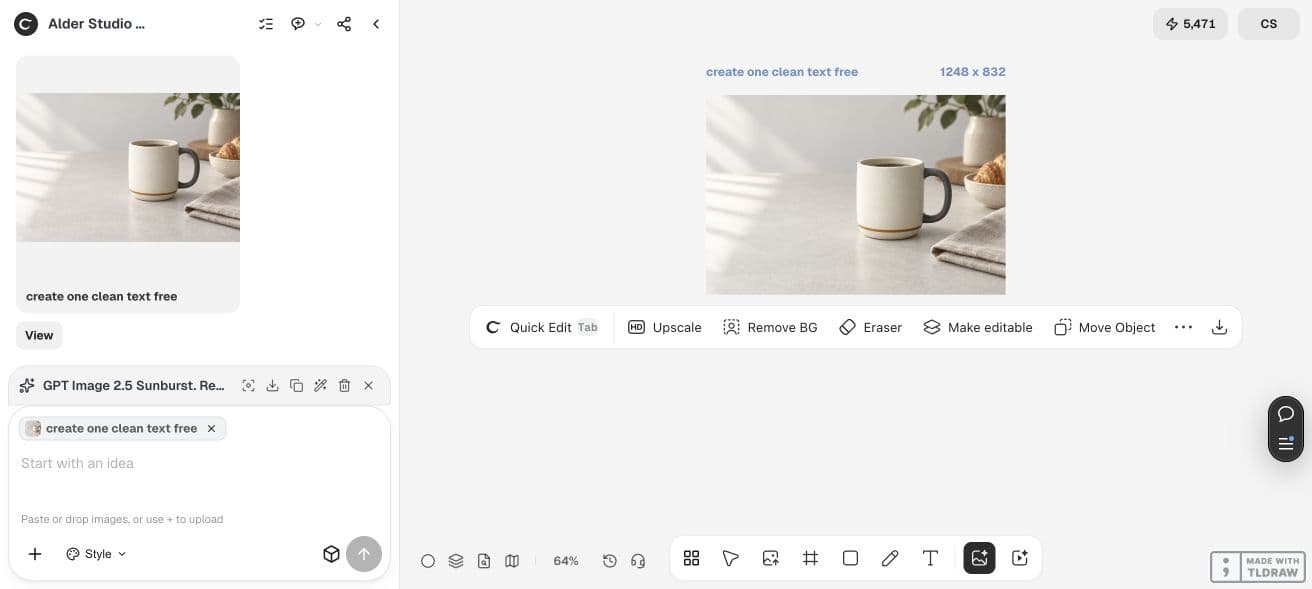
We attached the fictional mug source and requested a text-free breakfast-table image in Ciyo. GPT Image 2.5 Sunburst, High quality and a 3:2 request displayed a six-credit quote and returned a 1248 × 832 concept image.
The result keeps the mug visible on the right and leaves quieter space on the left. This demonstrates asset preparation. It is not a Seller Central module preview, an approved Amazon listing or proof that the image meets a particular module's current dimensions.
For a real A+ page, fit the accepted source into the chosen module, enter accessible copy separately, and use Amazon's desktop and mobile previews before submission.
Copy the handoff recipe for the next product
Keep the module plan, source files, approved text and accepted exports together. Assign one person to own product facts and another, where possible, to review the final preview. If either input is missing, leave that module in draft.
Product / variant:
Amazon account and selected module:
Verified dimensions / file requirements:
Buyer question:
Authorized source photo:
Approved factual copy:
Allowed visual changes:
Ciyo candidate and accepted export:
Desktop preview result:
Mobile preview result:
Reviewer and decision:
Submission status, recorded separately:
Practical questions
Does Ciyo submit Amazon A+ content?
This workflow prepares and reviews visual assets. Module setup, eligibility, validation and submission are completed separately in Amazon's tools.
What image dimensions should I use?
Use the current dimensions for the specific module selected in your account. Do not apply one generic canvas size to every A+ module.
Can I put all the text inside the image?
Amazon's guide advises avoiding embedded text for mobile readability. Keep factual copy separate where the module supports it and inspect the actual mobile preview.
Can AI invent a product lifestyle scene?
It can generate a candidate scene, but the product depiction and any implied use still need review against the real item. Do not add unsupported specifications or certifications.
How long does this process take?
Preparation depends on the source photos, module count and review work. Amazon validation is a separate stage; this guide does not promise a processing or approval time.
Prepare one module before building the set
Choose a real buyer question, verify the module dimensions and bring an approved photo. Review the first export before expanding.