Practical product imagery
Ciyo Video Auto vs Manual Model Selection

If you want to repeat a product-video task with one model, an automatic choice can make the comparison harder to interpret. If you want the Design agent to choose among available models, an unnecessarily narrow manual selection can prevent the request from running.
This guide follows Ciyo’s documented selection policy and current model-menu implementation, reviewed October 23, 2026. It explains permissions and submitted settings, rather than claiming that Auto always chooses the cheapest or highest-quality model.
The important distinction is simple: Video Auto controls which offered video models the agent may use. It does not control automatic clip duration, and it is separate from Image Auto.
Quick answer: use Auto for discretion and manual selection for a defined test
Use Video Auto when you want the Design agent to choose from the currently offered, runnable video models. Use manual selection when the model is part of your brief or comparison. Confirm the actual selected options before sending.
An Auto switch is not a request to generate. It changes the choices available to a subsequent request. The model used for a completed asset should be checked in that asset’s details or result information.
| Need | Policy to consider | Check |
|---|---|---|
| Let the agent choose among offered video models | Video Auto on | The actual model used and result |
| Repeat a comparison with a defined model | Manual selection | Only the intended available entries are selected |
| Choose an image model independently | Image settings | Image Auto is separate |
| Change an already-running request | New request after the change | Do not assume the in-flight turn is rewritten |
1. Open the model menu in the project you intend to use
Work in the correct Ciyo project, open the Models menu from the composer and inspect the video settings. Read the actual labels in the live interface; offered catalogs can change as integrations and rollouts change.
The agent’s reasoning model and the generation model are different choices. Selecting a conversational model does not establish which video model will render a clip. Likewise, the standalone Video Generator and the agent’s saved preferences should not be assumed to share every setting.
2. Understand what Video Auto permits
With Video Auto enabled, the agent can choose an offered Seedance model that the server can run. Availability still matters: an upstream model name is not enough, and a hidden or unsupported integration does not become available because Auto is on.
Auto is useful when the output requirement matters more than a fixed generation model. It leaves the agent discretion, so record the model actually used before comparing the result with another take.
The name does not promise cost optimization, reliability or an ideal duration. Specify duration, sound and delivery needs in the brief and check the actual result.
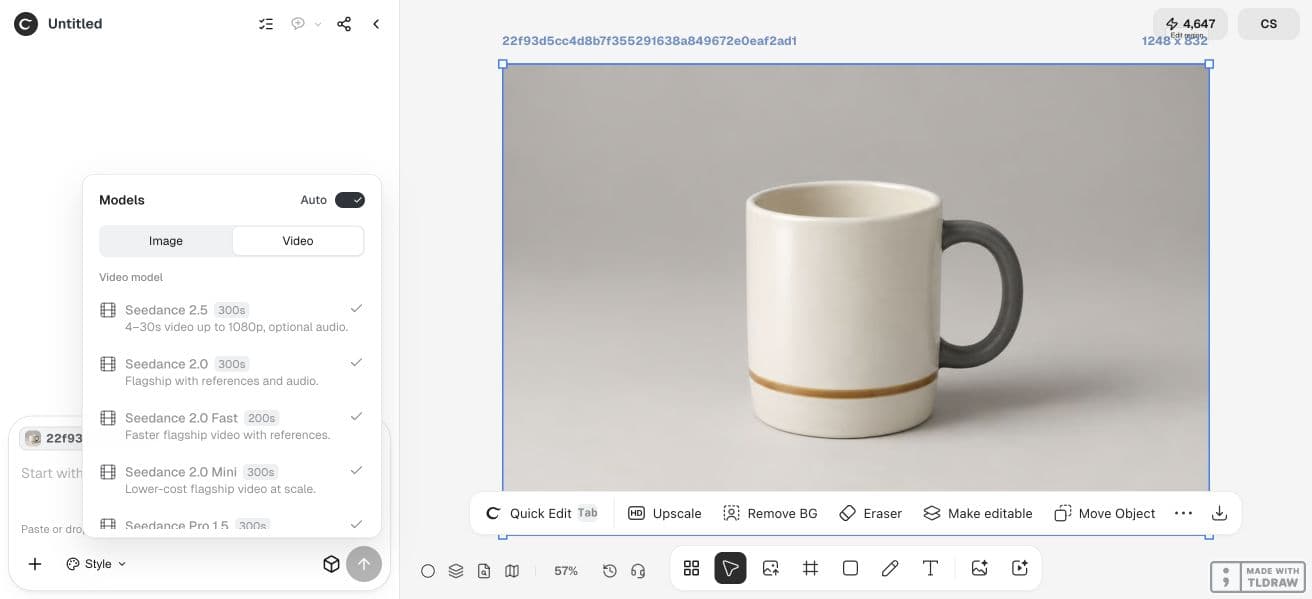
3. Use manual selection when the model is part of the brief
With Video Auto disabled, only selected video entries are permitted. Check the selected set rather than assuming the last visible model row is the only allowed option. If no video model is selected, video generation is unavailable until a selection is made.
For a controlled pilot, choose the intended model and explicitly name it in the request. Keep the product reference, duration, ratio and common settings fixed. A request for an unselected model is refused before task creation and billing under the documented policy.
In our October 23 menu walkthrough, the fresh project had no manual entries selected after Auto was switched off. We selected Seedance 2.5 explicitly. This records a setting change in one isolated project; it is not evidence of generation quality or a cost comparison.
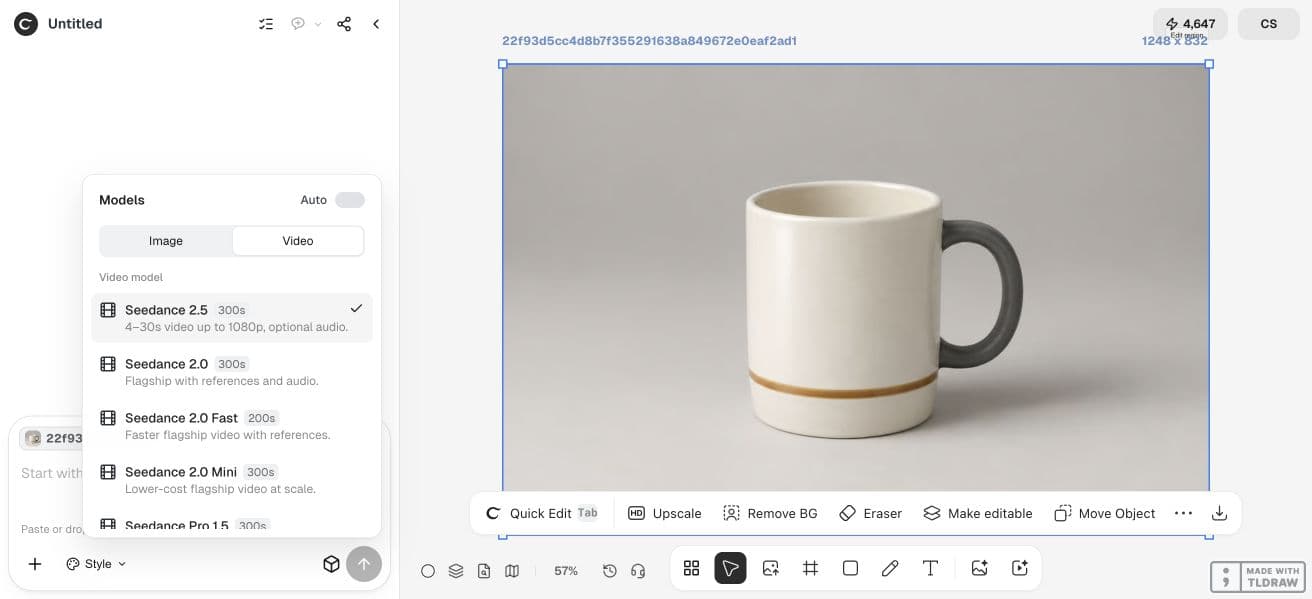
Use [the selected available video model] for this request. Generate one [duration]-second [aspect ratio] clip from the attached [product reference]. Use [audio state] and the supported output settings [settings]. Keep the product and motion brief unchanged from the comparison. If that model is not permitted or available, explain the issue before substituting another model.4. Change settings before Send, then verify the resulting model
Ciyo captures the project’s preferences when a turn is submitted. A menu change during an active turn applies to later work; it should not be treated as rewriting the already submitted request.
If you need a different model for a comparison, finish or deliberately stop the current work through the interface, change the selection and send a new request with a clear model instruction. Keep completed results for comparison rather than silently relabeling them.
Check the returned model identity and the actual export. A saved selection is a control on the request, not evidence that the finished clip met your product-fidelity requirements.
5. Keep Image Auto and Video Auto separate
Image Auto controls image-generation choices; Video Auto controls video-generation choices. Changing one does not supply evidence that the other changed. This matters when a workflow first makes a still and then animates it.
Fixed image utilities such as Remove Background are also separate from the general generation-model menu. Do not diagnose a utility’s provider behavior by changing an unrelated image or video selection.
| Control | What it affects | What it does not establish |
|---|---|---|
| Image Auto | Allowed image-model choice | Video-model selection |
| Video Auto | Allowed video-model choice | Automatic duration or guaranteed cost |
| Generation model | Asset rendering | The agent’s reasoning model |
| Submitted preferences | A particular turn’s policy | A later change to an active request |
6. Troubleshoot the selection before repeating a paid attempt
If video generation is unavailable, first check that a permitted model is selected in manual mode and that the live catalog offers it. If the requested model is refused, compare the wording with the selected entries before retrying.
For a solo user, Auto can reduce the number of choices to make; manual mode is helpful for repeatable comparisons. For an agency, document the model policy alongside the approved brief so the reason for a choice remains visible.
Check the Generation quote for the request and remember that Design agent planning can incur Billable LLM usage. There is no verified rule that Auto or manual mode is universally cheaper.
Practical questions
Does Video Auto choose the video length?
No. It controls allowed model selection. Requested or automatic output duration is a separate model capability and setting.
Will Auto choose the cheapest model?
This guide establishes no cheapest-model guarantee. Check the actual selected model, request quote and accepted output.
Why is my requested model refused in manual mode?
It may not be selected, offered or runnable. The documented policy refuses an explicitly unselected model before task creation and billing.
Can I change the model after sending?
Change the menu for a subsequent request. Submitted turns capture their preferences; do not assume an in-flight turn adopts a later menu change.
Choose a model policy before sending
Start with one permitted source image and a clear acceptance check. Keep the original beside the result and approve the complete export before using it.