Ciyo practical guide
Seedance Frames vs Reference: Which Ciyo Input Mode Fits Your Shot?

A product photo can play two different jobs in an AI video: establish a shot's starting composition, or show the model what the product should look like. Attaching the right image in the wrong role can leave you correcting the prompt when the real decision is the input mode.
This guide uses Ciyo's current Frames and Reference controls, reviewed on October 20, 2026. Our running example is a fictional ivory mug with a charcoal handle and amber band. Mode support varies by selected model, and neither mode guarantees pixel-perfect product continuity.
Quick choice: composition or identity?
Choose Frames when the supplied opening composition is part of the brief. Choose Reference when the image should guide the subject or visual treatment while the shot can be composed differently. If the opening and the product identity both matter, start with Frames and inspect the whole result; a mode name is not a substitute for that inspection.
| Need | Start with | Check in the output |
|---|---|---|
| Begin from this product composition | Frames | Opening crop, scale and position |
| Guide the appearance of the product | Reference | Shape, color and distinctive details |
| Move between two prepared compositions | Frames, if an end image is supported | Both boundaries and the transition |
| Copy an existing clip's movement | A supported reference-video workflow | Availability, input limits and actual motion |
Frames: give the model a visual starting point
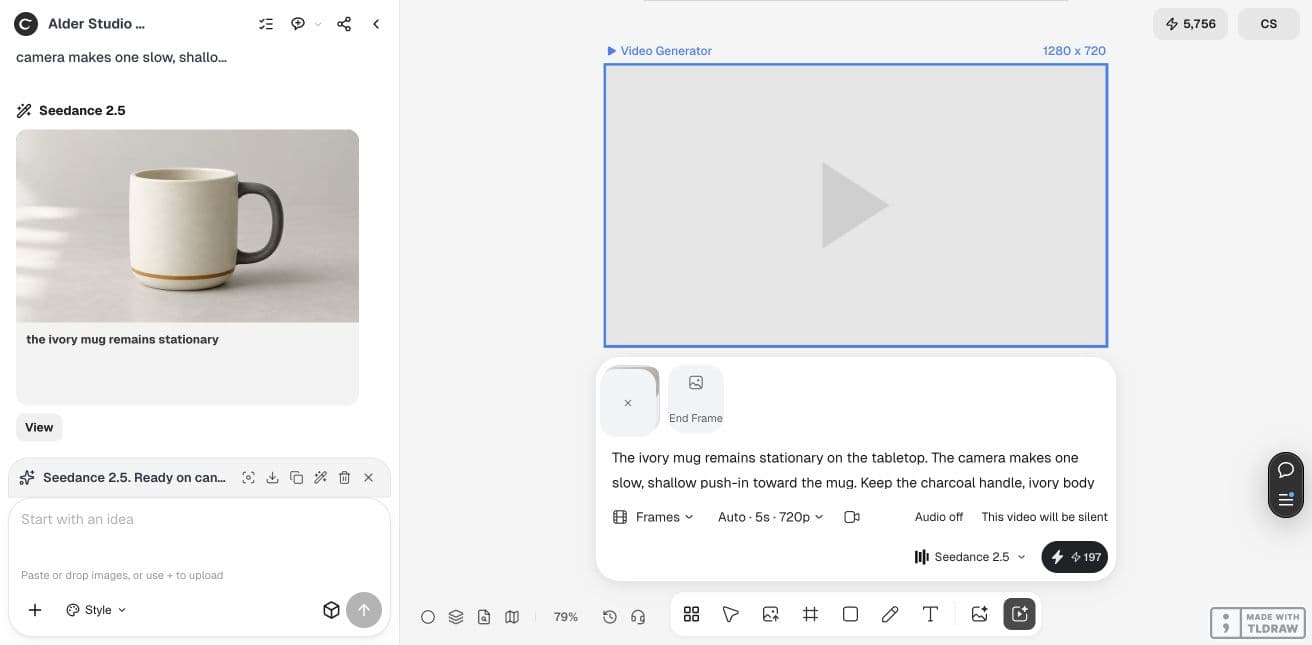
Frames uses a start image and, where supported, an optional end image. Prepare the start image at the intended composition: the mug's handle should be visible, the base should not touch the crop, and the product should have room for the requested camera move.
The advantage is a clear visual boundary. The limitation is what happens between boundaries: a convincing opening frame does not prove that a handle stays attached or an amber band remains the same width throughout the clip. An end image adds another constraint, not a guarantee that the model will solve the transition cleanly.
For a simple product reveal, begin with one start image. Add an end image only when you can explain why the second composition matters. Large differences in viewpoint, scale or background give the transition more to invent.
Reference: guide the subject without prescribing the first frame
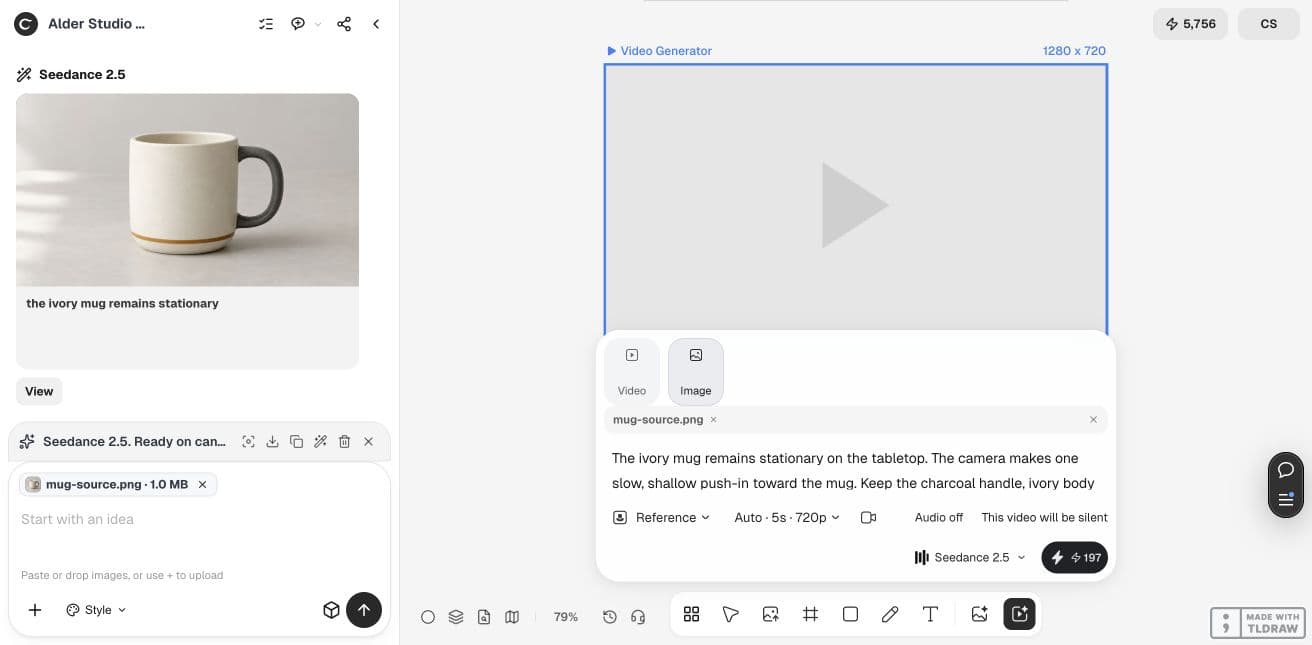
Reference inputs provide visual guidance for supported models. Select images that agree about the product. A front view of one mug and a side view of a different handle design create an ambiguous brief, even when both look like the same product category.
This mode suits a new composition or a scene that needs to keep recognizable product traits. Describe which traits matter: the charcoal handle, ivory body and narrow amber band. Avoid writing that the model will preserve every pixel; guidance and a protected pixel layer are different things.
Reference is often easier to brief when the opening is flexible. Frames is easier to evaluate when an approved still must be the starting composition. Neither has an inherent price or quality advantage across all models.
Prepare one comparison before producing a campaign
Create an isolated Ciyo project and retain the unedited source. Open Video Generator, select a model that offers both required modes, and record its exact name. Hold duration, aspect ratio, output settings and motion request constant.
Make one Frames request with the mug as the start image. Make one Reference request using the same mug as a reference. Do not put an image into a similarly named field and assume its role is unchanged. If the model does not expose both modes, choose a supported model or document that a direct comparison is unavailable.
The ivory mug remains stationary on the tabletop. The camera makes one slow, shallow push-in toward the mug. Keep the charcoal handle, ivory body and narrow amber band recognizable throughout. Maintain the same soft left-side light. One continuous shot, with the whole mug remaining in view.Judge the middle of the clip as carefully as the opening
Pause near the start, middle and end, then scrub through any moment where the camera changes direction. Compare the handle opening, rim, band and contact with the table. Watch the full clip at normal speed as well: a discontinuity can be easier to spot in motion than in three selected stills.
Keep a short decision log. If Frames preserves the intended opening but introduces a new back surface, simplify the move. If Reference captures the color palette but changes the mug geometry, try a clearer reference or a narrower scene request. A faithful still is a better product asset than an attractive clip of a different object.
| Check | Accept when | Revise when |
|---|---|---|
| Opening | The shot serves the intended composition | The product is cropped or unexpectedly repositioned |
| Identity | Visible distinguishing details remain plausible | Handle, rim or decoration materially changes |
| Motion | The requested move reads clearly | The product spins when only the camera should move |
| Ending | The final image is usable in the edit | The clip ends on distortion or an accidental cut |
Our live pilot: the same source, two different output frames
On October 20 we ran both modes in dev.ciyo.ai with Seedance 2.5, the same fictional mug source, the shared motion brief above, five seconds, the 720p setting and audio off. Each request displayed a Generation quote of 197 Ciyo credits.
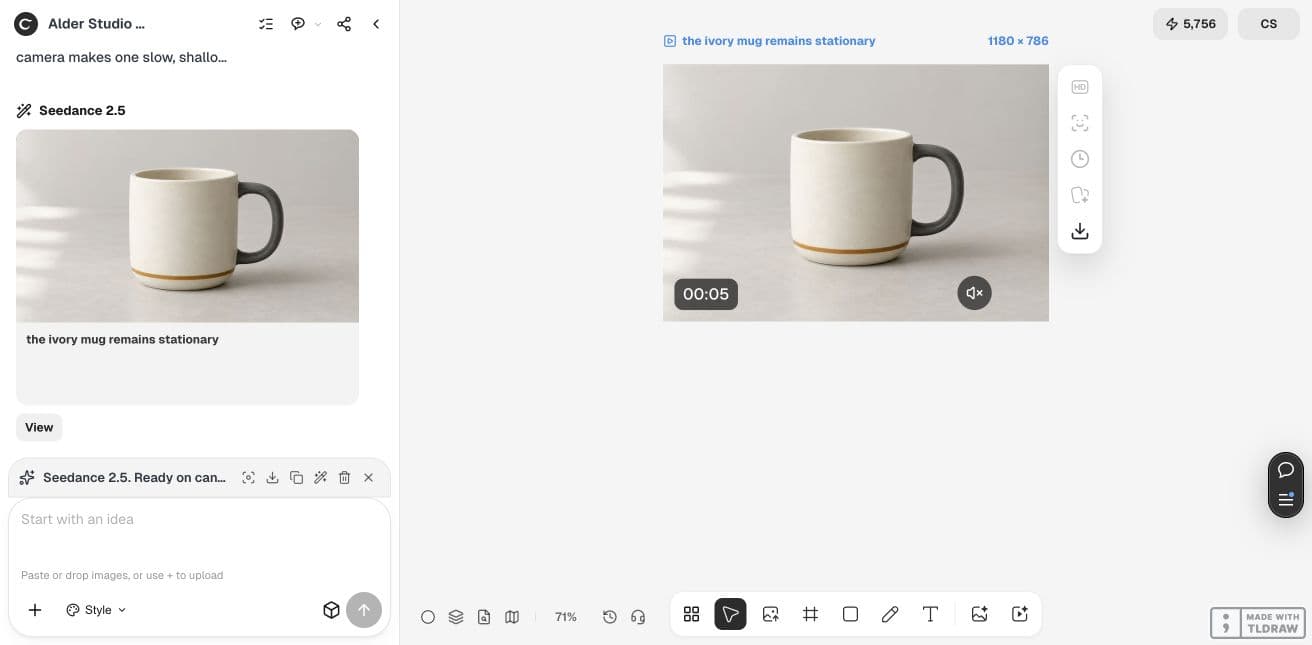
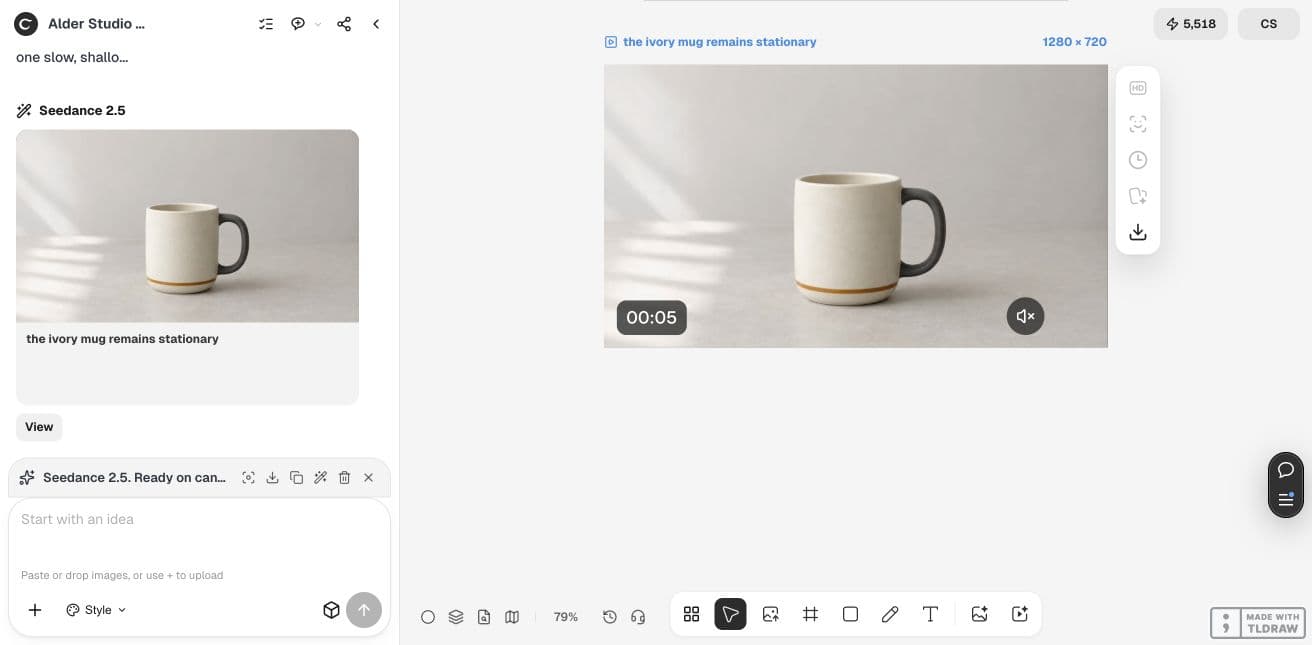
Frames took its aspect ratio from the attached image and returned 1180 × 786. Reference with Auto aspect returned 1280 × 720. Both files measured 5.04 seconds. Because the framing differed, this is a workflow pilot rather than a controlled ranking of the two modes.
The lesson is to inspect the input role and the actual export. A shared preset name does not prove identical output dimensions. Our original downloaded reference was 1024 × 682; it was converted from AVIF to PNG because the Frames upload rejected AVIF.
| Mode | Displayed quote | Actual file | What to inspect |
|---|---|---|---|
| Frames | 197 Ciyo credits | 1180 × 786; 5.04 seconds | Opening composition and the growing product scale |
| Reference | 197 Ciyo credits | 1280 × 720; 5.04 seconds | Wider composition and subtler visible movement |
Watch the Frames result
In one-second samples, the mug grows visibly larger while the handle and amber band remain recognizable. The source composition provides a useful opening. Inspect the full video yourself before accepting it for a particular product.
Watch the Reference result
The Reference clip starts with more surrounding space and shows less obvious push-in in the sampled frames. That does not establish that Reference is generally worse at motion. It shows why a request must be judged against the shot you actually need.
Choose by the job and the total task cost
For a merchant with an approved hero still, Frames is the practical first trial. For a creative team exploring a fresh scene around a recognizable subject, Reference is a reasonable starting point. A team needing both can keep two separate requests and choose the usable result after review.
Check the Generation quote for each request. Ciyo credits for generation depend on the model and settings, and Design agent planning can also incur Billable LLM usage. Count rejected attempts when comparing cost. The input mode alone does not tell you which route is cheaper.
Practical questions
Does Frames guarantee an exact first or last frame?
It supplies visual boundary guidance. Check the actual exported frames, especially after a resize, crop or model change. An optional end image is available only for supported model configurations.
Can I mix start frames and Reference attachments?
Use the controls and input contract of the selected model. Frames and Reference images are different input roles; do not assume that attaching both produces a supported combined request.
Which mode is cheaper?
There is no universal answer. Compare the displayed Generation quotes for equivalent settings and include the retries needed to obtain an acceptable clip.
Can I switch modes without changing my prompt?
A shared motion prompt is useful for a controlled comparison, but recheck image roles and supported settings after switching. The visual starting constraint changes.
Choose the input role before generating
Start with one approved product photo and one short motion request. Inspect the complete clip before expanding the batch.